
Rebill lets you save a single set of terms and conditions in Settings. Once saved, you can choose to print them on the PDF of every invoice and quote, and optionally attach that PDF to the emails Rebill sends clients.
Adding your terms
- 1
Go to Settings > Documents > Terms and conditions
Click Documents under Settings in the sidebar, then click Terms and conditions in the section rail.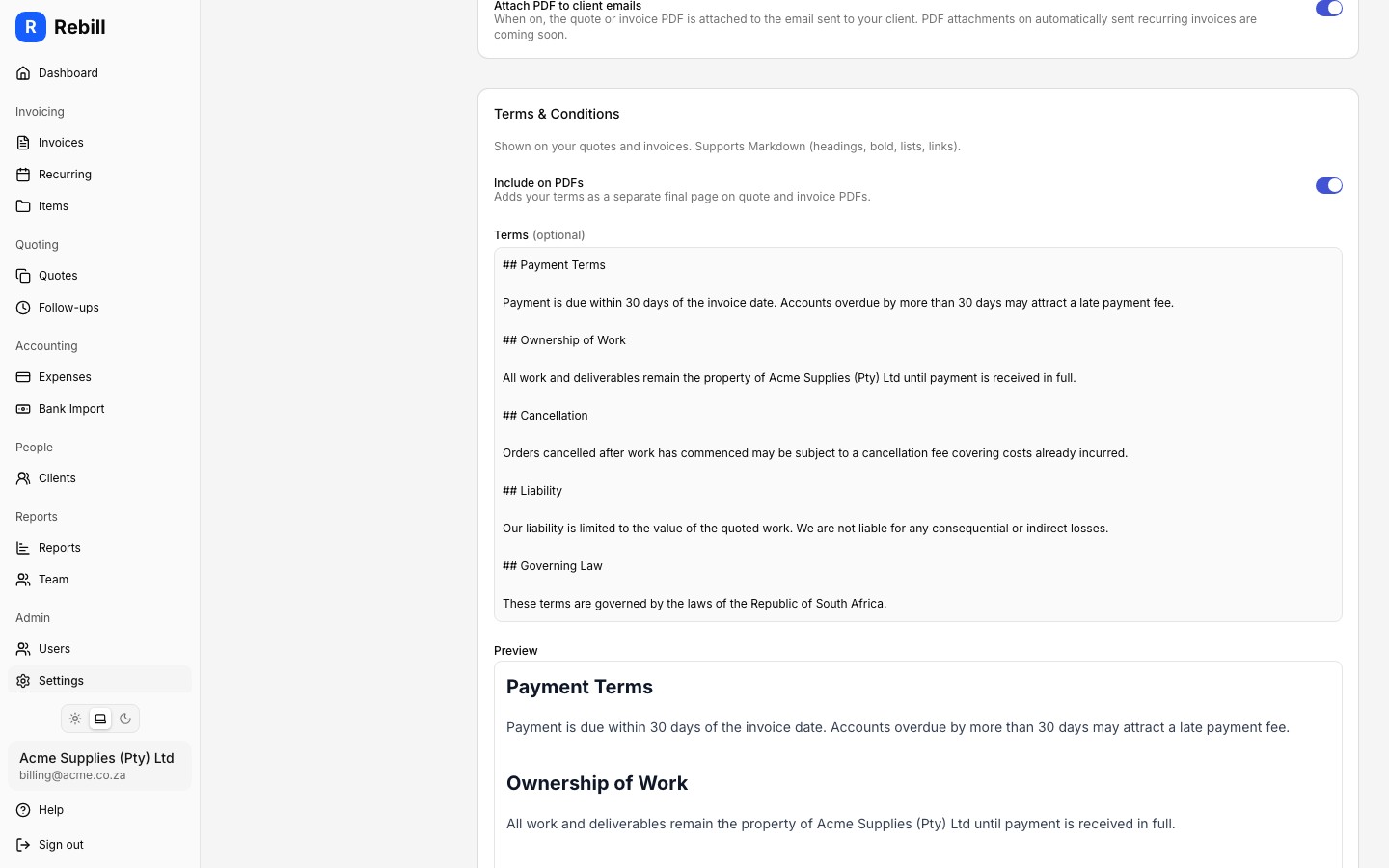
- 2
Type or paste your terms
Enter your terms and conditions in the text box. Markdown is supported, so you can use headings, bold text, lists, and links; a live preview renders underneath as you type. - 3
Include your terms on PDFs
Toggle Include on PDFs to add your terms as a separate final page on every invoice and quote PDF.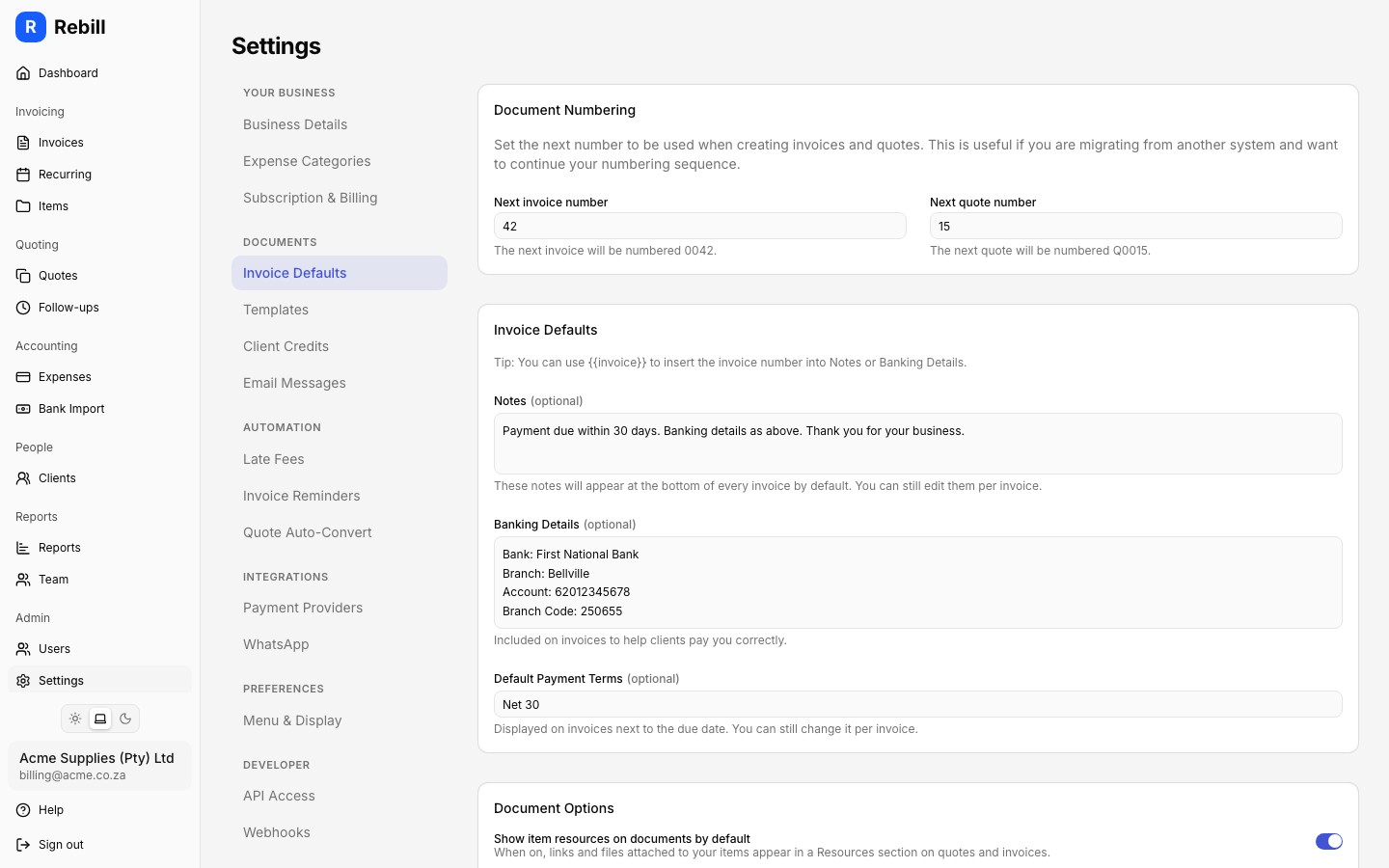
- 4
Attach the PDF to client emails (optional)
Further up the same page, in the Document options card, toggle Attach PDF to client emails to attach the invoice or quote PDF (including your terms, if included on PDFs) to the emails Rebill sends clients. - 5
Save your changes
A save bar appears at the bottom of the page once you change something. Click Save, or press Cmd+S (Ctrl+S on Windows).
Note
Terms and conditions are account-wide: there is one set of terms, used on every invoice and quote. There is no per-document override. When a client accepts a quote online, the exact wording they agreed to is saved with that quote, even if you update your terms afterwards. See Adding terms and conditions to quotes for how this works on quotes specifically.