
Configure default values that apply to all your invoices and quotes so you don't have to type them out every time. You can always override these on individual documents.
- 1
Go to Settings > Documents
Click Documents under Settings in the sidebar, then click Invoice defaults in the section rail to jump straight to it.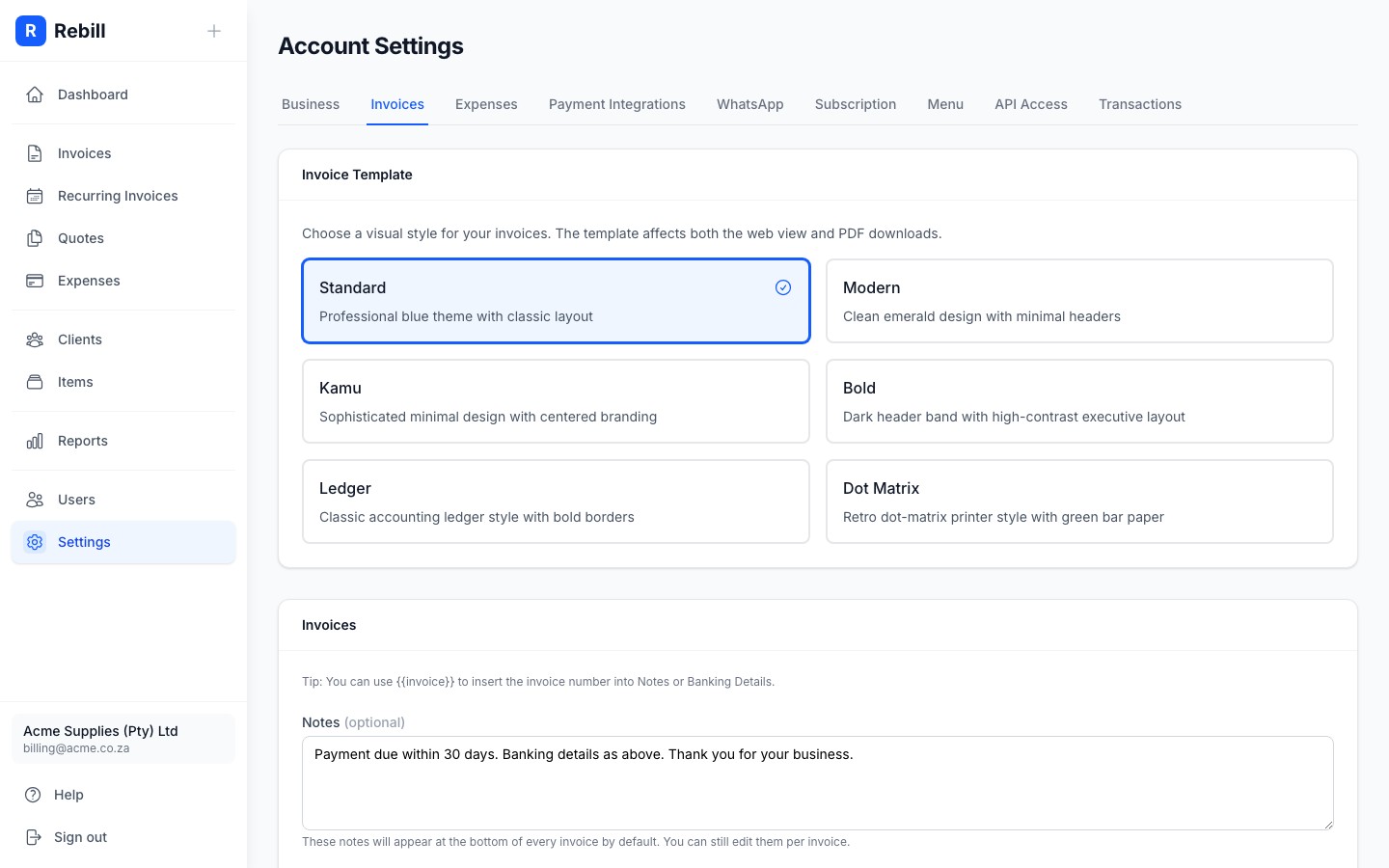
- 2
Set your document numbering
The Document numbering section at the top lets you set the next number for invoices and quotes. This is useful if you are migrating from another system and want to continue your existing numbering sequence. The next invoice will be formatted with leading zeros (e.g. 0042) and the next quote will have a Q prefix (e.g. Q0015). Clients with their own invoice or quote prefix run on their own sequence instead, set on the client. A prefix can only be used once on your account: two clients cannot share one, and a client's quote prefix cannot match its own invoice prefix, so every document number stays unique.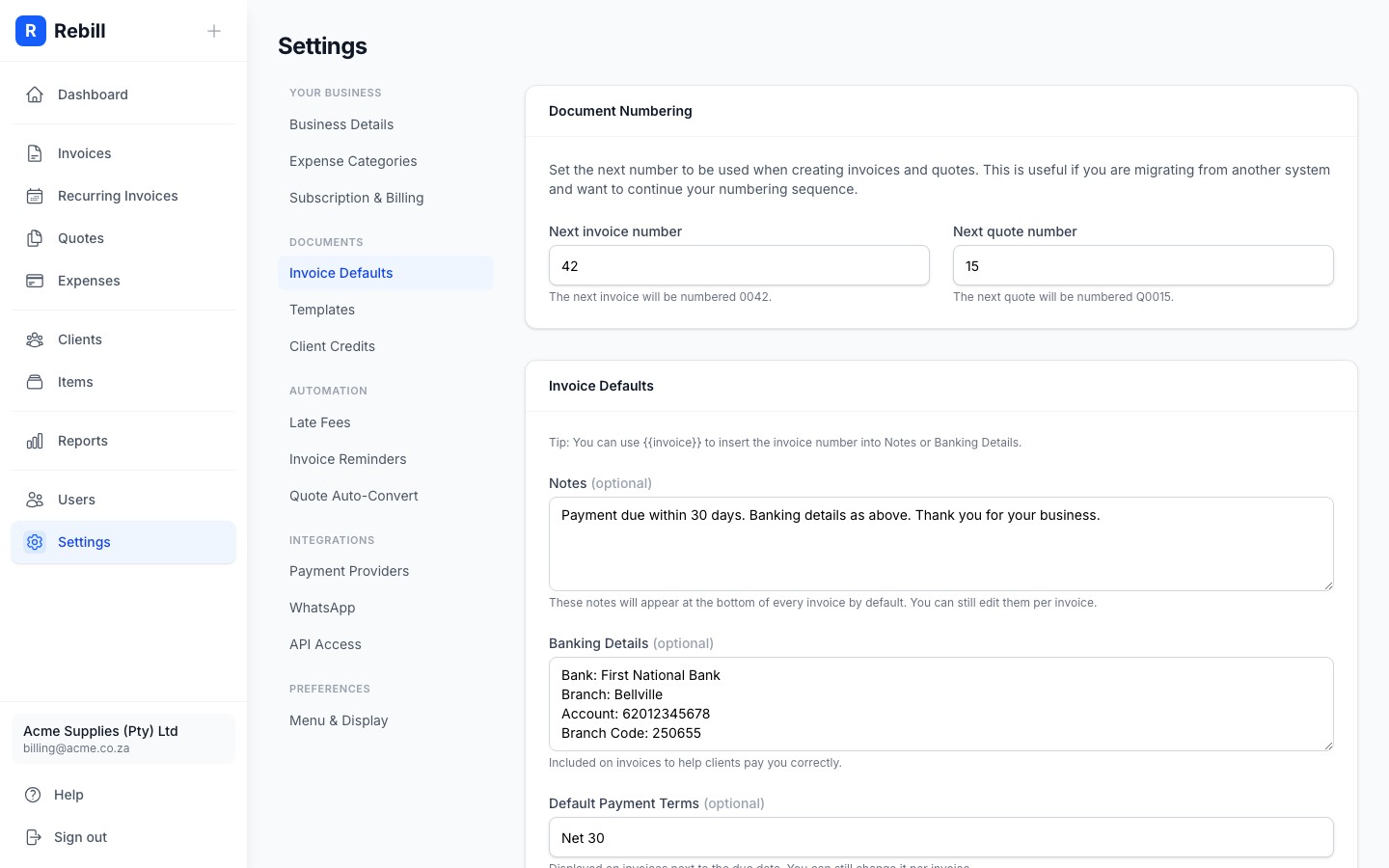
- 3
Set default invoice notes
In the Invoice defaults section, enter text in the Notes field to appear at the bottom of every invoice by default. For example: "Payment due within 30 days. Thank you for your business."
You can always override this on individual invoices. Use{{invoice}}anywhere in Notes or Banking Details to insert that invoice's number.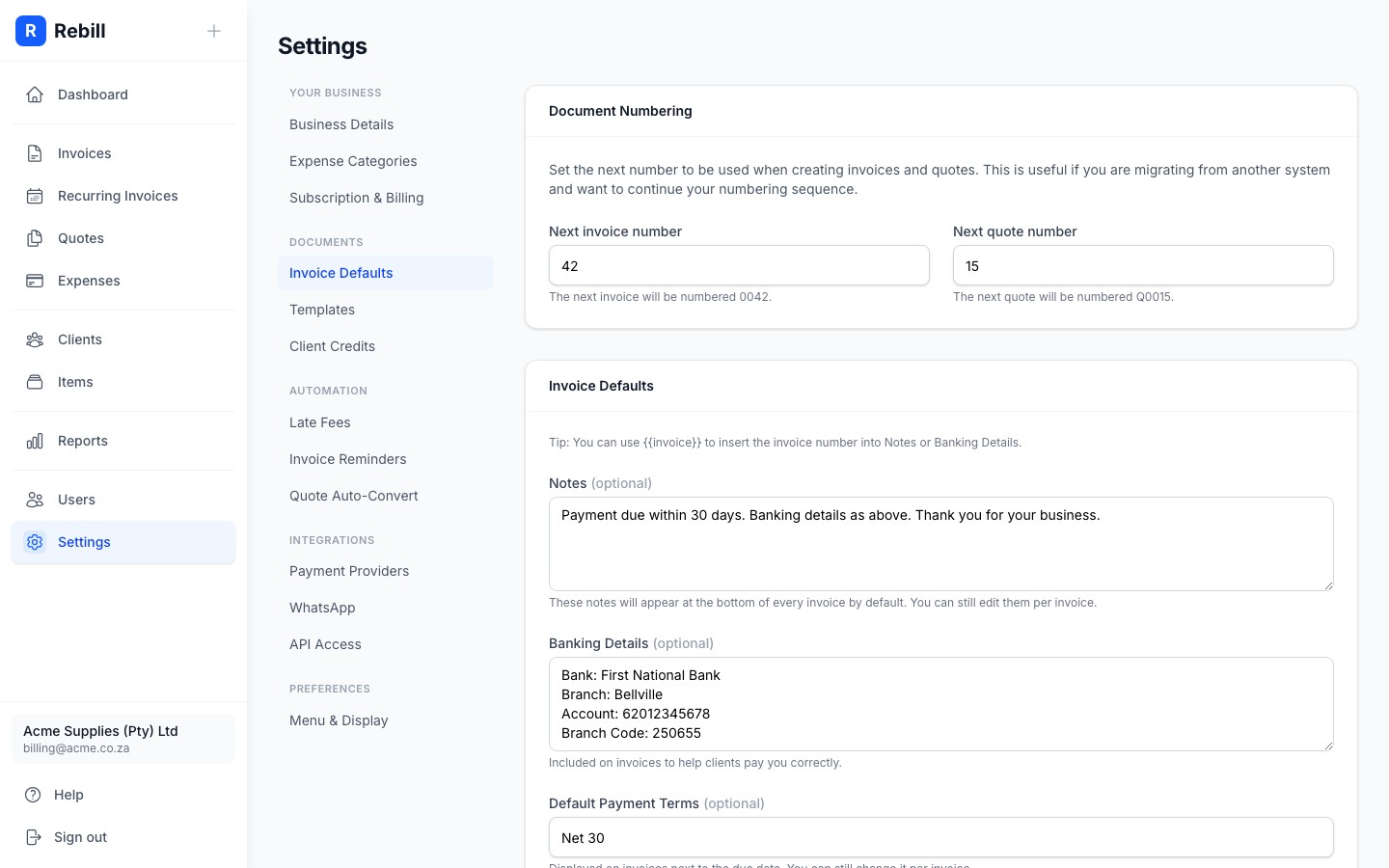
- 4
Set bank details
In the same card, enter your banking details in the Banking Details field. This is shown on invoices so clients know where to pay by EFT. Include your bank name, account holder, account number, and branch code.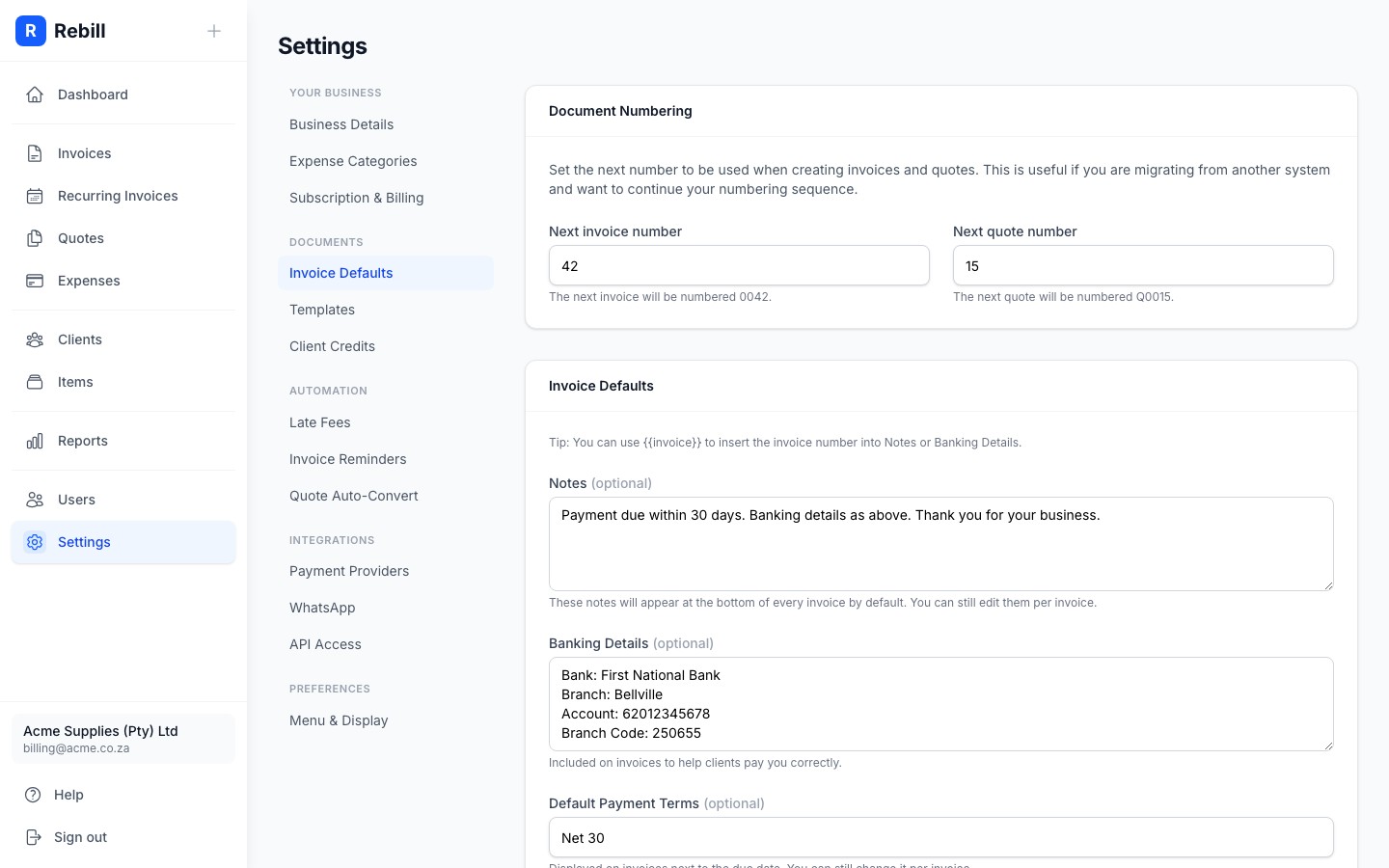
- 5
Set default payment terms
Enter your default payment terms (e.g. "Net 30" or "Due on Receipt") in the Default Payment Terms field. This is displayed on invoices next to the due date. You can override it on individual invoices.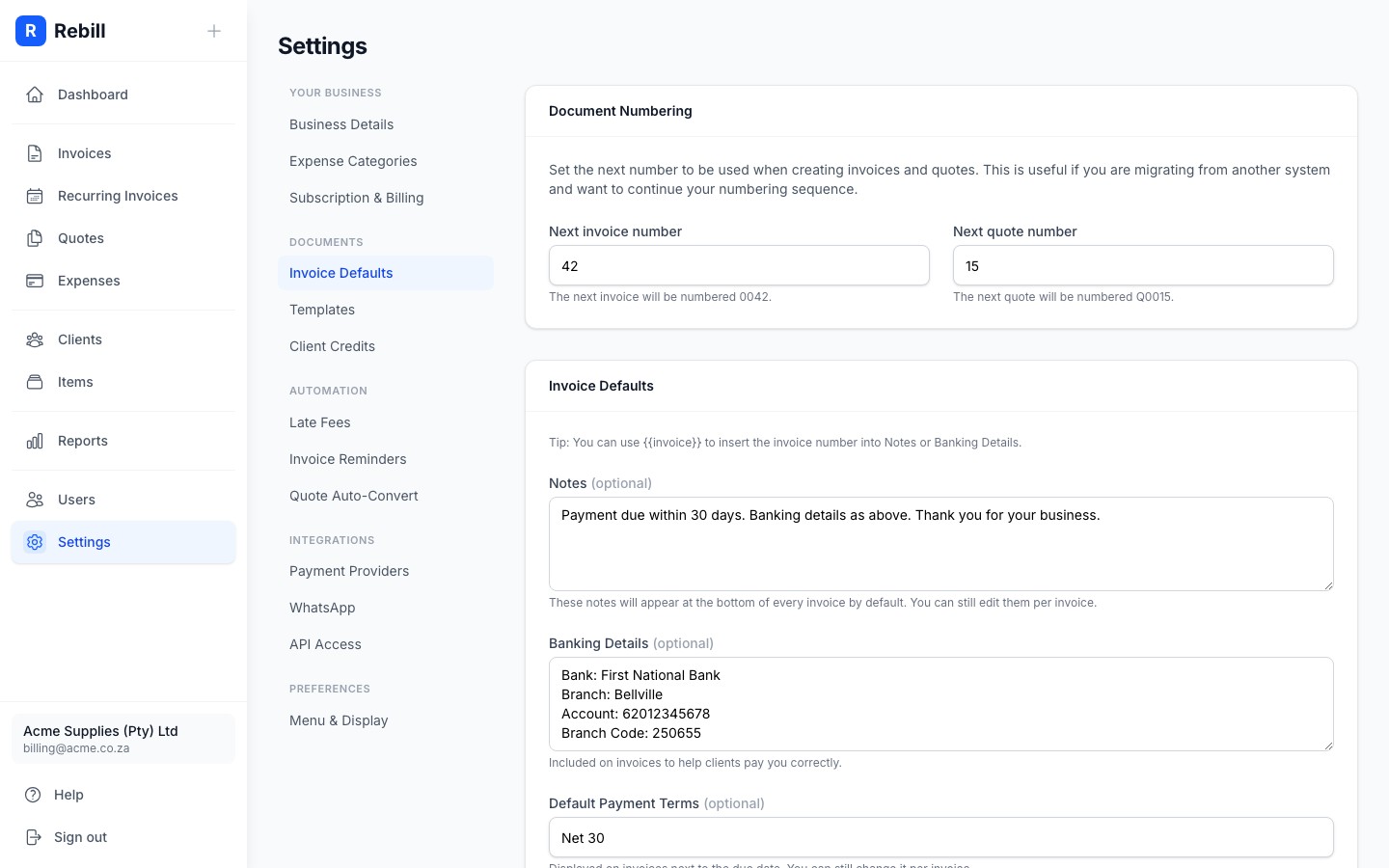
- 6
Set default quote notes
Scroll down to the separate Quote defaults section and enter text in its own Notes field. This appears at the bottom of every quote by default and is independent of your invoice notes, so you can word them differently. Use{{quote}}to insert the quote number.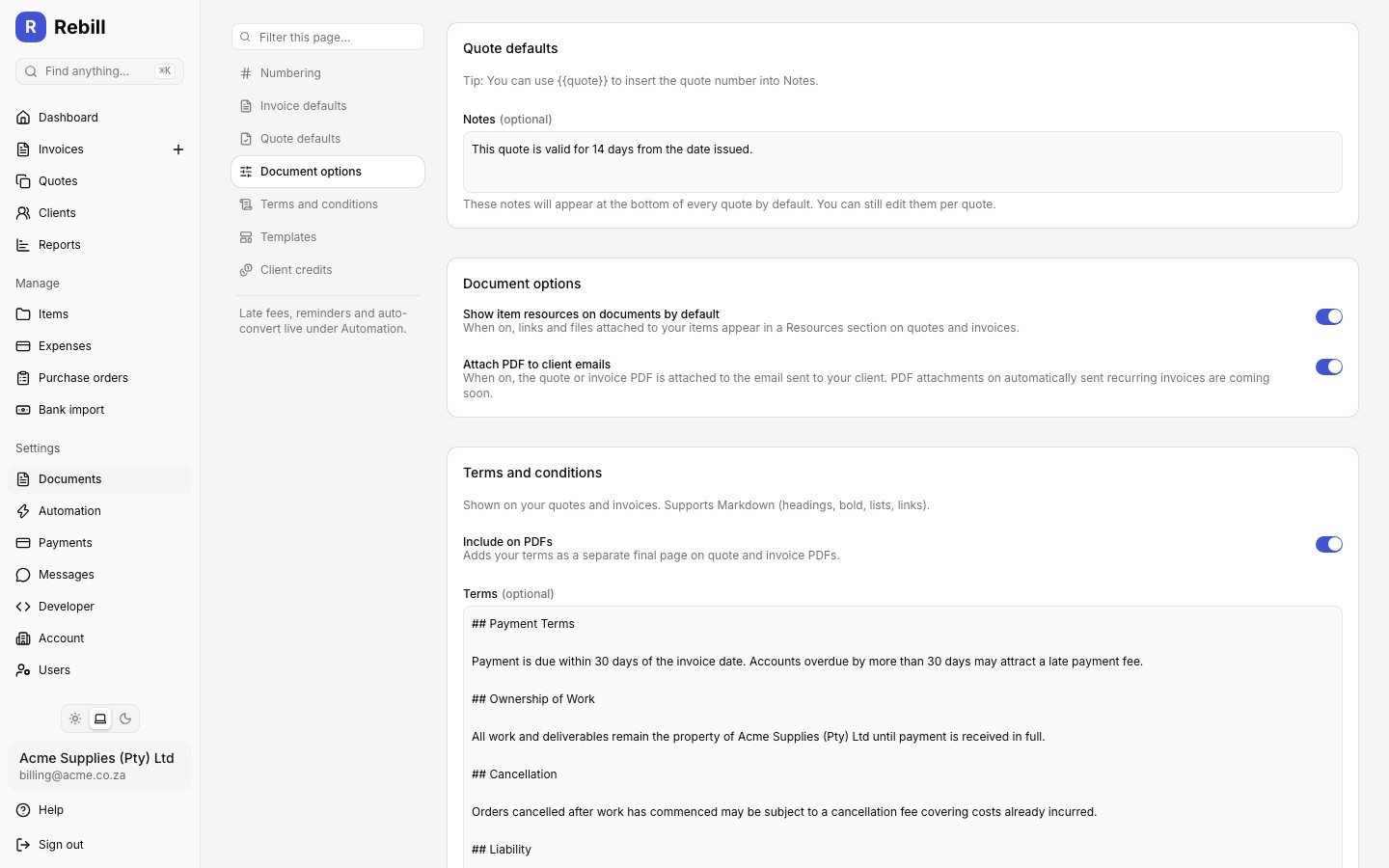
- 7
Choose what quotes show
Two switches control what the quote layout shows: Show status on quotes and Show validity date on quotes. Both are on by default. Turning status off removes the status line and the diagonal status watermark from the web view, the PDF and the public link. Turning the validity date off removes the "Valid until" line only; the quote still expires on that date and the public page still says so when it has. - 8
Set document options
In the Document options section, these switches apply to both invoices and quotes:- New documents: prices include VAT (VAT-registered accounts only): new invoices, quotes and recurring invoices start with VAT-inclusive prices. You can still change it per document. See Entering prices that include VAT.
- Show item resources on documents by default: when on, links and files attached to your items appear in a Resources section on quotes and invoices.
- Attach PDF to client emails: when on, the quote or invoice PDF is attached to the email sent to your client, including the invoices Rebill sends for you: recurring, scheduled, batch, and quotes converted on acceptance.
- Show the PDF in WhatsApp messages: when on, the quote or invoice PDF appears in the WhatsApp message above the text, as a file the client can open and forward. Recurring invoices and quote conversions Rebill sends for you include it too. When off, the WhatsApp message carries a link to the document only.
- 9
Save your changes
A save bar appears at the bottom of the page once you change something. Click Save, or press Cmd+S (Ctrl+S on Windows).
Invoice numbering protection
To prevent duplicate invoice numbers, Rebill does not allow you to set the next number lower than its current value. You can only keep it the same or increase it.Client codes
Switch on Assign client codes automatically to number new clients. Set the prefix (letters, digits and dashes, default C) and the next number; the card shows what the next client will be coded. The next number can be raised but not lowered. Assign codes to existing clients appears once the switch is saved on and numbers every client without a code, oldest first. It is a one time action you run when you want, not something that runs by itself.
Tip
Your Terms & Conditions text also lives on this page, further down. See Setting up terms and conditions.