
When a client has a credit balance (a prepayment or deposit), Rebill can automatically apply it to reduce the outstanding amount on new invoices. This saves you from manually adjusting each invoice and ensures your clients' credits are always accounted for.
Enabling automatic credit application
- 1
Go to Settings > Documents
Click Documents under Settings in the sidebar, then click Client credits in the section rail.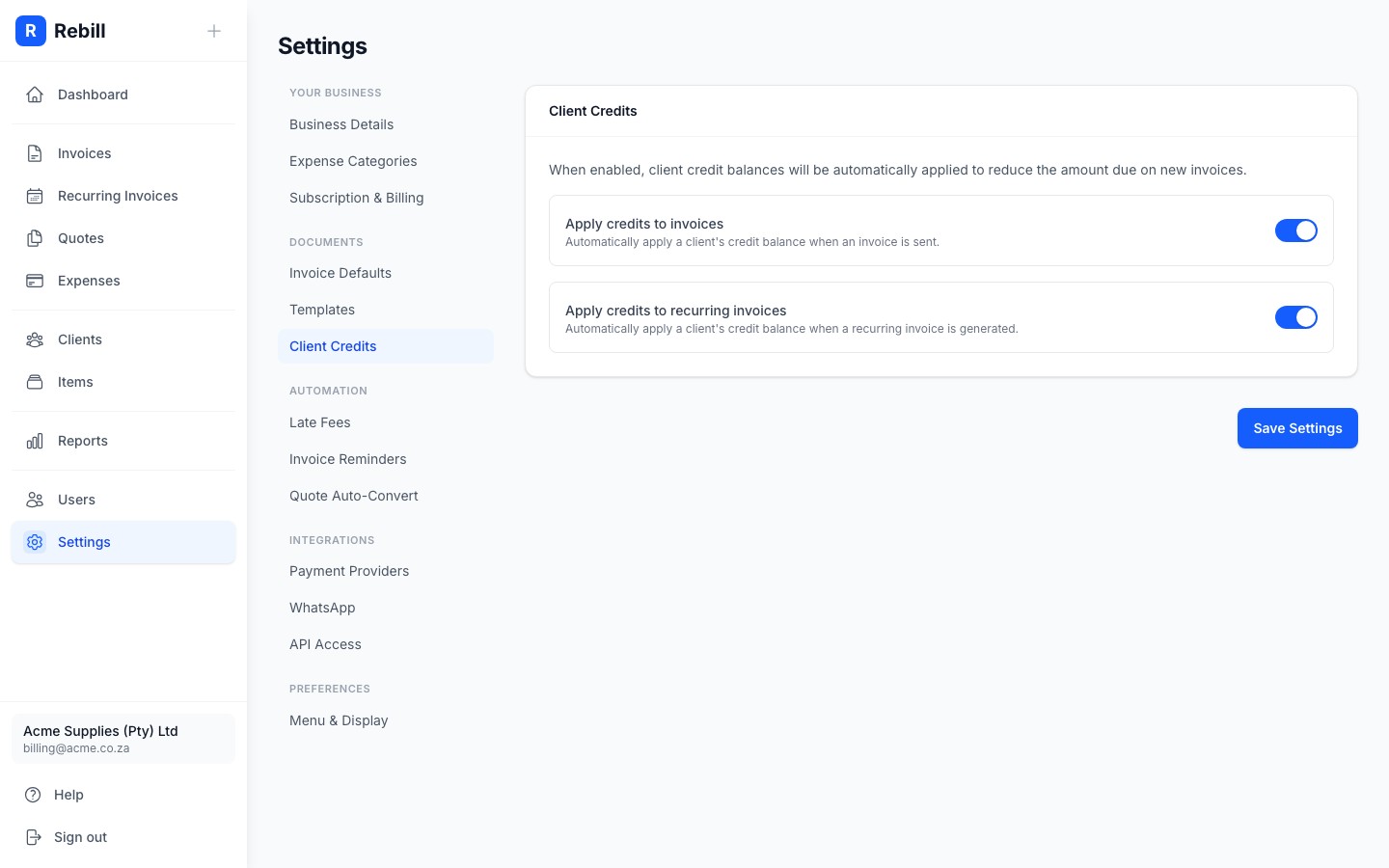
- 2
Enable for regular invoices
Toggle on "Automatically apply client credit when an invoice is sent". When enabled, any time you send an invoice to a client with a credit balance, Rebill will automatically reduce the invoice's outstanding amount and deduct the credit from the client's balance. - 3
Enable for recurring invoices
Toggle on "Automatically apply client credit to recurring invoices". This applies the same automatic credit deduction when invoices are generated by recurring billing schedules. - 4
Save your changes
A save bar appears at the bottom of the page once you change something. Click Save, or press Cmd+S (Ctrl+S on Windows).
How credit application works
When automatic credit application is enabled:
- At the moment an invoice is sent (or generated by a recurring schedule), Rebill checks the client's credit balance.
- If the client has credits, the outstanding amount on the invoice is reduced by the available credit amount (up to the full invoice total).
- The client's credit balance is reduced by the amount applied.
- If the credit covers the full invoice amount, the invoice is automatically marked as paid.
Managing credit balances
You can view and update a client's credit balance from their profile page. Go to Clients, open the client, and use the Add adjustment button on the Credit Balance card on their Details tab. See Managing client details for more.Note
Credits are applied in the client's invoice currency. Free credits (your initial WhatsApp credits) are a different concept and are not related to client credit balances.