
Rebill integrates with four South African payment gateways (Paystack, Yoco, PayFast, and iKhokha) so your clients can pay invoices online by card, instant EFT, or other methods directly from the invoice link. Once connected, a "Pay Now" button appears automatically on every client-facing invoice.
| Gateway | Card payments | Instant EFT | Payment auto-confirm | Best for |
|---|---|---|---|---|
| Paystack | Yes (Visa, Mastercard) | Yes | Yes (webhook, manual setup required) | Freelancers and consultants; also supports clients outside SA (40+ countries) |
| Yoco | Yes (Visa, Mastercard) | No | Yes (automatic) | Businesses already using Yoco card machines; simple card-only setup |
| PayFast | Yes (Visa, Mastercard, Amex) | Yes (via Ozow) | Yes (automatic) | eCommerce and service businesses; widest payment method support in SA |
| iKhokha | Yes (Visa, Mastercard) | No | Yes (automatic) | Businesses already using iKhokha card machines or the iKhokha app |
Only one gateway can be active at a time. Connect whichever gateway your business already uses, or sign up for one above.
Premium feature
Online payments need a Premium plan. On the free plan, Settings > Payments shows an upgrade prompt and a gateway cannot be connected.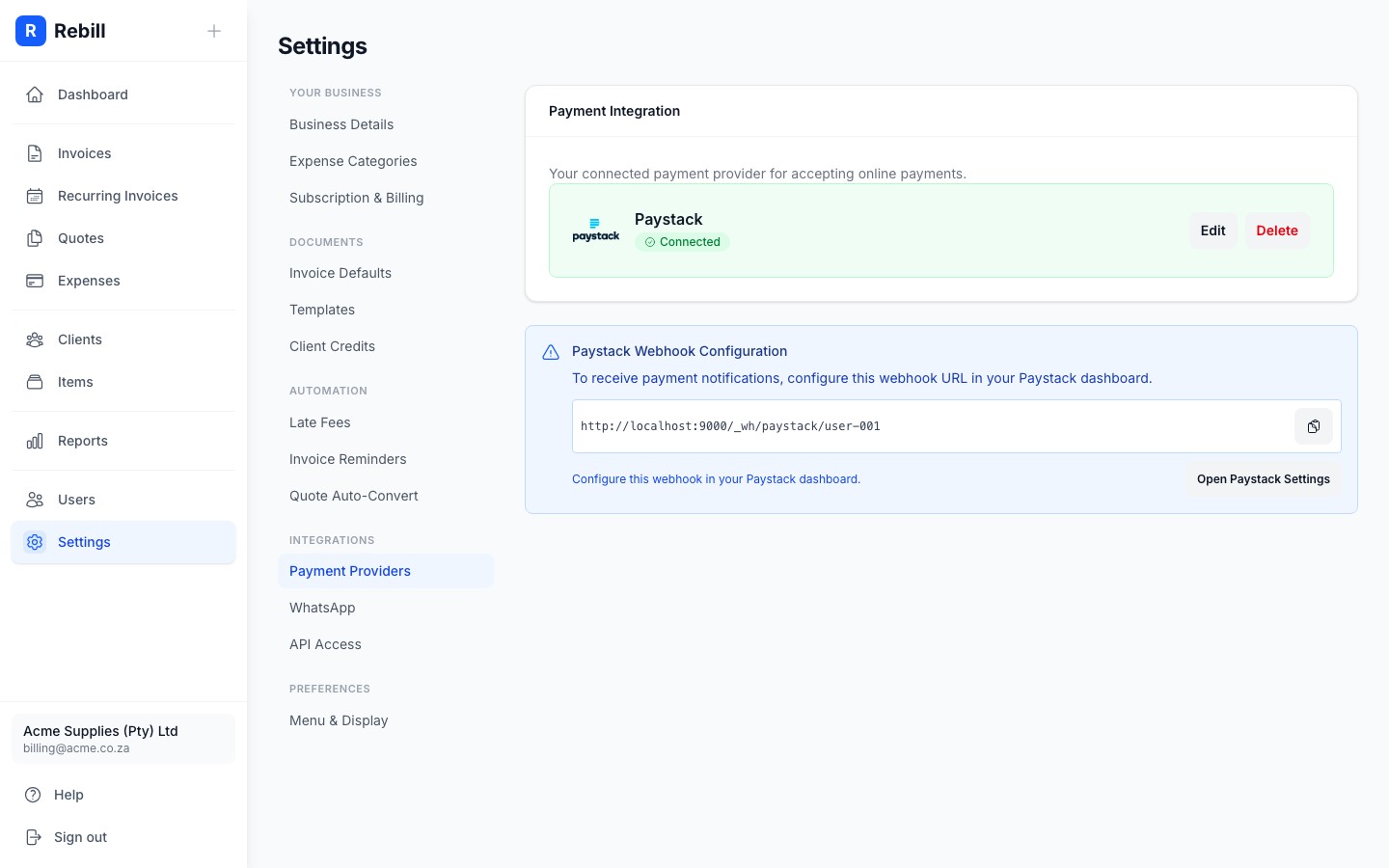
Paystack
- 1
Connect Paystack
In Rebill, go to Settings > Payments. Click Connect next to Paystack (or Edit if already set up). Enter your Public Key and Secret Key from your Paystack dashboard, then click Save.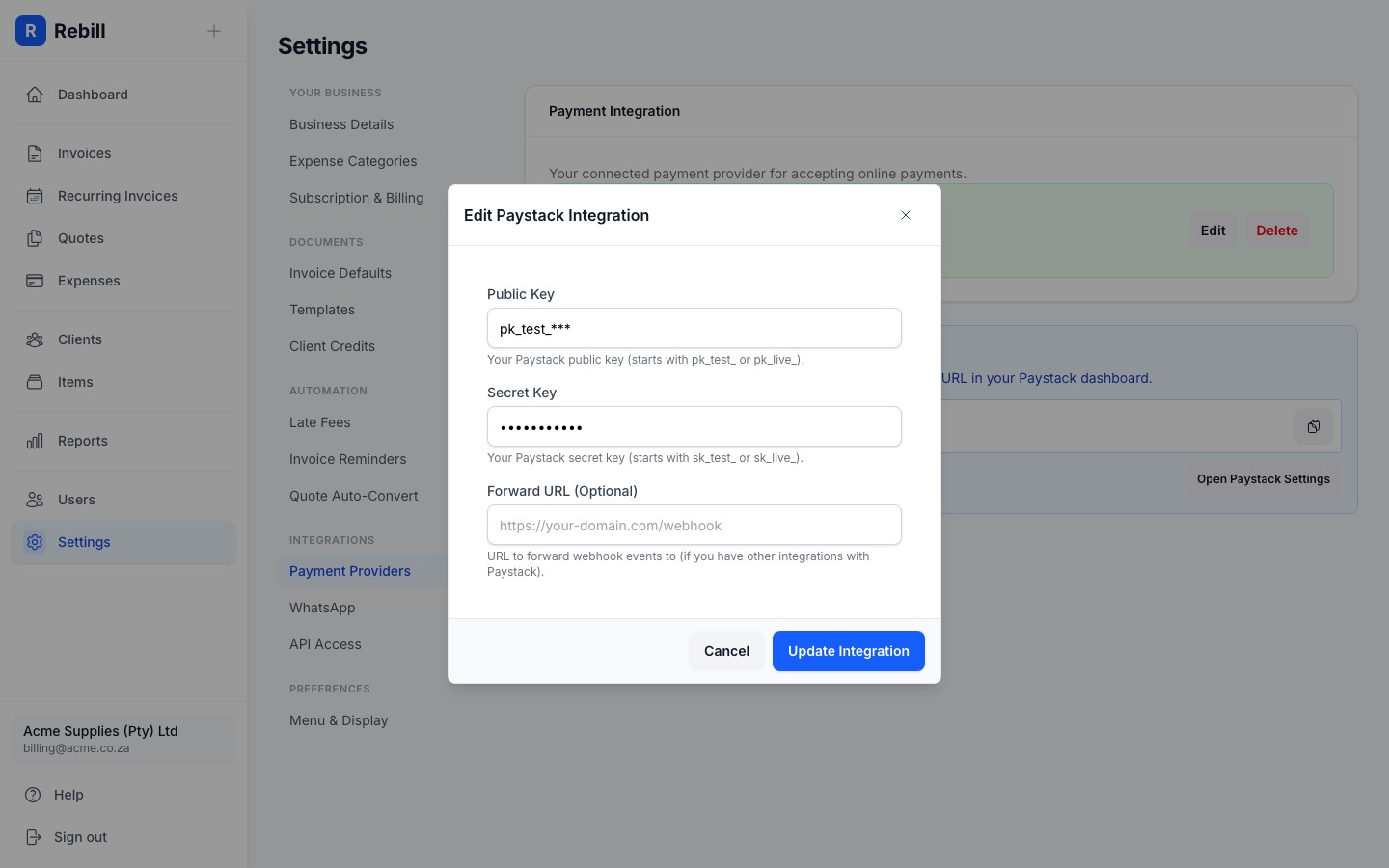
- 2
Paystack is now connected
Once saved, Paystack shows as Connected in Settings > Payments > Payment providers. A pay button will appear automatically on all your client-facing invoices.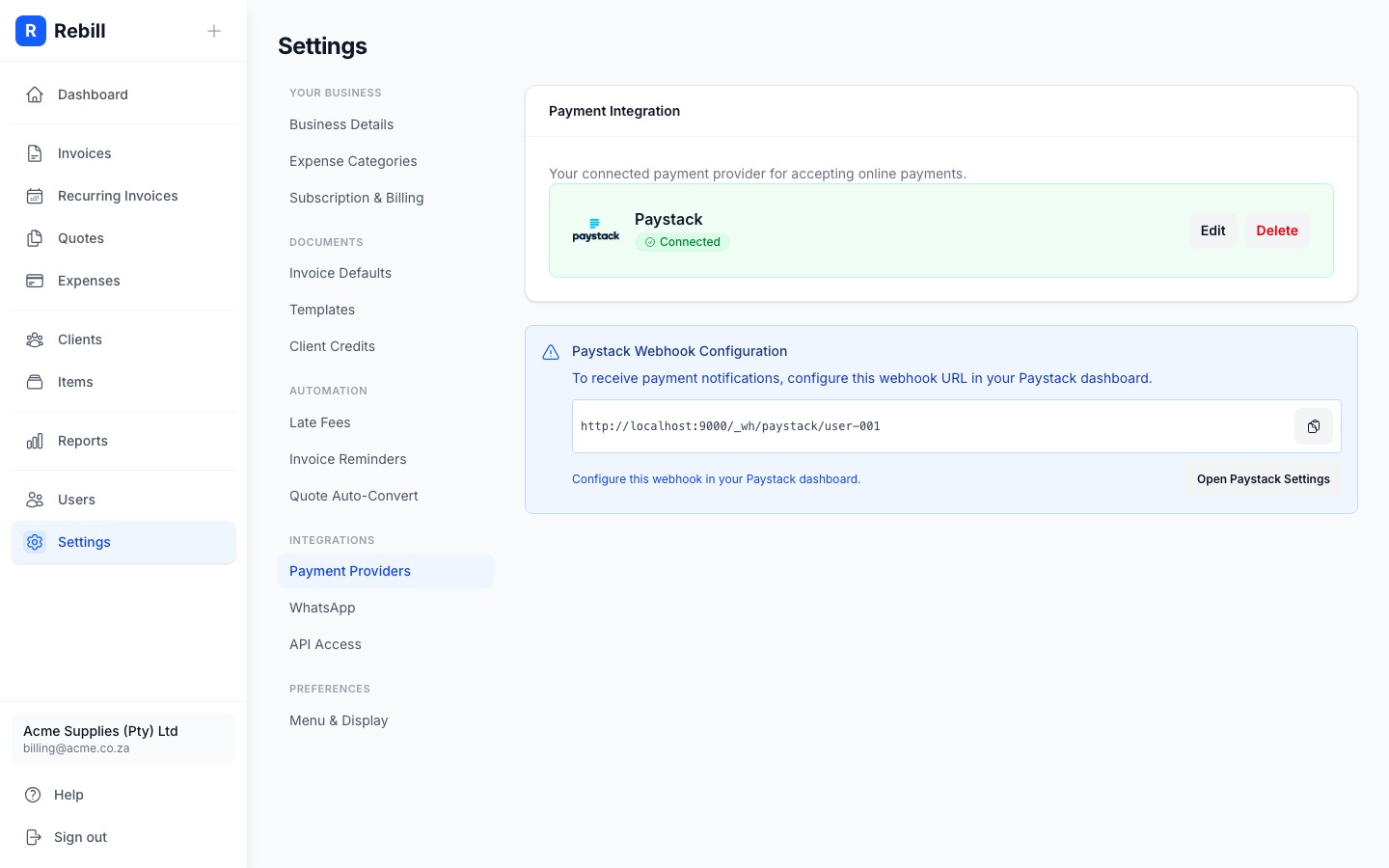
- 3
Configure the webhook
Rebill will display a webhook URL after connecting. You must copy it into your Paystack dashboard under Settings → API Keys & Webhooks. Without this, Rebill will not receive payment confirmations and invoices will not be marked as paid automatically.
Yoco
- 1
Add both websites to your Yoco business profile
Log in to your Yoco account and open your business profile. Add app.rebill.co.za (where your clients pay) and your own business website, then complete Yoco's verification for each. Yoco needs both verified: app.rebill.co.za on its own does not qualify. If Yoco cannot verify app.rebill.co.za yet, leave it added: Yoco is updating its process to accept it. - 2
Get your Yoco API keys
In your Yoco account, navigate to Developers → API Keys to find your Public Key (starts with pk_) and Secret Key (starts with sk_).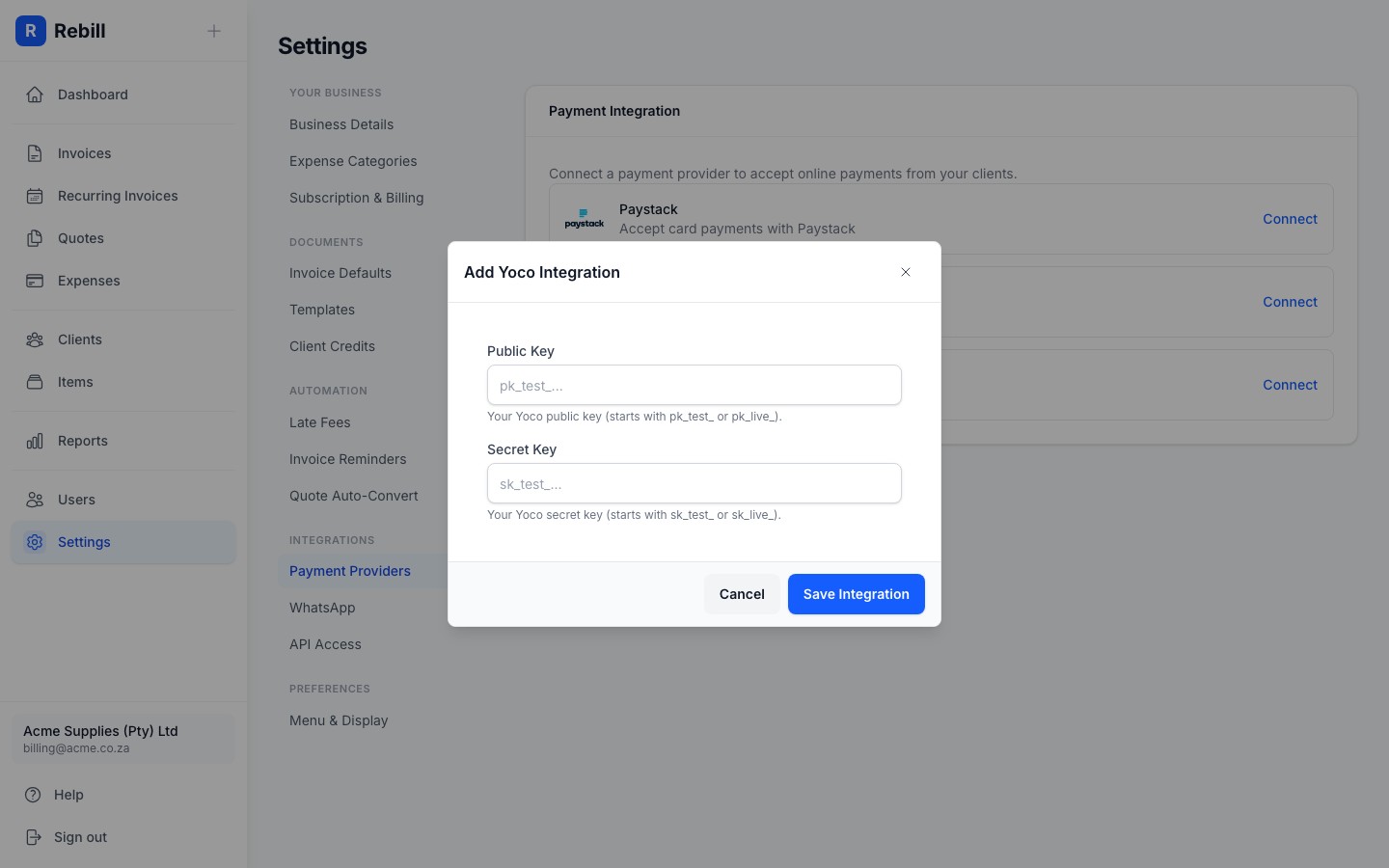
- 3
Enter and save
Click Connect next to Yoco in Rebill's Settings > Payments > Payment providers, paste both keys, and click Save Integration. Rebill registers a payment notification webhook with Yoco automatically, and invoices are marked as paid as soon as a payment goes through.
Yoco needs two verified websites
Yoco reviews the website of every business that takes payments through a platform like Rebill. Your Yoco business profile must have app.rebill.co.za and your own website, both verified. Yoco is updating its process to accept app.rebill.co.za for Rebill merchants, so add both now to be ready.No website yet?
Tora Technologies can build and host a website for your business at an affordable price. Email [email protected] for a quote.PayFast
- 1
Get your PayFast credentials
Log in to your PayFast account. Go to Settings → Integration to find your Merchant ID and Merchant Key, and set a Passphrase if you have not already. Rebill requires a passphrase; PayFast uses it to sign every payment notification so we can trust it.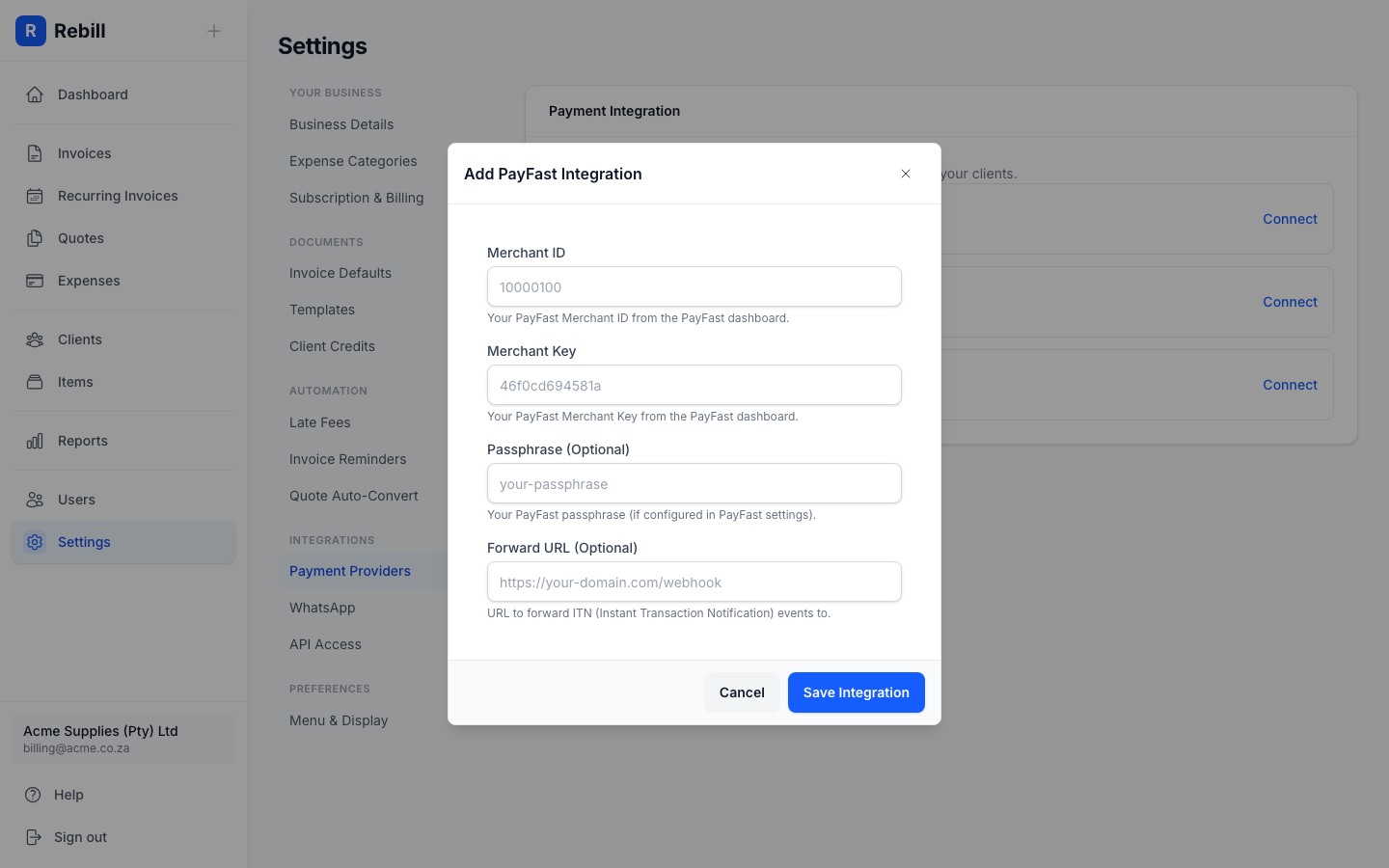
- 2
Enter and save
Paste all three into the PayFast section in Rebill's Settings > Payments > Payment providers, then click Save Integration. All three are required, and the passphrase must match the one in your PayFast dashboard exactly or checkouts will fail. Payment confirmations happen automatically. No webhook setup is needed in your PayFast dashboard.
Testing PayFast first
The PayFast dialog has a Test mode switch. Turn it on and enter your PayFast sandbox Merchant ID, Merchant Key and Passphrase: clients are sent to the PayFast sandbox and no real money moves. While it is on, the connected gateway shows a Test mode badge. Switch it off and enter your live details before you send real invoices. Switching mode affects payments already in progress.iKhokha
- 1
Get your iKhokha credentials
Log in to your iKhokha dashboard and find your App ID and App Secret under the developer or API section. - 2
Connect iKhokha in Rebill
In Rebill, go to Settings > Payments and click Connect next to iKhokha. Enter your App ID and App Secret, then click Save Integration. Rebill checks the credentials with iKhokha when you save, so invalid keys are caught immediately.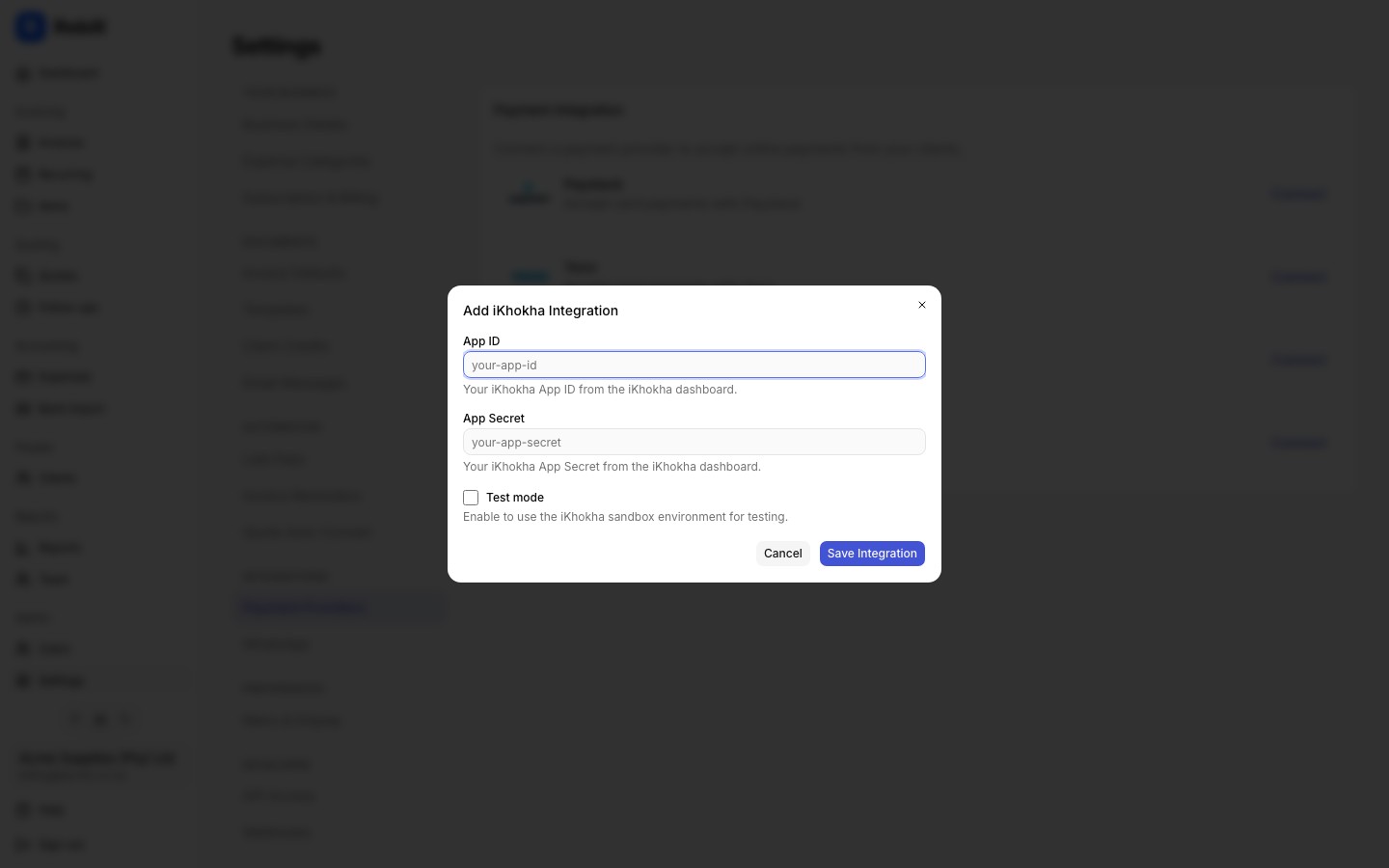
- 3
Done. Payments confirm automatically
Clients who click the pay button on an invoice are taken to an iKhokha payment page. Payment confirmations are sent back to Rebill automatically and the invoice is marked as paid. No webhook setup is needed in your iKhokha dashboard.
No test mode for iKhokha
iKhokha does not offer a test mode, so every iKhokha payment is a real payment. To check your setup, send yourself a small invoice and pay it.Note
Only one payment gateway can be active at a time. Connecting a new gateway will replace your current one.