
Two settings on your Business details page control how Rebill handles time: your Timezone and your Fiscal year starts month. Both are simple dropdowns, but they quietly drive a few things elsewhere in the app.
Setting them
- 1
Go to Settings > Account
Click Account under Settings in the sidebar; you land on Business details by default.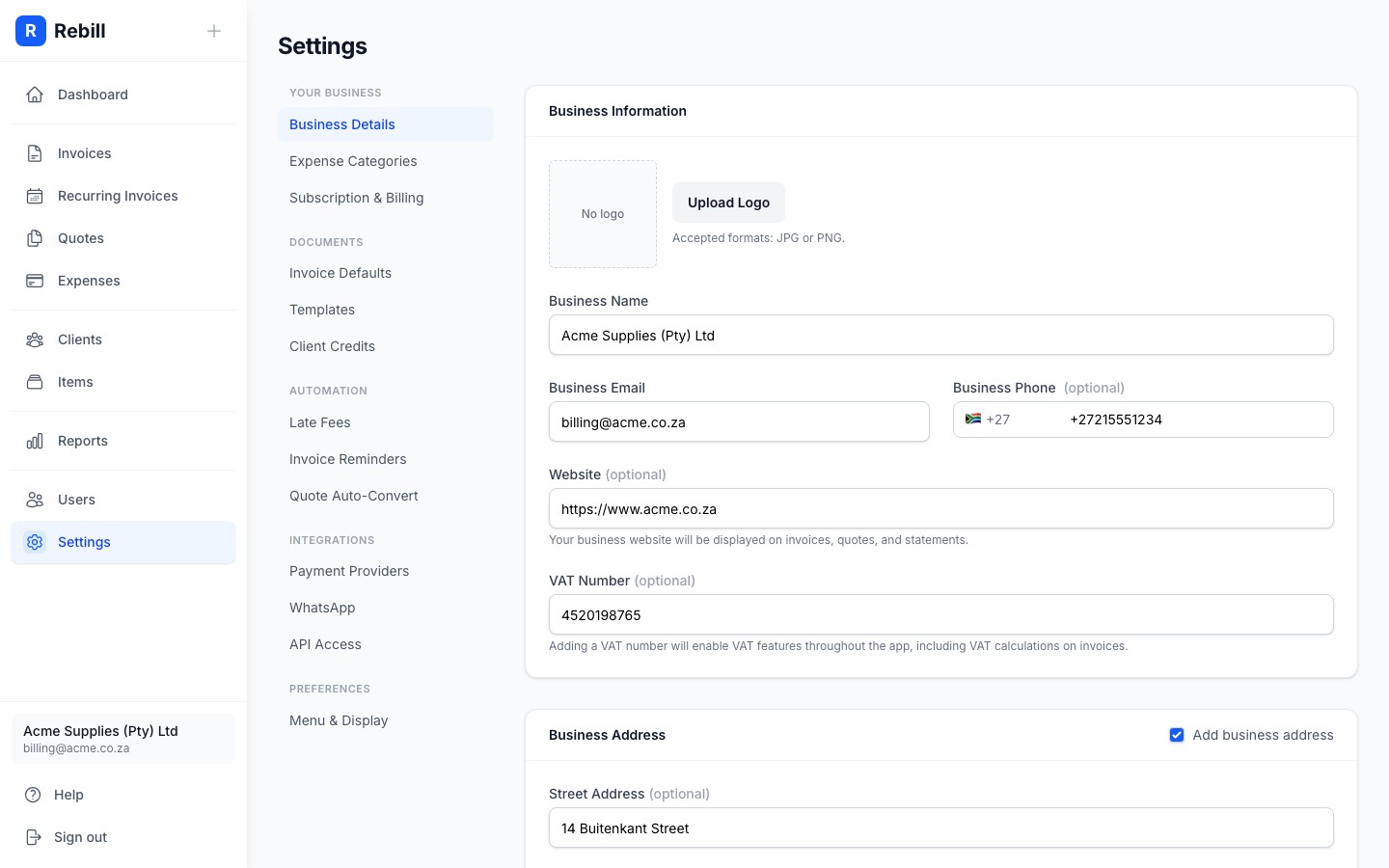
- 2
Choose your timezone
Pick your business Timezone from the list, which is pre-filtered to common zones for South Africa and wider Africa, the UK, US, Canada, and Australia, with your browser's detected zone added at the top if it is not already listed. It defaults to South Africa (SAST) for accounts that have not set one.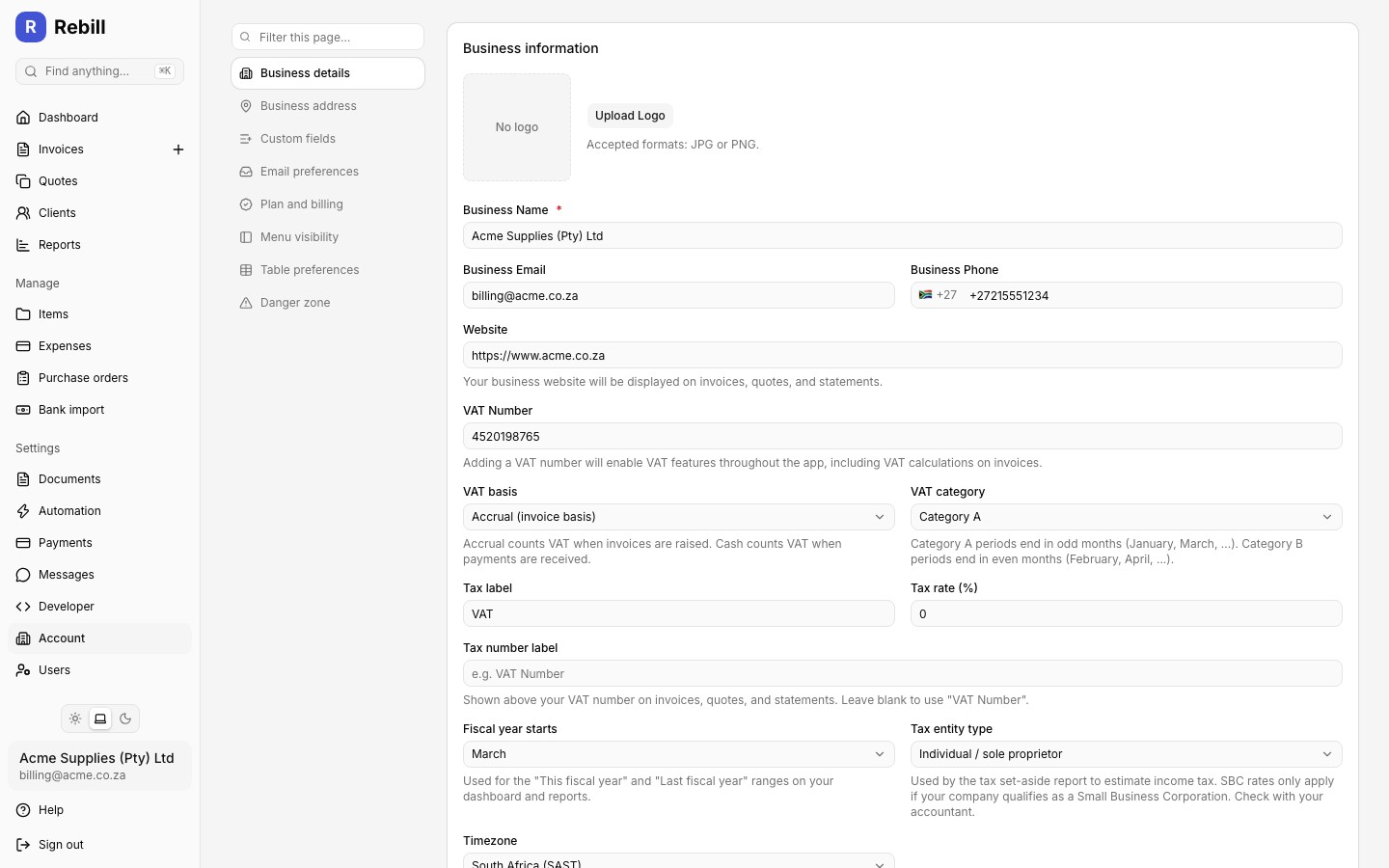
- 3
Choose your fiscal year start month
Pick the month your fiscal year starts in. South African accounts default to March (matching the SARS tax year); every other country defaults to January. - 4
Save your changes
A save bar appears at the bottom of the page once you change something. Click Save, or press Cmd+S (Ctrl+S on Windows).
What your timezone affects
- Timestamps across the app: dates and times shown on invoices, activity, and delivery logs use your business timezone.
- Reminder and recurring delivery timing: the hour-of-day that invoice reminders send and recurring invoices generate (set separately under Timing, see below) is interpreted in your business timezone, not a fixed South African time.
What your fiscal year start affects
The "This fiscal year" and "Last fiscal year" quick-range options on your dashboard and on report filters (Revenue, Profit & Loss, Expense, Client Revenue, Summary, and Team reports) use this month as the boundary. For example, with a March start, "This fiscal year" for a date in June 2026 runs from 1 March 2026 to today.
Fine-tuning delivery time: the Timing section
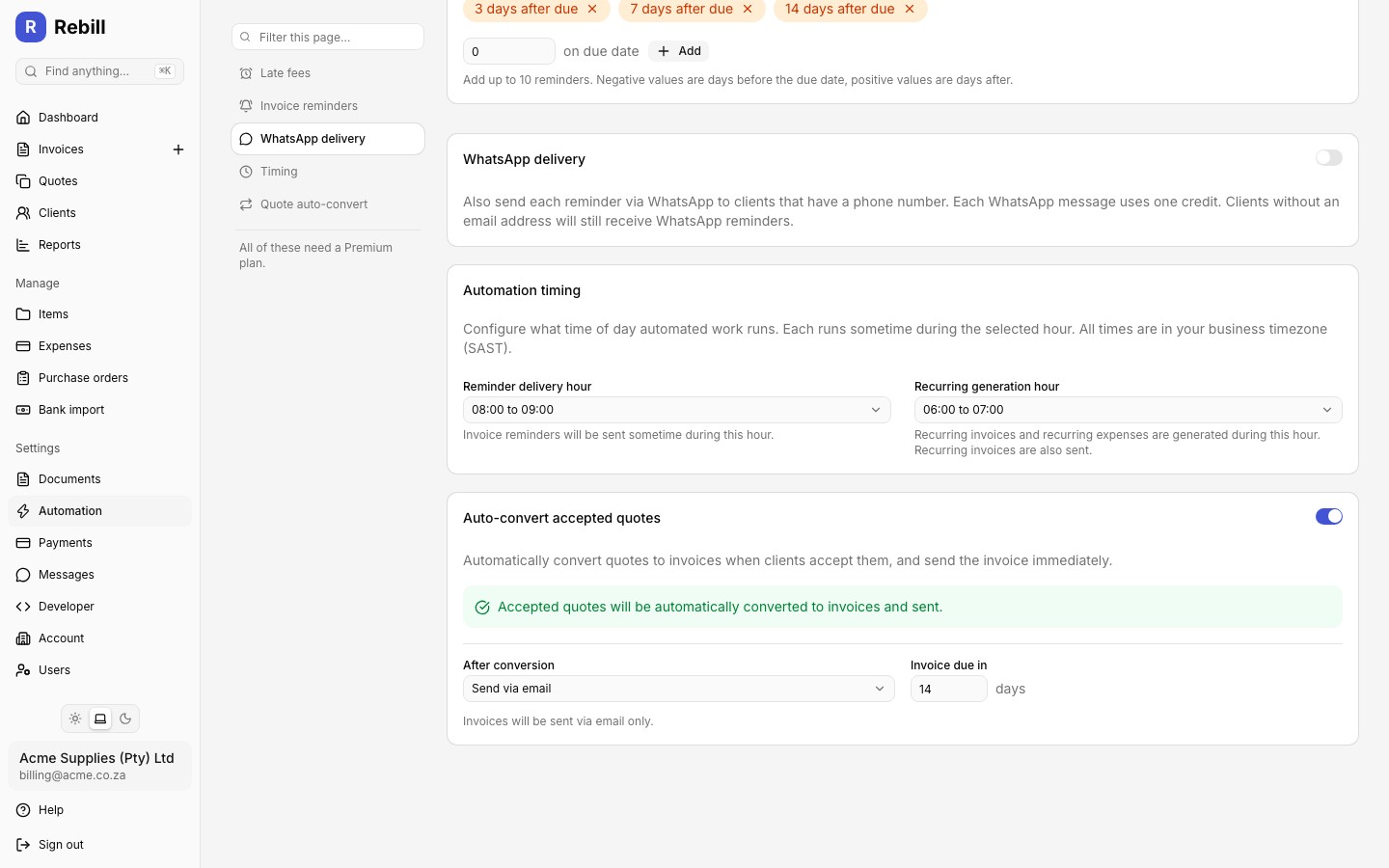
For more precise control over when automated emails go out, go to Settings > Automation > Timing. This is a Premium feature with two settings, both interpreted in your business timezone:
- Reminder delivery hour: the one-hour window during which invoice reminders are sent.
- Recurring generation hour: the one-hour window during which recurring invoices and recurring expenses are generated (and recurring invoices sent).
Note
Free plan accounts use fixed default delivery hours and cannot change them; Timing requires Premium.