Email Messages lets you add a custom paragraph to every client-facing email Rebill sends. Each email type has its own message, so you can tailor the wording for invoice delivery, payment confirmations, reminders, and more. The message appears between the greeting and the transaction details.
- 1
Go to Settings > Messages
Click Messages under Settings in the sidebar; you land on Email messages by default.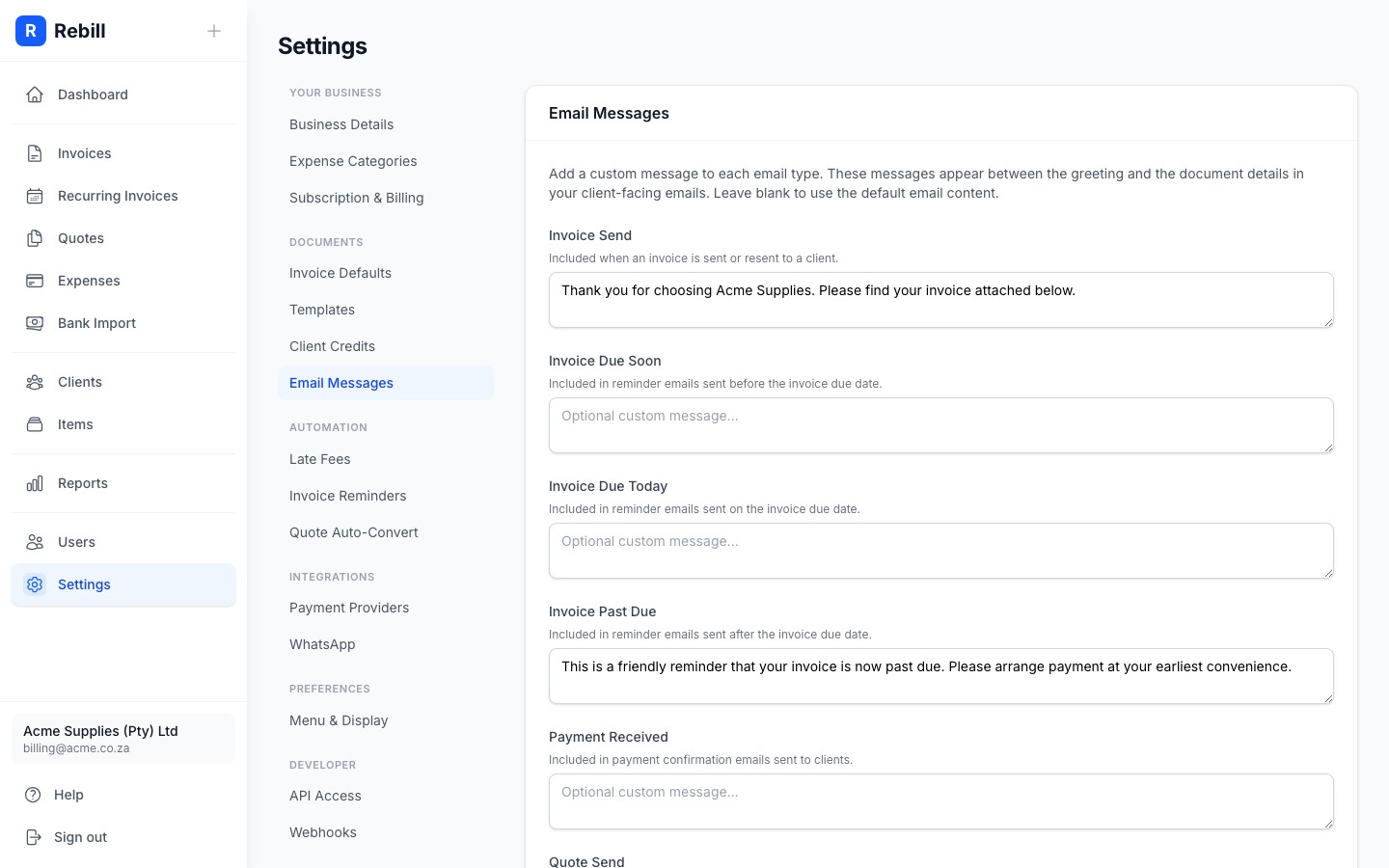
- 2
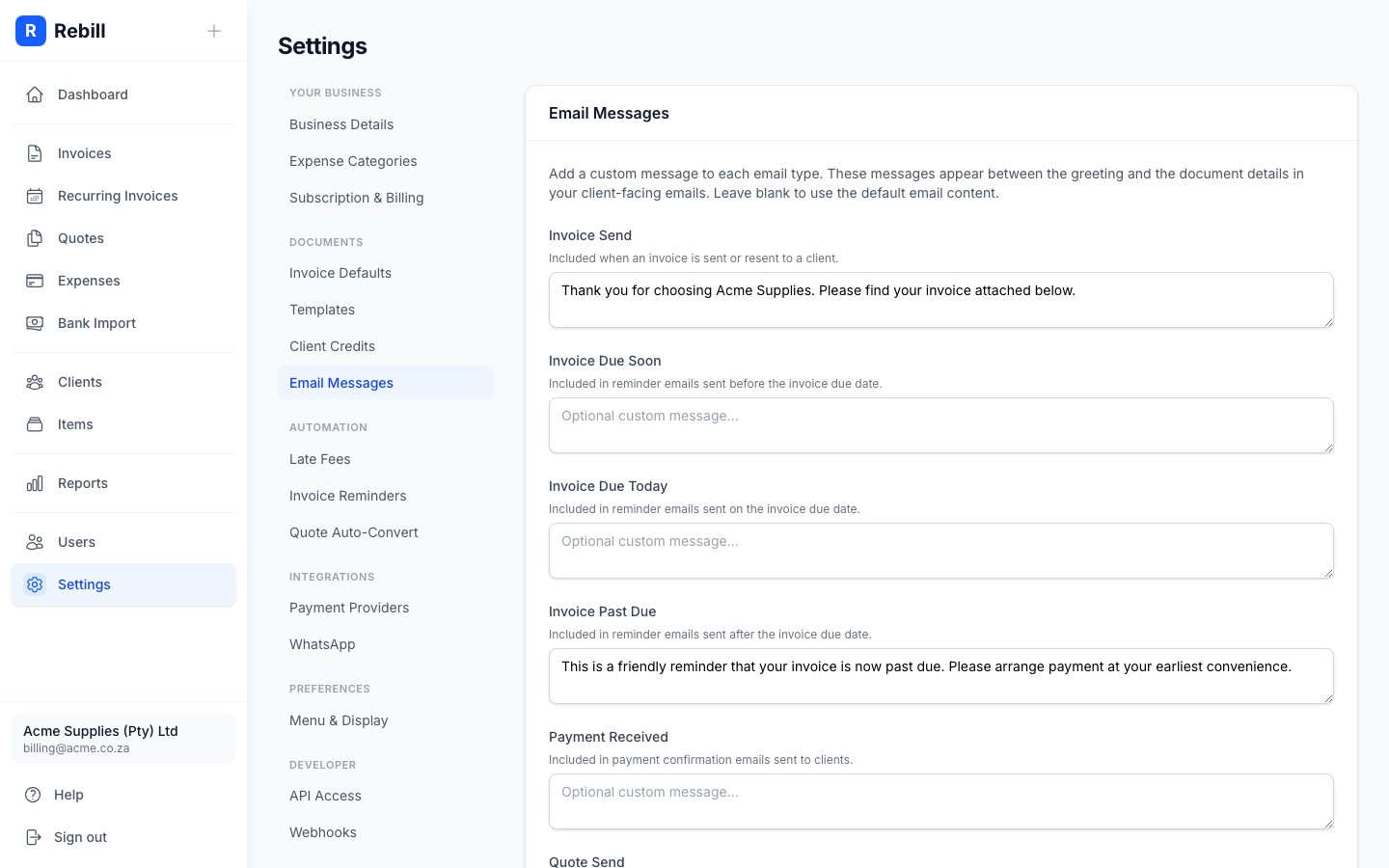
Enter your messages
You will see a text area for each email type:- Invoice sent: included when you send or resend an invoice
- Invoice due soon: included in the "due soon" reminder email
- Invoice due today: included in the "due today" reminder email
- Invoice past due: included in the overdue reminder email
- Payment received: included in the payment confirmation email
- Quote sent: included when you send or resend a quote
- Statement sent: included when you send a client statement
- Late fee applied: included in the late fee notification email
- 3
Save your changes
Click "Save" at the bottom. Your messages will appear in all future emails of that type.
Plain text only
Messages are inserted as plain text. HTML tags, links, and formatting are not supported. Keep messages short and professional.Where does the message appear?
The custom message appears in a highlighted block between the greeting line and the document details in the email body. It is visible in both the HTML and plain text versions of the email.