
Your business information appears on all your invoices and quotes. Setting it up properly ensures your documents look professional and include all the details your clients need.
- 1
Go to Settings > Account
Settings has seven pages in the sidebar, each with its own section rail: Documents (Numbering, Invoice defaults, Quote defaults, Document options, Terms and conditions, Templates, Client credits), Automation (Late fees, Invoice reminders, WhatsApp delivery, Timing, Quote auto-convert, Client items), Payments (Payment providers), Messages (Email messages, Your mail server, WhatsApp messaging, Low credit reminder, Buy WhatsApp credits, Transaction history), Developer (API key, Using the API, Webhooks), Account (Business details, Business address, Custom fields, Email preferences, Plan and billing, Menu visibility, Table preferences, Signed-in devices, Push notifications, Danger zone), and Users (admins only). You can also press Ctrl/Cmd+K and search for any settings section by name. Click Account; you land on Business details by default.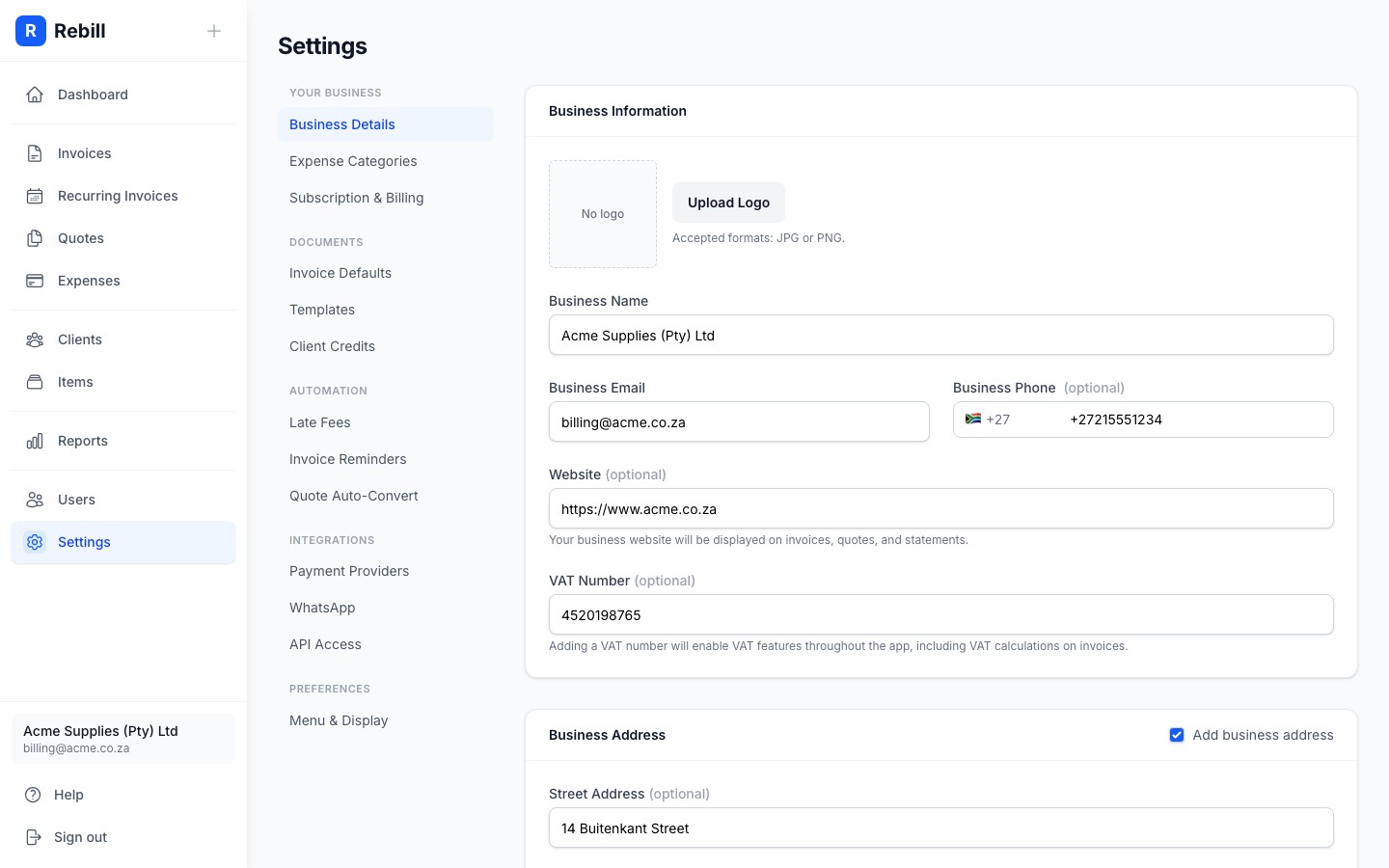
- 2
Fill in your business details
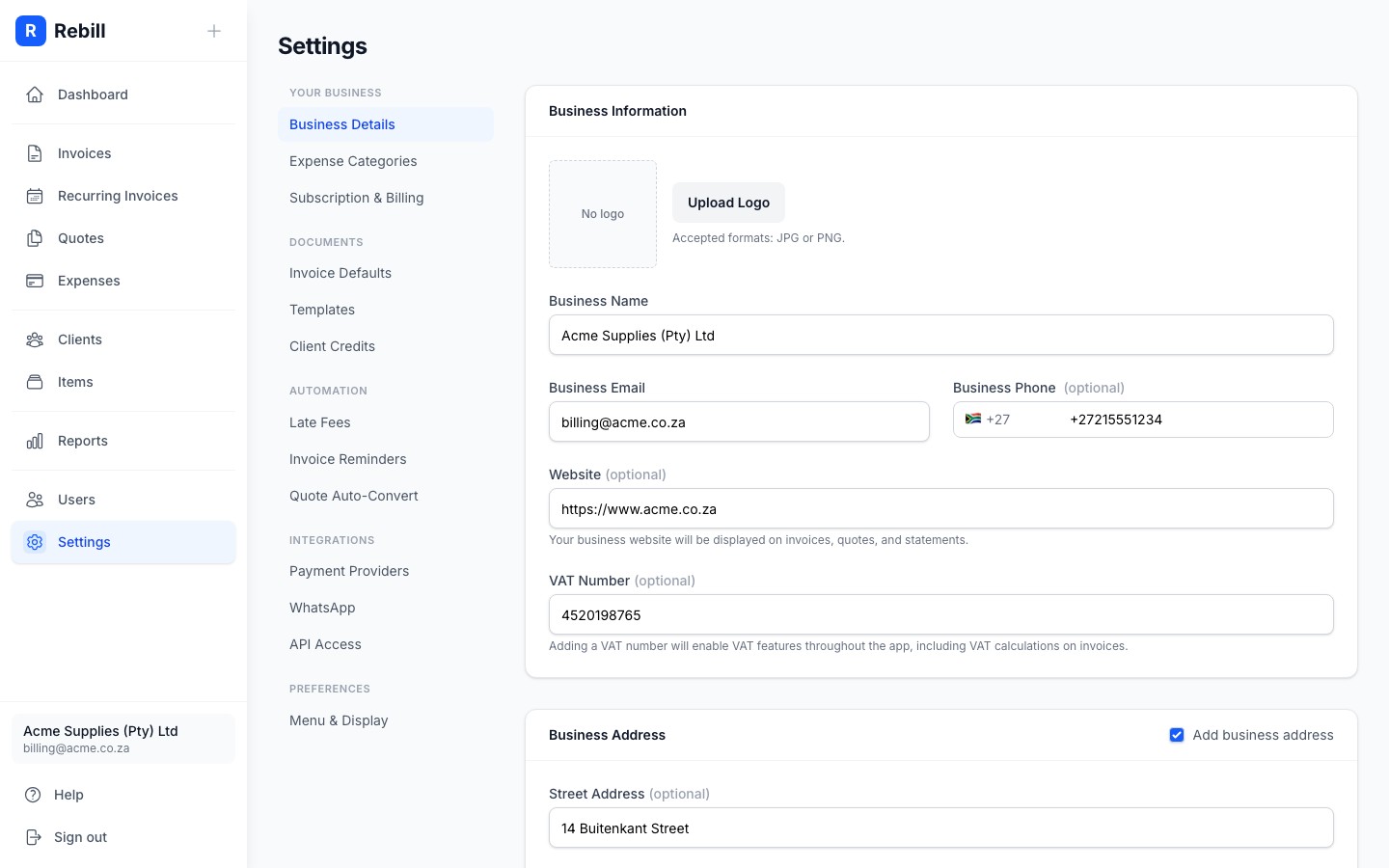
Enter:- Business Name: appears at the top of your invoices
- Email: your business contact email
- Phone: optional
- Website: optional
- 3
Add your address
Scroll down to fill in your business address. This appears on invoices below your business name.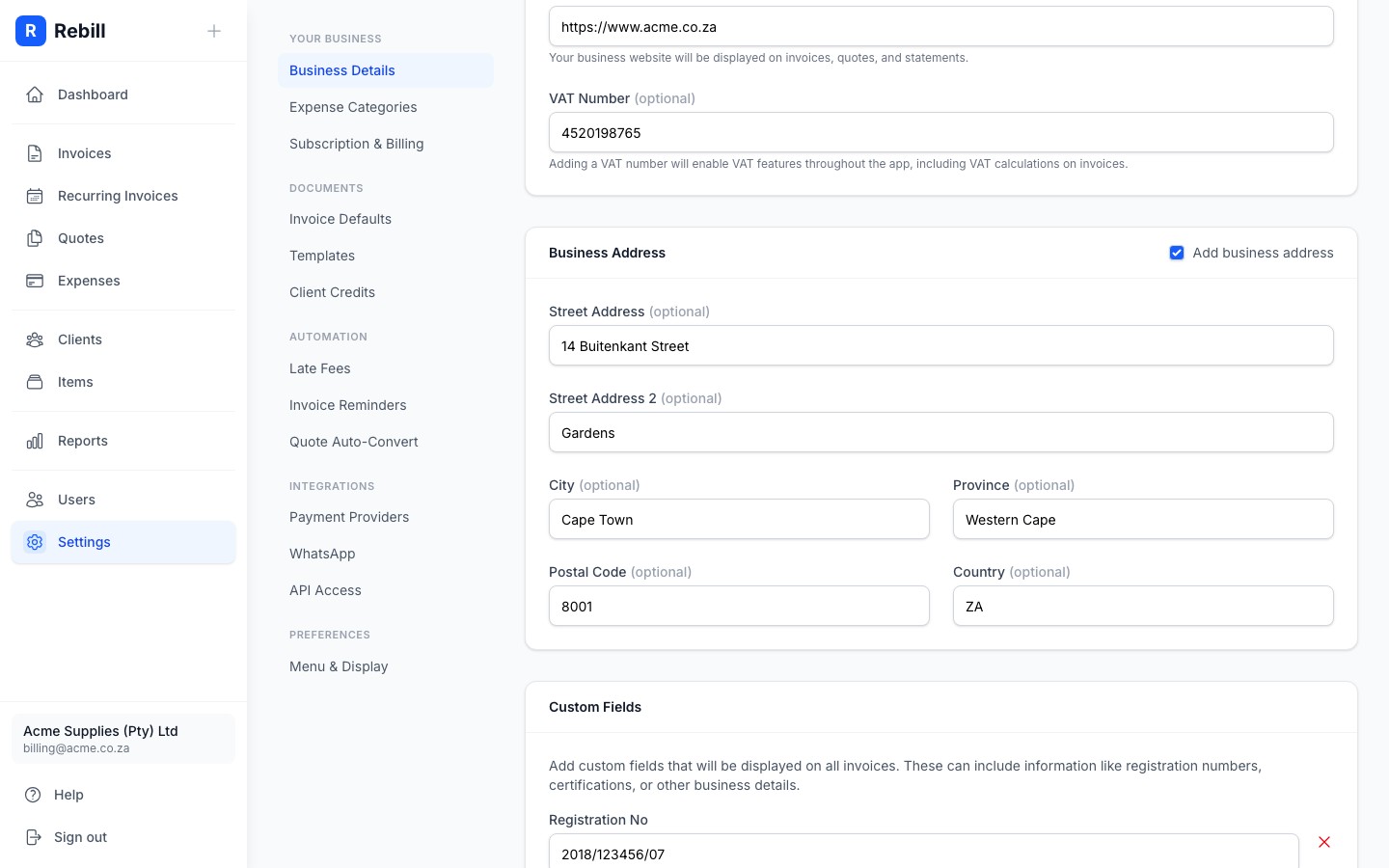
- 4
Upload your logo
Click the logo upload area and select an image from your device. Your logo will appear in the top-left corner of all your invoices, quotes, and client statements.
Use a PNG or JPG, ideally square or landscape shaped. A minimum width of 200px is recommended for crisp printing.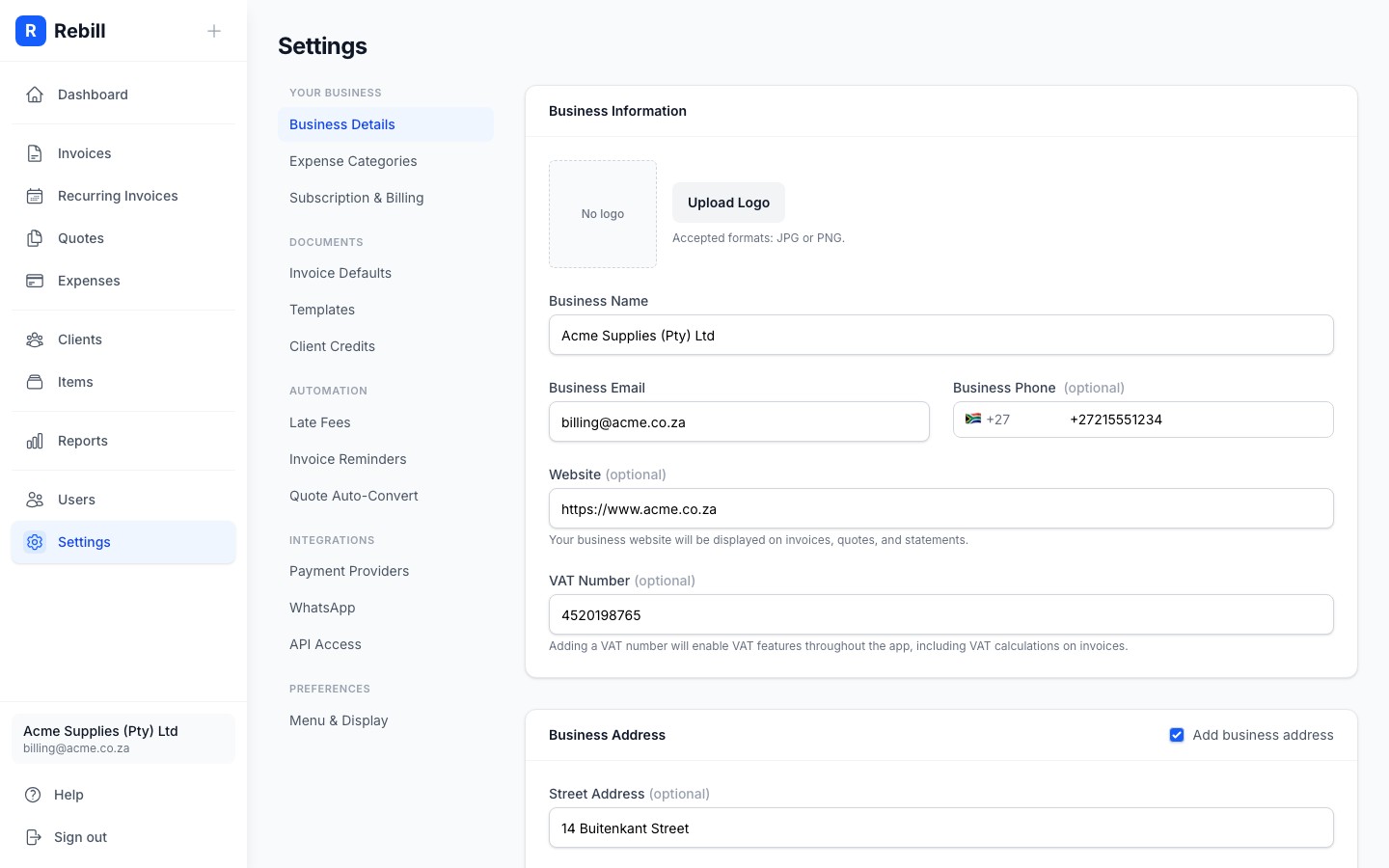
- 5
Set your VAT status
If your business is VAT-registered, enter your VAT registration number in the VAT Number field. This adds VAT columns and calculations to your invoices and quotes, and your invoices are titled TAX INVOICE. Next to it, choose your VAT basis (Accrual counts VAT when invoices are raised, Cash when payments are received) and, for South African accounts, your VAT category (A or B), which sets the periods on the VAT report. You can also change the tax label, rate and number label if your country uses another name, such as GST. VAT features need a Premium plan: on the free plan these fields are locked.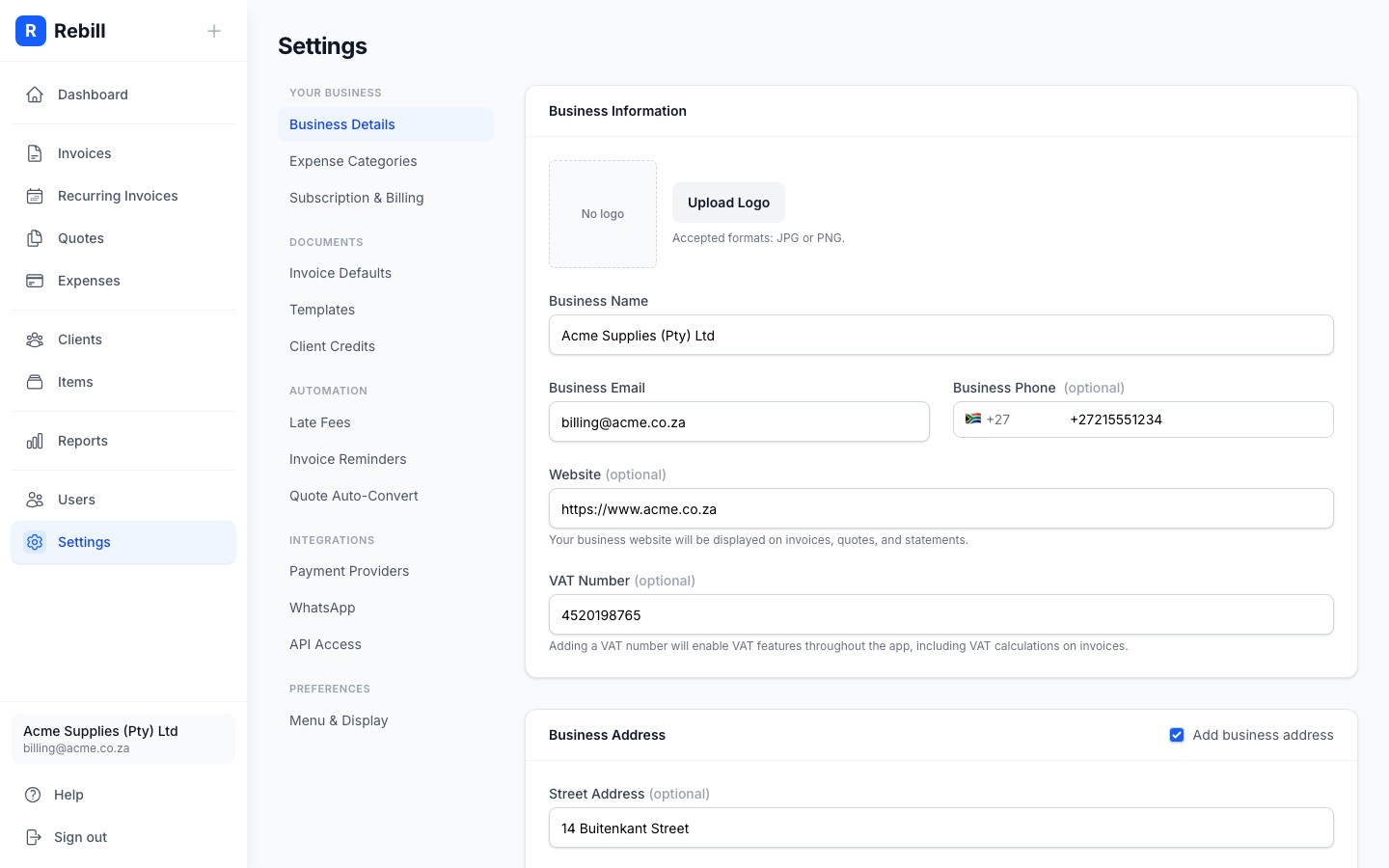
- 6
Set your fiscal year start and timezone
Choose the month your fiscal year starts in (South African accounts default to March; everywhere else defaults to January), and your business Timezone. See Setting your business timezone and fiscal year for what each one affects.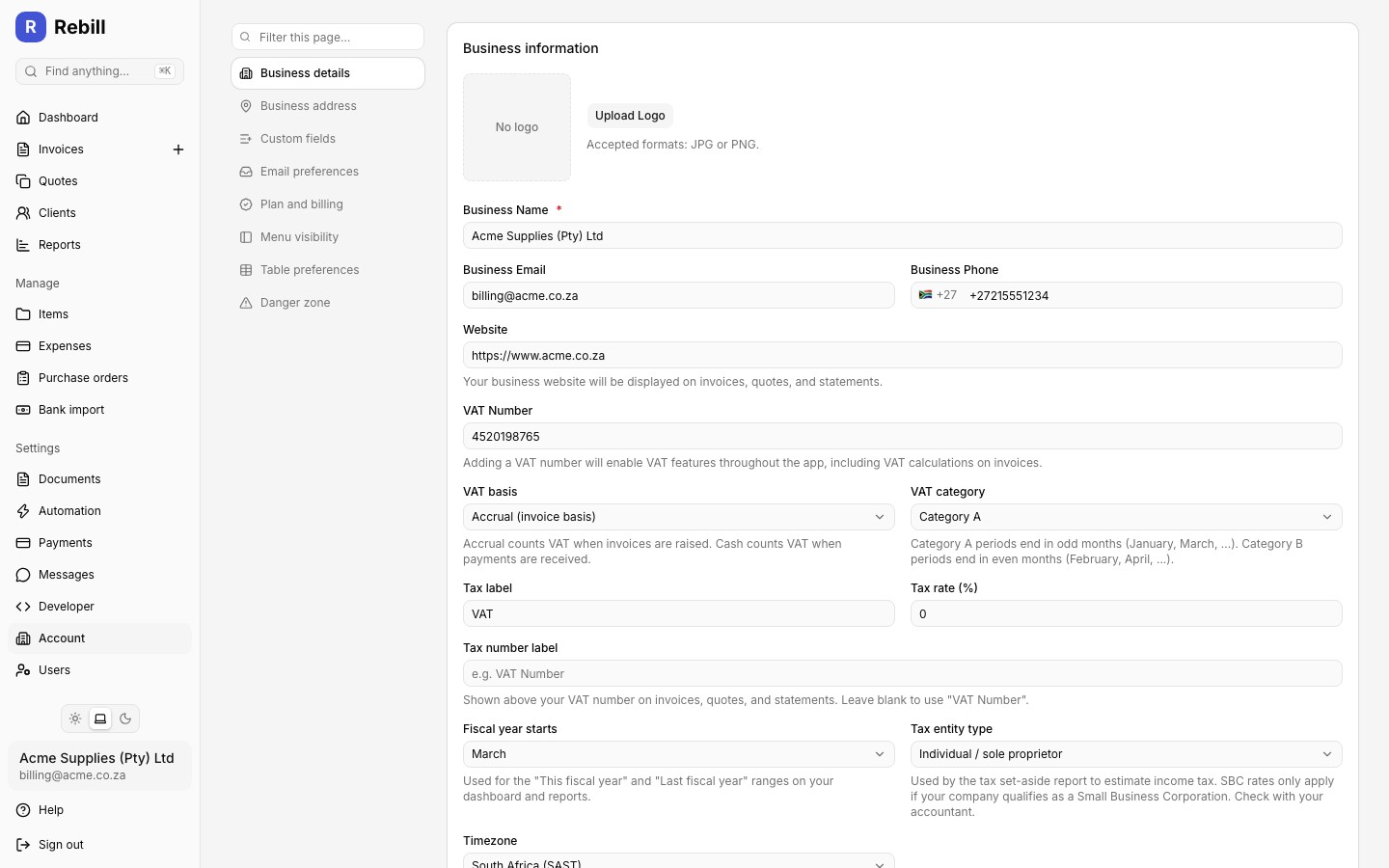
- 7
Set your tax entity type (South Africa only)
South African accounts also see a Tax entity type field: Individual / sole proprietor, Company, or Company (Small Business Corporation rates). This is used by the Tax Set-Aside report to estimate your income tax; check with your accountant before selecting SBC rates.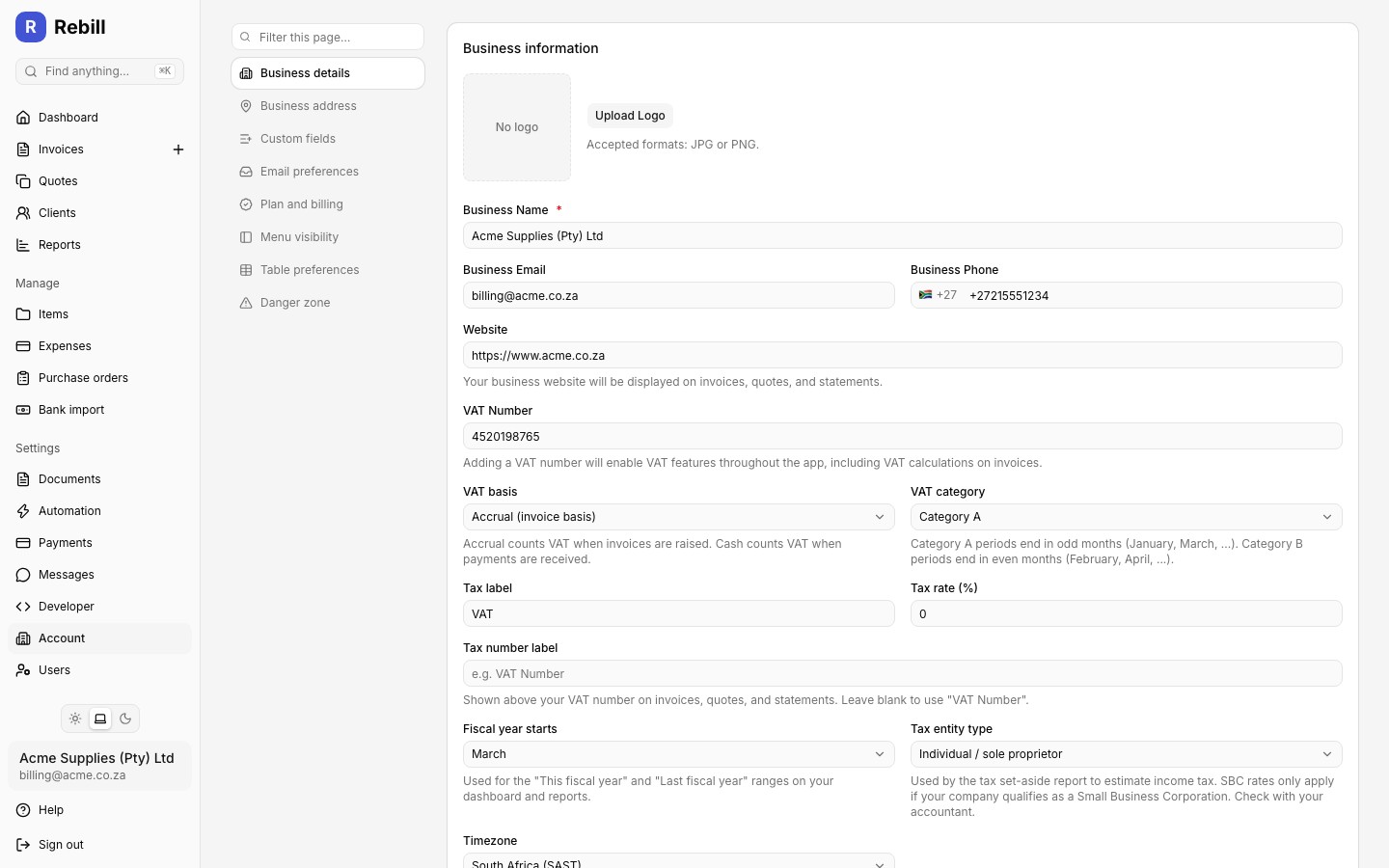
- 8
Turn on multi-currency (optional)
Toggle Multi-currency to invoice, quote, and record expenses in more than one currency. This is a Premium feature. Make sure your connected payment gateway supports each currency you plan to charge in, otherwise online payments in that currency will fail and clients will need to pay another way.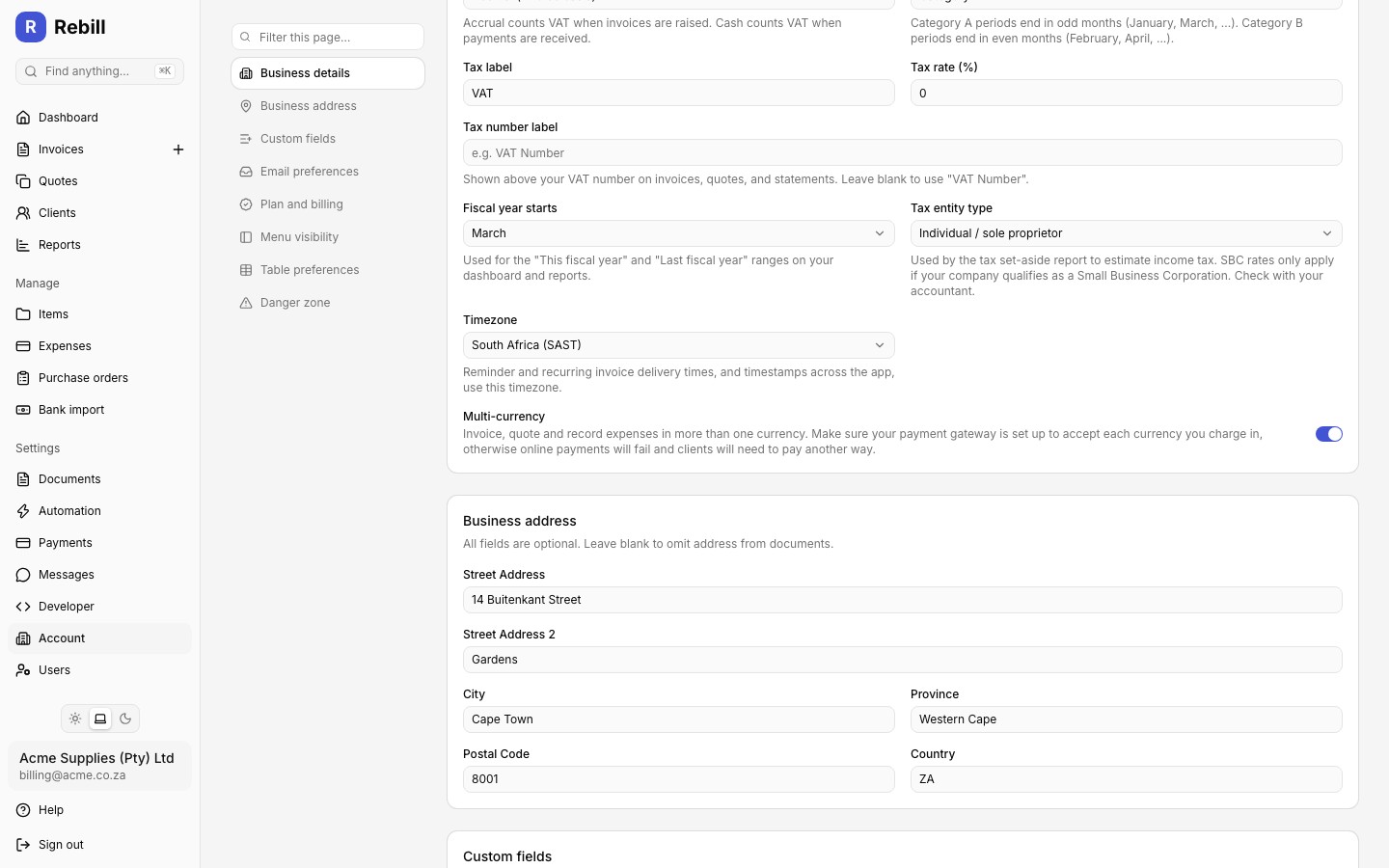
- 9
Save your changes
A save bar appears at the bottom of the page once you change something. Click Save, or press Cmd+S (Ctrl+S on Windows).
Jumping straight to a settings section
Instead of clicking through the sidebar, press Ctrl/Cmd+K anywhere in Rebill to open Find anything and search for a settings section, page, client, or recent invoice or quote by name. See Finding anything with Ctrl+K.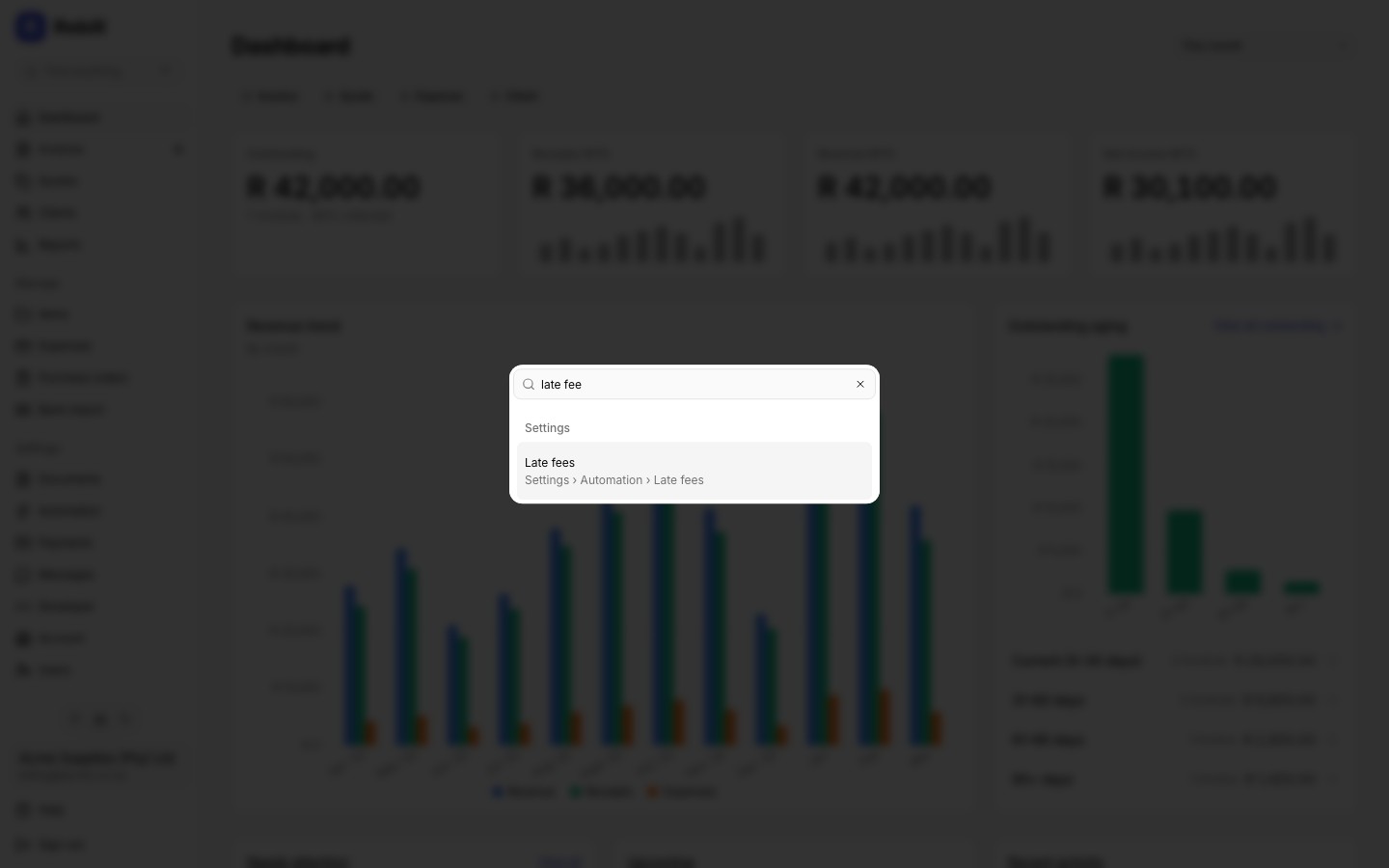
Note
Any changes you make to your business information will appear on future invoices. Existing invoices already sent are not affected.Date formatting follows your business country
Rebill formats dates throughout the app to match your business address country: South Africa and most other countries show day-first dates (e.g. 15 Jan 2026), while the United States shows month-first dates (e.g. Jan 15, 2026). This follows automatically from your Country field in Business Address below; there is no separate date format setting.