
Rebill offers eight invoice templates to match your brand and style. You can preview each one with a live sample invoice before choosing. Your selected template applies to invoices, quotes, and all PDF downloads.
Choosing a template
- 1
Go to Settings > Documents > Templates
Click Documents under Settings in the sidebar, then click Templates in the section rail. The page has three cards: Brand colour, Document template and Email style.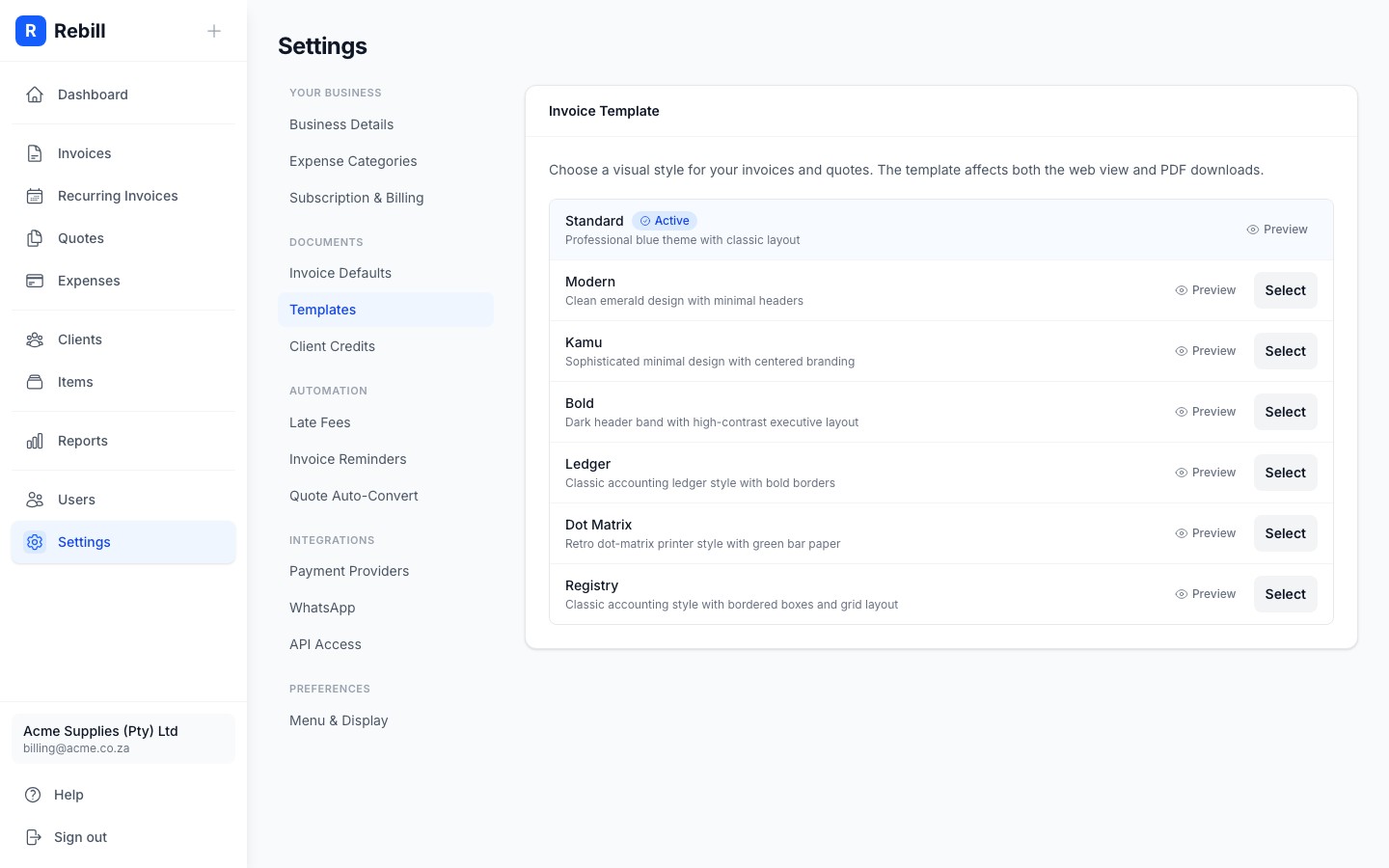
- 2
Browse available templates
You'll see all available templates listed with their name and a short description. The currently active template is marked with an Active badge.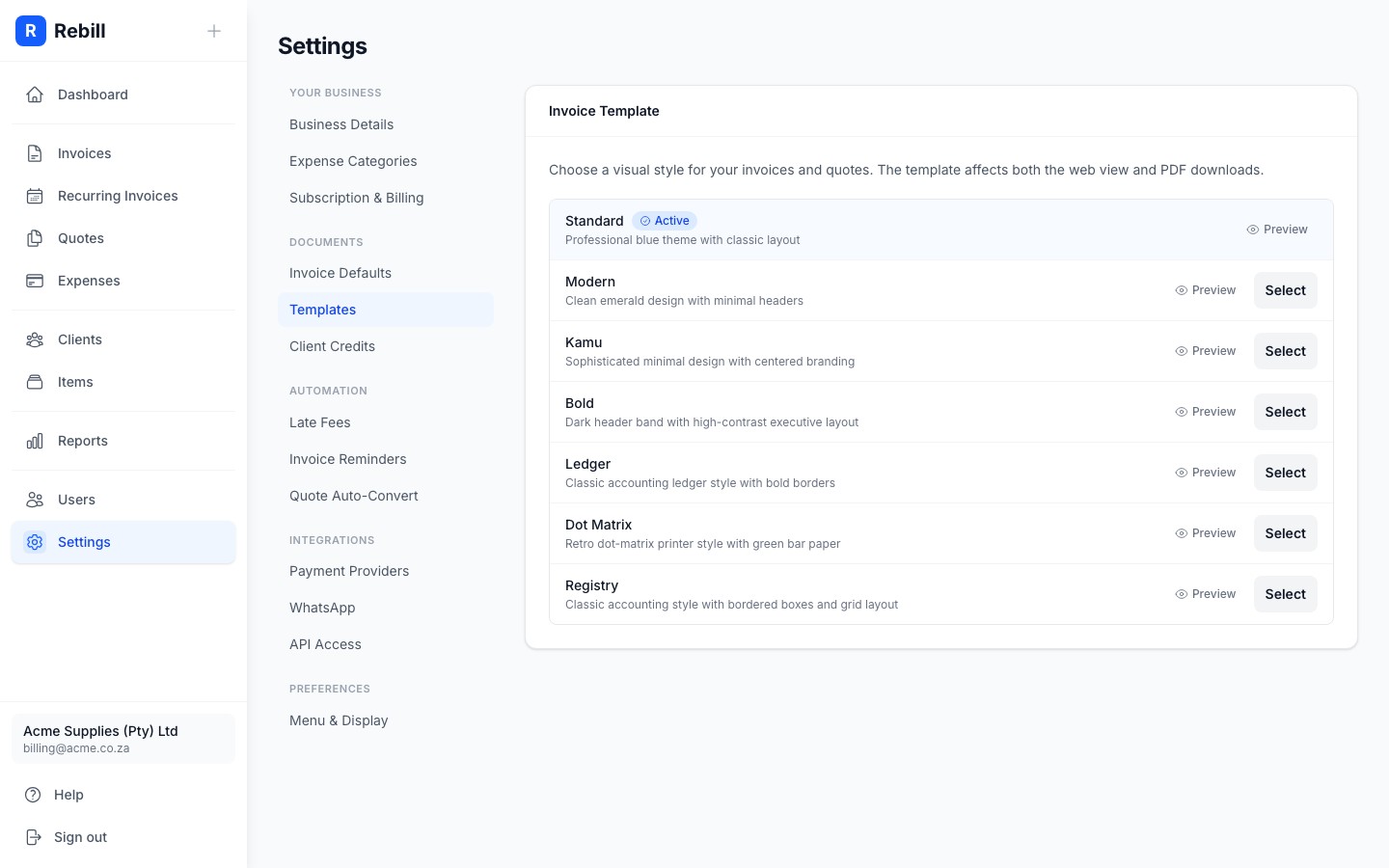
- 3
Preview a template
Click Preview next to any template to see a full-size sample invoice rendered with that style. This gives you an accurate picture of how your invoices will look to clients.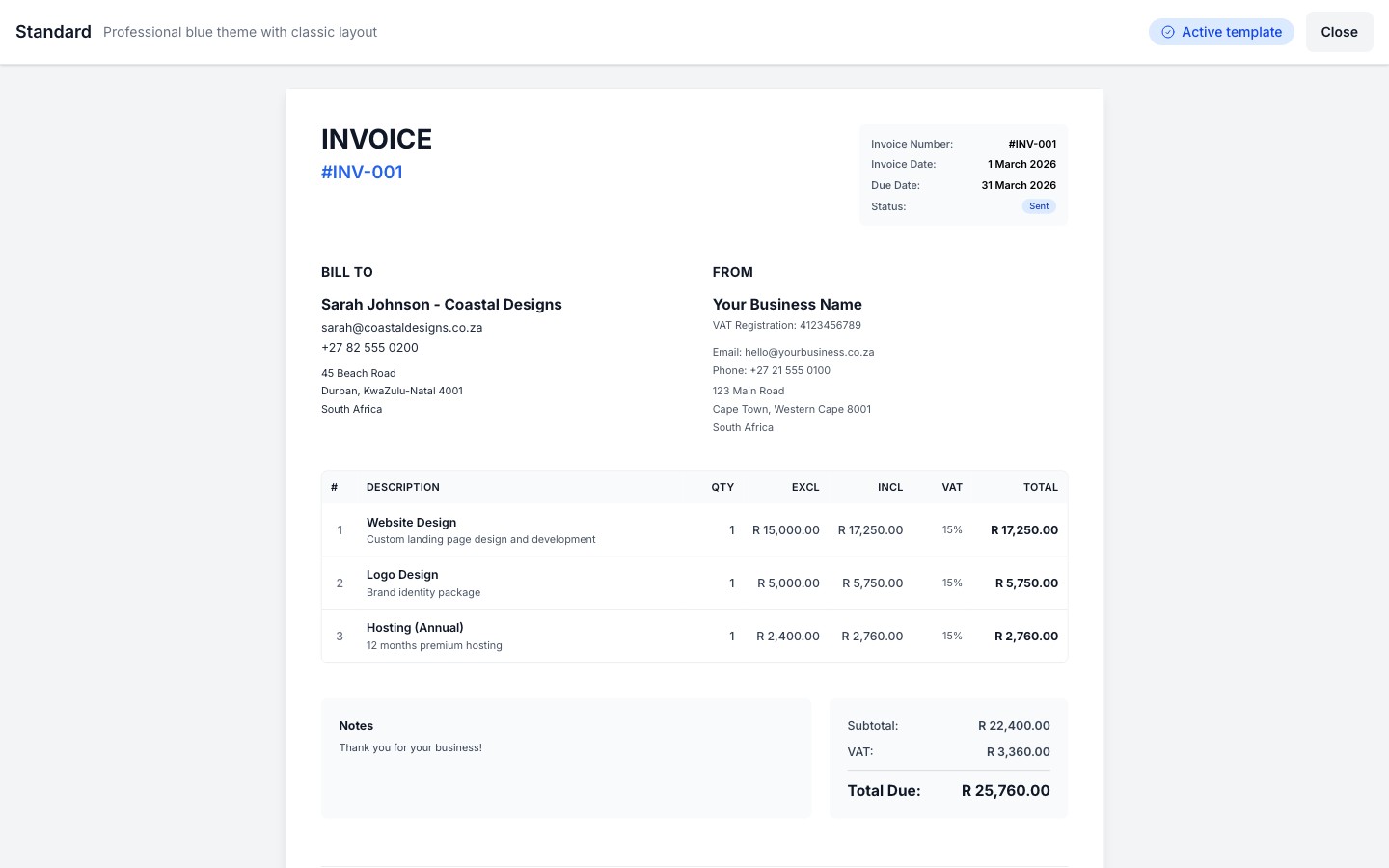
- 4
Select a template
Click Select next to a template or "Use this template" from within the preview. The template is saved immediately and becomes your active template.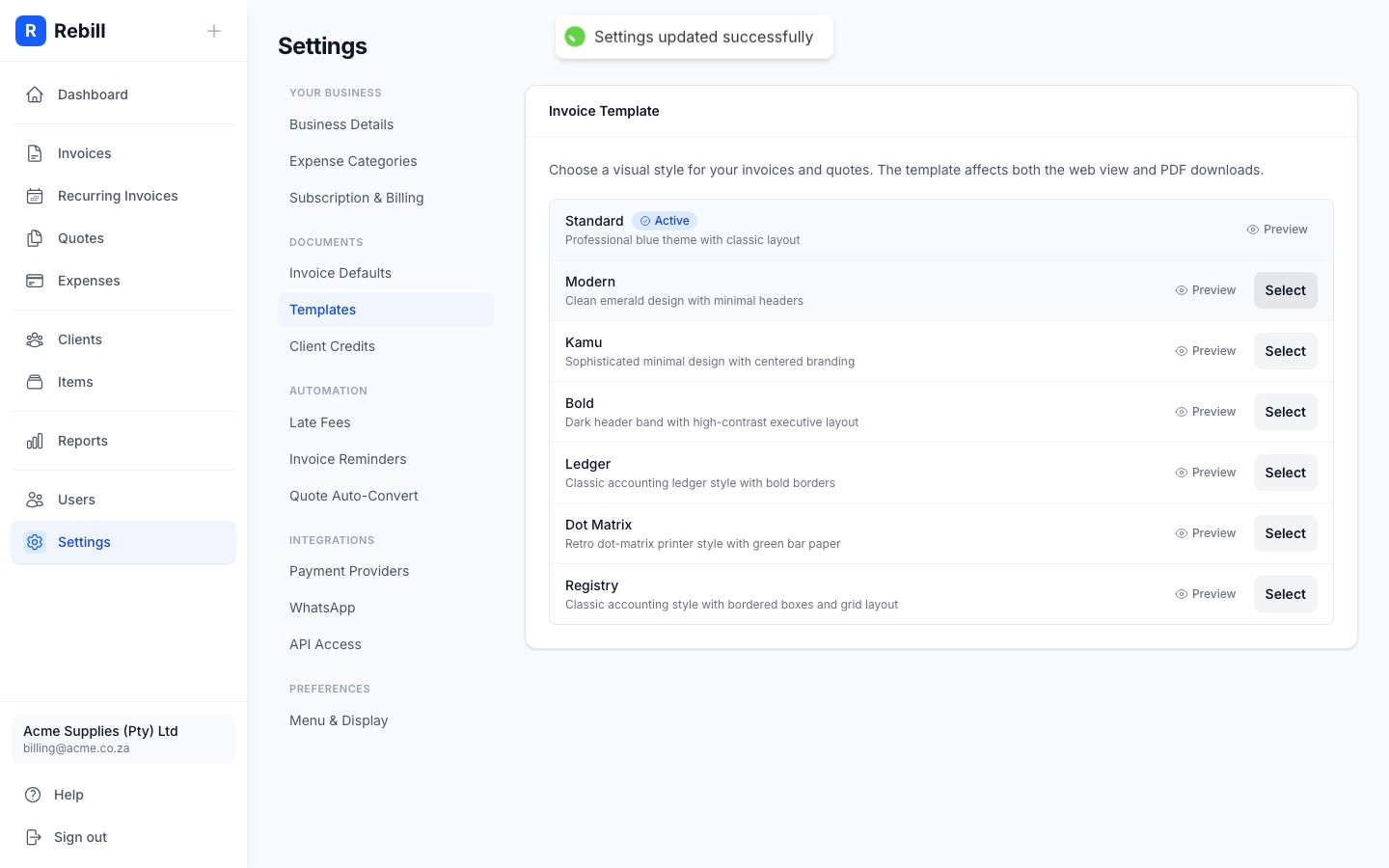
Available templates
Rebill includes the following templates:
- Standard: professional blue theme with classic layout
- Modern: clean emerald design with minimal headers
- Kamu: sophisticated minimal design with centered branding
- Bold: dark header band with a high-contrast executive layout
- Ledger: classic accounting ledger style with bold borders
- Dot Matrix: retro dot-matrix printer style with green-bar paper
- Registry: classic accounting style with bordered boxes and a grid layout
- Arica: clean professional layout with your business details on the left and your logo on the right
Premium feature
Custom templates are available for Premium subscribers only. Free plan accounts use the Standard template and can preview the others, but the Select button only appears on Premium. Upgrade to Premium to unlock all templates.Email style
Further down the same Templates page, the Email style card controls how your invoices, quotes and statements look in your clients' inboxes, separately from the document template above.
Choosing an email style
- 1
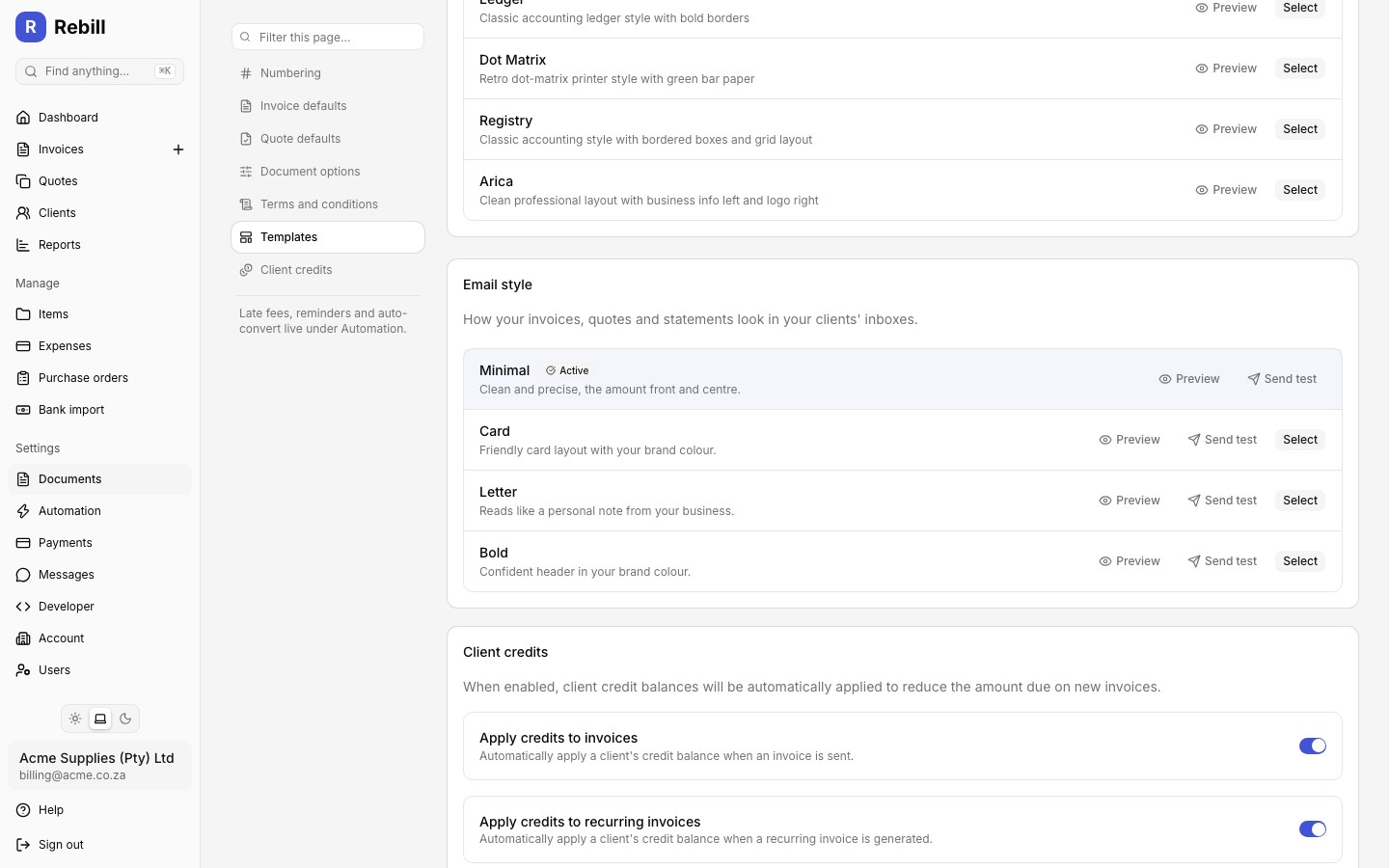
Browse the four email styles
Each style is listed with its name and description, and the currently active one is marked with an Active badge:- Minimal: "Clean and precise, the amount front and centre." (the default)
- Card: "Friendly card layout with your brand colour."
- Letter: "Reads like a personal note from your business."
- Bold: "Confident header in your brand colour."
- 2
Preview a style
Click Preview next to any style to open a live sample email rendered in that style.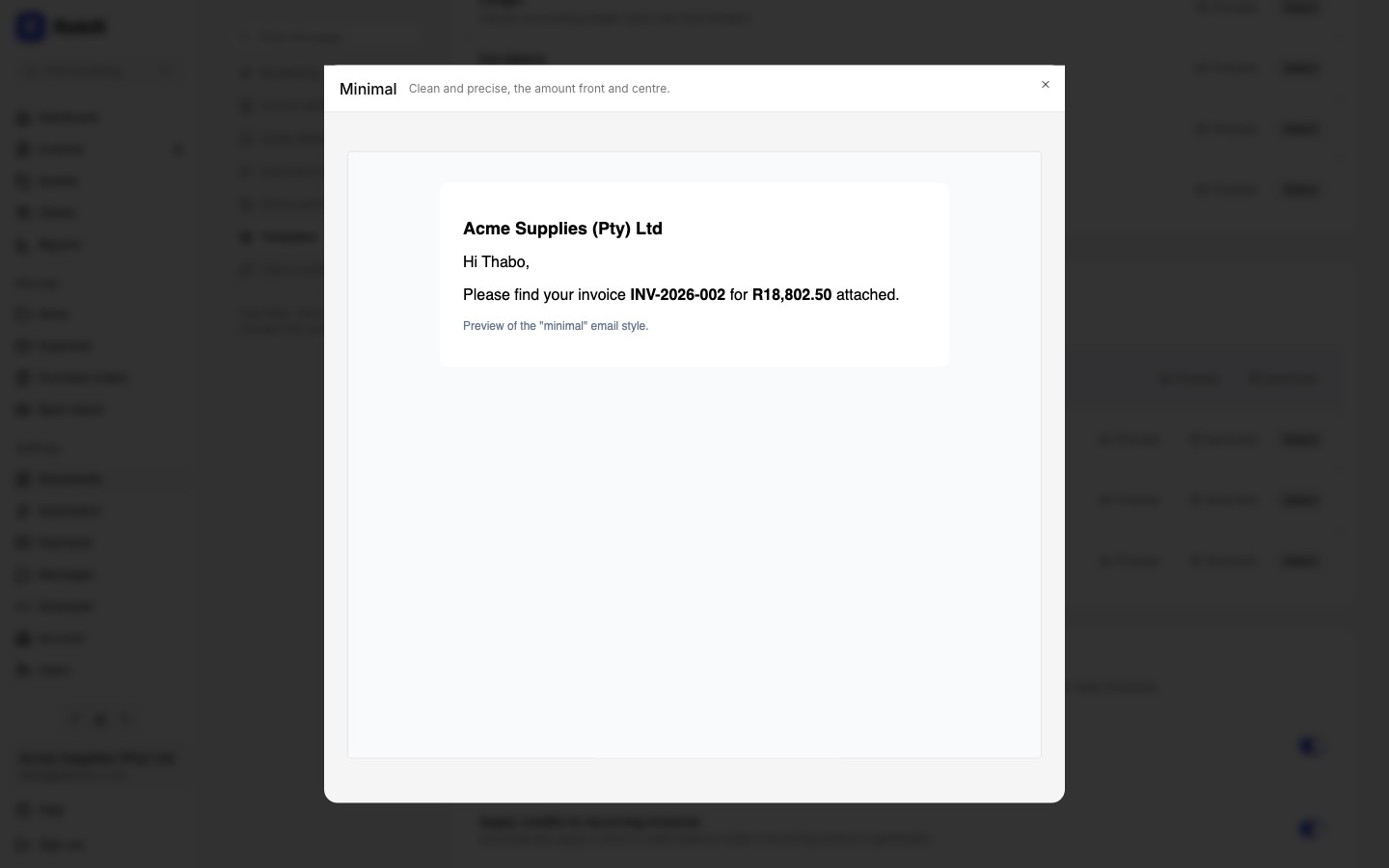
- 3
Send yourself a test email
Click "Send test" next to a style to email a live sample to your business email address in that style, so you can see exactly what clients receive. - 4
Select a style
Click Select next to a style to make it active. On a Premium plan this saves immediately. On the free plan you can still click Select to preview how it looks against your account, but the choice is not saved: an "Upgrade to keep this" prompt appears, and your emails keep using Minimal until you upgrade.
Premium feature
A non-default email style (Card, Letter, or Bold) requires a Premium plan to keep. Free plan accounts can try any style using Preview and Select, but their client emails continue to send in the Minimal style until they upgrade.