
Your brand colour personalises the client-facing parts of Rebill. It is used on the payment banner of your public invoice and quote pages and on the banner of the emails Rebill sends to your clients, so everything your clients see matches your brand.
Premium feature
A custom brand colour is available for Premium subscribers only. Free plan accounts use the standard Rebill styling. On the free plan you can still pick a colour and see it in the preview, but it is not saved: the card shows Upgrade to keep this instead of Save.Setting your colour
- 1
Go to Settings > Documents > Templates
Click Documents under Settings in the sidebar, then click Templates in the section rail. The Brand colour card is at the top of the page.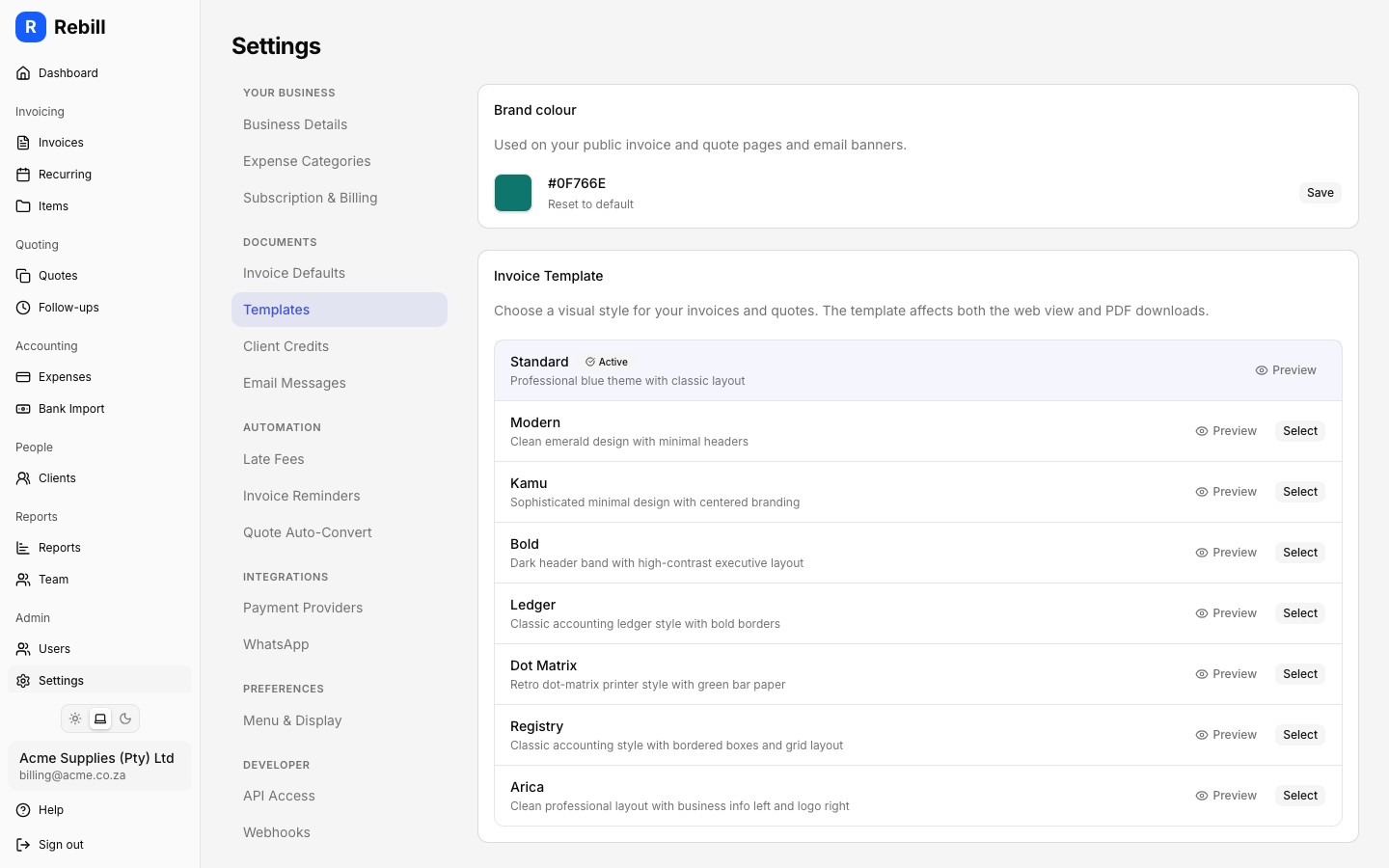
- 2
Pick a colour
Click the colour swatch to open your browser's colour picker and choose your brand colour. The hex code (e.g. #2563EB) is shown next to the swatch as you pick, and a preview below the swatch shows how it looks. - 3
Save
Click Save on the Brand colour card. The colour applies to all future client emails and immediately to your public invoice and quote pages.
Where your brand colour appears
- Public invoice pages: the "Pay This Invoice" banner at the top of the invoice uses your colour, and the pay button text matches it.
- Public quote pages: the accept/decline banner uses your colour.
- Client emails: the header banner and action button (e.g. "View Invoice") use your colour on invoice, quote, due-soon reminder, statement, and client portal access emails.
Using your colour everywhere in emails
Some emails use their own colours by default, such as green on payment receipts and red on overdue notices. Switch on Use brand colour in all emails, under the colour picker, to use your brand colour for every coloured element in your emails instead. The switch is available once you have saved a custom colour.
Going back to the default
Click Reset to default on the Brand colour card to remove your custom colour and return to the standard Rebill styling.Note
The brand colour does not change your invoice PDF template. To change how the invoice document itself looks, see Choosing an invoice template.