To send an invoice via WhatsApp in South Africa, open the invoice in Rebill, click Email and WhatsApp, and confirm. Your client receives an email and a WhatsApp message with a link to the invoice, plus the PDF when you have switched that on. They can pay by card through your connected gateway (Paystack, Yoco, PayFast or iKhokha) or by EFT without logging in. You can also send by email only, or share a direct payment link via any channel.
Why WhatsApp delivery gets invoices paid faster
WhatsApp messages have significantly higher open rates than email in South Africa, where WhatsApp is the primary business communication channel. When you send via WhatsApp, the client gets a tap-to-pay link directly in the chat, reducing friction and the time between sending and payment.Sending by email
- 1
Open the invoice
Go to Invoices and click on the invoice you want to send.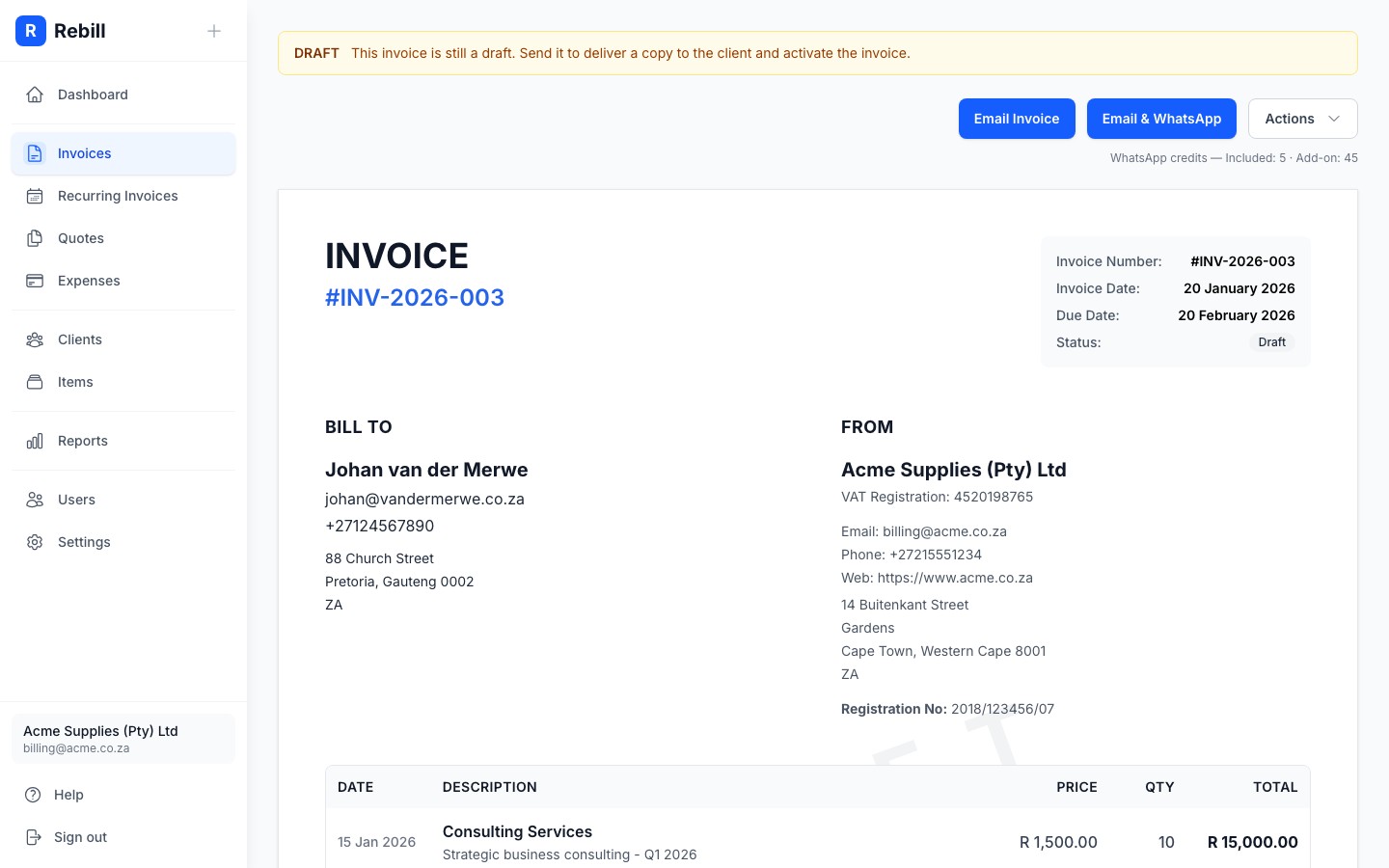
- 2
Click "Email invoice"
Click the primary "Email invoice" button at the top of the page.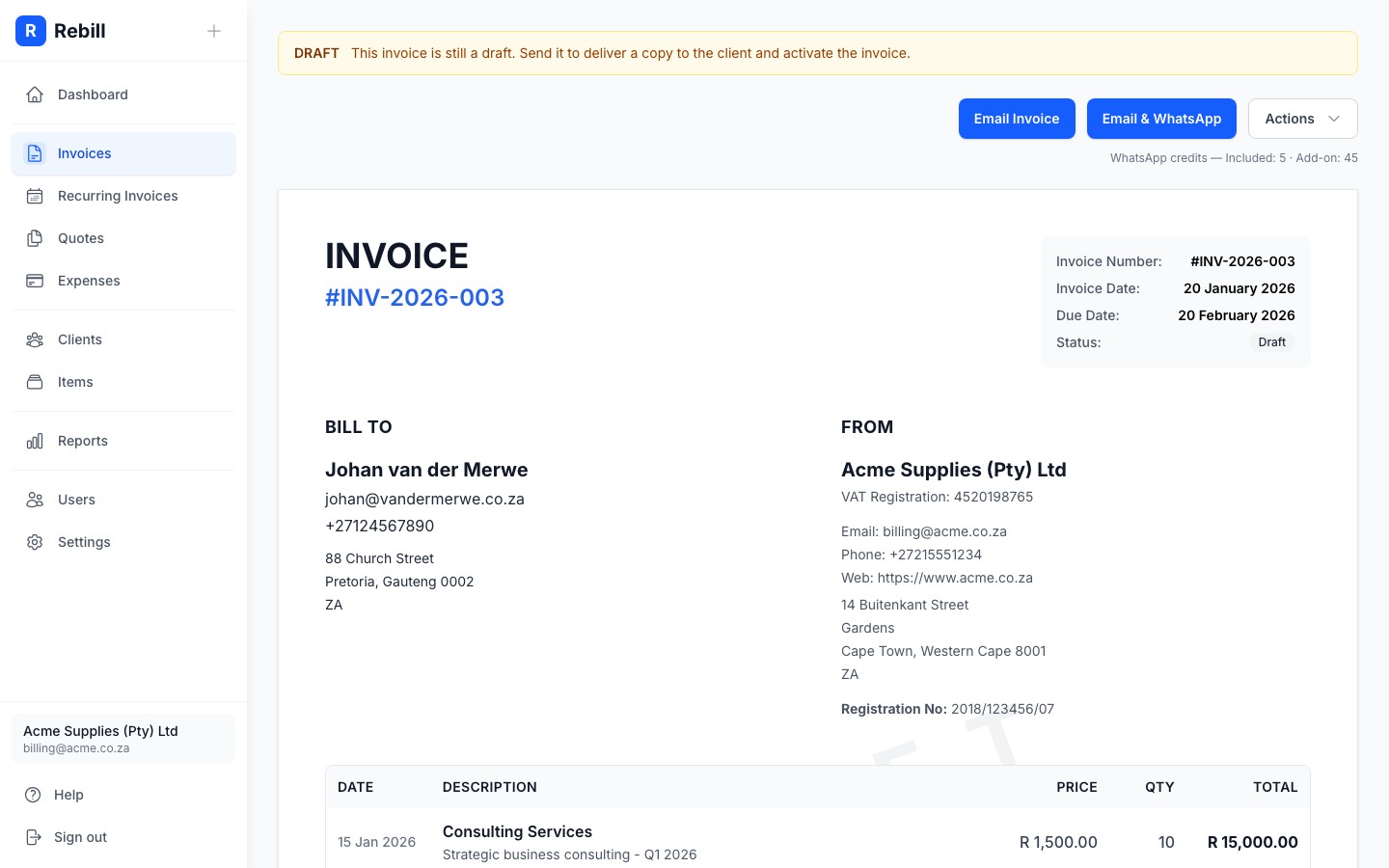
- 3
Confirm and send
A confirmation window explains that sending moves the invoice from draft to sent and emails it to the client. Click "Send Invoice" to confirm.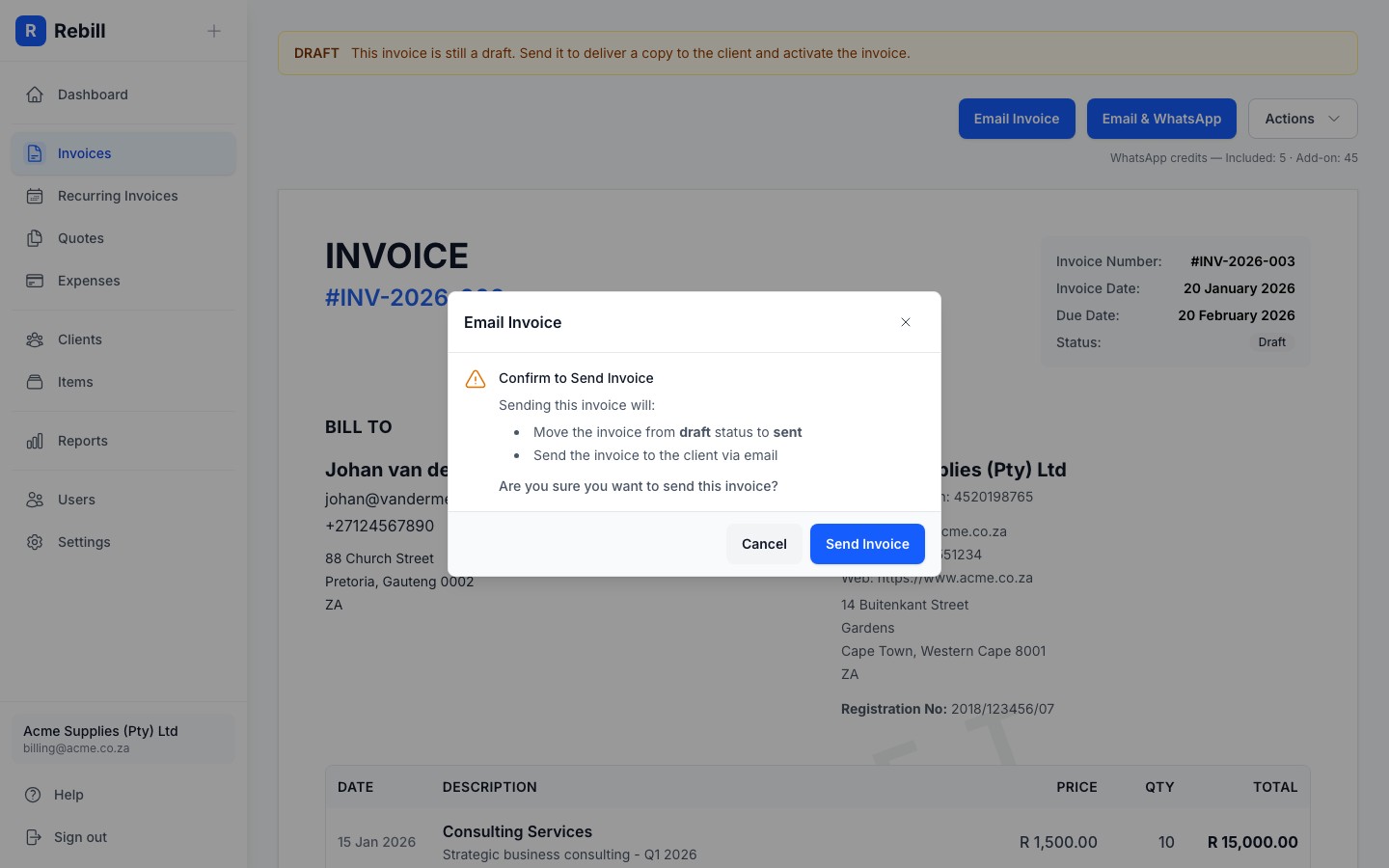
Your client will receive a professional email with a link to view and pay their invoice online, and the invoice PDF as an attachment when Attach PDF to client emails is on in Settings > Documents > Document options. Any CC addresses saved on the client are copied in. The invoice status will change from Draft to Sent.
Sending by WhatsApp
If you're on a Premium plan or have WhatsApp credits, you can also send invoices via WhatsApp. This is great for clients who are more responsive on WhatsApp than email. The button only appears when the client has a phone number.
- 1
Click "Email and WhatsApp"
Click the "Email and WhatsApp" button next to the Email button. This sends the invoice by both email and WhatsApp at the same time. If the client has a phone number but no email address, the button is called WhatsApp.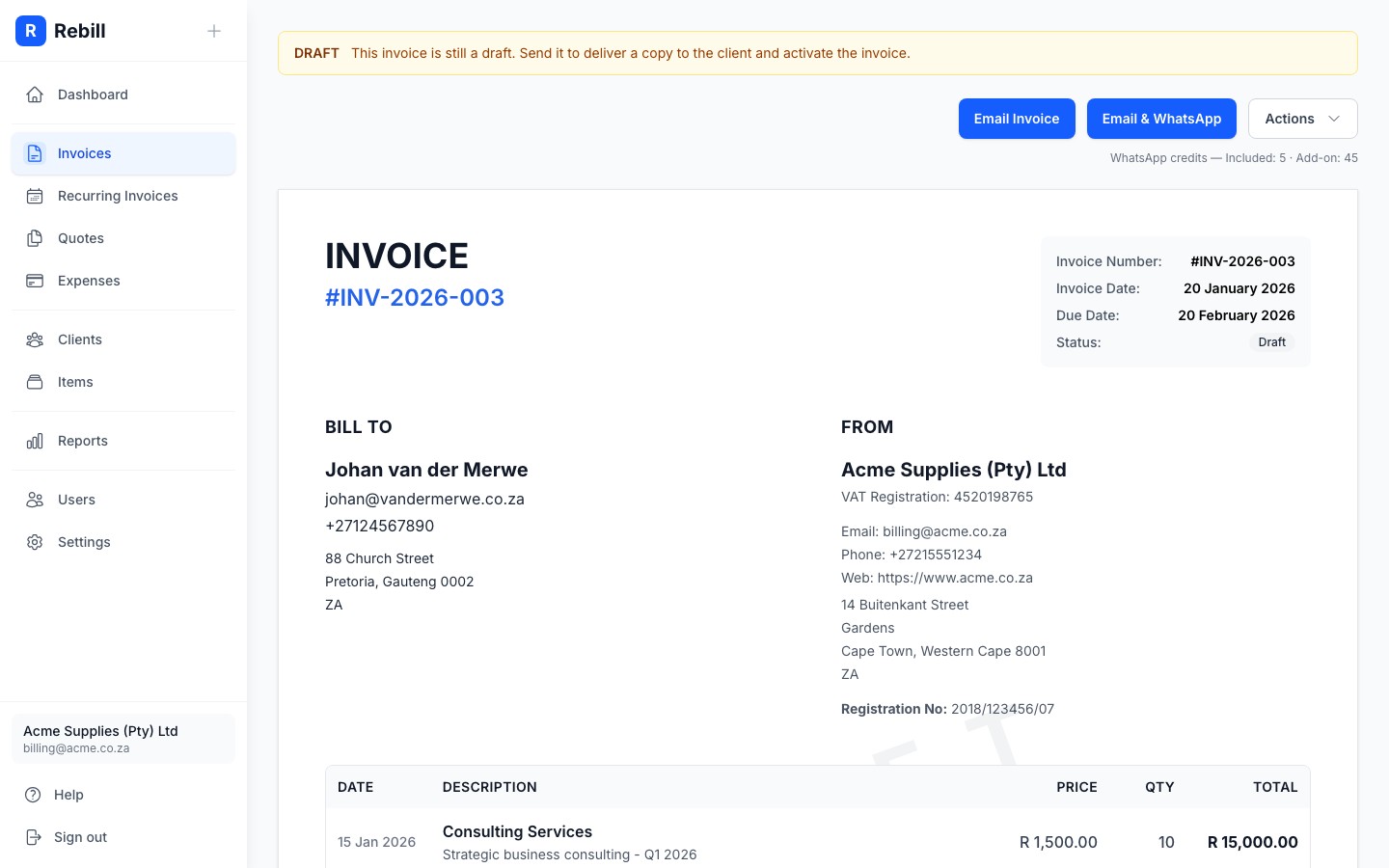
- 2
Review and confirm
A confirmation window explains what will happen and reminds you to check the client's phone number, because a message to a wrong number still uses a credit. Click "Send Email & WhatsApp" to confirm.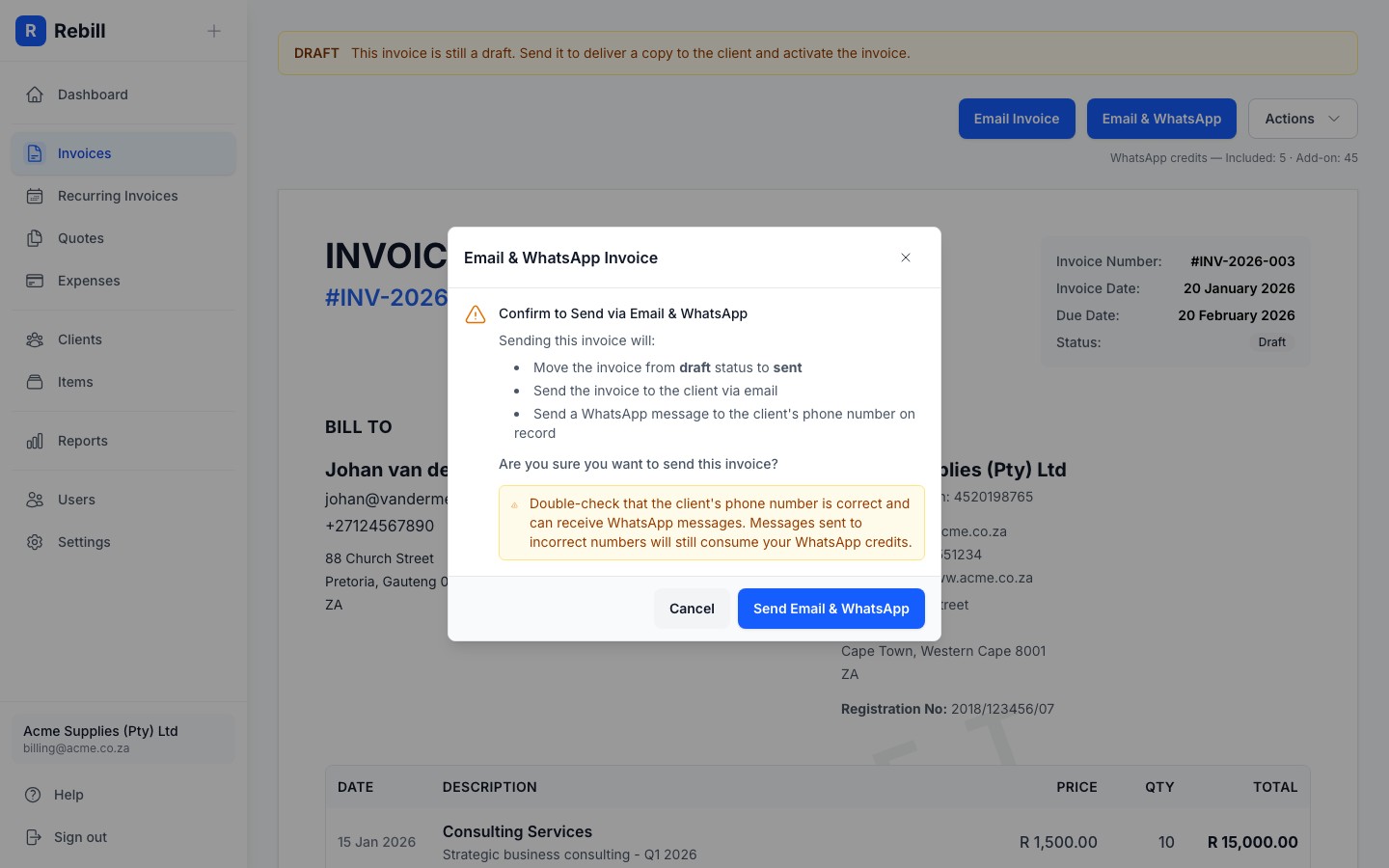
Does sending via WhatsApp use credits?
Yes, each WhatsApp invoice delivery costs one WhatsApp credit. Credits are available to Premium plan subscribers (R99/month). You can buy credit bundles of 50, 100, 250, 500, or 1,000 credits in Settings > Messages > Buy WhatsApp credits. The client must have a phone number saved on their profile for the WhatsApp option to appear.Other sending options
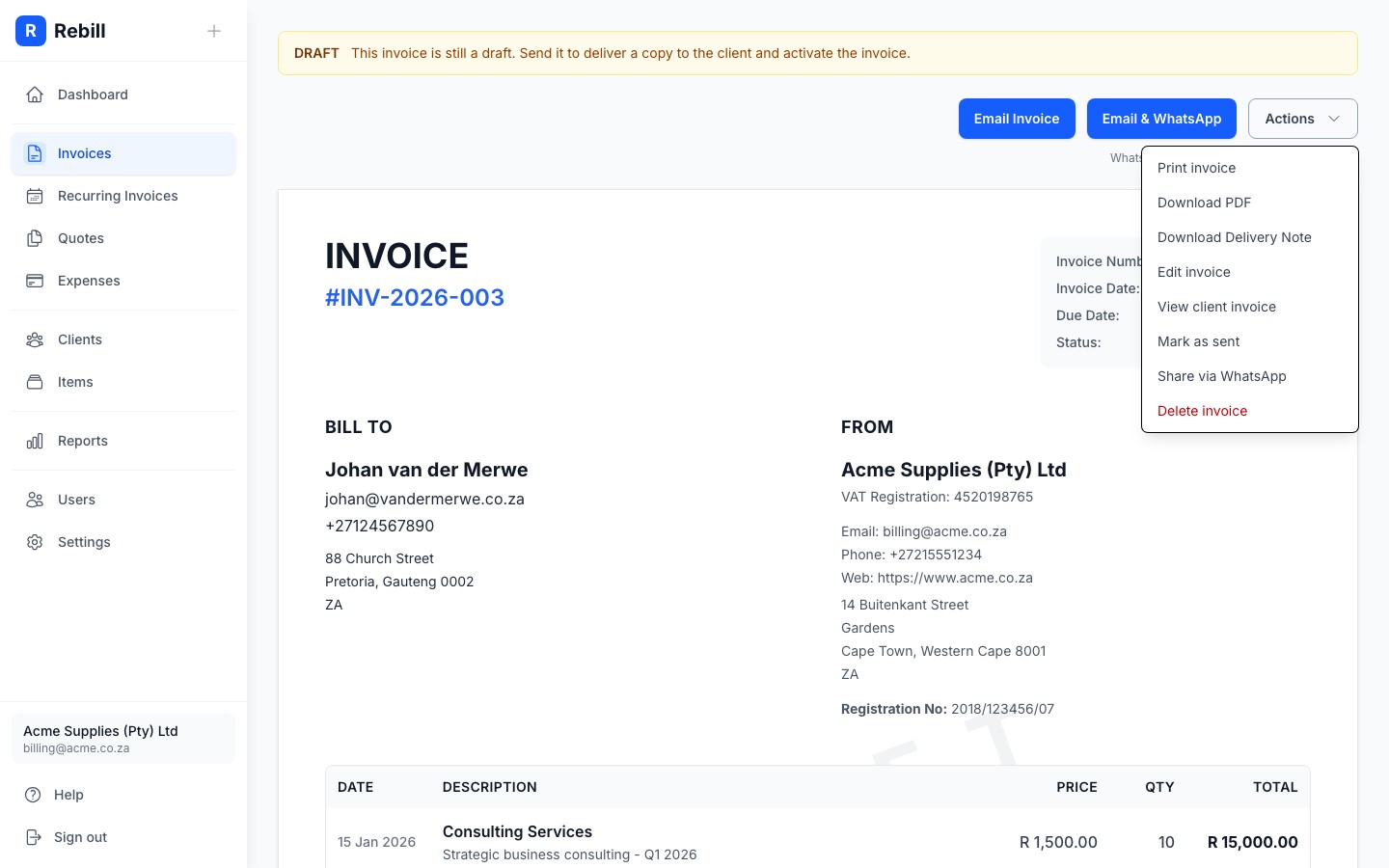
The More actions menu (the ⋯ button in the top right of the invoice) has more options:
- Mark as sent: changes the status to Sent without sending any notification. Use this if you've sent the invoice manually (e.g. printed and handed over).
- View client invoice: opens the public link your client sees. You can copy this link and send it yourself however you like.
- Share via WhatsApp: opens WhatsApp with a pre-filled message containing the invoice link. This does not use WhatsApp credits. It simply opens WhatsApp on your device.
Notification history
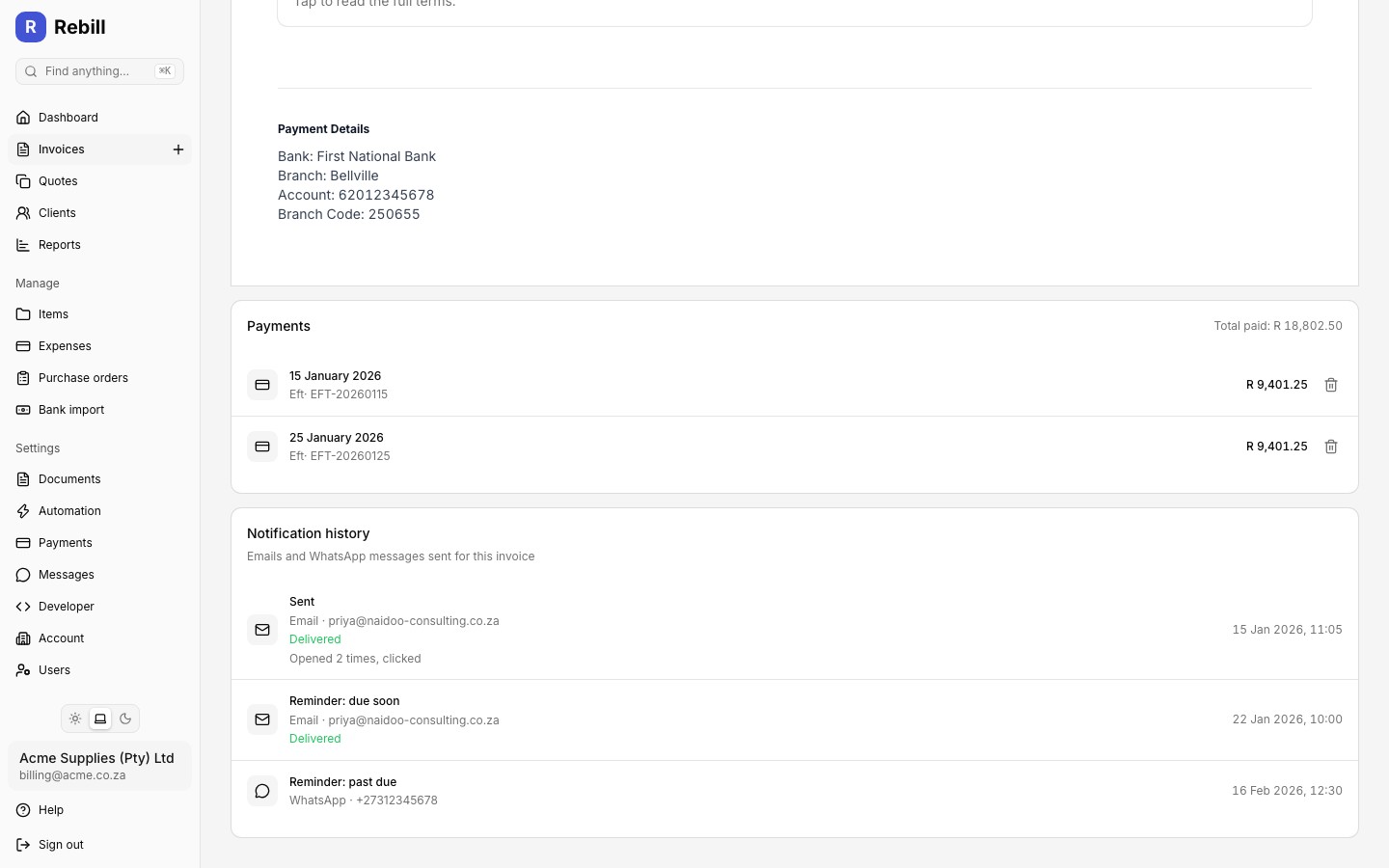
Every invoice has a Notification history panel below the invoice document, listing every email and WhatsApp message sent for it: when it was sent, which channel, and who received it. Messages that carried the invoice PDF show a small PDF marker.
For emails, Rebill also shows delivery and engagement status where available: Delivered, Bounced, Marked as spam, or Rejected, plus whether the client opened the email or clicked a link in it, and how many times. "Opened" is a guide, not proof of reading: some email apps open messages automatically, and others block the tracking. If delivery tracking isn't available for a particular send, the panel shows "Delivery status unavailable" instead.