
Every invoice in Rebill has a status that shows exactly where it is in the payment lifecycle, from Draft (not yet sent) through to Paid (fully settled), Cancelled (voided) or Credited (fully reversed by credit notes). Here is what each status means and when it changes.
Statuses are set automatically
You never pick a status from a dropdown. The status changes automatically based on what happens to the invoice: creating it makes it a Draft, sending it marks it Sent, and recording payments moves it to Partially paid or Paid. "Overdue" is not a separate status: it is a Sent or Partially paid invoice whose due date has passed, shown with a red due date in your invoice list. The only direct status actions are cancelling an invoice and scheduling one to send later. Issuing a credit note can also move an invoice to Credited.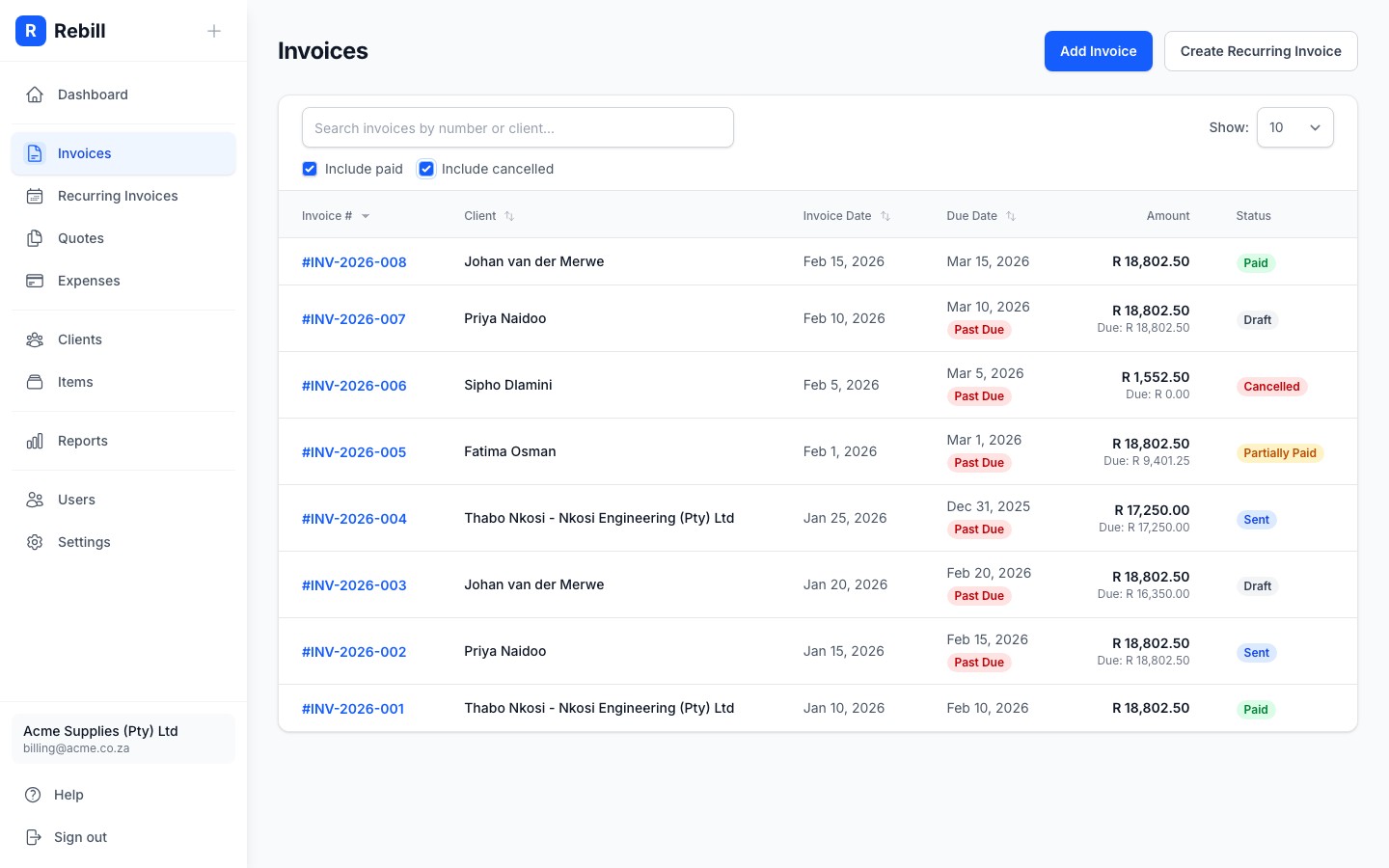
Status meanings
| Status | Meaning | Can you edit it? |
|---|---|---|
| Draft | Created but not yet sent. The client cannot see it. | Yes |
| Sent | Emailed or sent to the client. They can now view and pay it online. | Yes, from the More actions menu. Resend it afterwards so the client has the new version. |
| Partially paid | Some payment received but not the full amount (e.g. a deposit). | Yes, but the client cannot be changed once payments are recorded |
| Paid | Full amount received. No further action needed. | Yes, but the client cannot be changed once payments are recorded |
| Overdue | Not a separate status. A Sent or Partially paid invoice whose due date has passed; the due date is highlighted in red in your invoice list, but the status itself does not change. | As for Sent or Partially paid |
| Scheduled | Set to send automatically at a future date and time. | Yes, until it sends |
| Cancelled | Voided. Kept in your records for accounting purposes but will not be collected. | No |
| Credited | Credit notes have reversed the whole invoice, so it owes nothing. The invoice and its credit notes stay on record. A part-credited invoice keeps its normal status and shows how much was credited. See Issue a credit note. | No, apart from notes, labels, due date, PO number and payment terms |
Editing an invoice that has been sent
An edit that only changes wording, dates or notes keeps the invoice amounts exactly as they were sent. If you change prices, quantities, discounts or VAT, Rebill works the totals out again with its current rounding, which rounds each figure half up to the nearest cent. Your client keeps the copy they already have, so resend the invoice after editing it.Filtering your invoice list
Your invoice list opens on Unpaid: sent and part paid invoices still owed. Pick Overdue, Drafts, Paid or Credited above the list to see only those, or All to see everything, cancelled invoices included. Search works within the view you picked.