When a client pays you by EFT, cash, or any other manual method, you need to record the payment in Rebill so the invoice is marked as paid. If a client pays online via Paystack or Yoco, this happens automatically.
- 1
Open the invoice
Go to Invoices and click on the invoice you received payment for.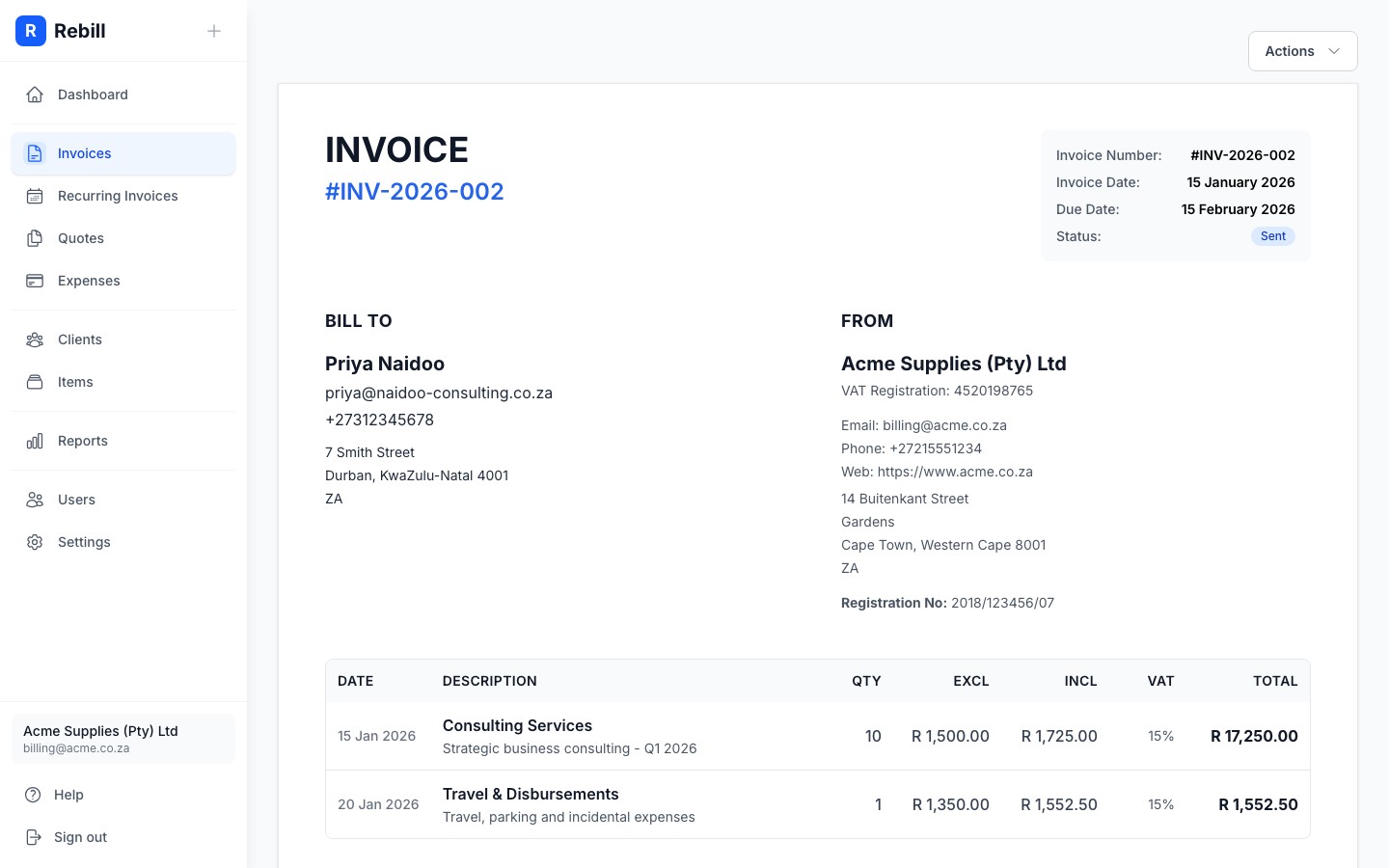
- 2
Click "Capture payment"
On a Sent or Partially paid invoice, the Capture payment button sits above the invoice document as the primary action, with Download PDF as the outline button beside it. If the invoice is still a draft, capture payment from the More actions menu (the ⋯ button top right) instead.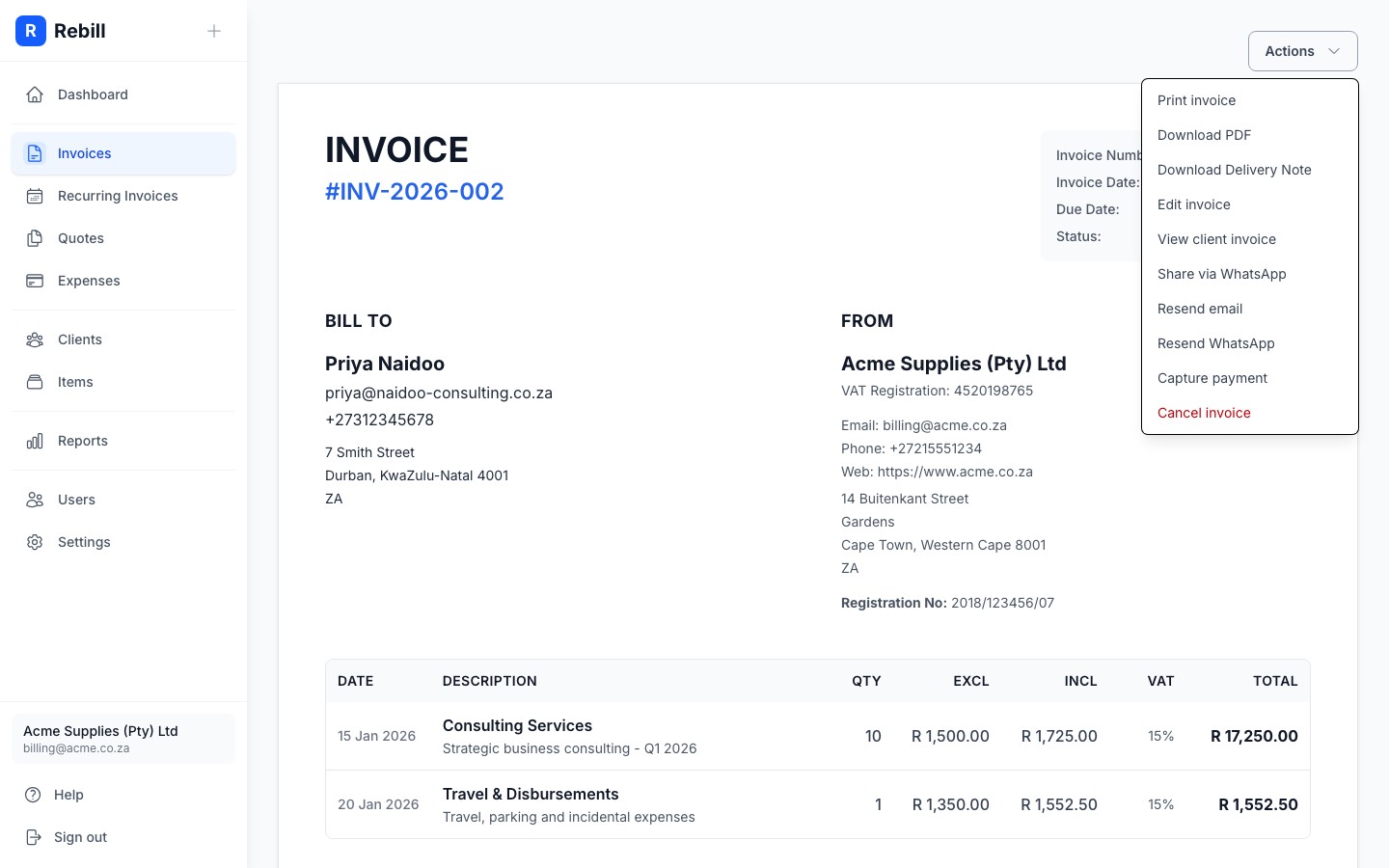
- 3
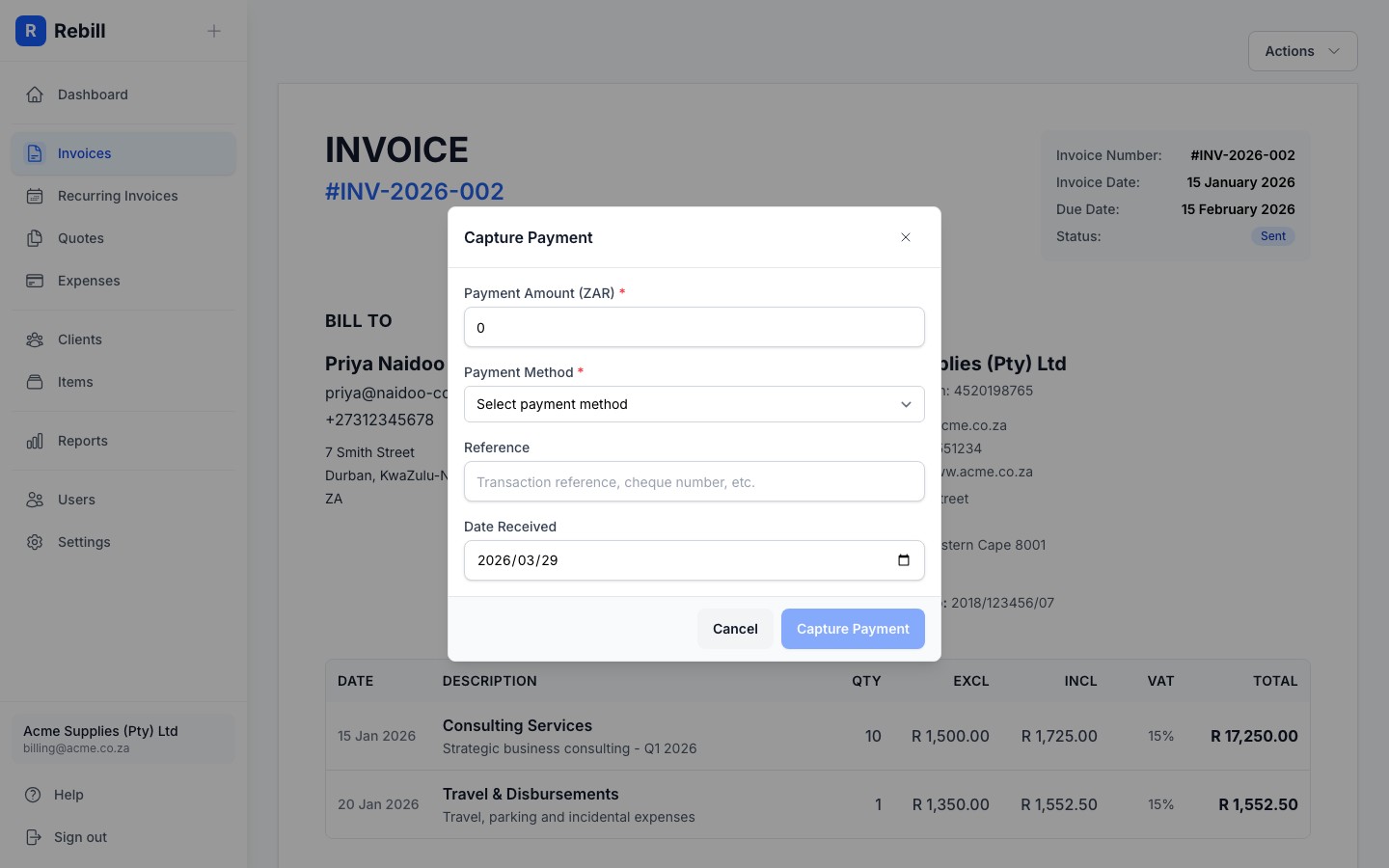
Fill in the payment details
Fill in:- Amount: how much was paid. If it's the full invoice amount, it's pre-filled for you. If it's a partial payment, change it to the actual amount received.
- Payment Method: choose Cash, EFT, Card, or Other
- Reference: optional. Enter the client's payment reference or your bank reference number for your records.
- Date Received: the date the money arrived in your account
- 4
Click "Capture payment"
Click "Capture payment" to save. The invoice will update to Paid (if fully paid) or Partially paid (if you recorded less than the full amount).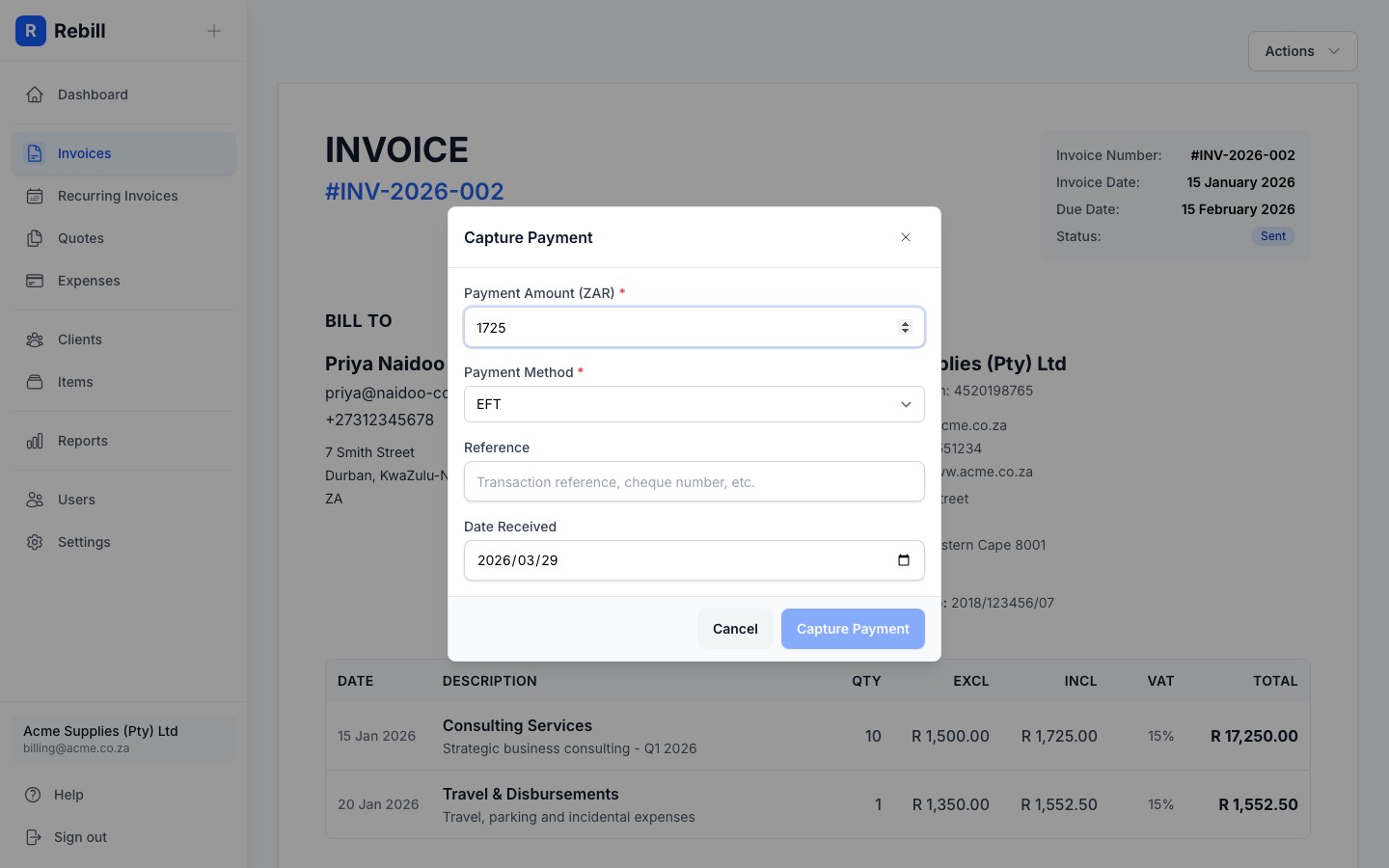
Partial payments
If a client pays in instalments, you can record each payment separately. Just capture payment each time money arrives. The invoice will show Partially paid until the full amount has been received, then switch to Paid automatically.Record a payment straight from the list
On the Invoices list page, hover over a Sent or Partially paid row on desktop and a Capture payment shortcut appears. Clicking it opens the payment form immediately, one fewer click than opening the invoice first.Viewing payment history
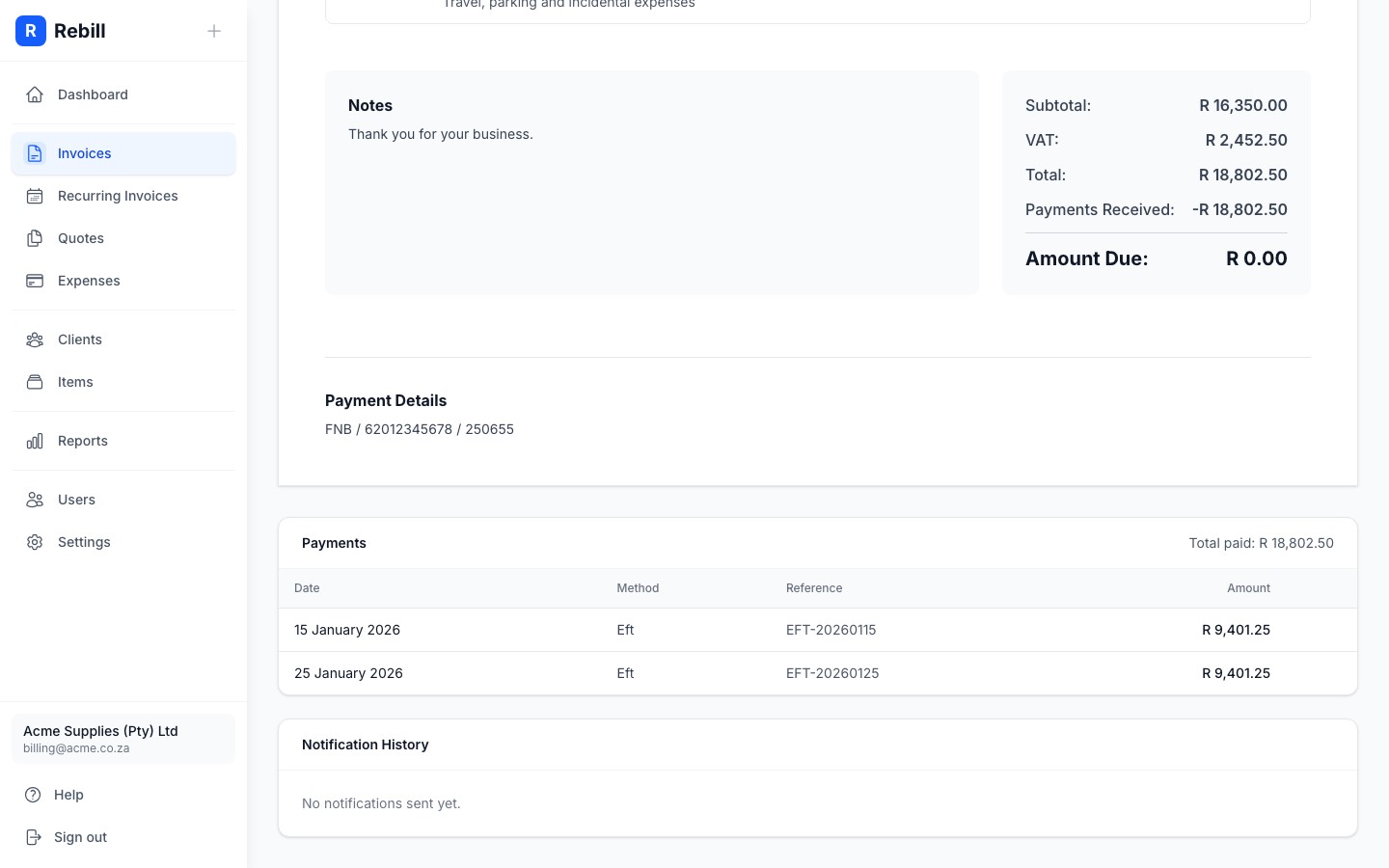
Below the invoice document, you'll find a Payments section that lists every payment recorded against this invoice, including the date, method, reference, and amount.
Applying a client's credit balance
If a client has credit on their account, for example from an overpayment or a converted quote deposit, you can apply it directly to an outstanding invoice instead of asking them to pay again.
- 1
Open the invoice
Go to Invoices and open a Sent or Partially paid invoice for a client who has available credit in the same currency. - 2
Click "Apply credit"
If the client has credit available, open the More actions menu (the ⋯ button top right) and click "Apply credit".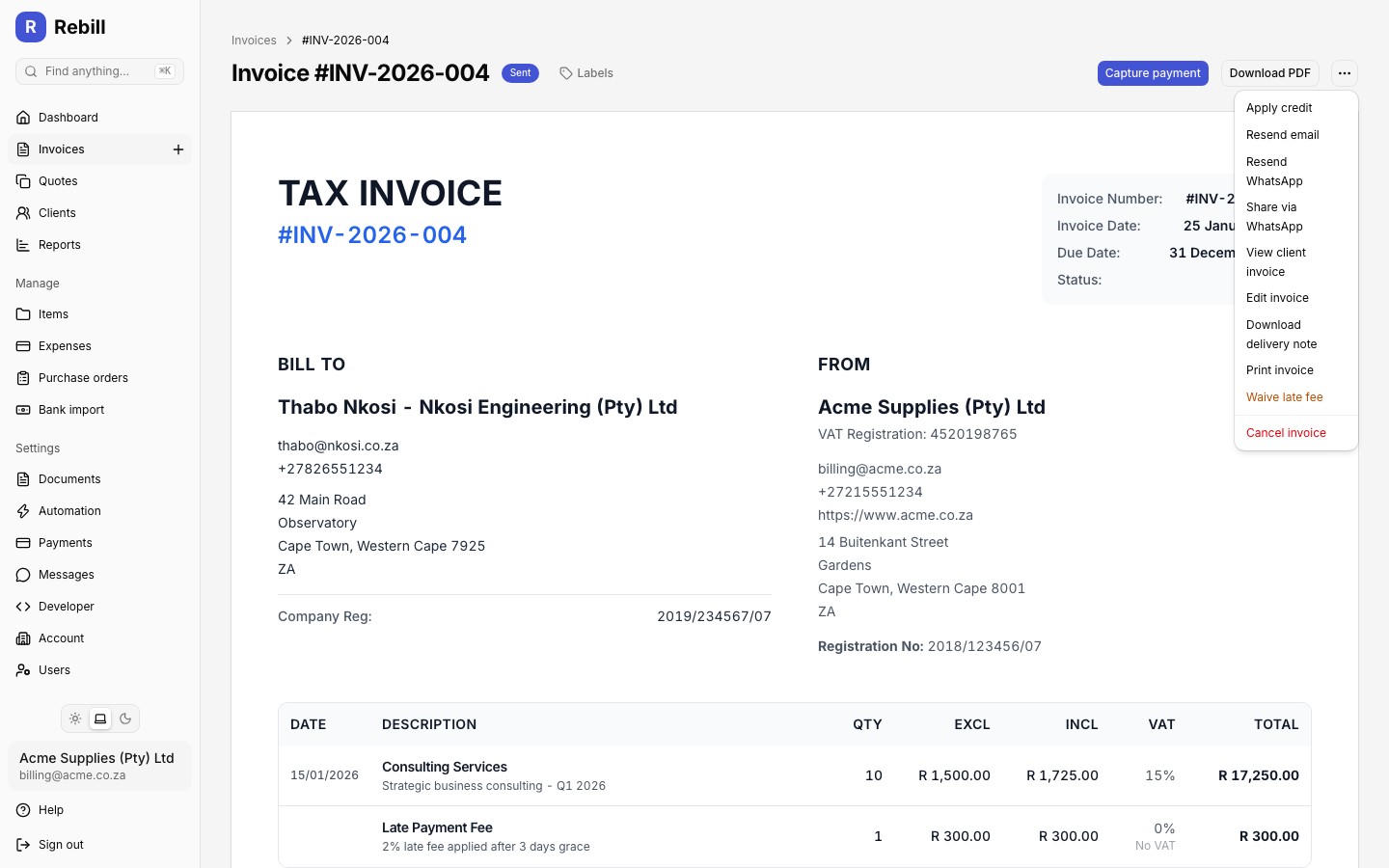
- 3
Confirm the amount
A confirmation dialog shows how much credit will be applied, either the client's full available credit or just enough to settle the invoice, whichever is smaller. Click "Apply Credit" to confirm.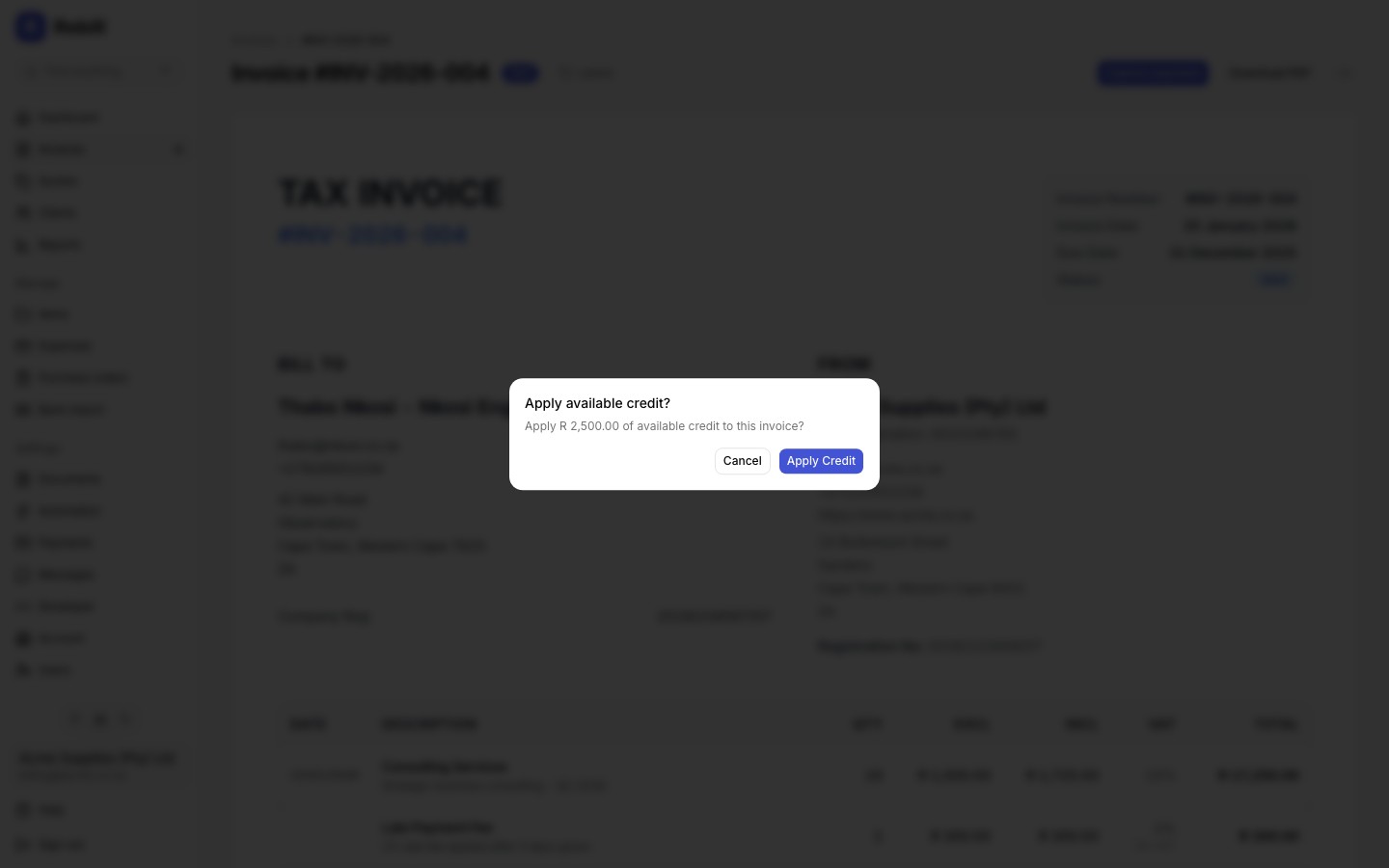
Note
Applying credit updates the invoice's paid amount immediately and moves it to Paid or Partially paid, the same as recording a manual payment. See Managing client details for how credit balances are created and updated.