
You can attach your standard terms and conditions to every quote you send. Clients must accept the terms before they can accept the quote online, and the agreed terms are saved with the quote for your records.
Where terms come from
Your terms and conditions are set up in Settings > Documents > Terms and conditions. Once saved, Rebill attaches them to every new quote automatically. You do not need to paste them in each time.
- 1
How terms appear on the quote
When a client opens their quote online, the terms and conditions are shown on the document before the accept and decline buttons.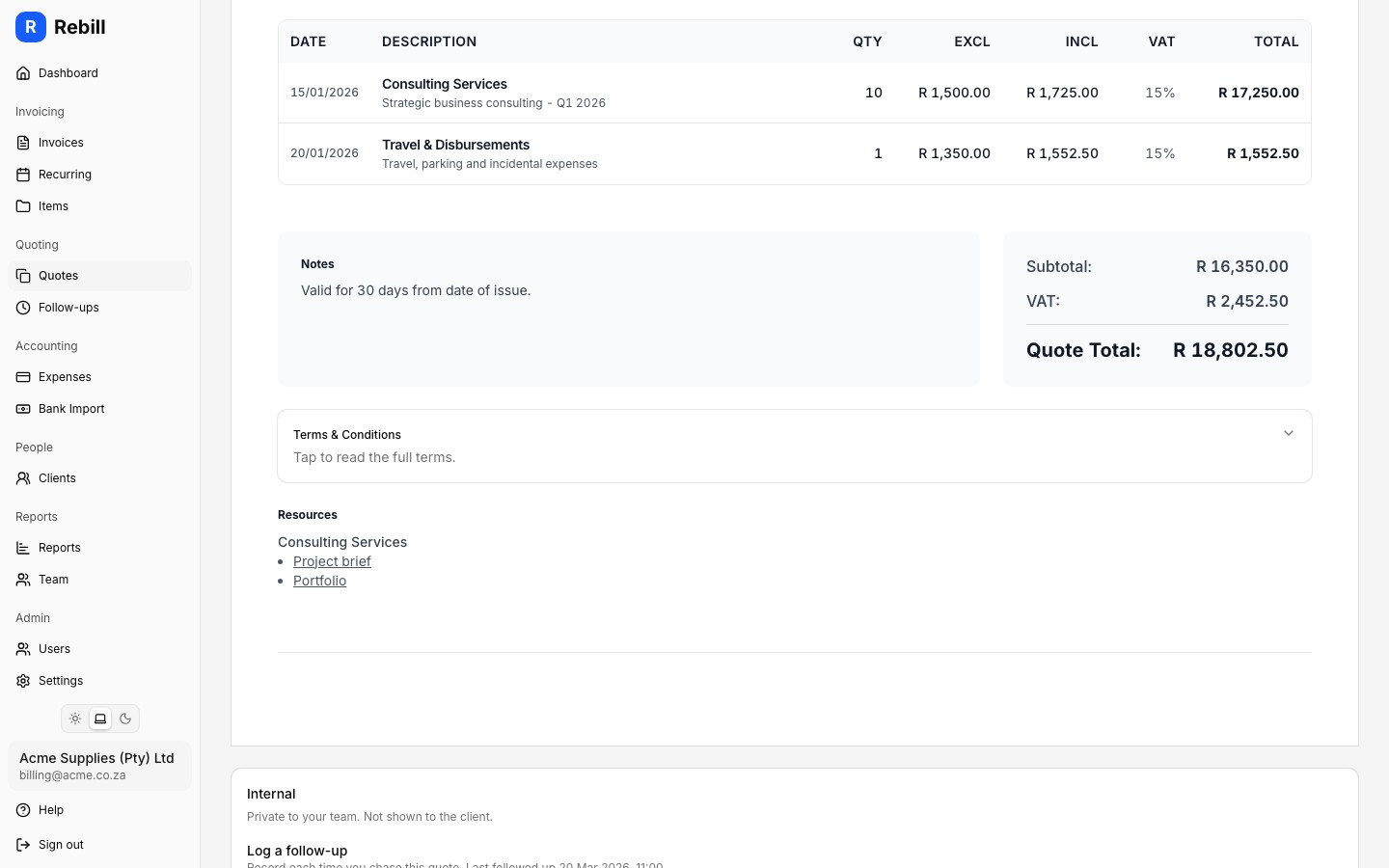
- 2
Client must accept before accepting the quote
If terms are attached, the client must tick a checkbox confirming they have read and agreed to the terms before the Accept button becomes active. They cannot accept the quote without doing this.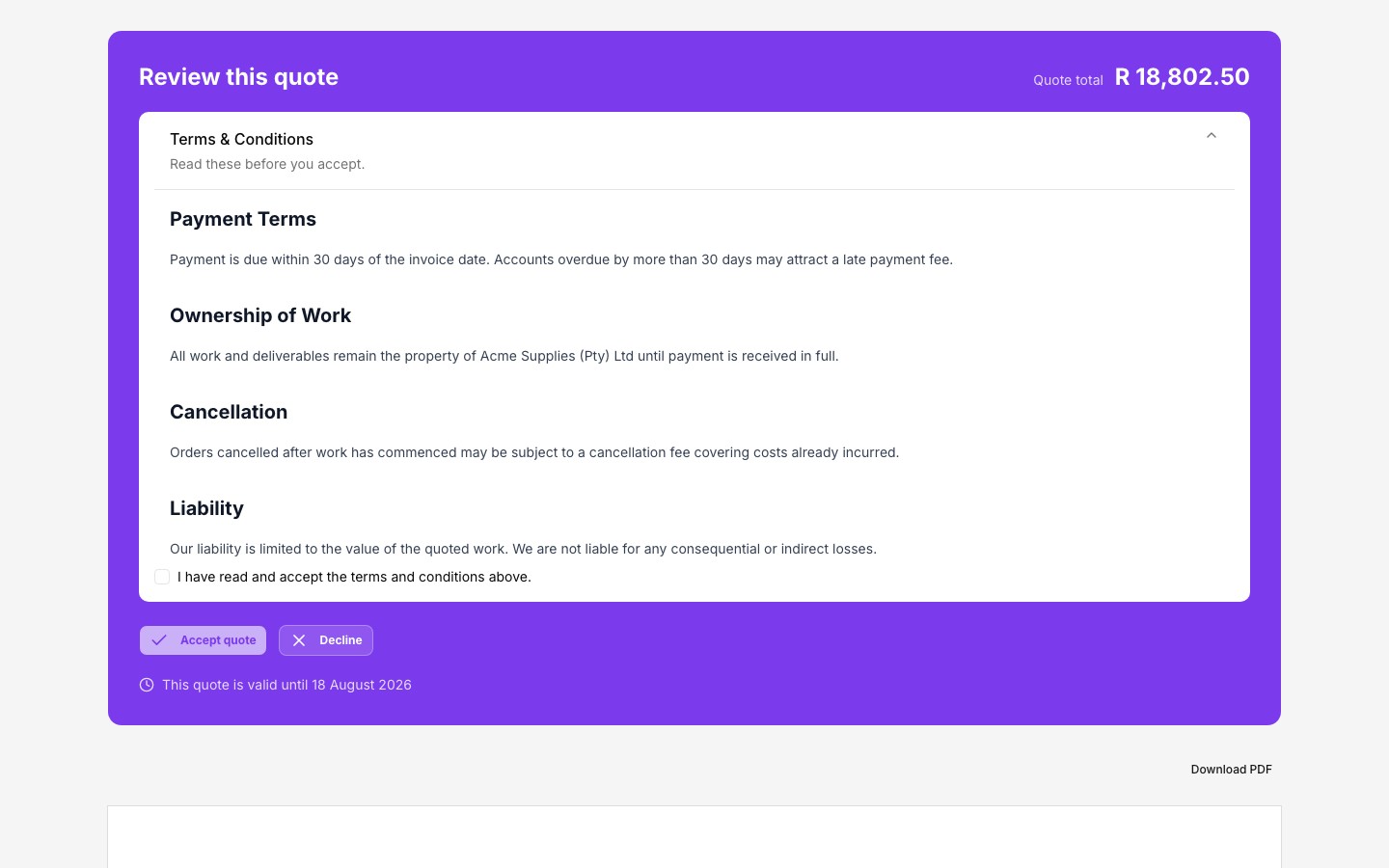
- 3
Agreed terms are saved with the quote
Once the client accepts, the exact version of the terms they agreed to is saved with the quote. You have a permanent record of what they accepted, even if you update your terms later.
Showing terms on the PDF
In your settings you can turn on the option to include the terms and conditions in the quote PDF. When enabled, the terms print on a final page of the PDF so the document is self-contained for clients who prefer to print or save it.
Tip
Keep your terms up to date in Settings > Documents > Terms and conditions. Any changes apply to new quotes going forward. Quotes that have already been accepted keep the version the client originally agreed to.