
Quotes often need a nudge before a client responds. Rebill gives every quote a private area for logging follow-ups and setting a reminder date, plus a dedicated page to see everything that needs attention today.
Logging a follow-up
- 1
Open the Internal panel
On any quote, scroll below the quote document to the Internal card. This area is private to your team; clients never see it.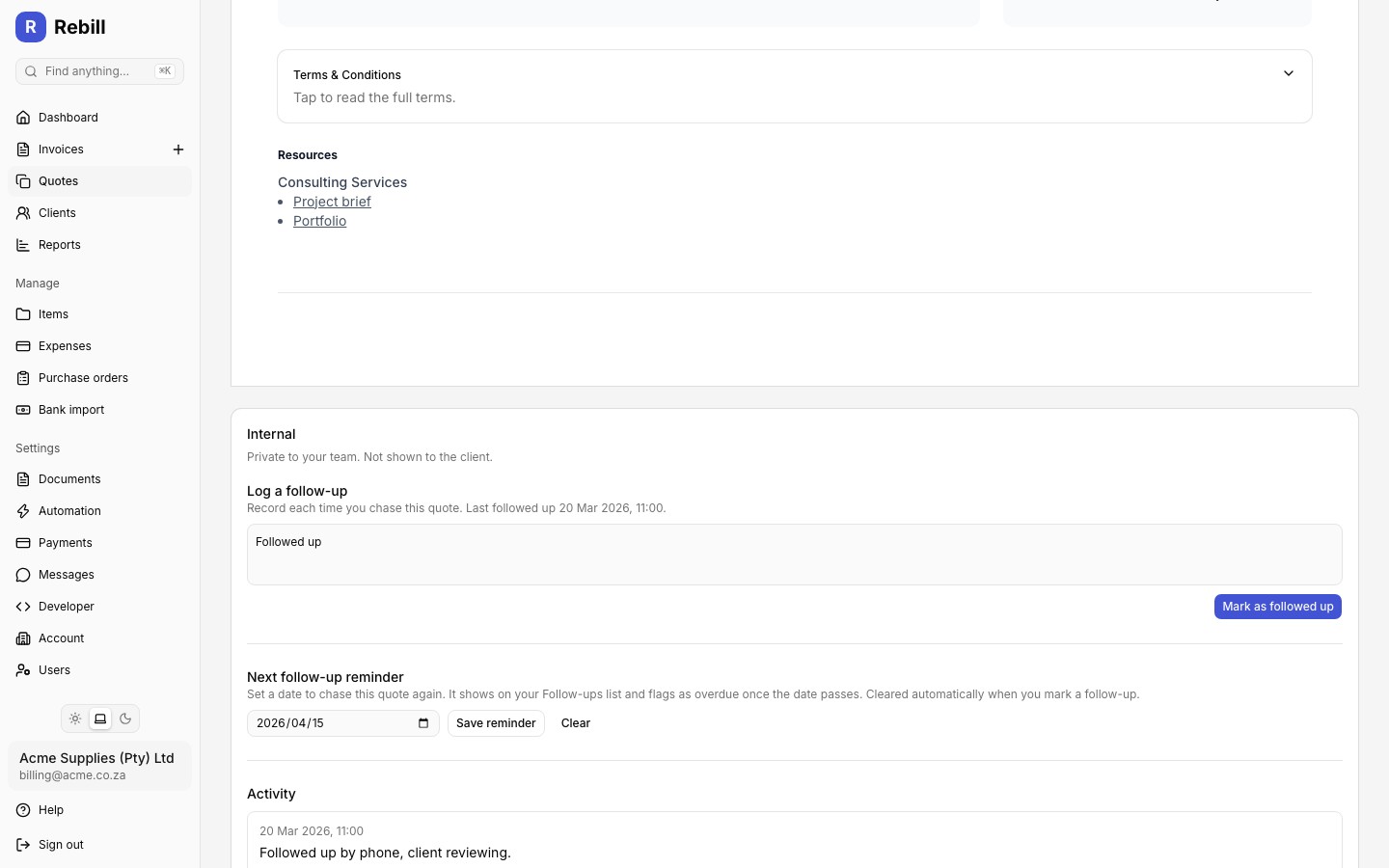
- 2
Describe what happened
In the Log a follow-up section, type what happened, for example "called, left voicemail" or "sent a reminder email".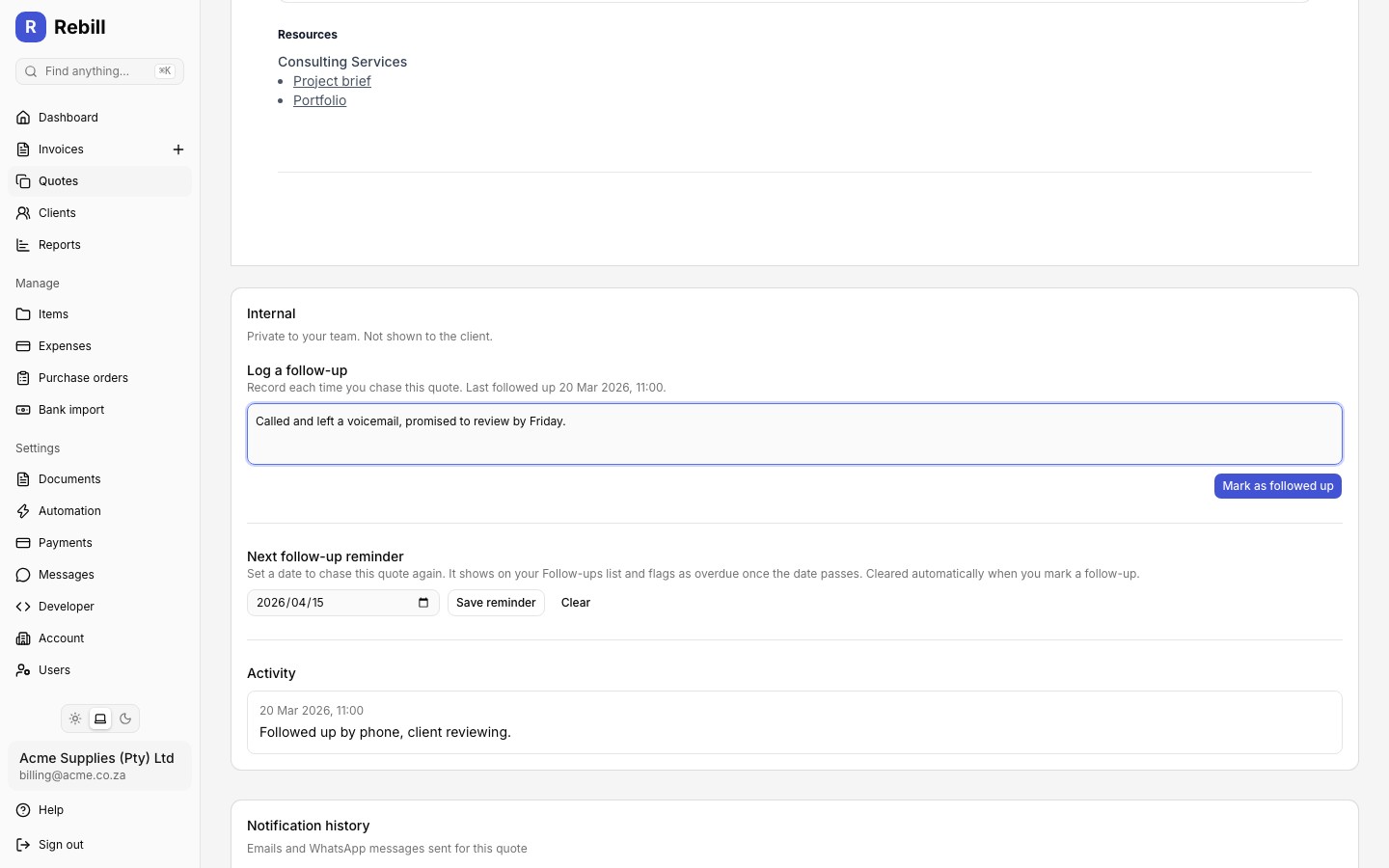
- 3
Click "Mark as followed up"
Click "Mark as followed up" to save the note. It appears in the Activity list below with a timestamp, and clears any pending follow-up reminder.
Setting a reminder for your next follow-up
- 1
Pick a reminder date
In the Next follow-up reminder section of the Internal card, pick the date you want to be reminded to check back with the client.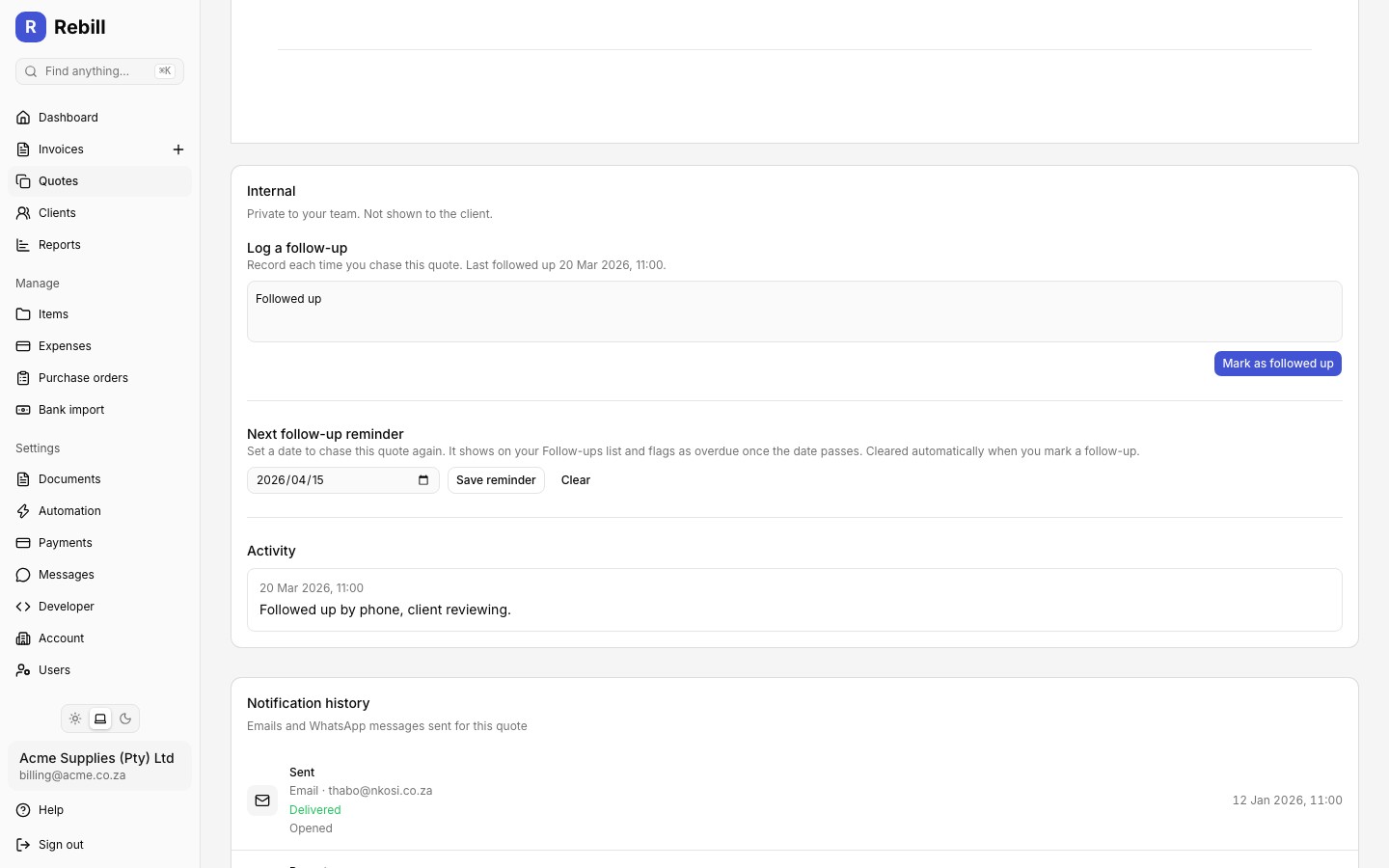
- 2
Click "Save reminder"
Click "Save reminder" to confirm. Click "Clear" at any time to remove the reminder without setting a new one.
Tip
Marking a follow-up as done automatically clears the reminder date, since you have just followed up. Set a new reminder if you need to check back again.Viewing all pending follow-ups
Click the Follow-ups tab on Quotes to see every quote with a reminder date, sorted with overdue quotes first, then by the nearest reminder date. Overdue quotes show a red Overdue badge.
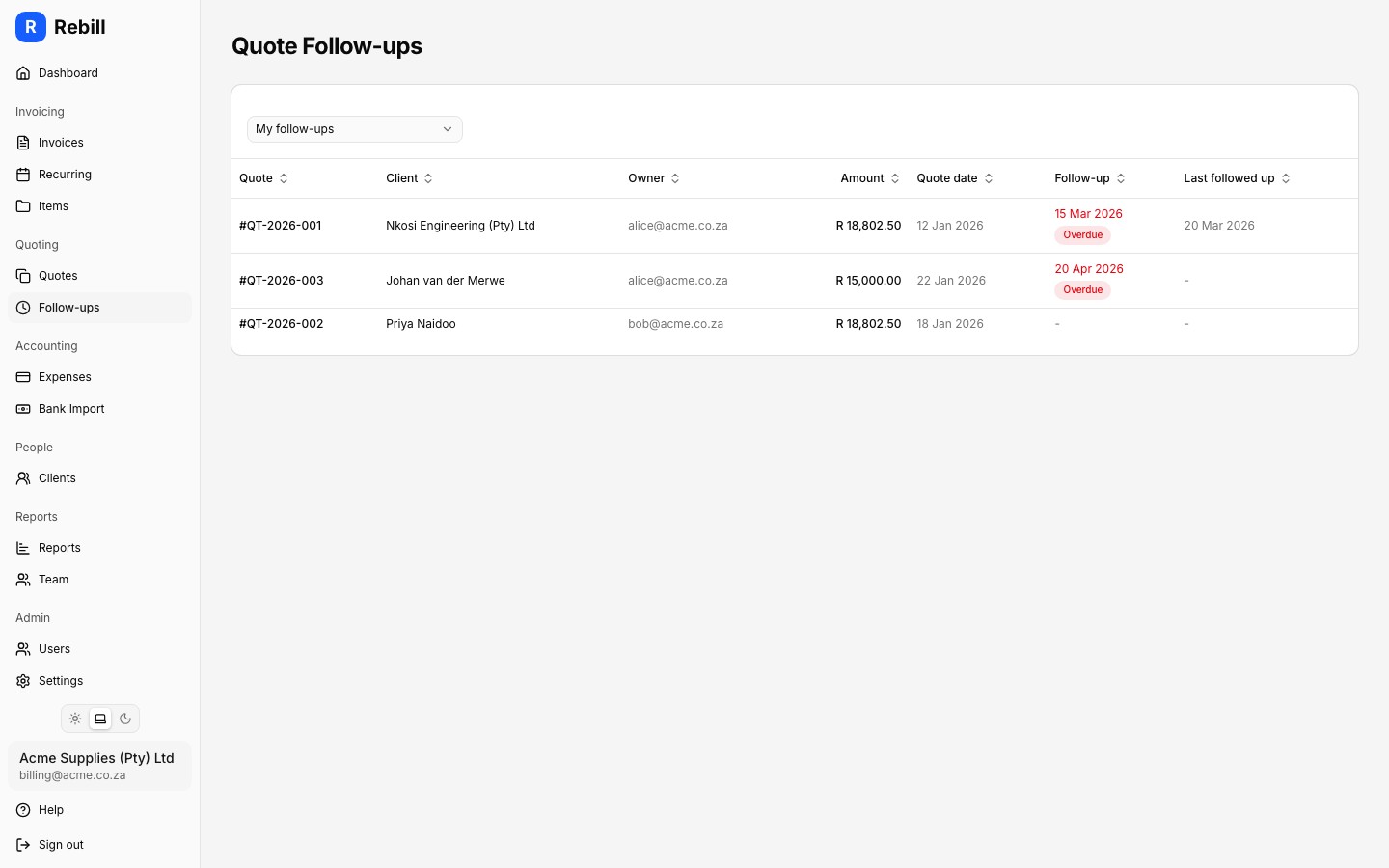
The list includes each quote's Owner and Last followed up date, so you can see who is responsible and whether anyone has already made contact. Use the dropdown above the list to switch between My follow-ups, a specific team member, or All.