
When a client accepts your quote, you can convert it to an invoice in seconds. All the line items and details carry over automatically. No need to re-enter anything.
- 1
Open the accepted quote
Go to Quotes and click on the quote with Accepted status.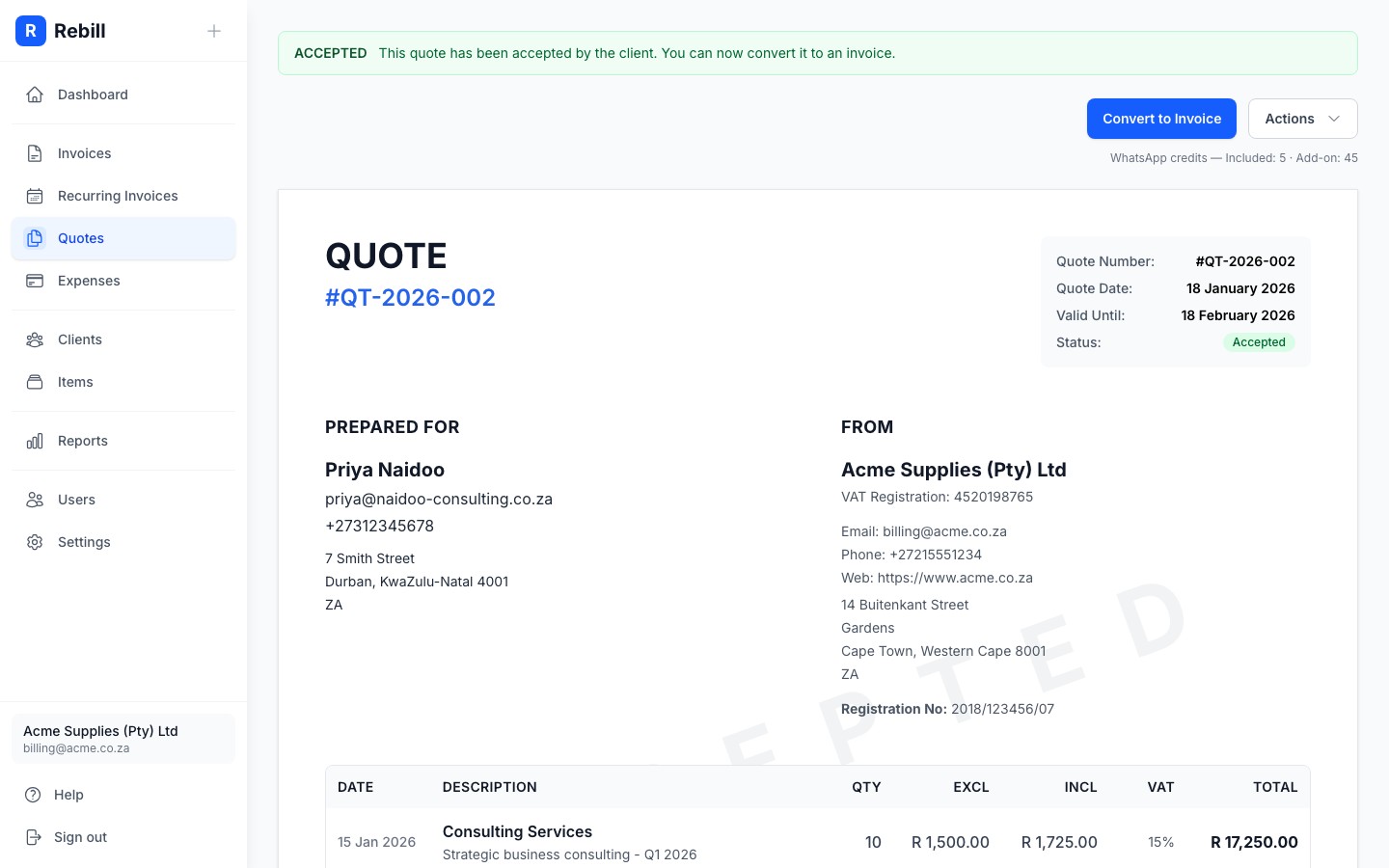
- 2
Click "Convert to Invoice"
You'll see a green "Convert to Invoice" button at the top. Click it.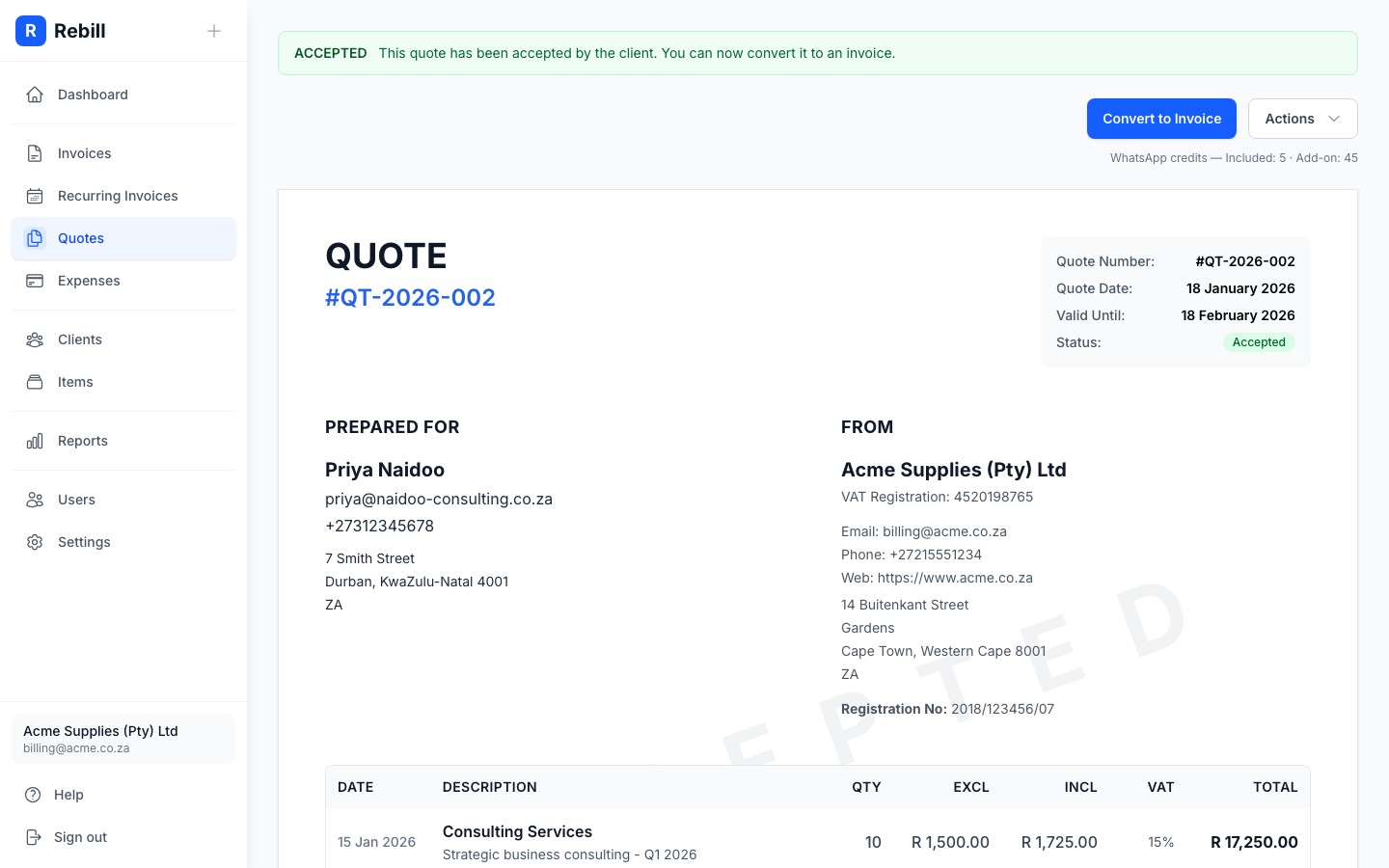
- 3
Set the due date
A small window will appear asking for the due date of the invoice. Pick a date and click "Convert to Invoice".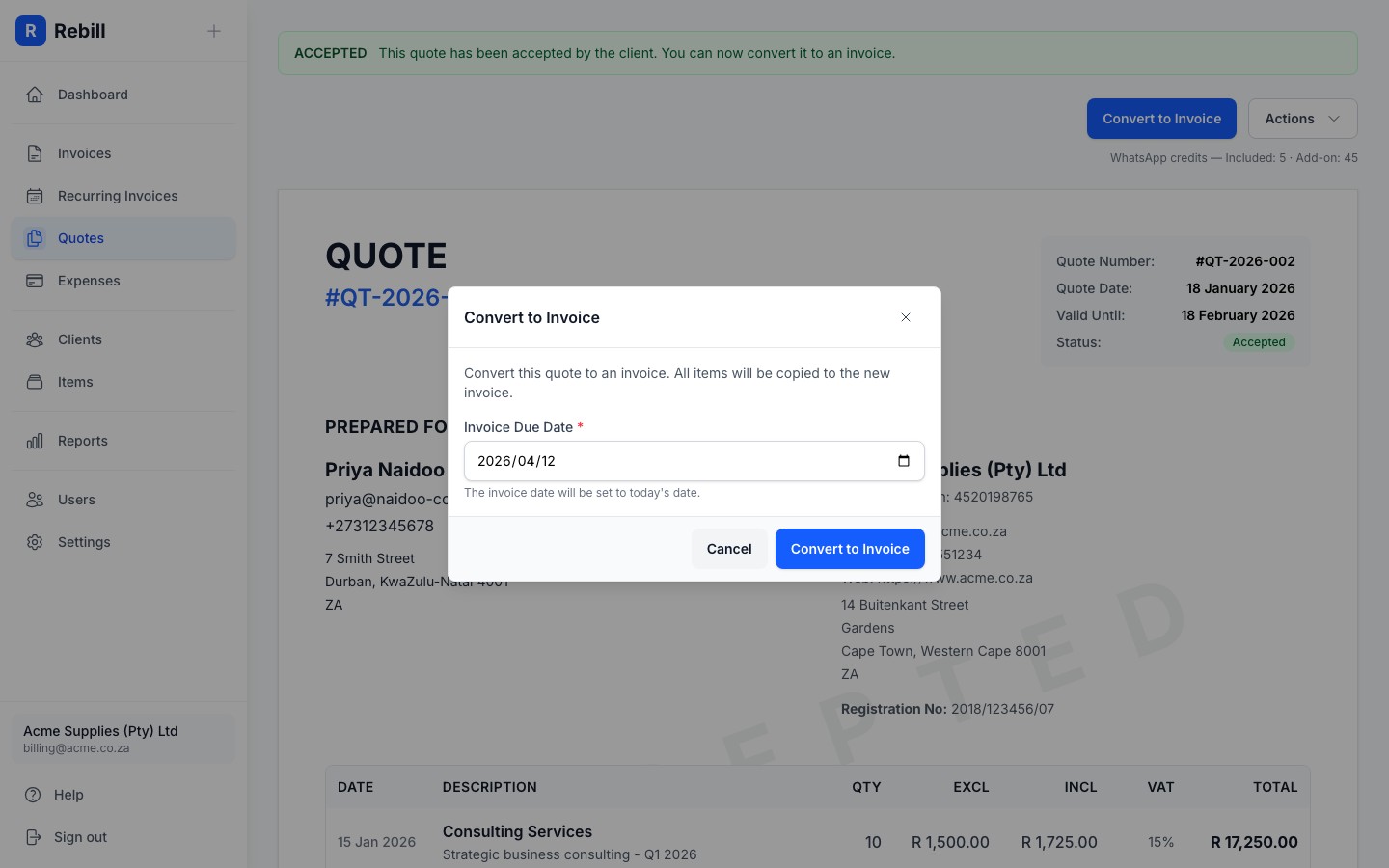
- 4
Invoice created
You'll be taken straight to the new invoice. It will have all the same line items and totals as the quote. The quote status will change to Converted and will show a link to the invoice.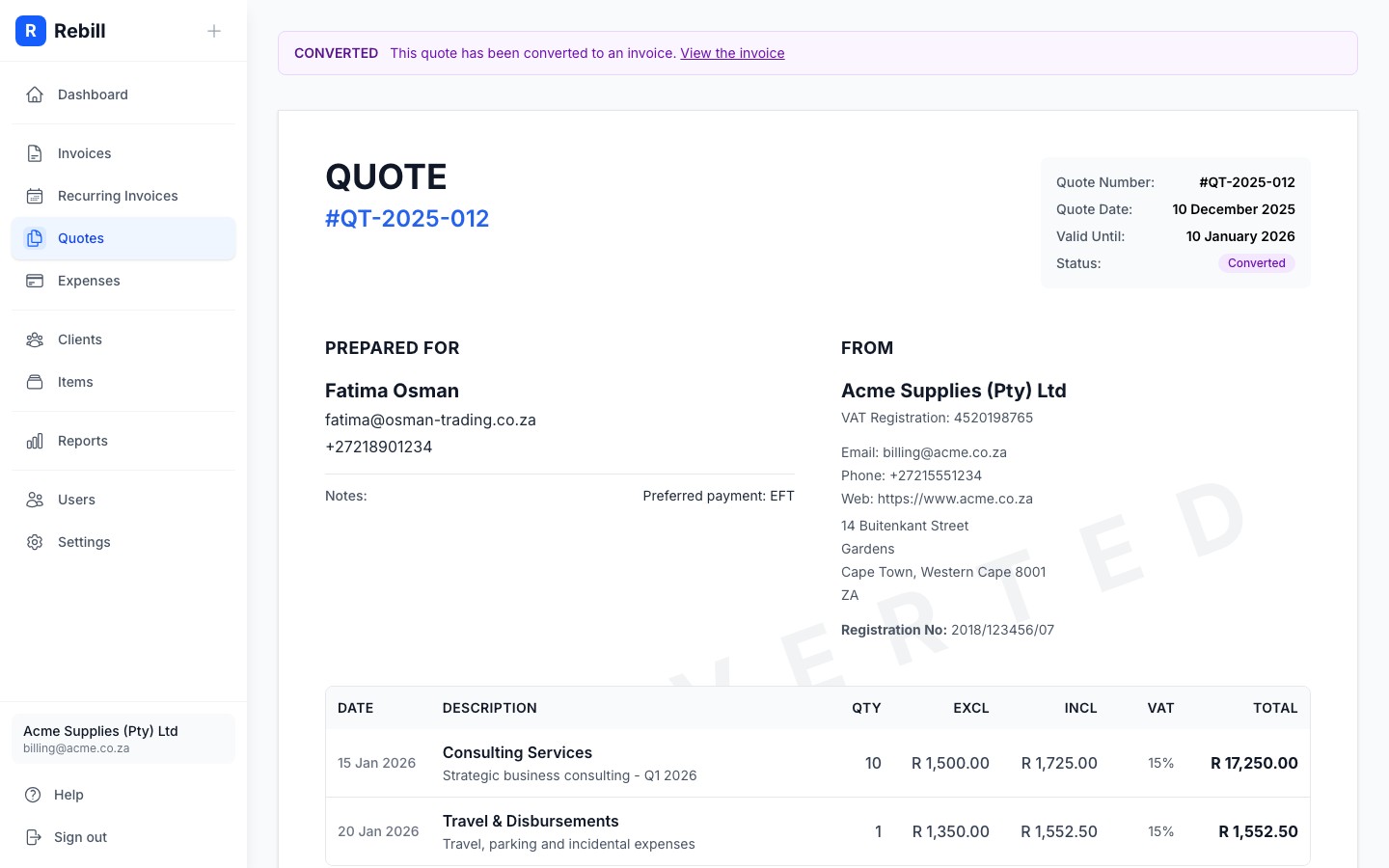
Note
Converting a quote to an invoice does not automatically send the invoice to the client. You'll need to send it separately.Recreating a deleted invoice
If you delete the invoice that a converted quote created, the quote is left pointing at an invoice that no longer exists. When this happens, the quote page shows an Invoice missing alert with a Recreate the invoice link so you can restore it without retyping anything.
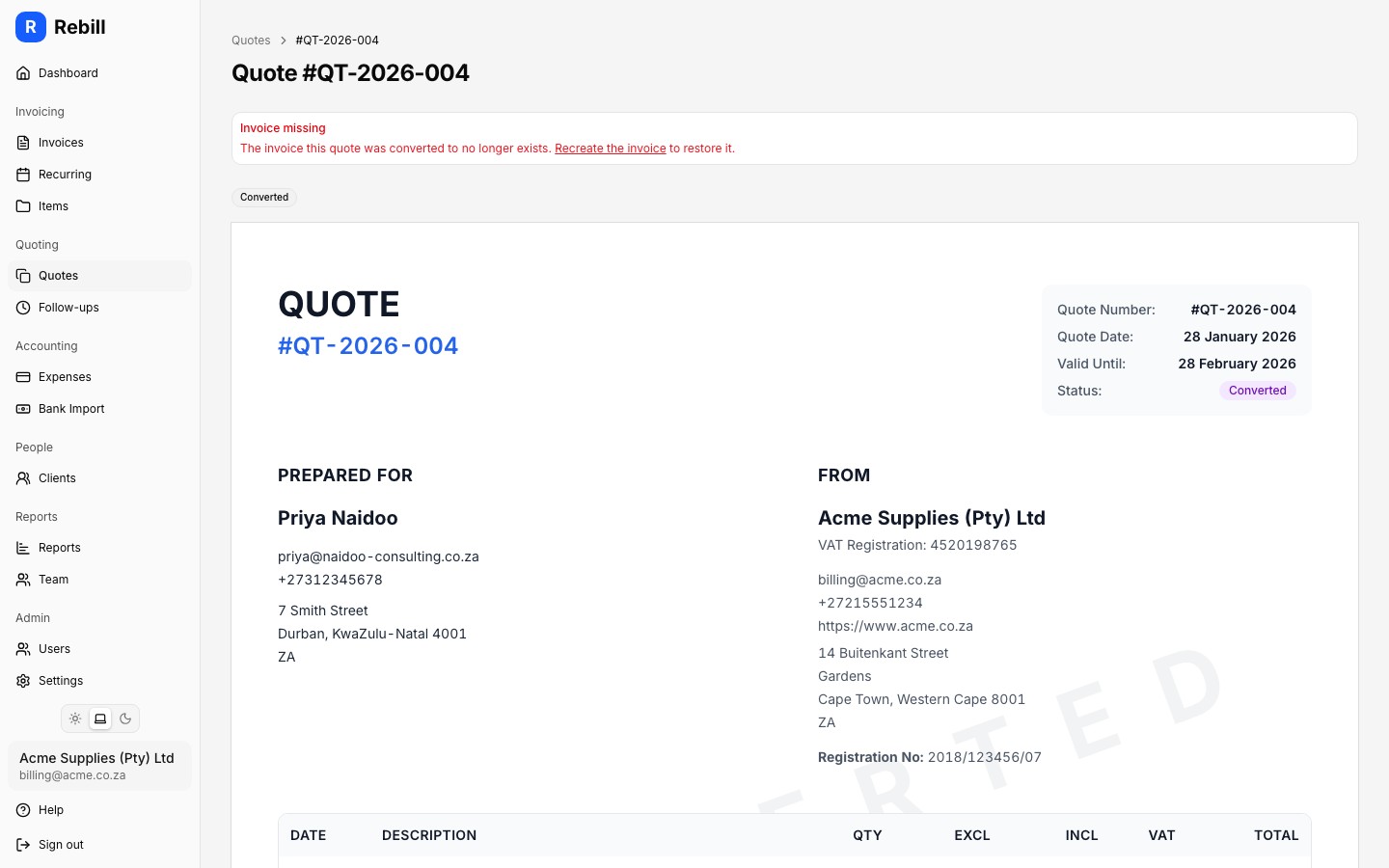
- 1
Click "Recreate the invoice"
On the converted quote, click the Recreate the invoice link in the alert. A dialog opens explaining what will happen.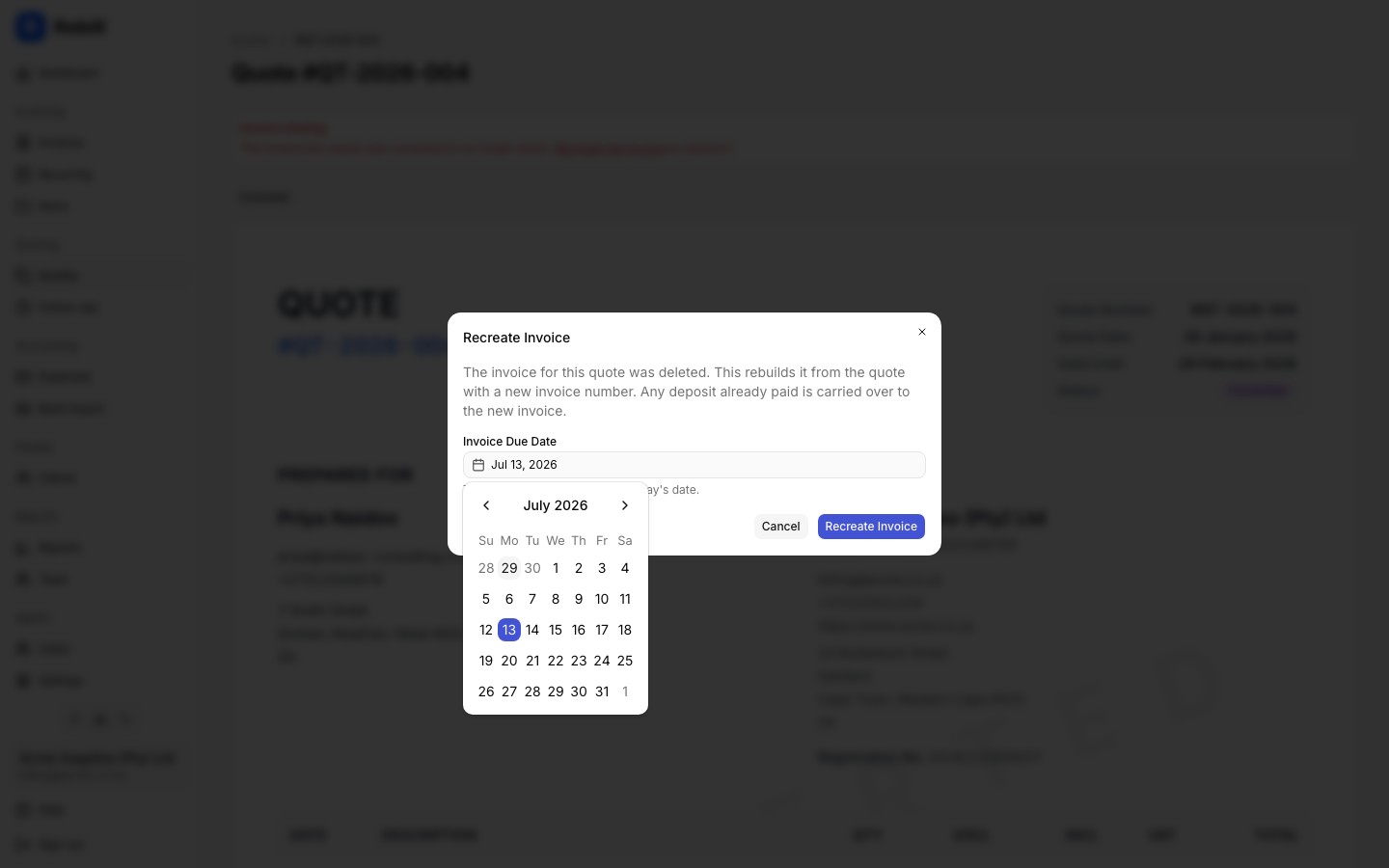
- 2
Set the due date
Pick a due date for the new invoice and click Recreate Invoice. The invoice date is set to today. - 3
Invoice restored
You'll be taken to the new invoice. It is created as a draft with a fresh invoice number and carries over the quote's line items, deposit, and custom fields. The quote stays Converted and now links to the new invoice.
Payments are recovered too
Any payments that were recorded against the deleted invoice (for example a deposit your client already paid) are automatically moved onto the new invoice, and its status and amount due are updated to match. If the recovered payments add up to more than the invoice total, the difference is added to the client's credit balance.Tip
Recreate is only offered when the linked invoice is actually missing. If the invoice still exists, the quote links to it as normal and nothing needs repairing.