
A quote (sometimes called a proposal or estimate) lets you share a price with a client before you do the work. If they accept, you can convert it straight into an invoice with one click.
- 1
Go to Quotes
Click on Quotes in the left sidebar, then click "Add quote" at the top right.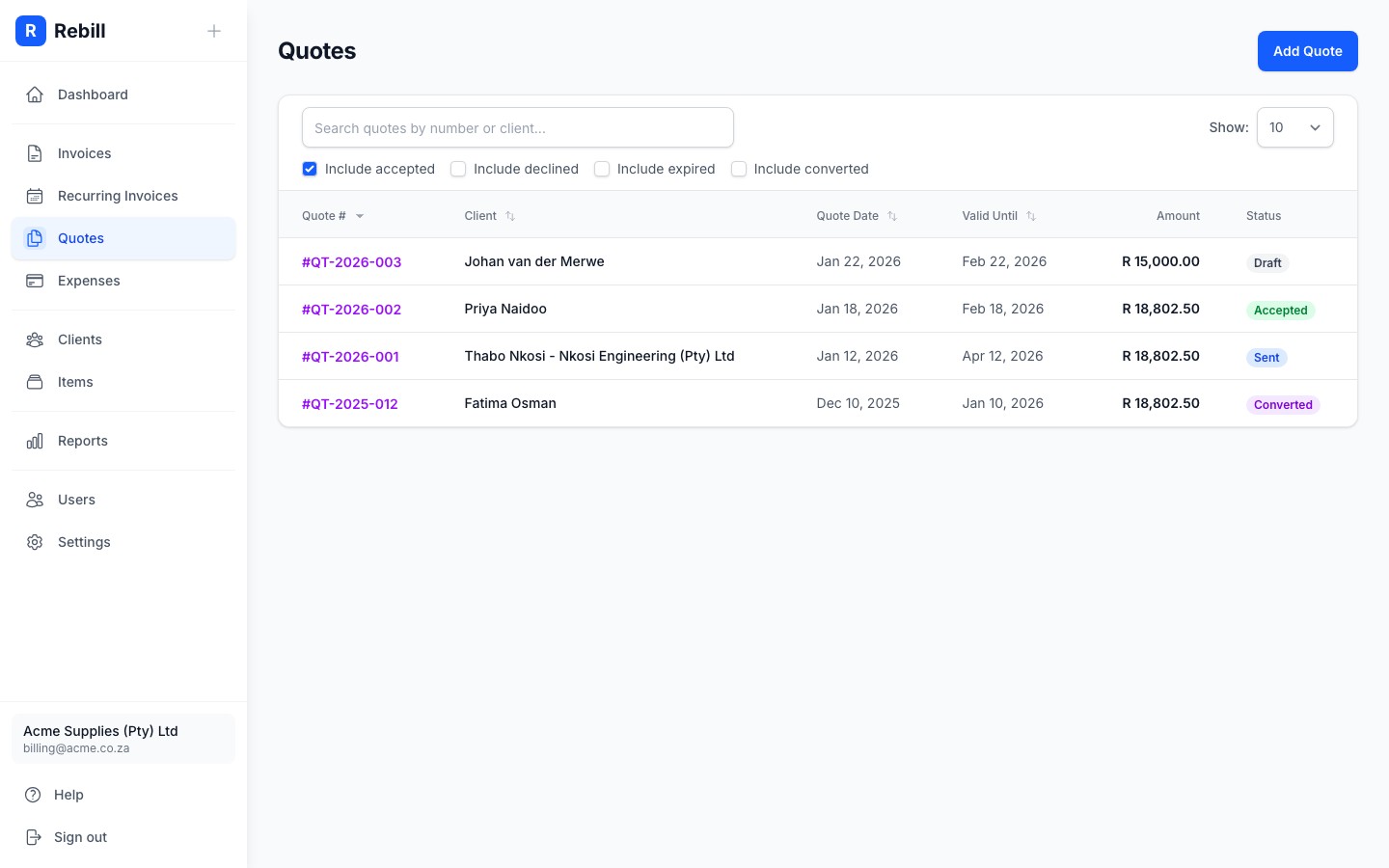
- 2
Select your client
Start typing the client's name and select them from the dropdown. If they're not in your list yet, you can add them on the spot.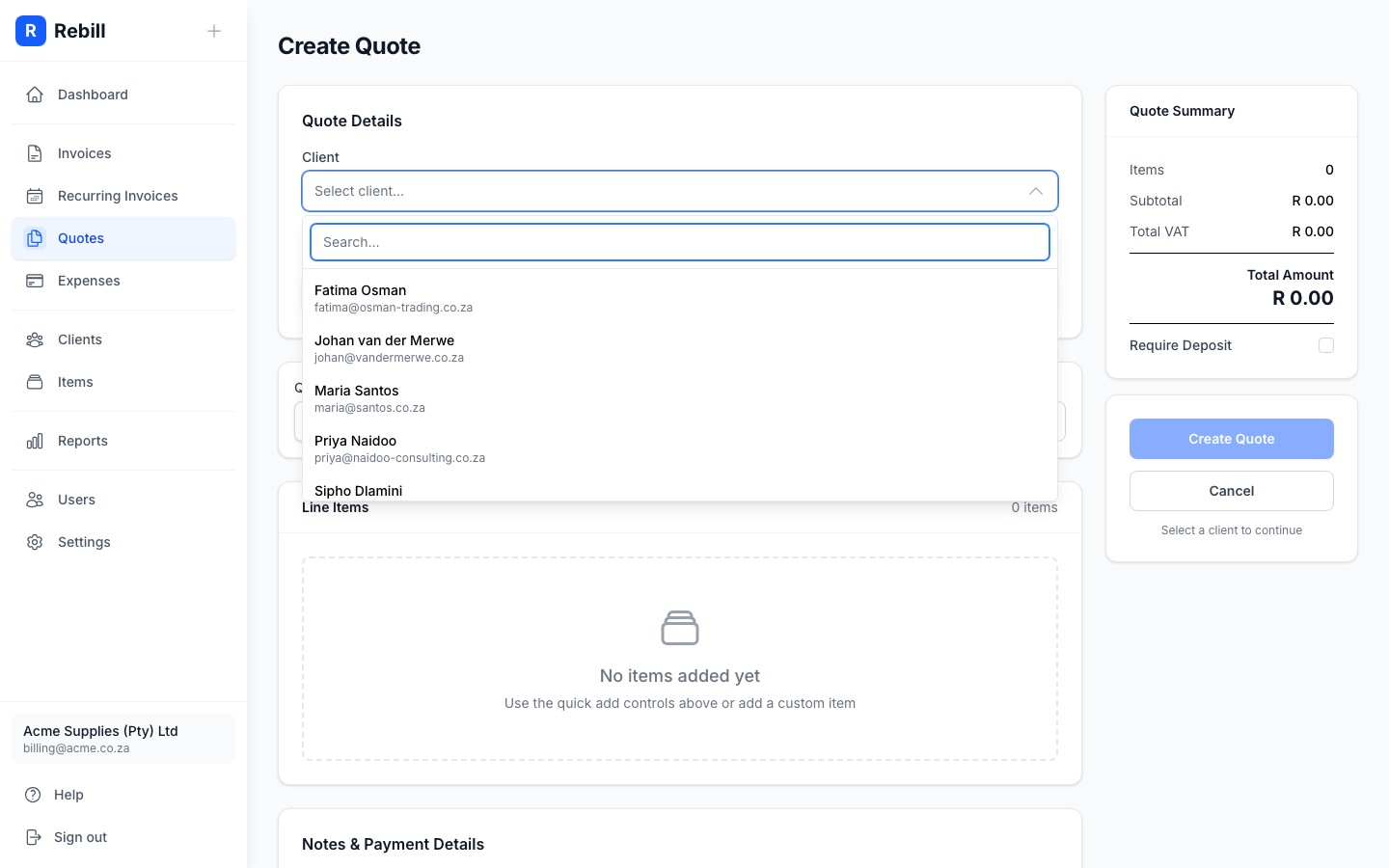
- 3
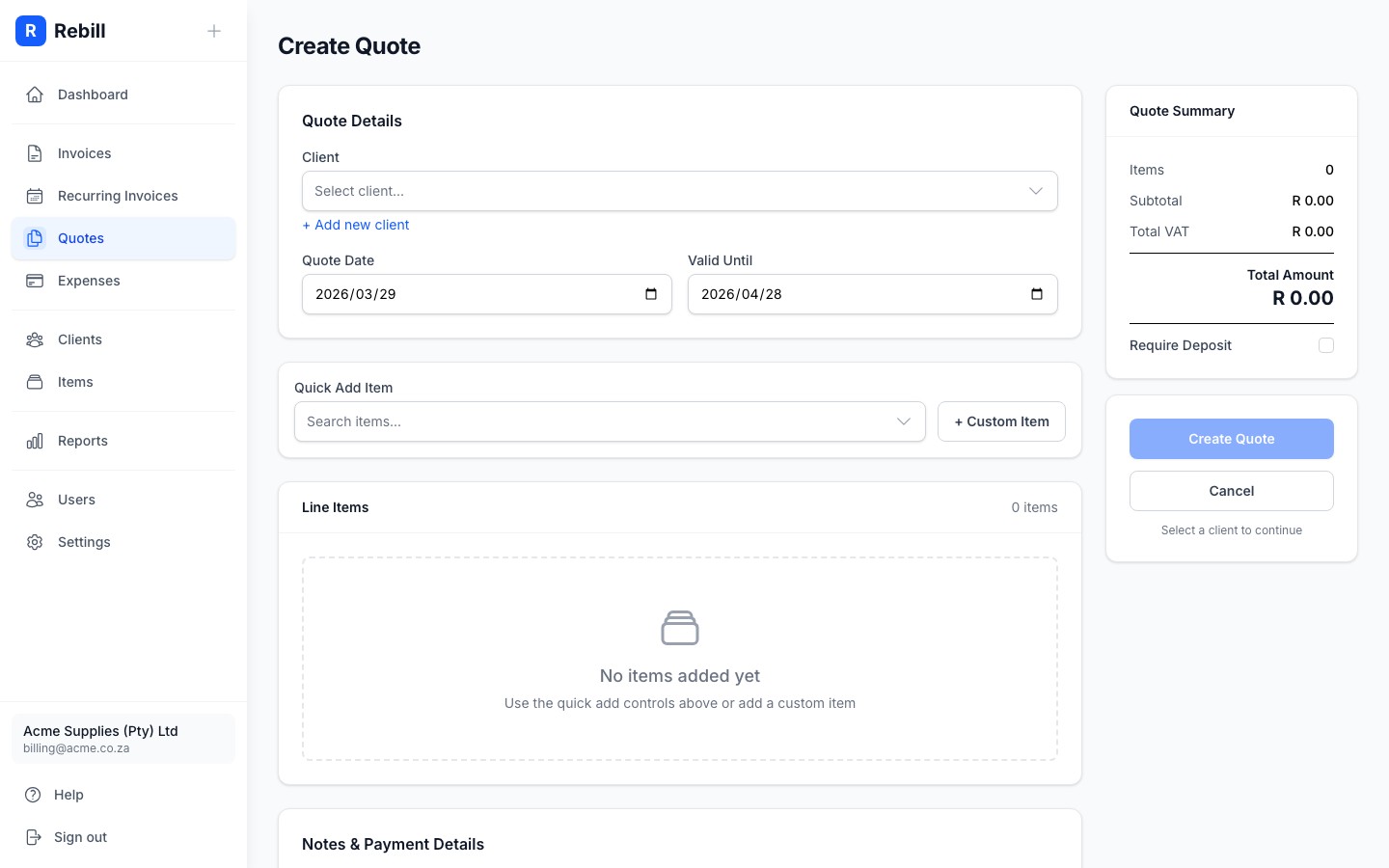
Set the quote date and valid until date
- Quote Date: usually today (auto-filled)
- Valid Until: the date after which the quote expires. Common choices are 14 or 30 days from today.
- 4
Add your line items
Add each item or service you're quoting for. Fill in the description, quantity, and unit price for each. You can optionally add a Service Date to each item if you need to specify when the work will be performed. The totals are calculated automatically.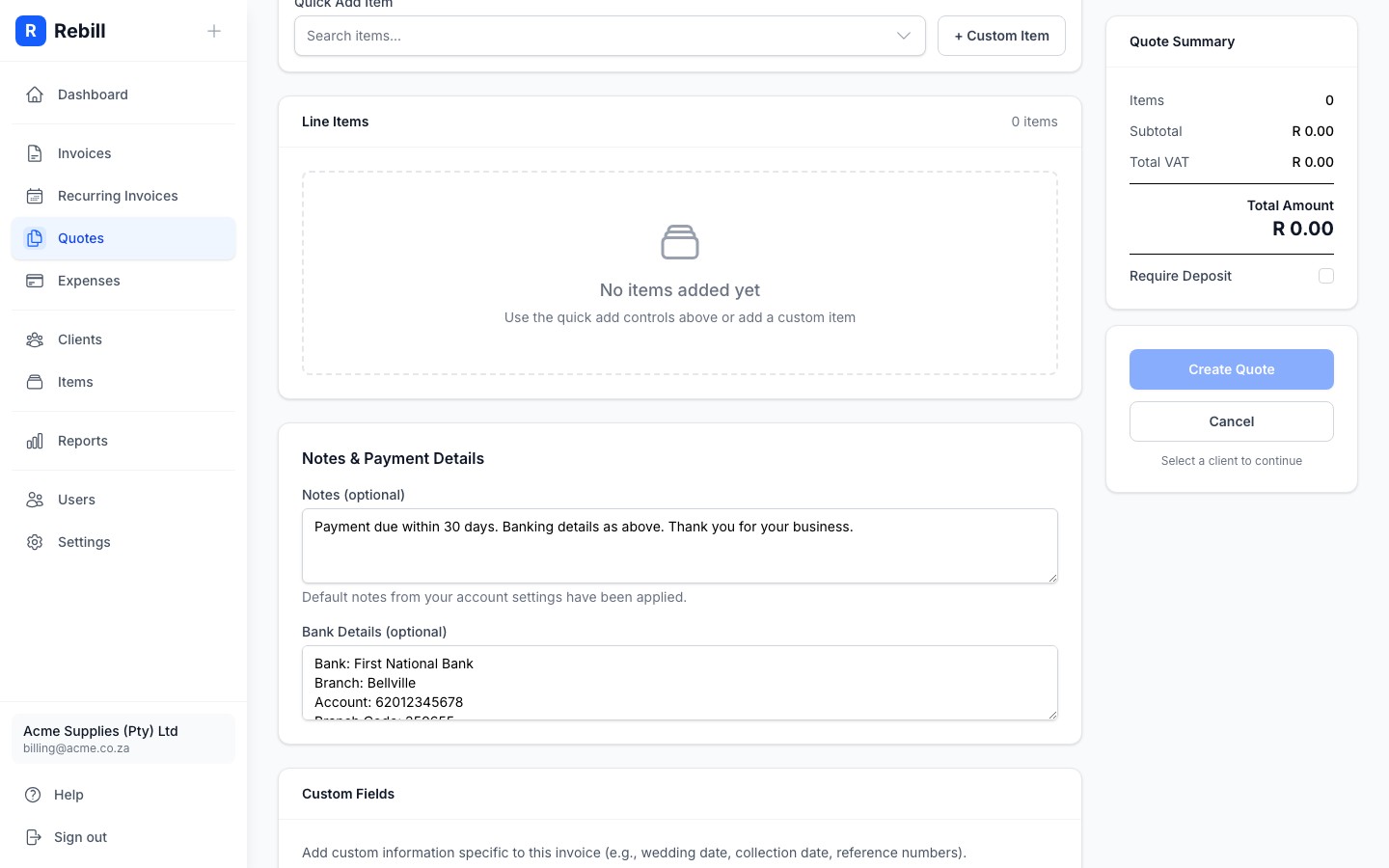
- 5
Add a discount (optional)
Two kinds of discount are available:
- Line discount: set on a single line, as a percentage or a fixed amount.
- Quote discount: in the summary panel on the right, taken off the whole quote after line discounts. Percentage or fixed.
Both come off before VAT is calculated, so the VAT on the quote is worked out on the discounted amount. The quote discount shows as its own row above VAT on the quote, and it carries over to the invoice when the quote is converted.
- 6
Add any notes or terms
Use the Notes field to add any conditions, payment terms, or other information for the client. If you leave it blank, Rebill fills in your default quote notes automatically; set them in Settings > Documents > Quote defaults. Quotes have their own default notes, separate from your invoice notes.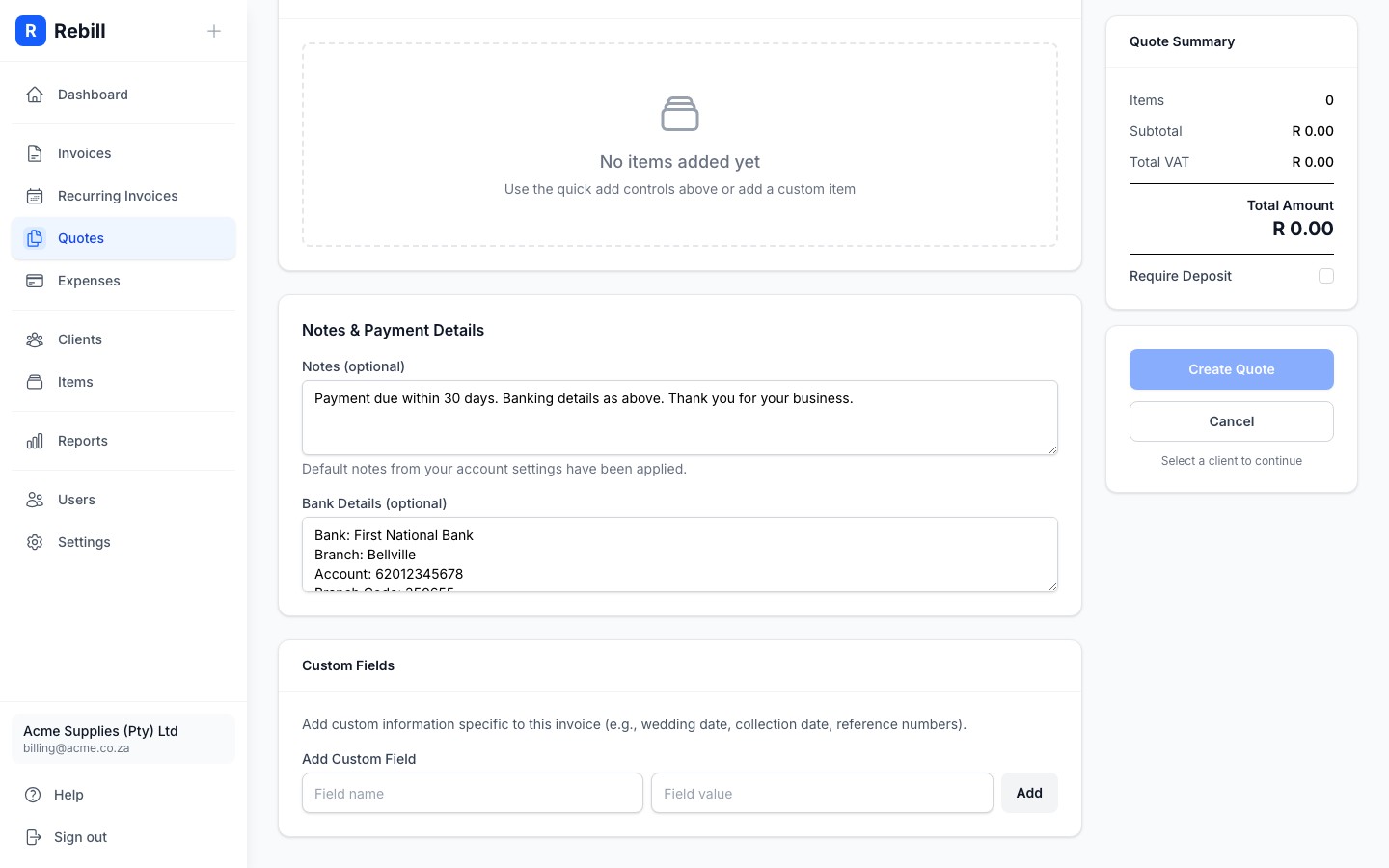
- 7
Save or send
Click "Create Quote" to save it as a draft, then send when you're ready.
Tip
Quotes and invoices use the same form. If you already know how to create an invoice, creating a quote works the same way.Quote numbers
Quotes are numbered Q0001, Q0002 and so on, from the next quote number in Settings > Documents > Numbering. A client with its own Quote Number Prefix (set on the client) gets its own sequence instead, with that prefix in place of the Q. A prefix can only be used once on your account, so it cannot match another client's prefix or the client's own invoice prefix.Prices that include VAT
VAT-registered accounts can switch on Prices include VAT above the line items to type VAT-inclusive prices. See Entering prices that include VAT.Discounts on quotes
Quotes support a discount on individual line items (a percentage or fixed amount off that item) and a quote discount for the whole quote in the summary panel, the same as invoices. Both are optional and can be used together.