Rebill integrates with three South African payment gateways (Paystack, Yoco, and PayFast) so your clients can pay invoices online by card, instant EFT, or other methods directly from the invoice link. Once connected, a "Pay Now" button appears automatically on every client-facing invoice.
| Gateway | Card payments | Instant EFT | Webhook auto-confirm | Best for |
|---|---|---|---|---|
| Paystack | Yes (Visa, Mastercard) | Yes | Yes (required) | Freelancers and consultants; also supports clients outside SA (40+ countries) |
| Yoco | Yes (Visa, Mastercard) | No | No | Businesses already using Yoco card machines; simple card-only setup |
| PayFast | Yes (Visa, Mastercard, Amex) | Yes (via Ozow) | Yes (required) | eCommerce and service businesses; widest payment method support in SA |
Only one gateway can be active at a time. Connect whichever gateway your business already uses, or sign up for one above.
Paystack
- 1
Connect Paystack
In Rebill, go to Settings and click Payment Providers under the Integrations group. Click Connect next to Paystack (or Edit if already set up). Enter your Public Key and Secret Key from your Paystack dashboard, then click Save.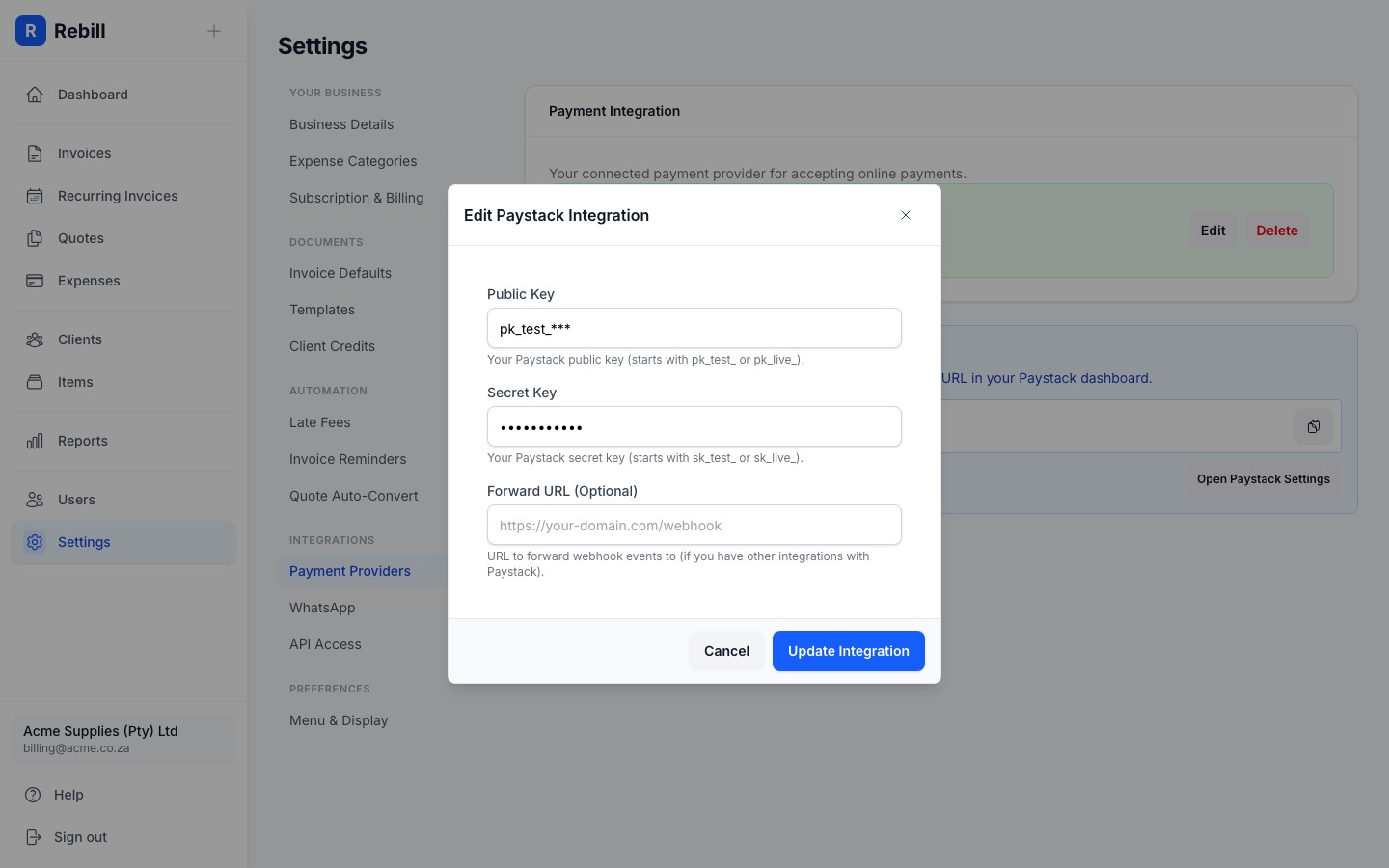
- 2
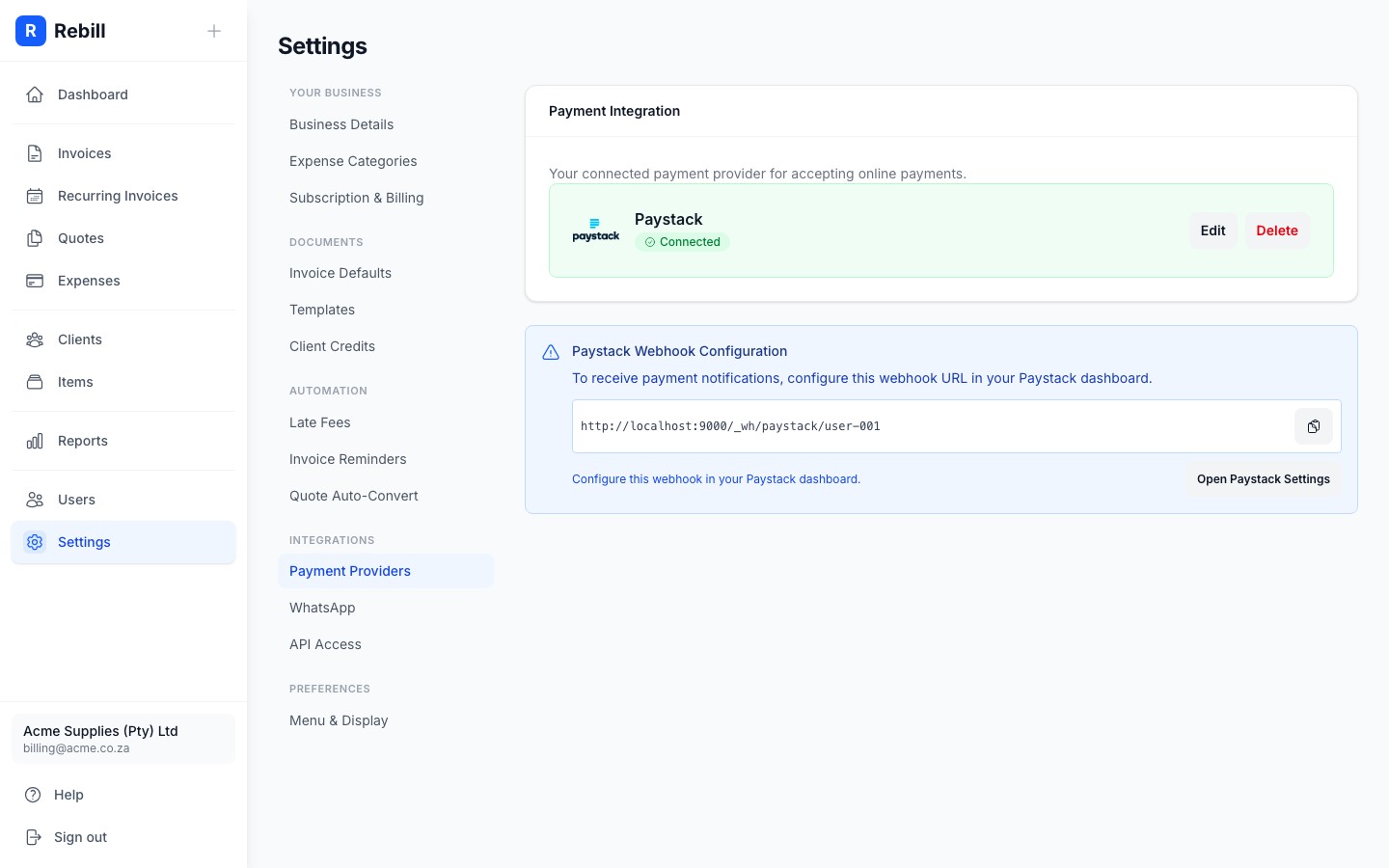
Paystack is now connected
Once saved, Paystack shows as Connected in your Payment Providers settings. A pay button will appear automatically on all your client-facing invoices.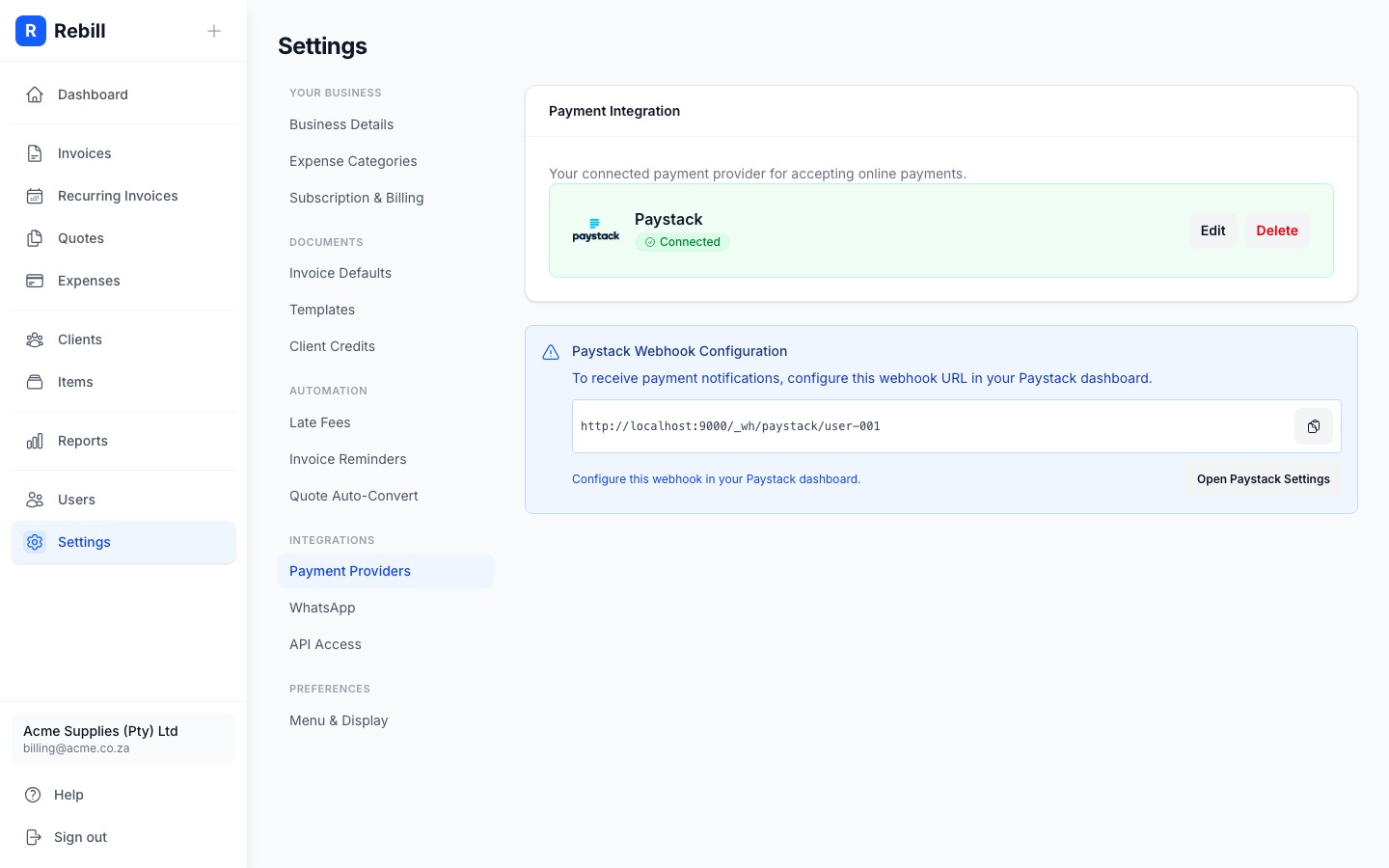
- 3
Configure the webhook
Rebill will display a webhook URL after connecting. You must copy it into your Paystack dashboard under Settings → API Keys & Webhooks. Without this, Rebill will not receive payment confirmations and invoices will not be marked as paid automatically.
Yoco
- 1
Get your Yoco public key
Log in to your Yoco account and navigate to Developers → API Keys to find your public key.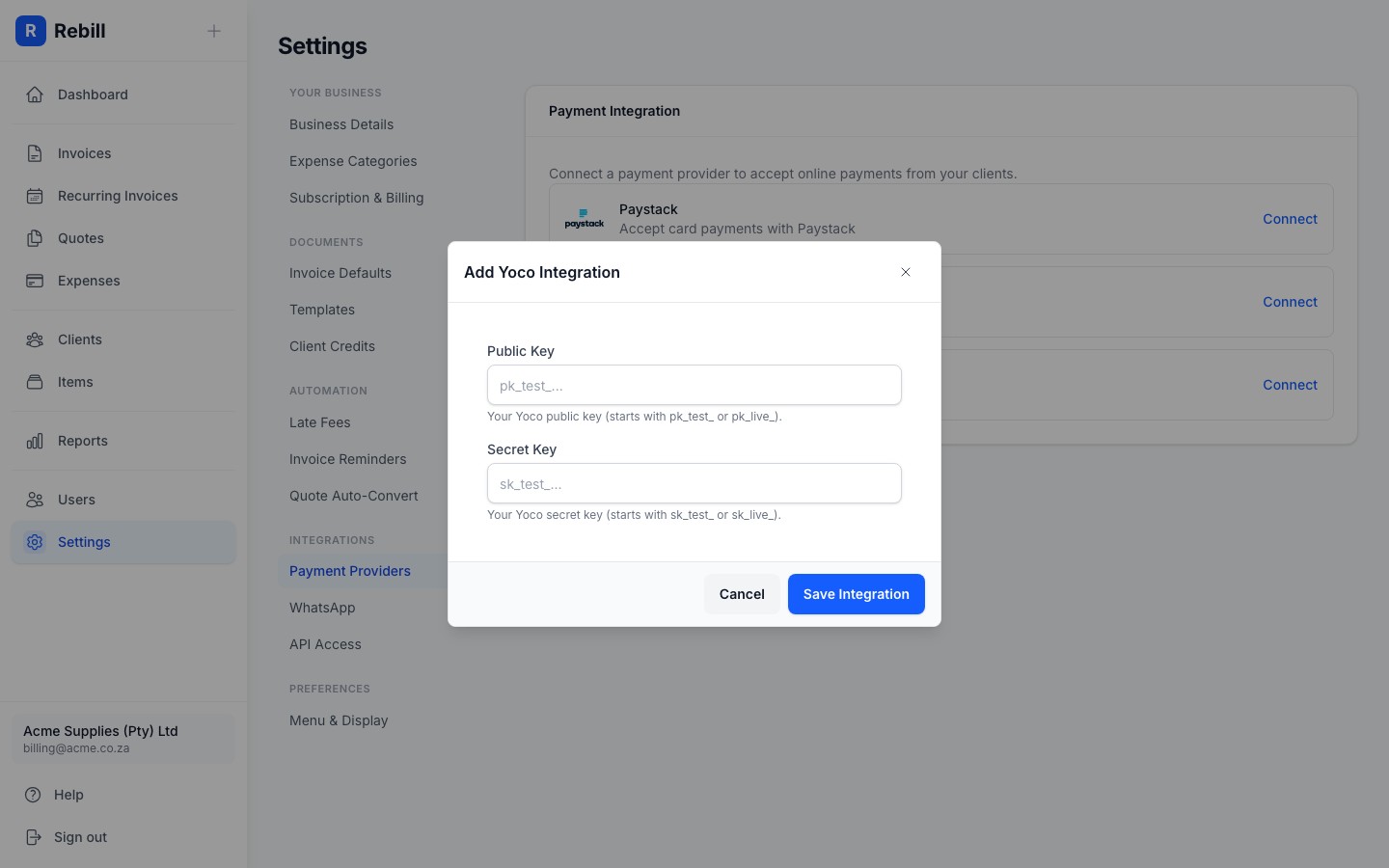
- 2
Enter and enable
Paste your Public Key into the Yoco section in Rebill's Payment Providers settings, then click "Save Settings".
PayFast
- 1
Get your PayFast credentials
Log in to your PayFast account. Go to Settings → Integration to find your Merchant ID, Merchant Key, and Passphrase.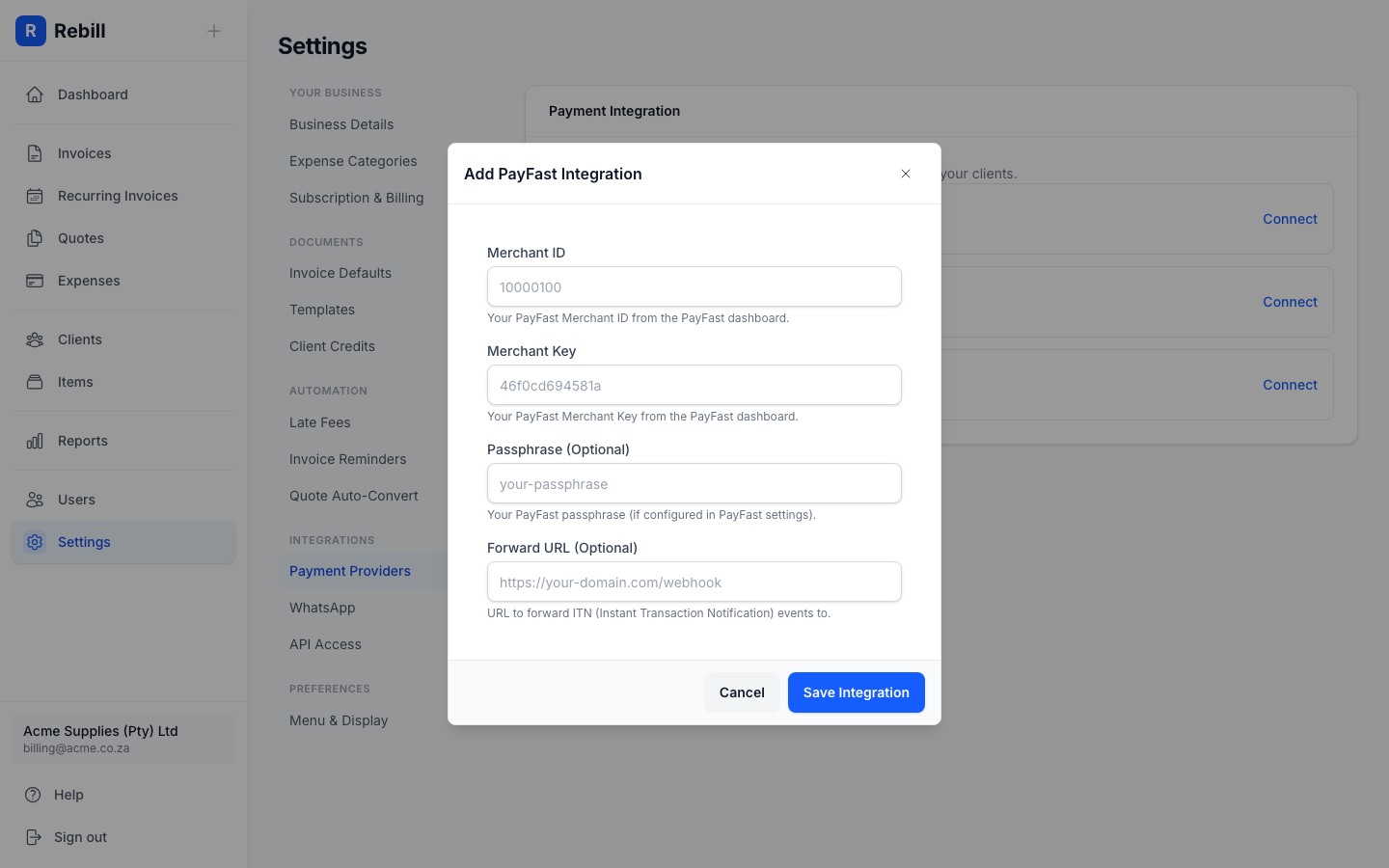
- 2
Enter and enable
Paste all three into the PayFast section in Rebill's Payment Providers settings, then click "Save Settings".
Note
Only one payment gateway can be active at a time. Connecting a new gateway will replace your current one.