Rebill offers seven invoice templates to match your brand and style. You can preview each one with a live sample invoice before choosing. Your selected template applies to invoices, quotes, and all PDF downloads.
Choosing a template
- 1
Go to Settings, then Templates
Click Settings in the sidebar. In the settings navigation, click Templates under the Documents group.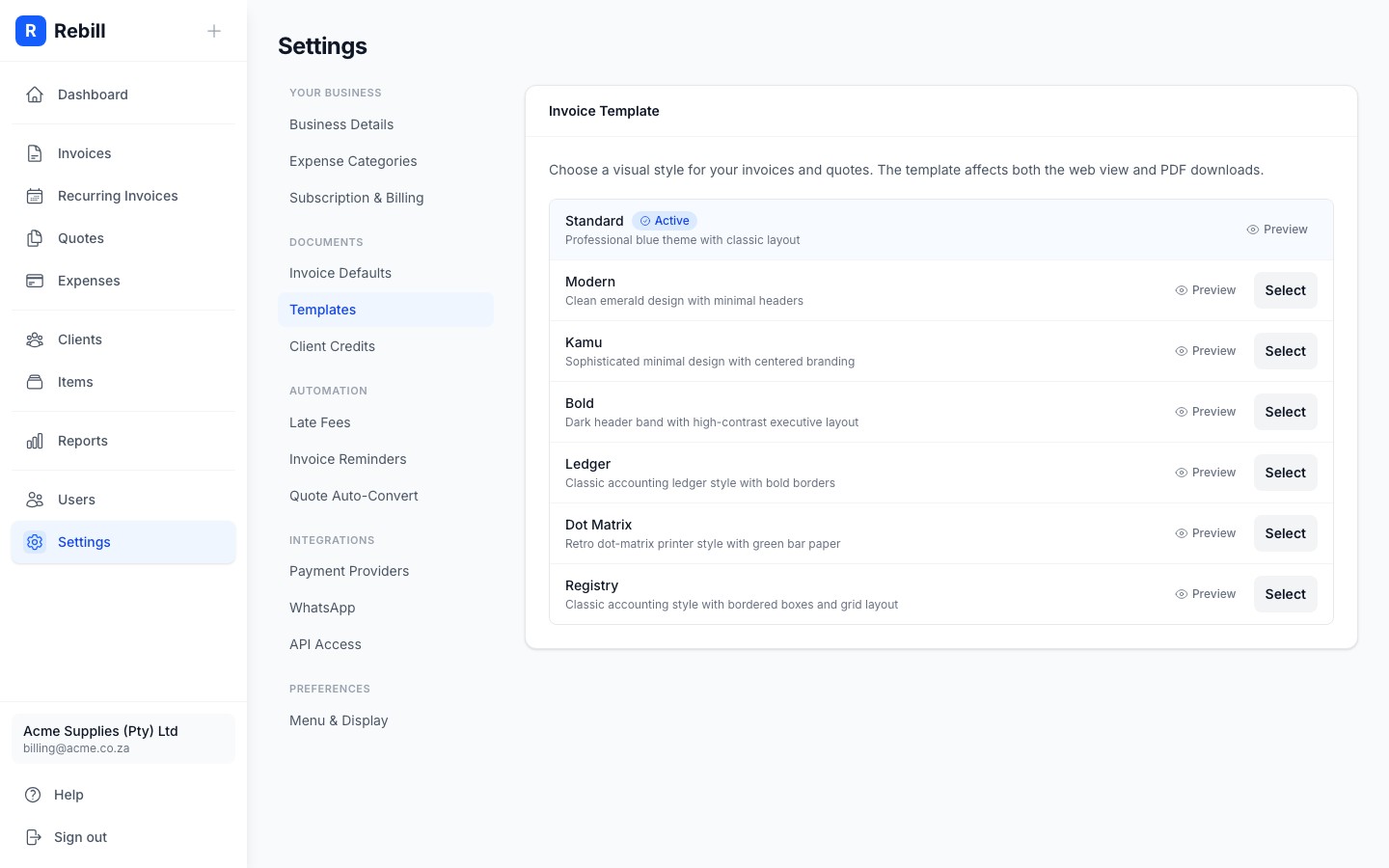
- 2
Browse available templates
You'll see all available templates listed with their name and a short description. The currently active template is marked with an Active badge.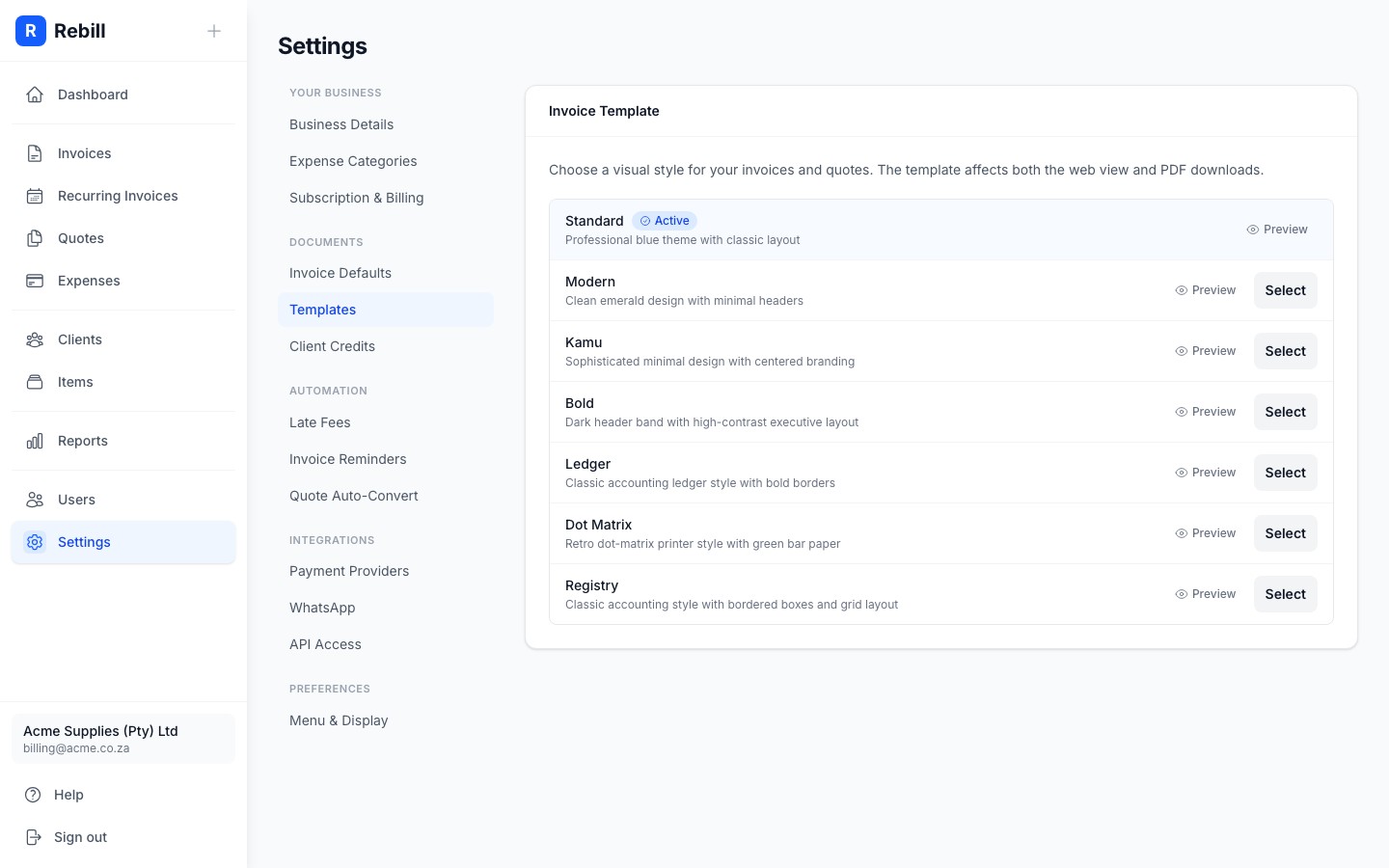
- 3
Preview a template
Click Preview next to any template to see a full-size sample invoice rendered with that style. This gives you an accurate picture of how your invoices will look to clients.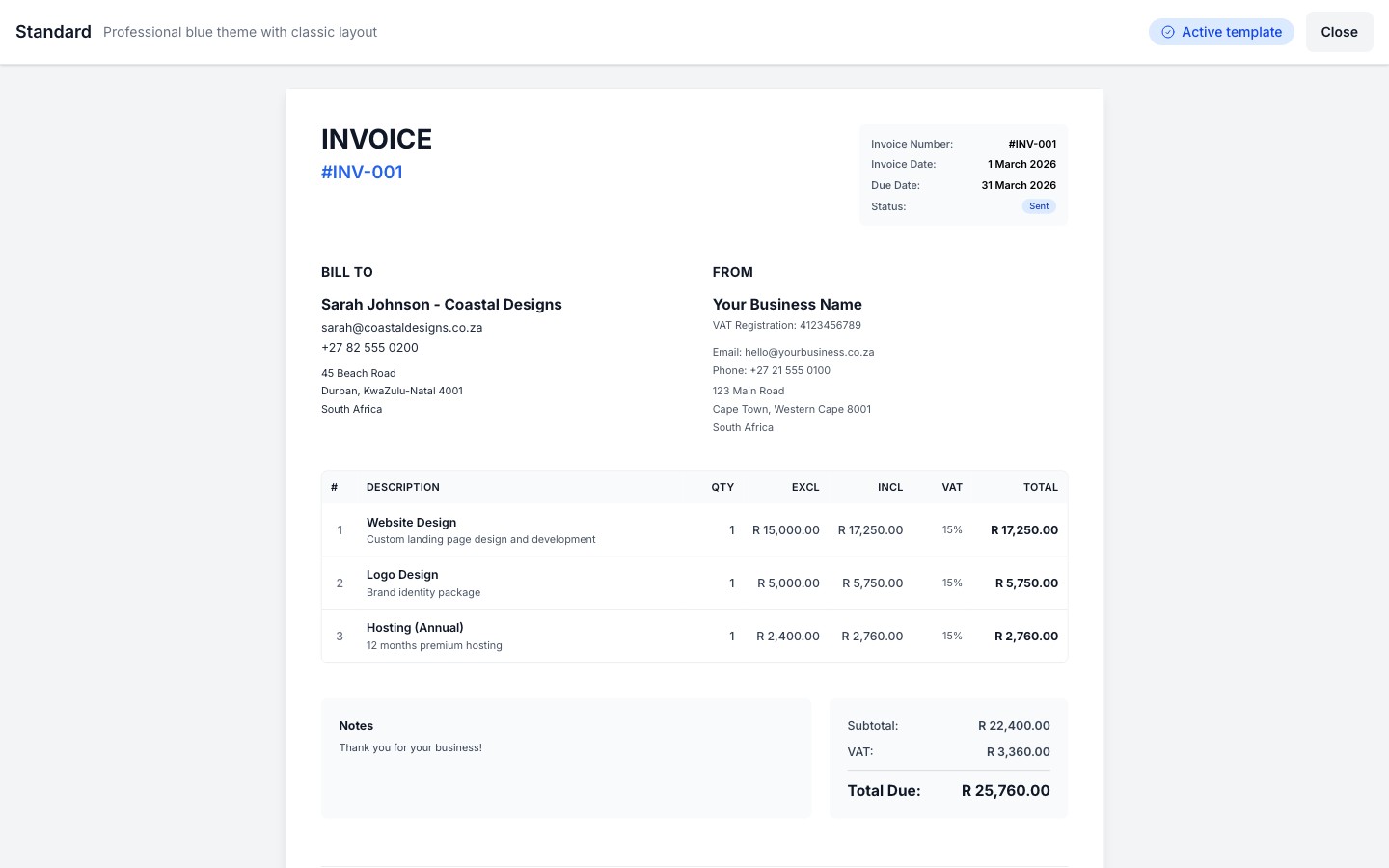
- 4
Select a template
Click Select next to a template or "Use this template" from within the preview. The template is saved immediately and becomes your active template.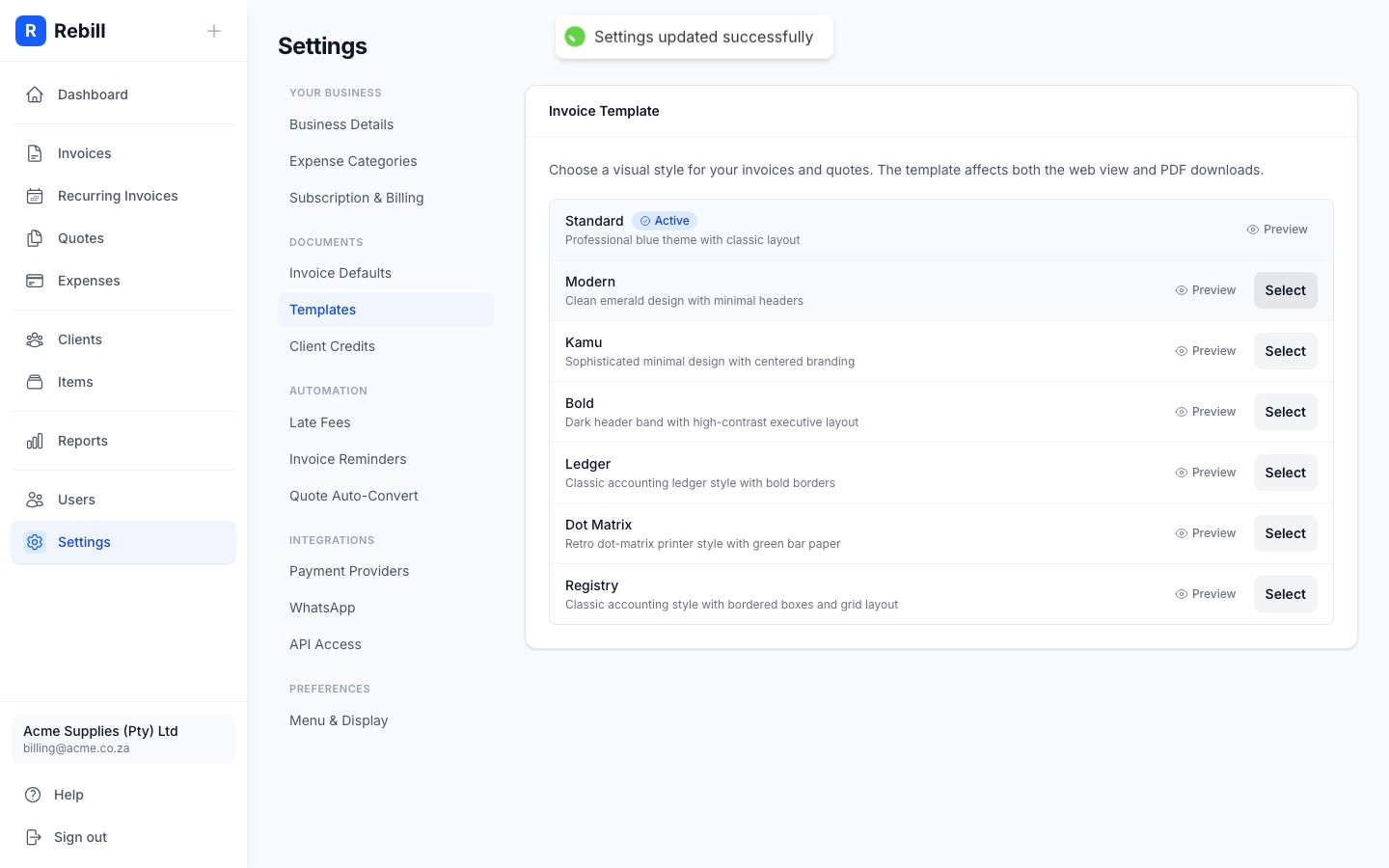
Available templates
Rebill includes the following templates:
- Standard: professional blue theme with classic layout
- Modern: clean emerald design with minimal headers
- Kamu: sophisticated minimal design with centered branding
- Bold: dark header band with high-contrast amber accents
- Ledger: classic accounting ledger style with bold borders
- Dot Matrix: retro dot-matrix printer style with green-bar rows
- Registry: traditional accounting style with bordered grid
Premium feature
Custom templates are available for Premium subscribers only. Free plan accounts use the Standard template. Upgrade to Premium to unlock all templates.