Automatic reminders send email notifications to clients when their invoices are overdue. You configure the schedule once and Rebill handles the follow-up for you.
Setting up reminders
- 1
Go to Settings, then Invoice Reminders
Click Settings in the sidebar. In the settings navigation, click Invoice Reminders under the Automation group.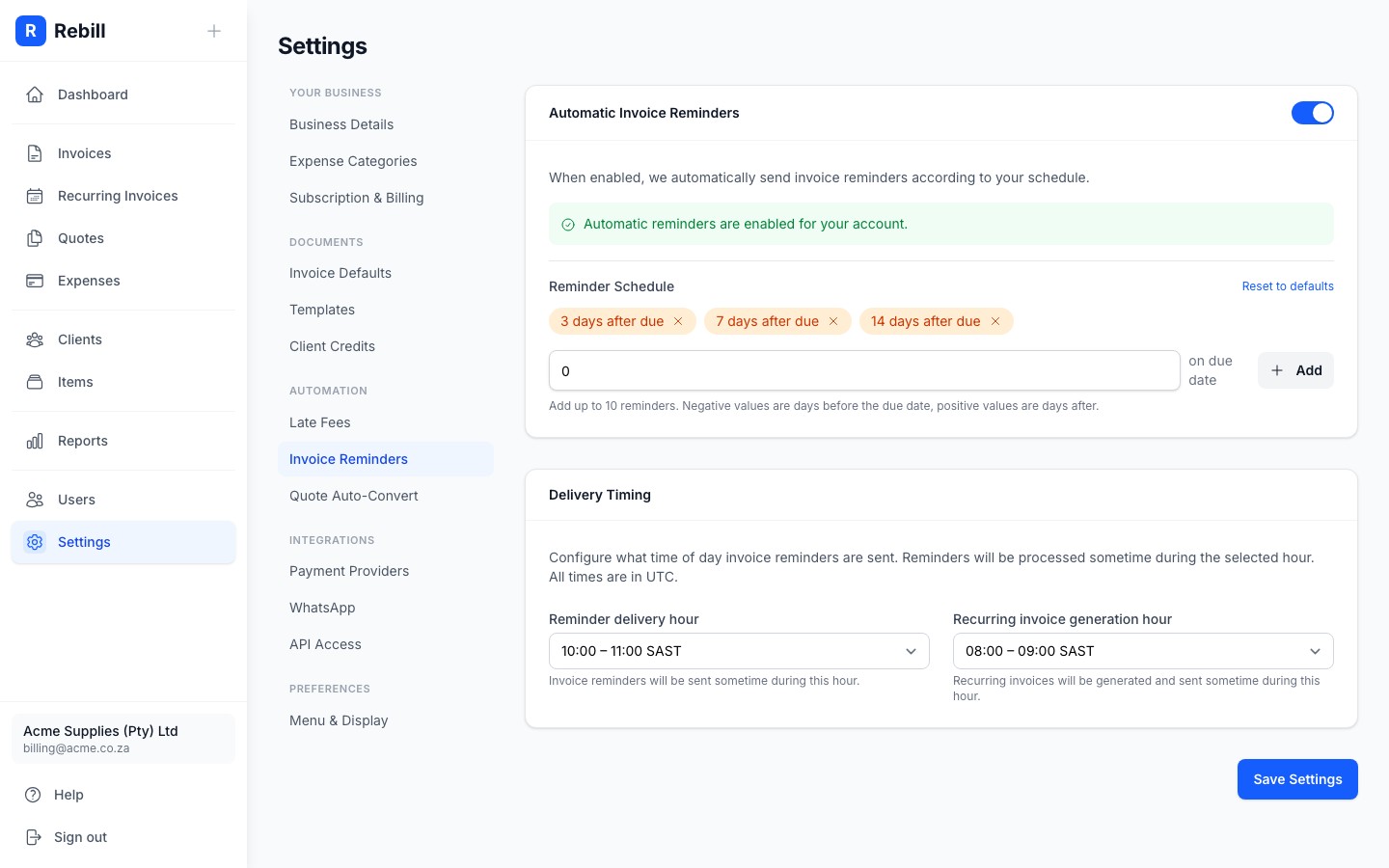
- 2
Enable automatic reminders
Toggle on "Enable Automatic Invoice Reminders". This activates the reminder schedule for all overdue invoices. - 3
Configure the schedule
The default reminder schedule sends emails at 3 days, 7 days, and 14 days after the due date. You can customise this:- Click "Add reminder" to add another reminder day
- Click the X next to a day to remove it
- Click "Reset to defaults" to go back to 3, 7, and 14 days
- 4
Set the delivery time
Choose when reminder emails should be sent during the day. The default is 08:00 SAST. Reminders are batched and sent at your chosen time.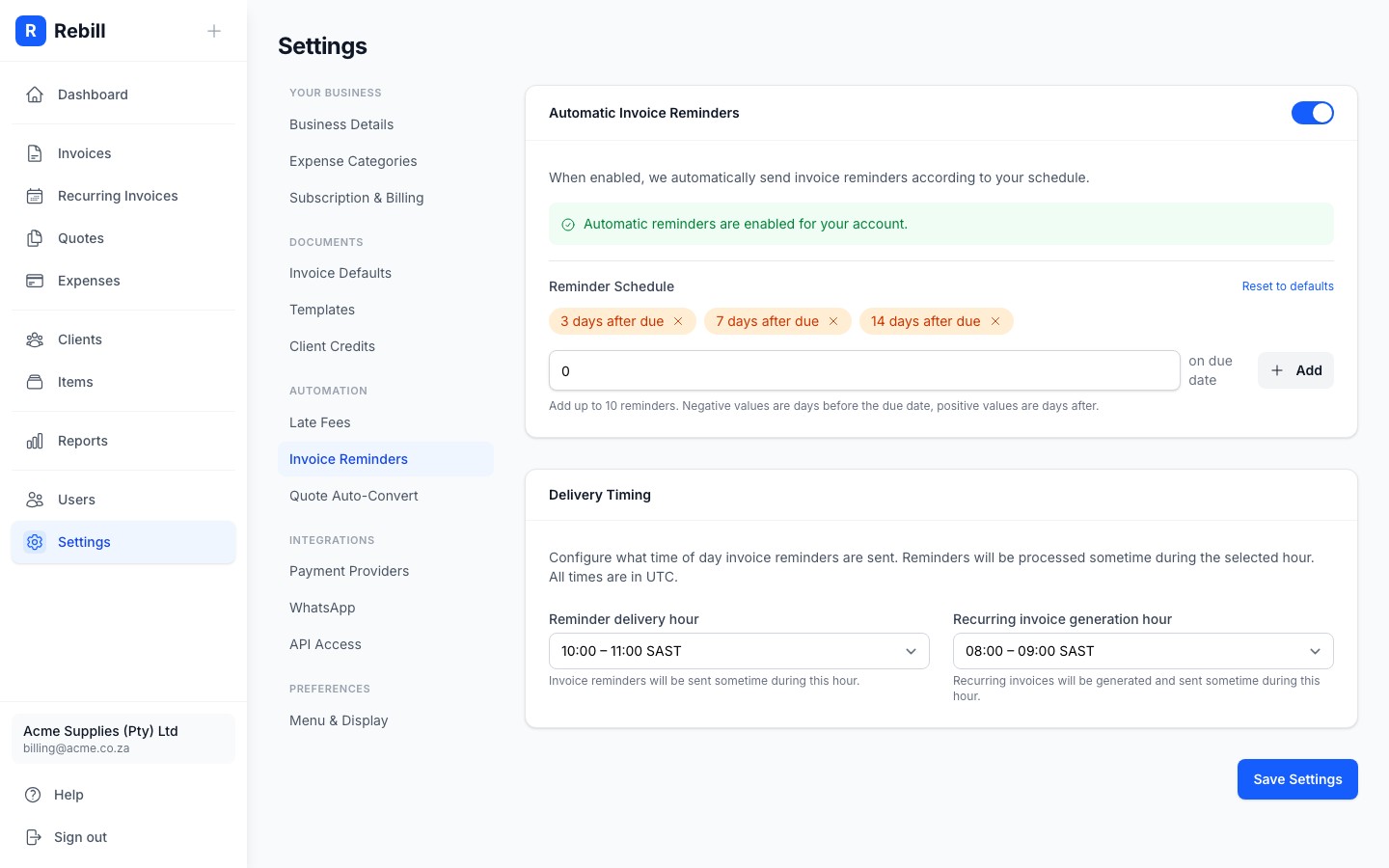
- 5
Save your changes
Click "Save Settings" at the bottom.
Combining reminders with late fees
Reminders and late fees work well together. Set up reminders to notify clients, and late fees to incentivise timely payment. See Charging automatic late fees for more.Note
Reminders are only sent for invoices with a status of sent that are past their due date. Draft, paid, and cancelled invoices are not affected.