Configure default values that apply to all your invoices so you don't have to type them out every time. You can always override these on individual invoices.
- 1
Go to Settings, then Invoice Defaults
Click Settings in the sidebar. In the settings navigation, click Invoice Defaults under the Documents group.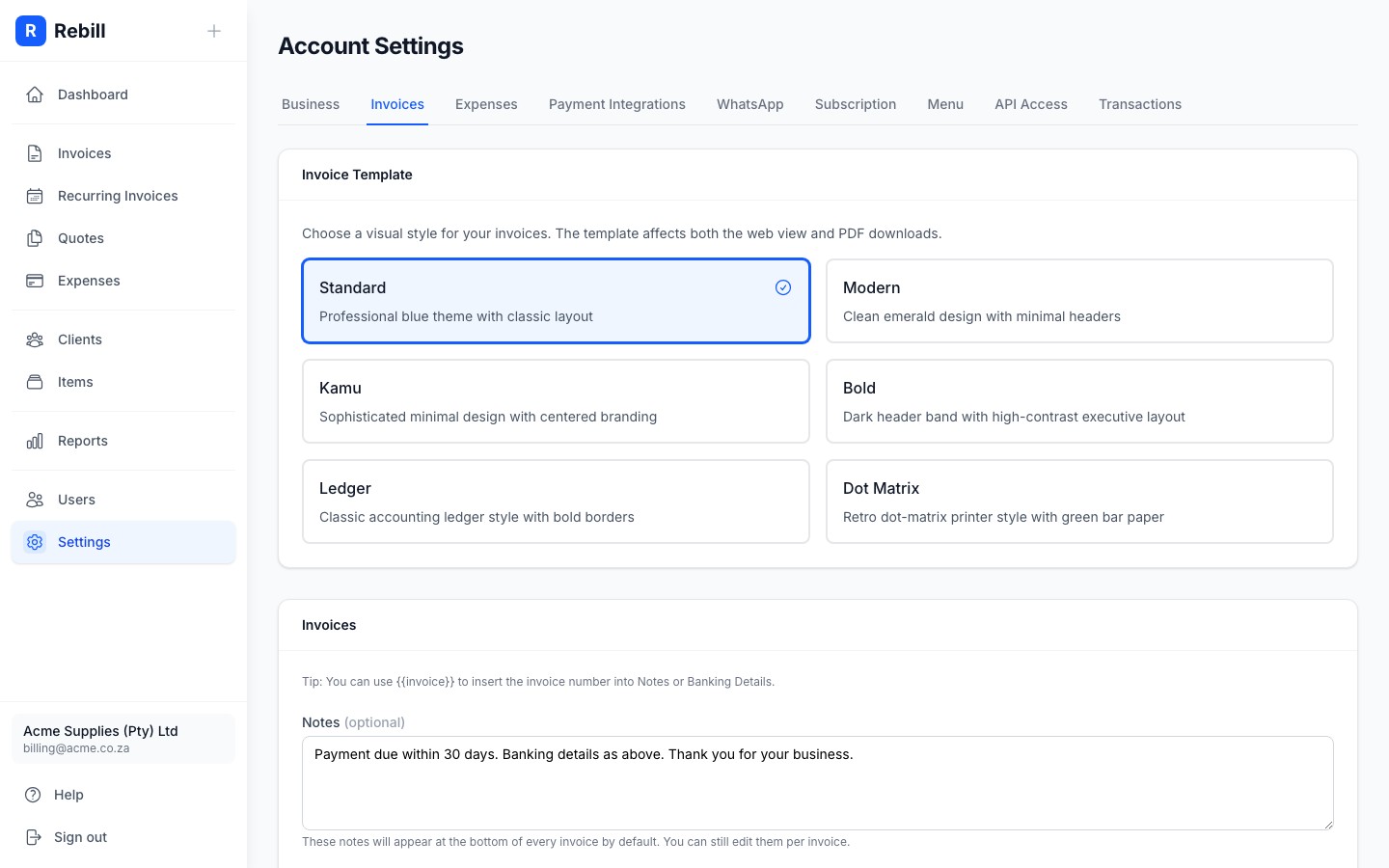
- 2
Set your document numbering
The Document Numbering card at the top lets you set the next number for invoices and quotes. This is useful if you are migrating from another system and want to continue your existing numbering sequence. The next invoice will be formatted with leading zeros (e.g. 0042) and the next quote will have a Q prefix (e.g. Q0015).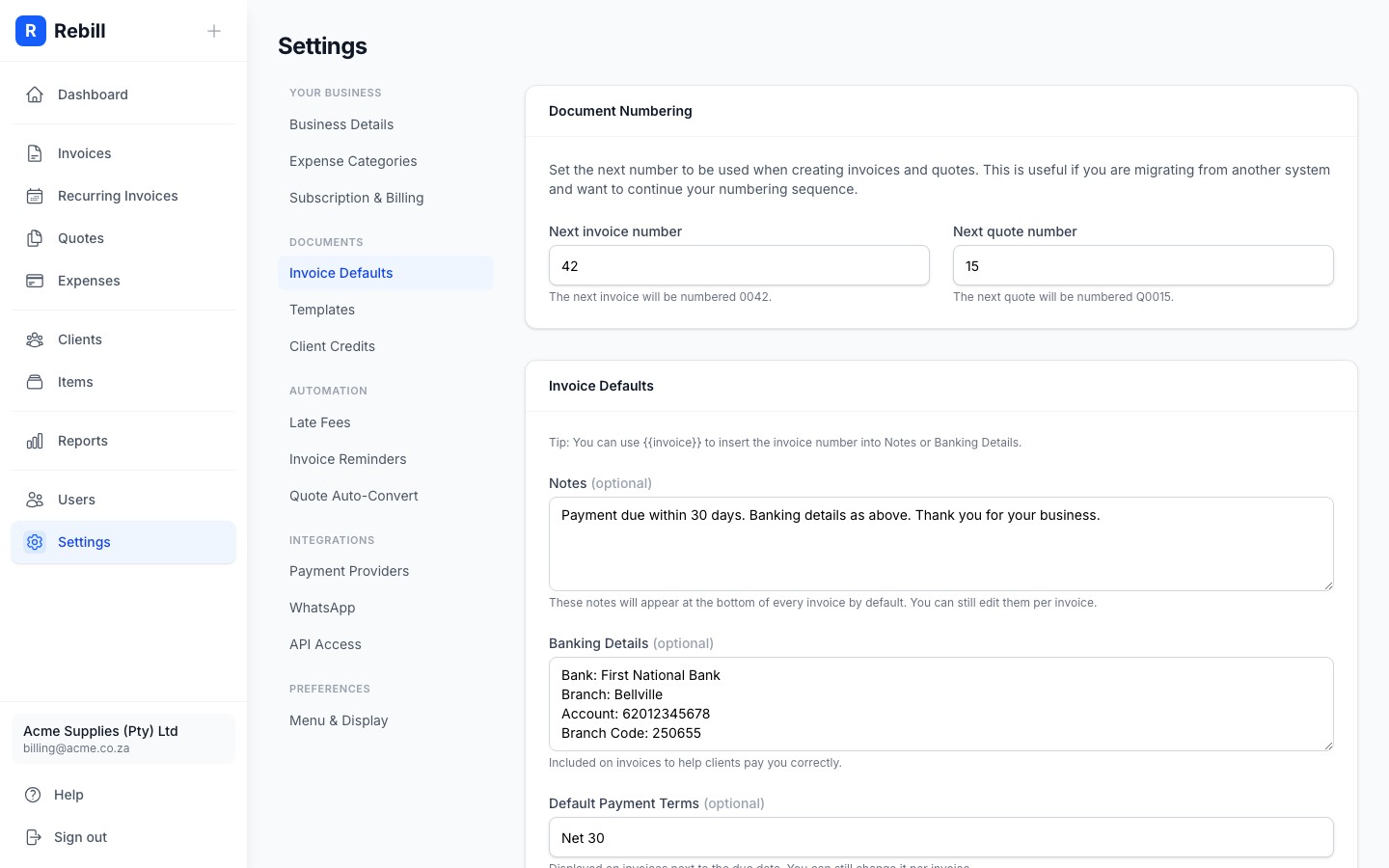
- 3
Set default notes
In the Default Notes field, enter any text you want to appear at the bottom of every invoice by default. For example: "Payment due within 30 days. Thank you for your business."
You can always override this on individual invoices.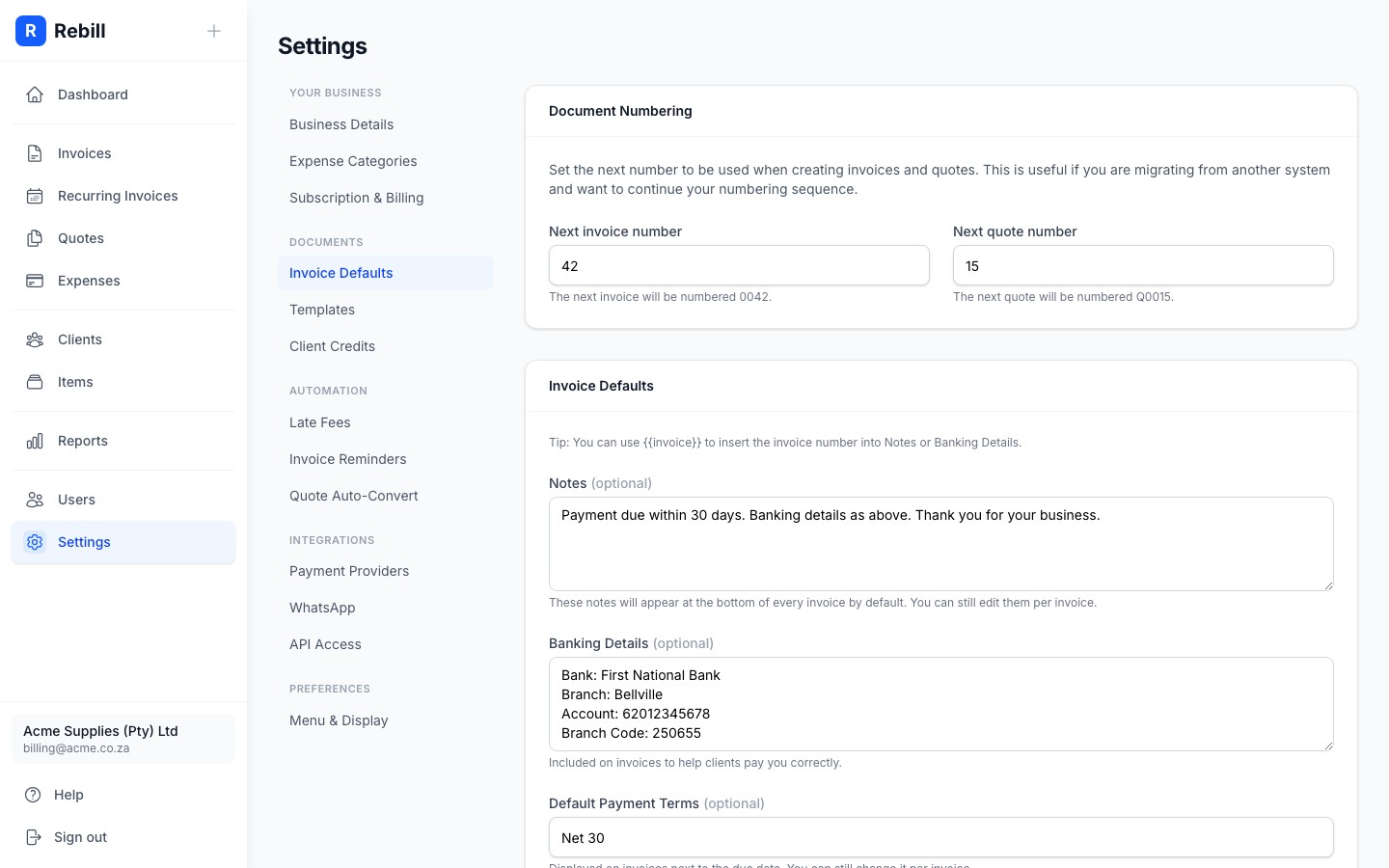
- 4
Set bank details
Enter your banking details in the Bank Details field. This is shown on invoices so clients know where to pay by EFT. Include your bank name, account holder, account number, and branch code.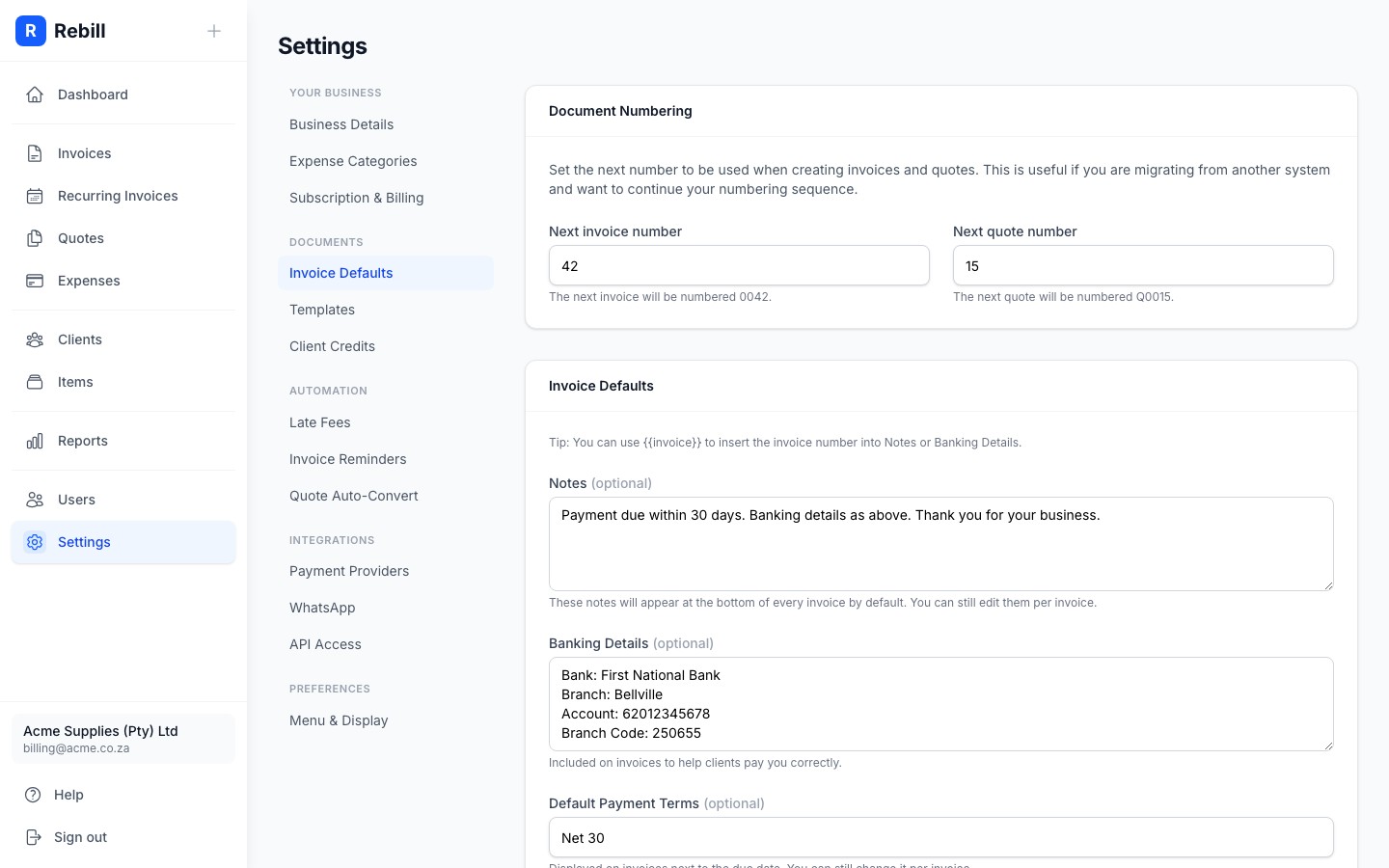
- 5
Set default payment terms
Enter your default payment terms (e.g. "Net 30" or "Due on Receipt") in the Default Payment Terms field. This is displayed on invoices next to the due date. You can override it on individual invoices.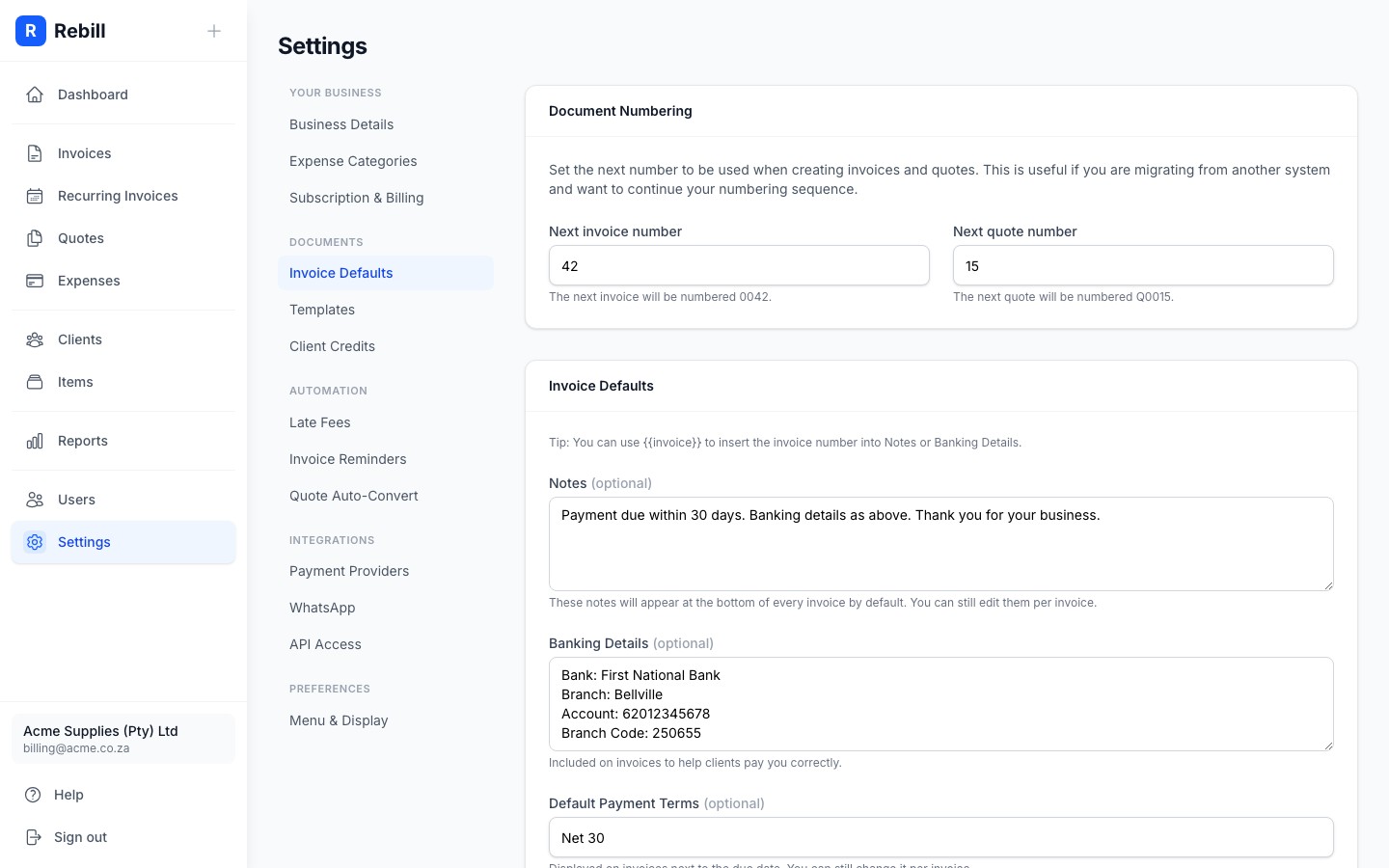
- 6
Save your changes
Click "Save Settings" at the bottom.
Invoice numbering protection
To prevent duplicate invoice numbers, Rebill does not allow you to set the next number lower than its current value. You can only keep it the same or increase it.