
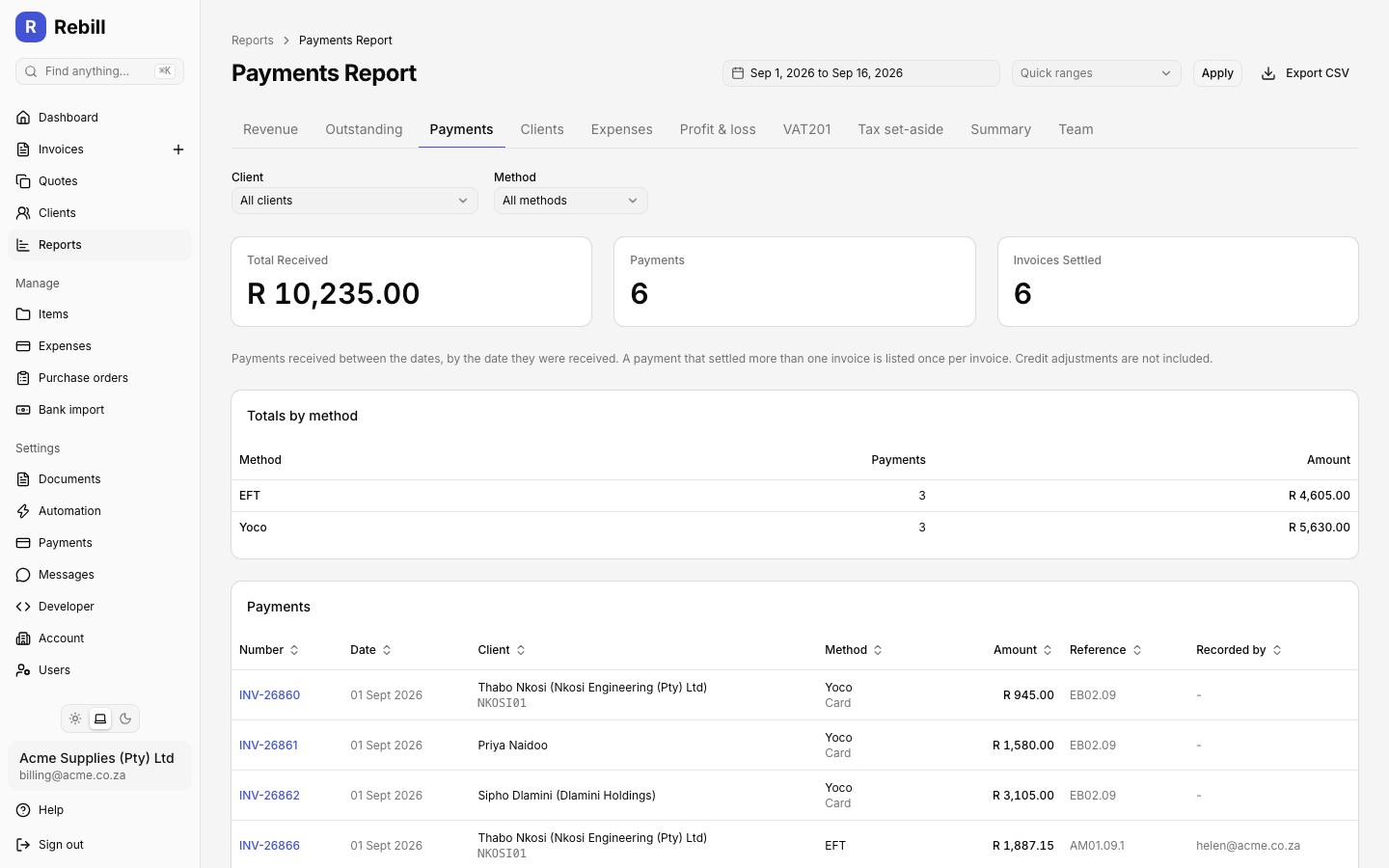
The Payments Report lists the money that actually arrived: every payment received between two dates, with the invoice it paid, the client, how it was paid and the reference that was entered. It is built for matching deposits on your bank statement against Rebill.
Opening the report
- 1
Go to Reports, then the Payments tab
Click Reports in the sidebar and choose the Payments tab. The report opens on the current month.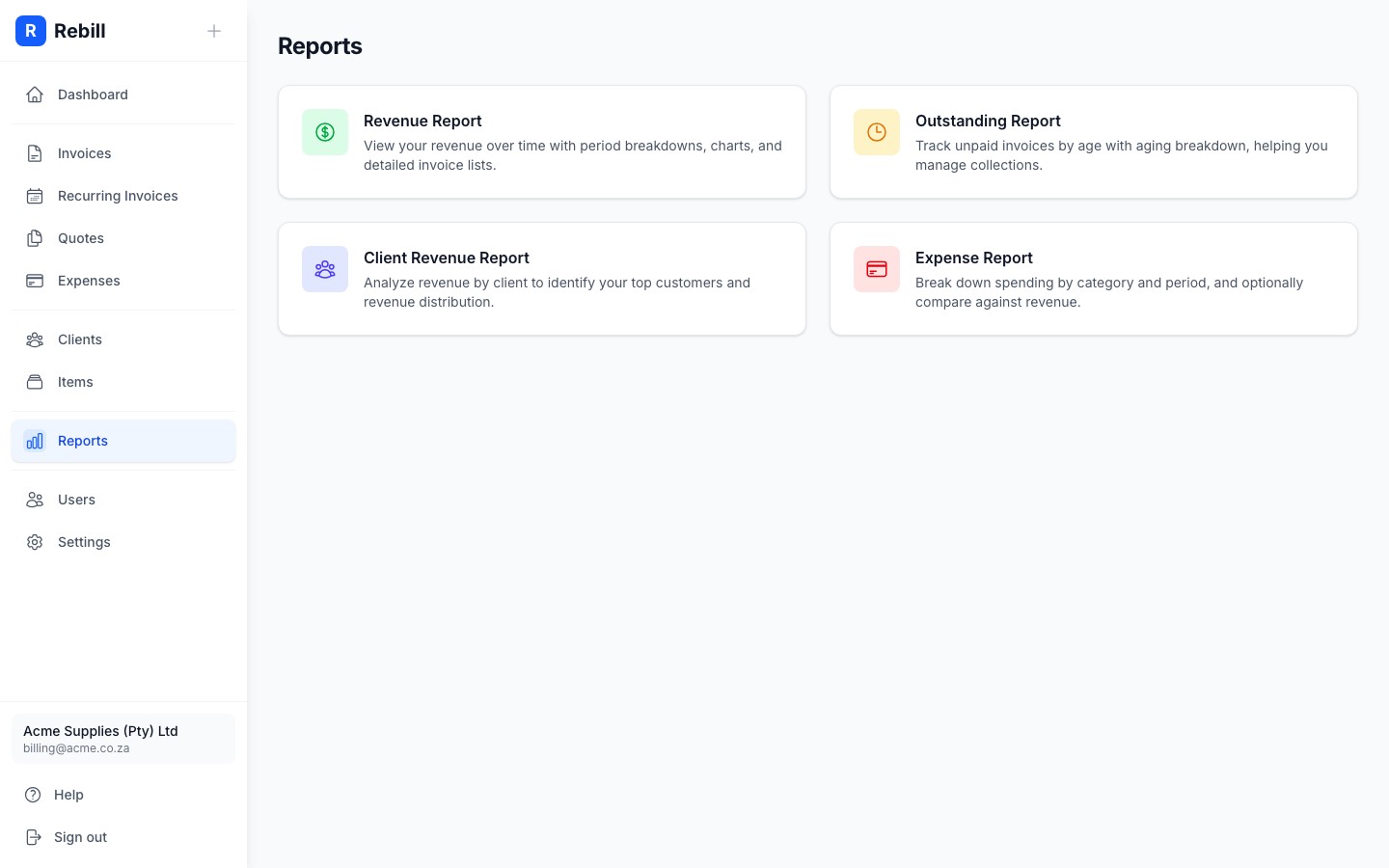
Filtering the report
At the top of the report you can set:
- From and To dates: payments are matched on the date they were received, not the invoice date
- Client: narrow the list to one client, including archived clients
- Method: show only EFT, cash, card, or payments that came in through a payment gateway such as Yoco or Paystack
Changing the client or method reloads the report straight away. After changing the dates, click "Apply", or pick a Quick range such as Last month.
Reading the report
Three summary cards appear at the top: Total Received, the number of Payments, and the number of Invoices Settled. Below them, Totals by method adds up what came in by EFT, cash, card and each payment gateway, which is handy when card settlements and EFTs land in your bank account separately.
The payments table has one row per invoice that was paid:
- Number: the invoice the payment settled. Click it to open the invoice. A payment left on account as credit shows On account instead.
- Date: the date the payment was received
- Client: who paid. Click the name to open the client.
- Method: EFT, Cash, Card, Other, or the gateway the payment came through. For gateway payments the gateway's own channel (card, EFT) is shown underneath.
- Amount: the amount applied to that invoice. When one payment settled more than one invoice you get a row per invoice, each showing the full payment underneath so the deposit still adds up.
- Reference: the reference entered when the payment was recorded, or the gateway's transaction reference
- Recorded by: the team member who captured a manual payment. Gateway and bank-import payments are recorded automatically and leave this blank.
Reconciling your bank statement
Set the range to your statement period and use "Export CSV". The file has the same columns as the table (plus currency, channel and the full payment amount) sorted by date, so you can drop it next to your bank export and match deposits by amount and reference. Enter the bank reference when you record a payment and it will be right there in the export.