A client statement is a summary of all invoices, payments, credit notes and refunds for a client, giving them a full picture of what they owe and what they've paid.
Viewing a statement
- 1
Open the client
Go to Clients and click on the client's name.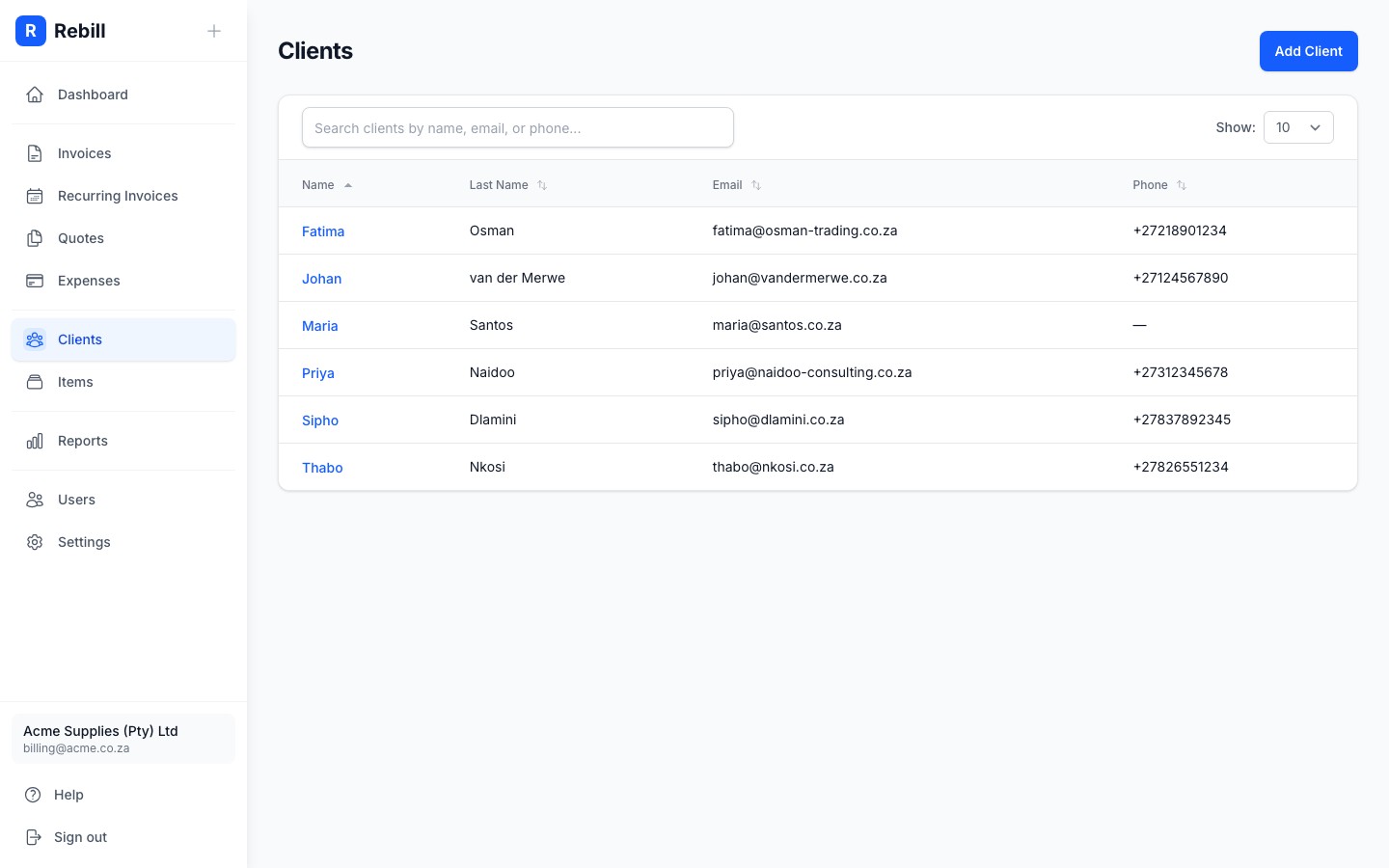
- 2
Click the Statement tab
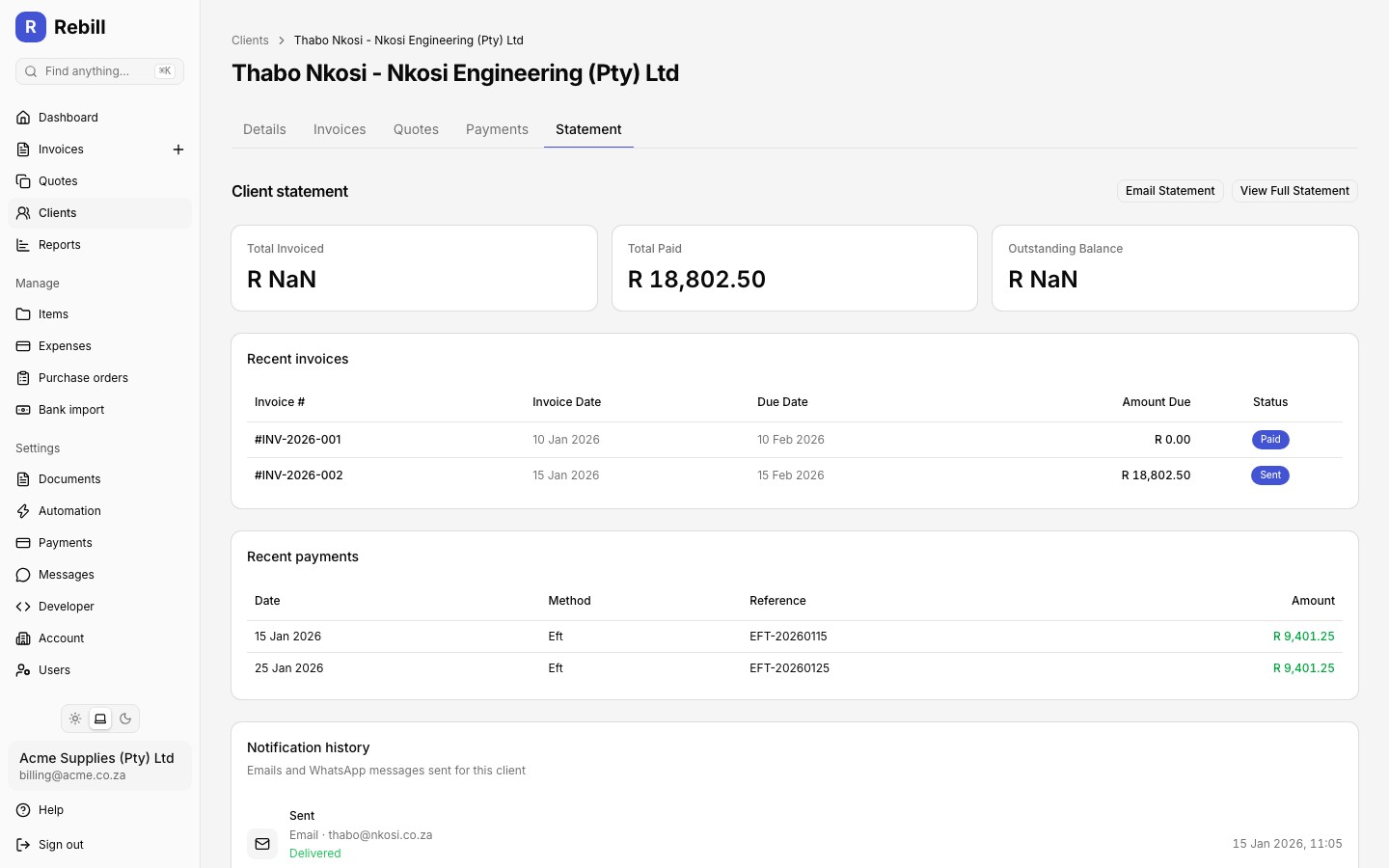
On the client's page, click the Statement tab. You'll see a summary of their total invoiced, total paid, and outstanding balance, their recent invoices and payments, and a history of statement, invoice, and quote emails sent to the client.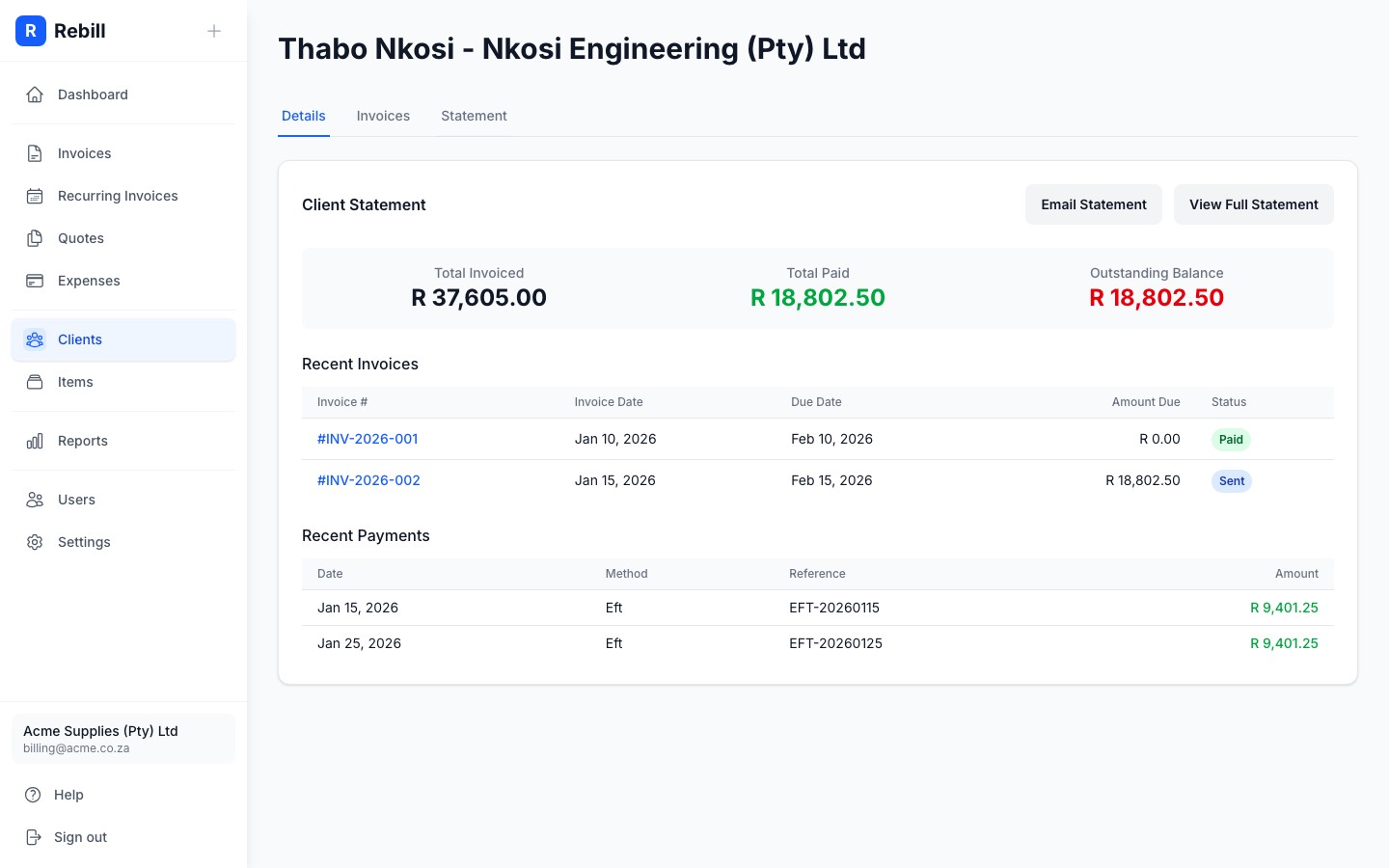
- 3
View the full statement
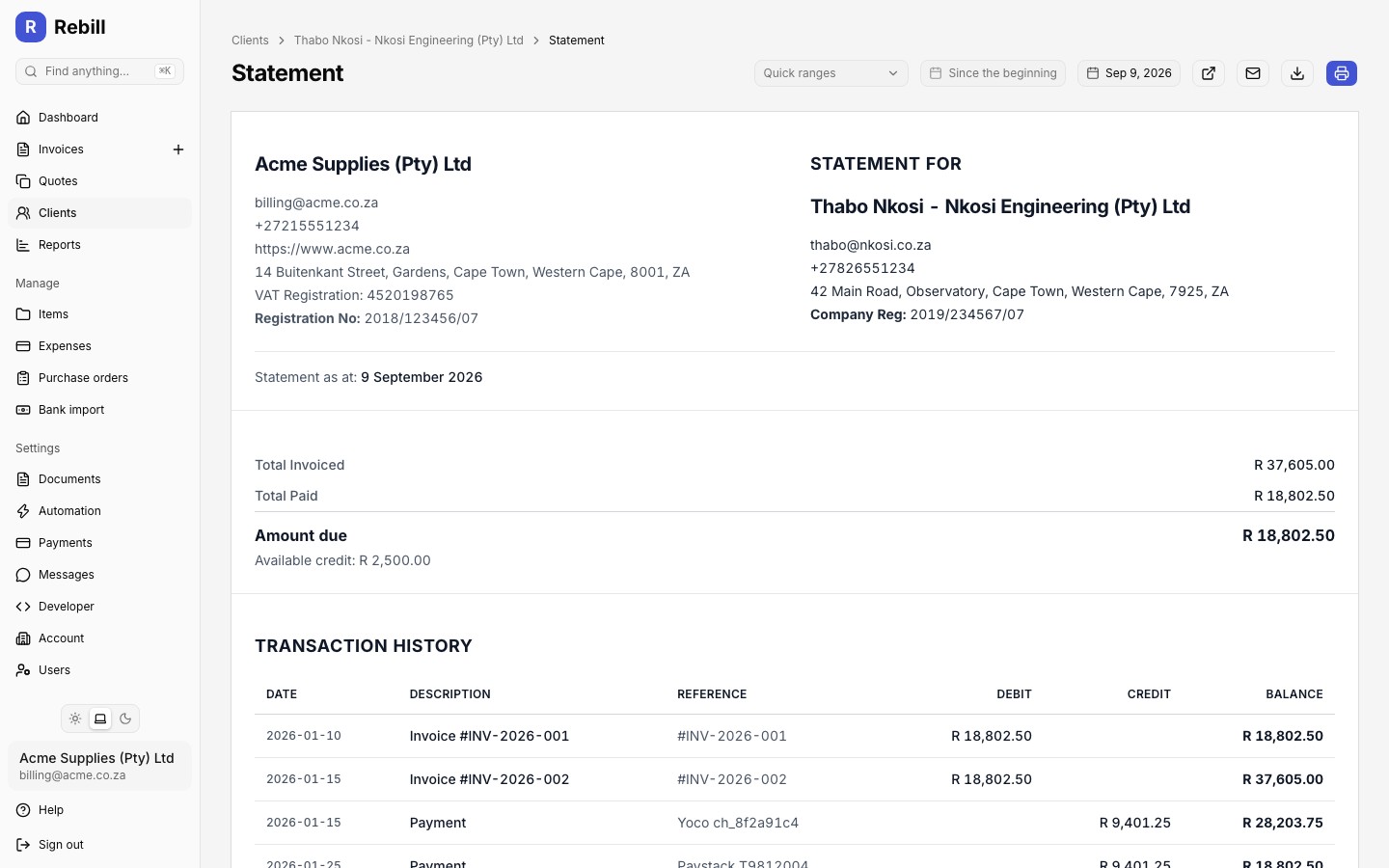
Click "View Full Statement" to open a printable, detailed statement document showing all transactions, with date-range controls at the top to change the period covered.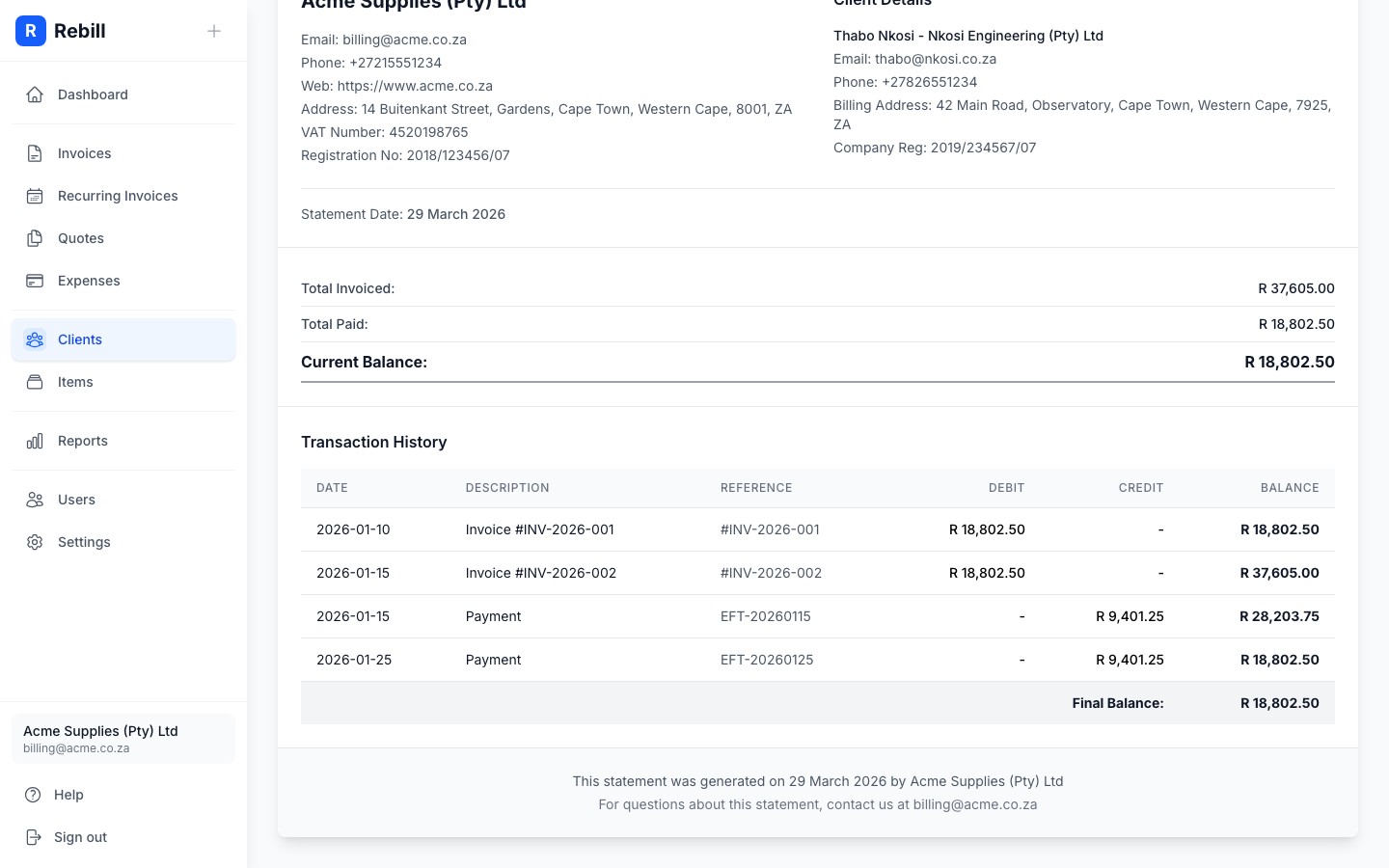
Credit notes and refunds on a statement
Statement periods
By default, a statement covers a client's full history up to today, and reads "Statement as at: [date]". To narrow it to a specific period, use the "Quick ranges" dropdown or the From and To date fields on the full statement page. Quick ranges include All time, This month, Last month, Year to date, This fiscal year, Last fiscal year, Last 6 months and Last 12 months.
Once a start date is set, the statement instead reads "Statement period: [from] to [to]", and shows a Balance brought forward line: the client's opening balance from before the period, so the running balance still reconciles even though older transactions aren't listed individually.
Emailing a statement to the client
- 1
Click "Email Statement"
From the Statement tab click "Email Statement", or on the full statement page click the envelope icon (Email statement). The statement is sent to the client's email address, and any CC addresses on the client, covering whichever period is selected on the full statement page. The email shows the client's Balance as at the end date, with the period underneath, and a View statement button that opens the same period.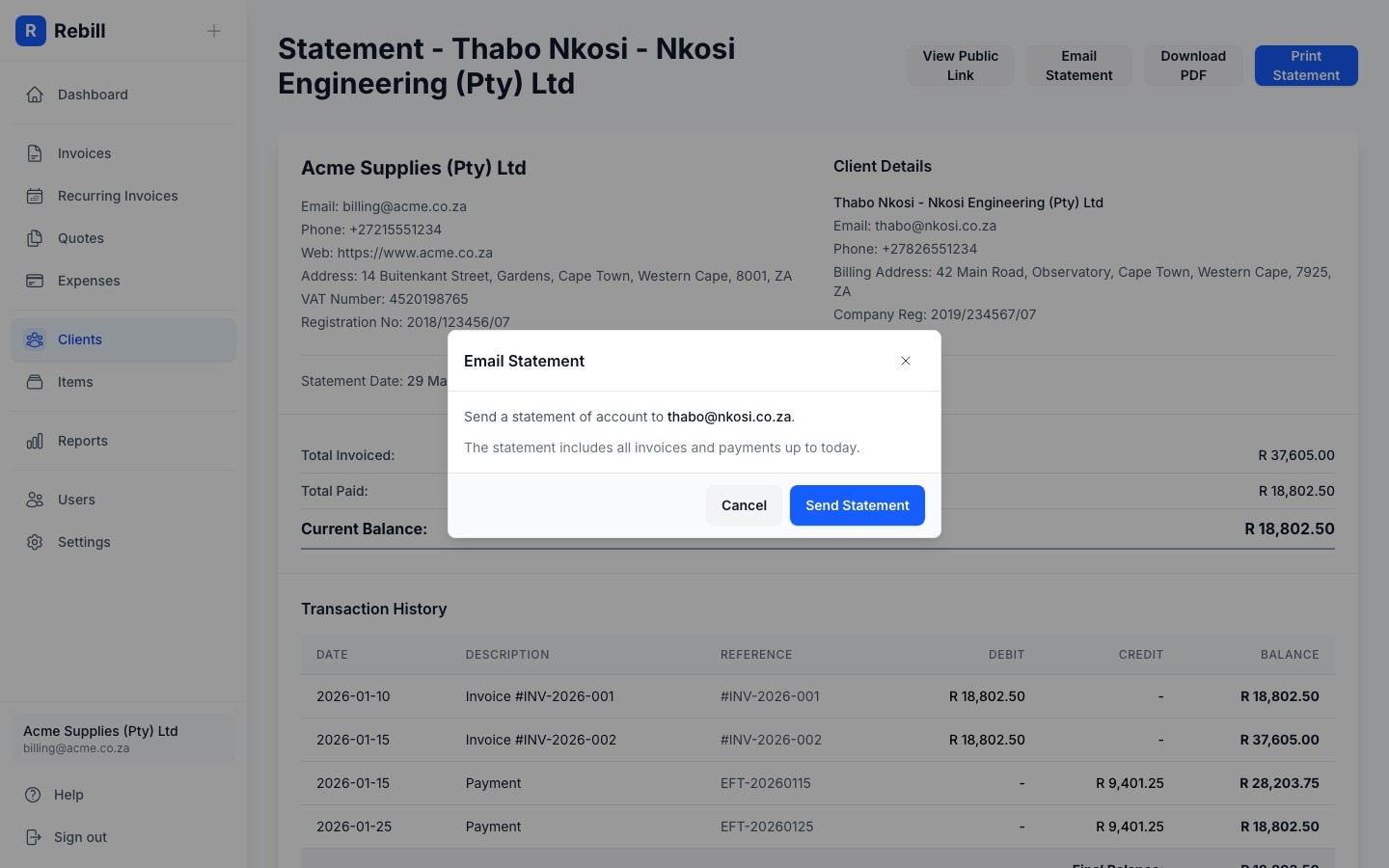
Tip
Your client can also view their statement online via a secure public link. On the full statement page, click the link icon in the toolbar to open the public link in a new tab; it carries the same period you have selected. To keep a copy, download the statement as a PDF from the same toolbar; the PDF follows the selected period too.Notification history