
Every client has a payment ledger: a running record of the payments and adjustments made against them, and how each payment was allocated across their invoices. You can view and manage it from the client's Payments tab.
Capturing a payment
- 1
Open the Payments tab
Go to Clients, open the client, and click the Payments tab.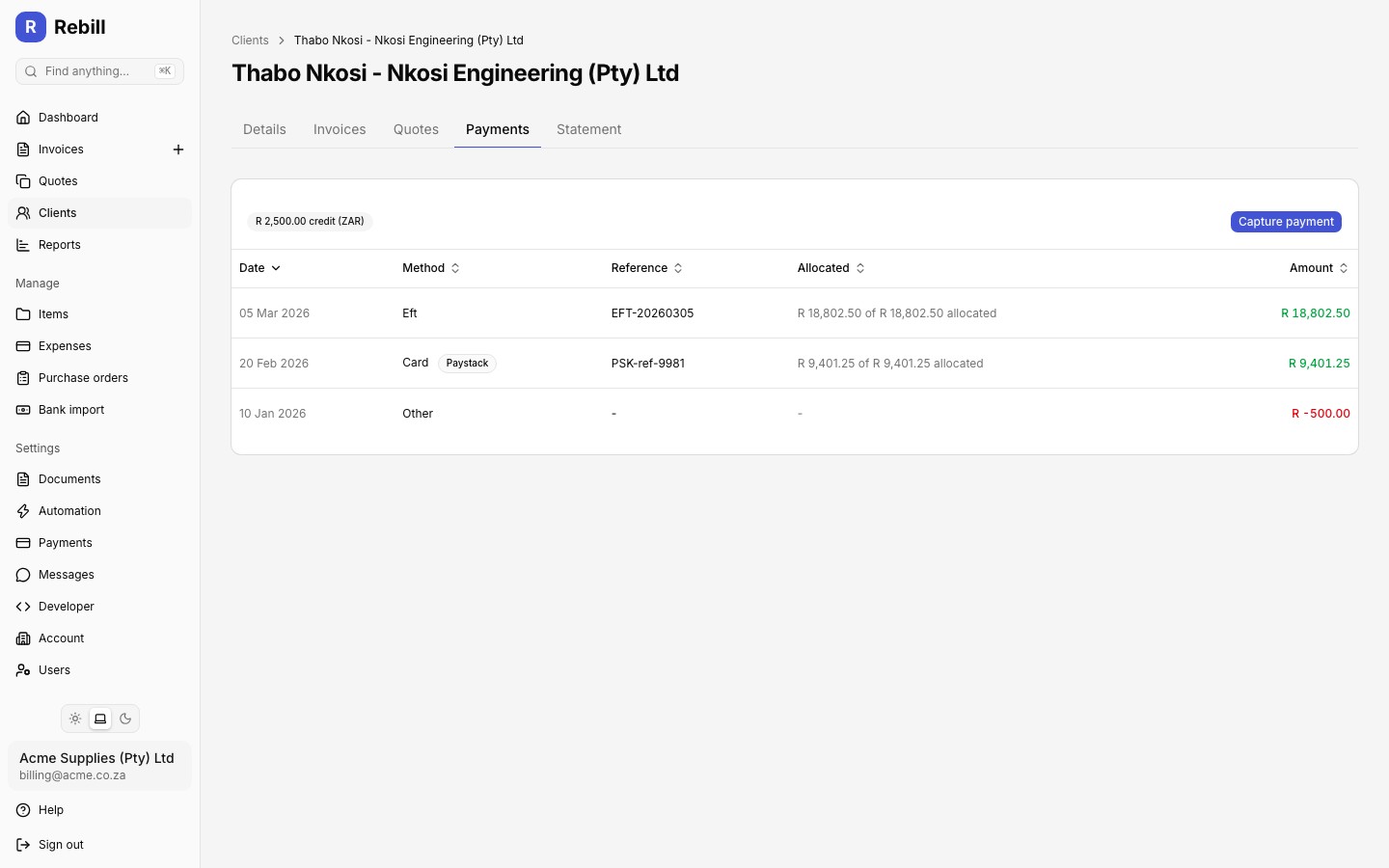
- 2
Click "Capture Payment"
Click "Capture Payment" at the top right of the tab. - 3
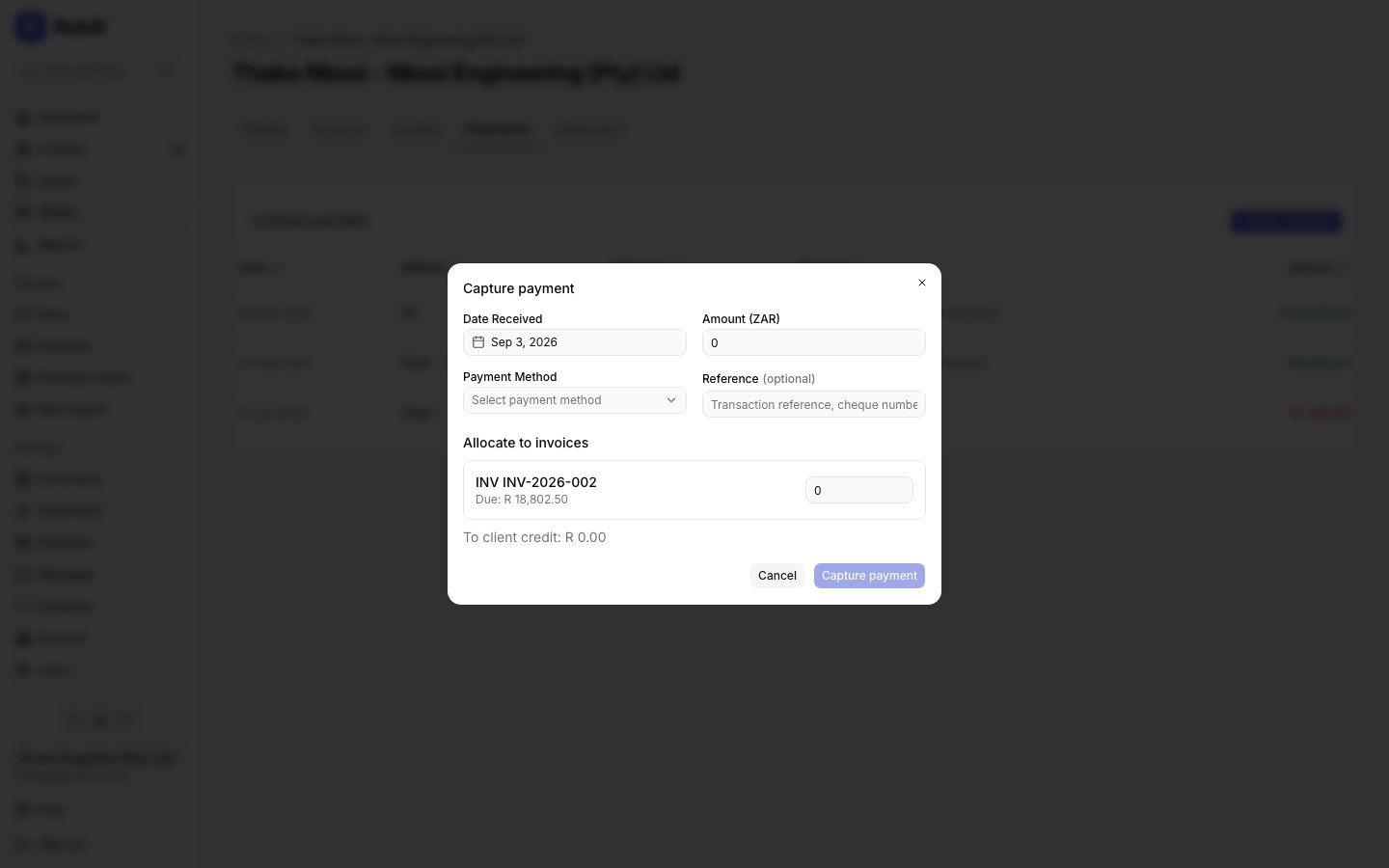
Fill in the payment details
Enter:- Date Received
- Amount, in the client's payment currency
- Payment Method: EFT, Cash, Card, or Other
- Reference: optional, e.g. a transaction reference or cheque number
- 4
Allocate to invoices
Rebill lists the client's open invoices (sent or partially paid) in the same currency and pre-fills each row from the oldest due date first, up to the payment amount. Adjust any row manually if you want a different split. Anything left over after allocations shows as "To client credit" and is added to the client's credit balance instead. - 5
Click "Capture Payment"
Confirm to save the payment and its allocations.
Note
Payments taken automatically through a linked payment gateway (Paystack, Yoco, PayFast or iKhokha) also appear in this list, tagged with the gateway's name. Only payments with method "manual" can be edited from here.Viewing and deleting a payment
Click any row in the payments table to see its full details, including the Date, Method, Reference, Amount, and its allocations to individual invoices. If a portion of the payment was left unallocated, it appears as "Unallocated remainder".
- 1
Delete a manual payment
From the Payment details view, click "Delete payment" and confirm. Any allocations to invoices are reversed, and the amount is removed from the client's ledger. Gateway payments, and adjustments that have already been allocated, cannot be deleted this way.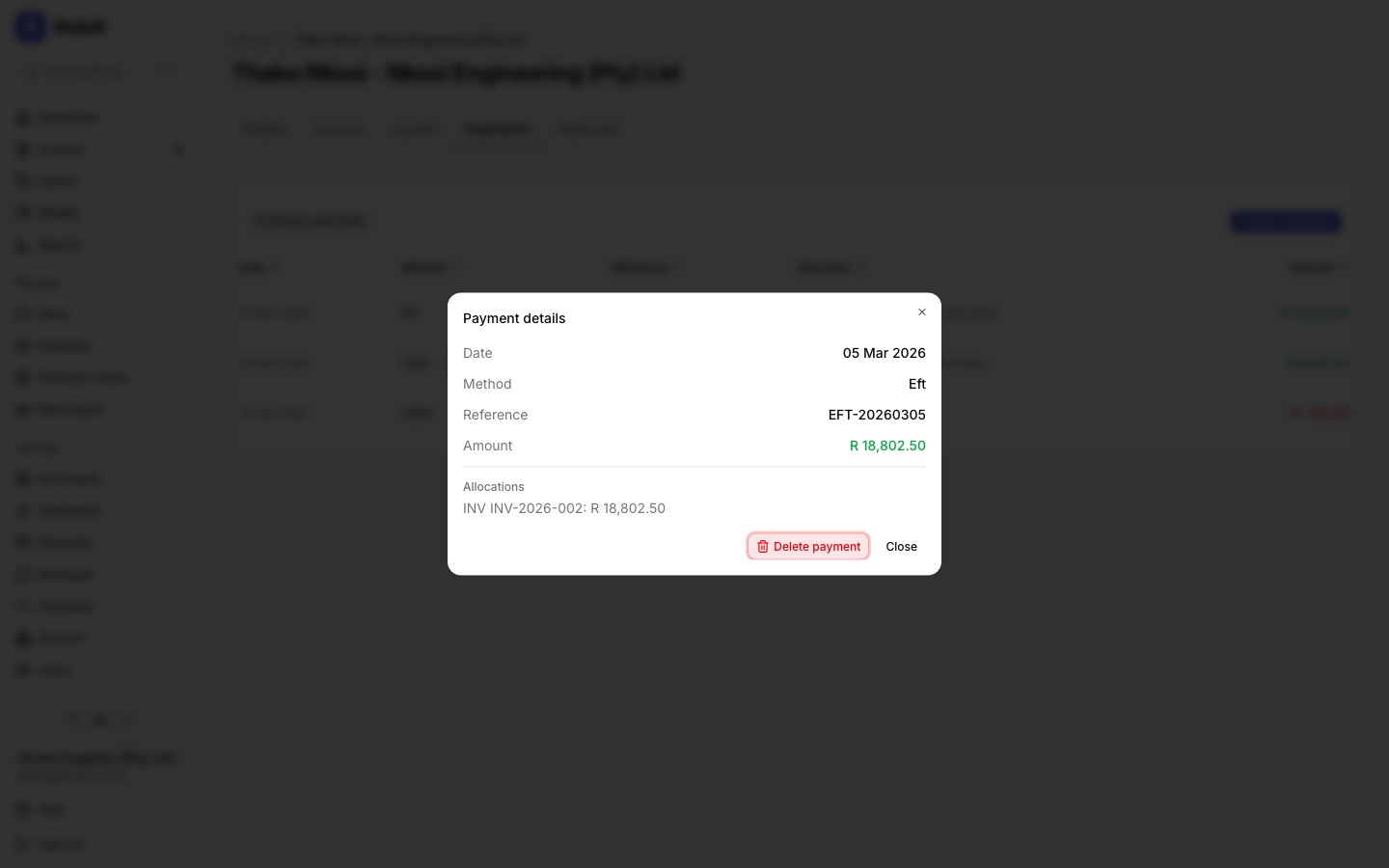
Adjustments
An adjustment is a manual entry on the credit ledger that isn't tied to a payment, for example a goodwill credit or a correction. On the client's Details tab, click "Add adjustment" on the Credit Balance card and enter a signed amount: positive to add credit, negative to remove it, along with a reason and date. This is the same Add Adjustment dialog described above; there is no separate adjustment control on the Payments tab.
Credit notes and refunds in the ledger
Two more kinds of entry can appear in the ledger. A credit note row is added every time you issue a credit note, labelled with its number (for example CN-0003). It is not money received. It settles the invoice it credits, and any part the invoice could not take becomes client credit. A refund row is added when you record a refund, and takes credit back off the balance. Credit note rows cannot be deleted or reallocated, because a credit note is a document. A refund can be deleted if you recorded it by mistake.
What credit balance means
A client's credit balance is the total of everything paid or credited to them that hasn't yet been allocated to an invoice, tracked separately per currency. It grows when a payment is only partially allocated, when you record a positive adjustment, or when a credit note leaves credit behind, and shrinks when it's applied to an invoice, you record a negative adjustment, or you record a refund. You can configure Rebill to apply it automatically on new invoices; see Automatic credit application.