
Before you can invoice someone, you need to add them as a client. You only need to do this once. After that, they'll appear in the dropdown every time you create an invoice.
- 1
Go to Clients
Click on Clients in the left sidebar to open your client list.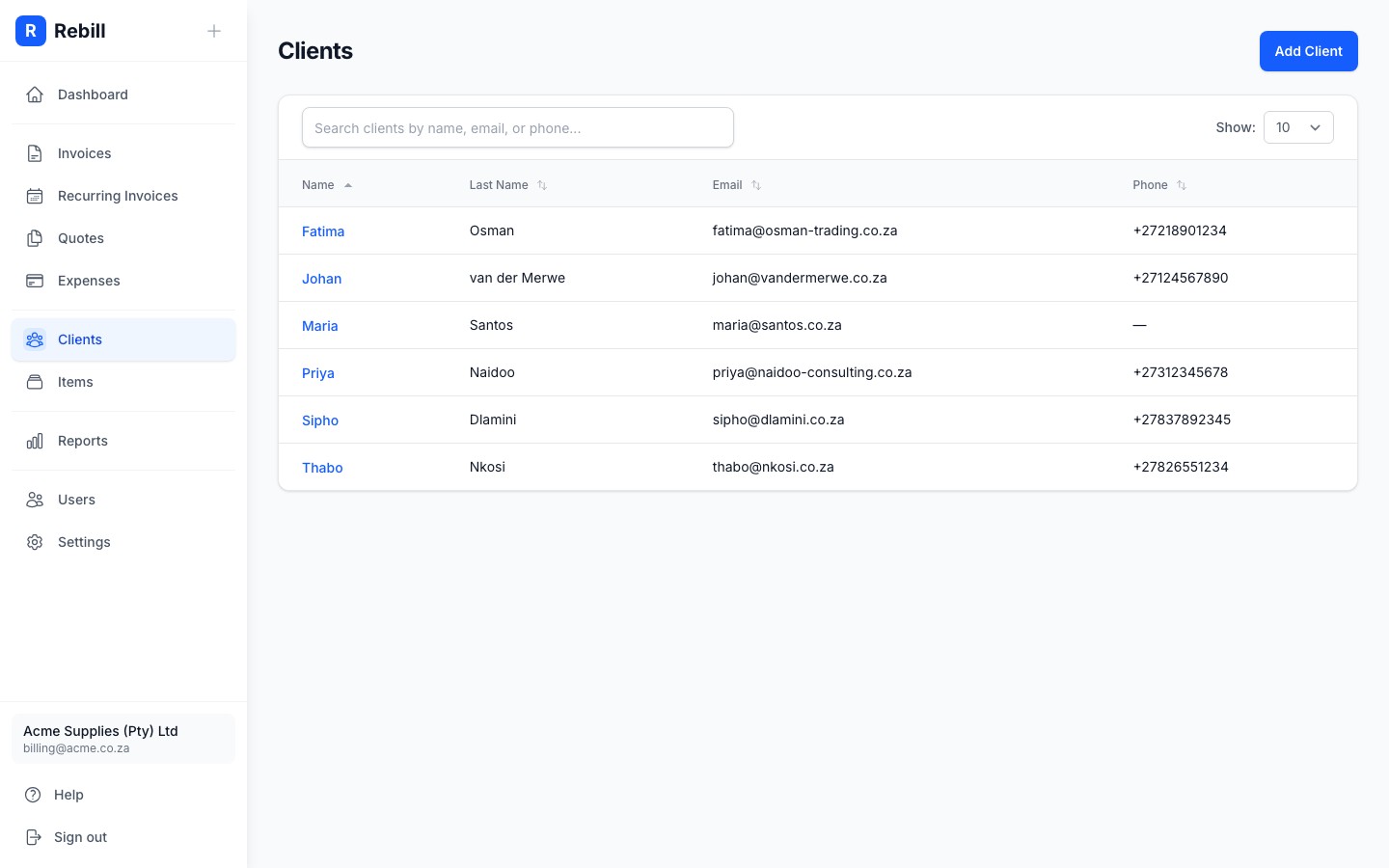
- 2
Click "Add client"
Click the "Add client" button at the top right of the page.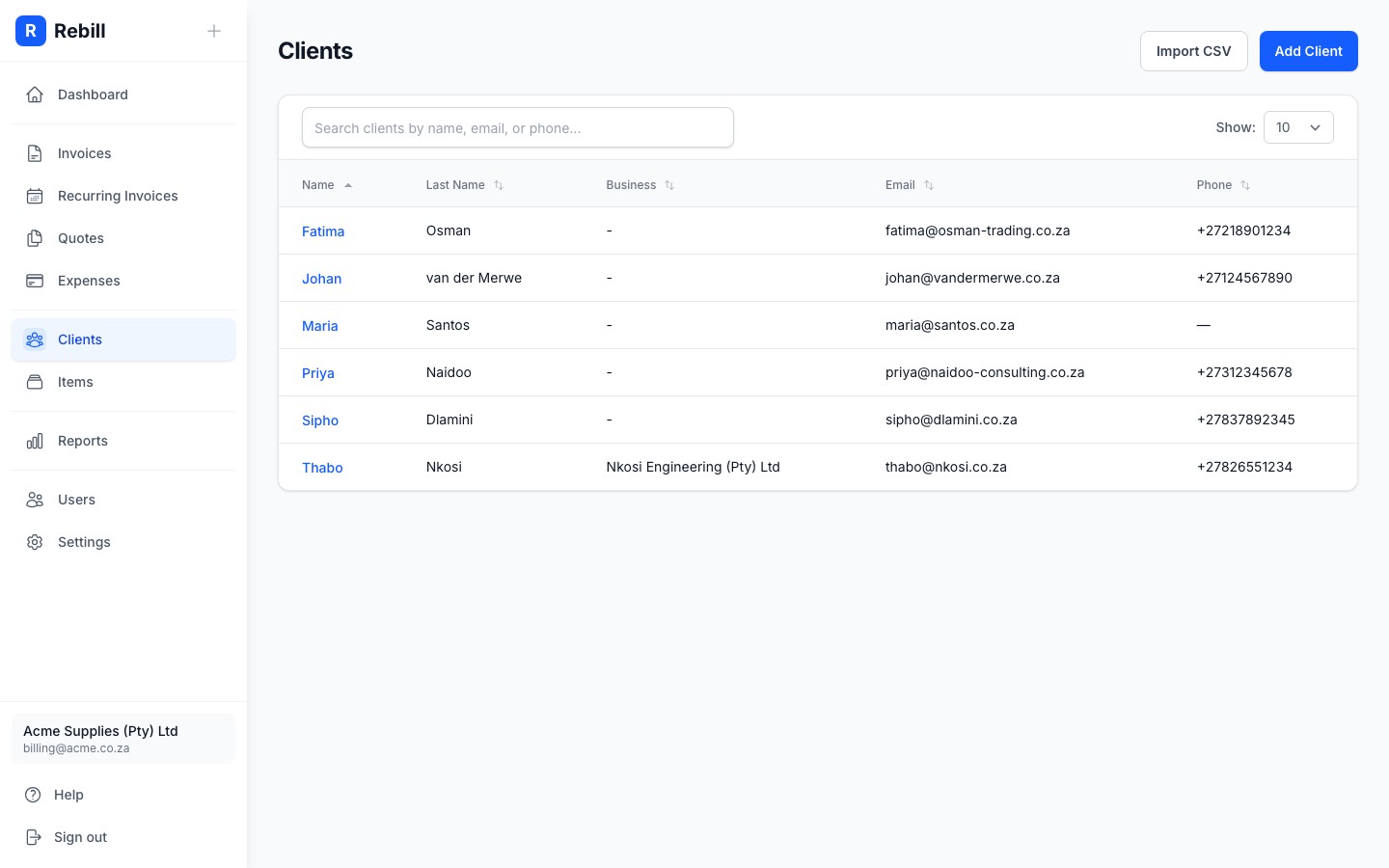
- 3
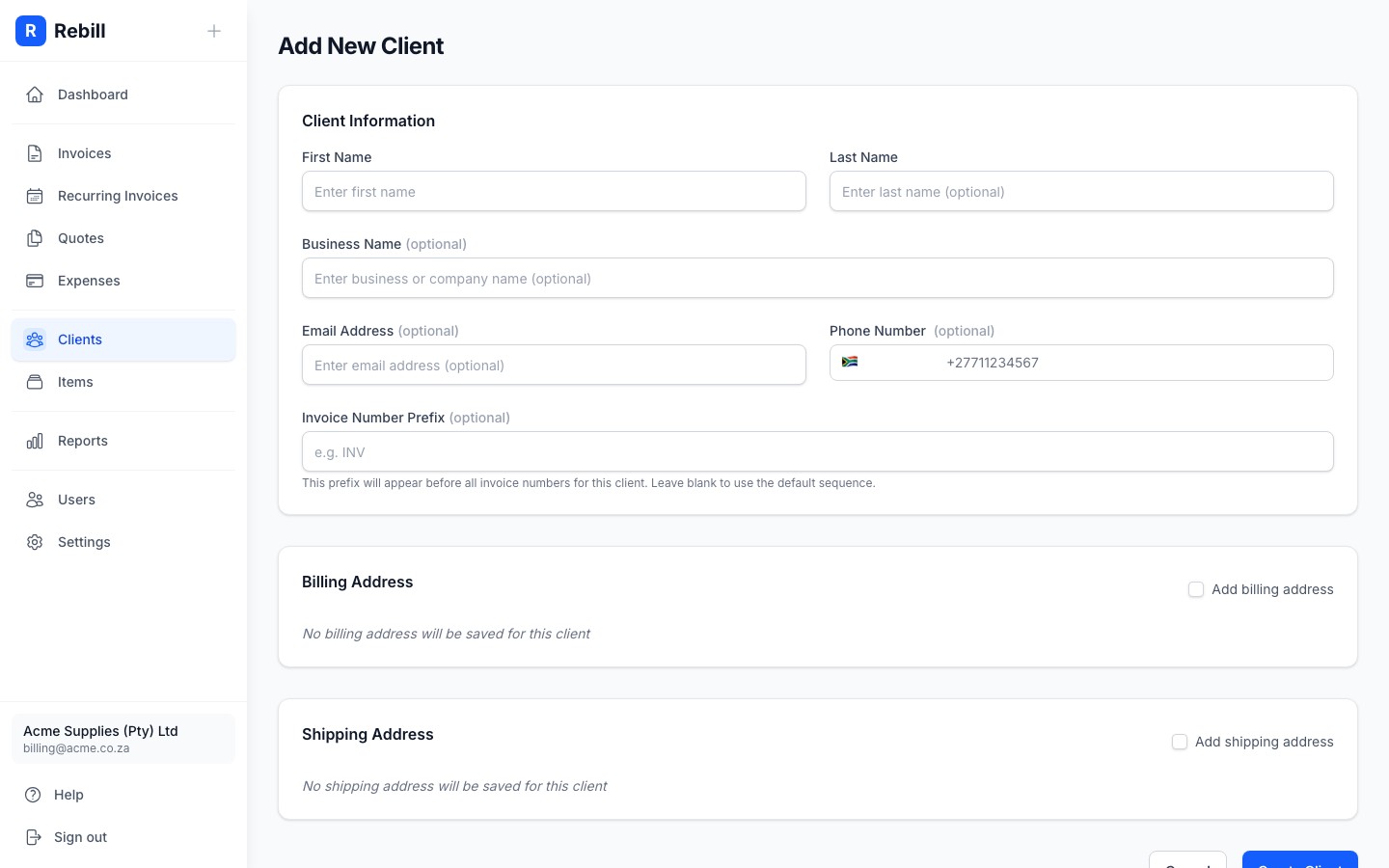
Enter the client's details
Fill in their information:- First Name: the contact person's first name
- Last Name: optional last name
- Business Name: optional. If this client is a business, enter the company name here. It will appear on invoices, quotes, and statements.
- Email Address: where their invoices will be sent
- BCC Email Address: optional. If set, this address is BCC'd on every email sent to the client and stays hidden from them.
- CC Email Addresses: optional, up to 3. These are copied on every email sent to this client (invoices, quotes, statements, reminders) and are visible to all recipients.
- VAT number: optional. Prints under the client's details on invoices and quotes.
- Client code: optional, up to 32 characters. Your own reference for the client, such as the customer code in your accounting package. It prints under the client's details on invoices, quotes and statements, appears on the client list and in report exports, and must be unique across your clients. With automatic client codes on, leave it blank and the next code is assigned for you on save.
- Phone Number: required if you want to send invoices via WhatsApp
- Invoice Number Prefix: optional. If set, invoices for this client will use this prefix instead of your default (e.g. "ABC-001")
- Quote Number Prefix: optional. If set, quotes for this client use this prefix in place of the default Q (e.g. "ABC-0001"). A prefix can only be used once on your account, so it cannot match another client's prefix or this client's own invoice prefix.
- 4
Add billing address (optional)
If you need a billing address to appear on invoices, scroll down and fill in the billing address fields. The address appears on printed invoices.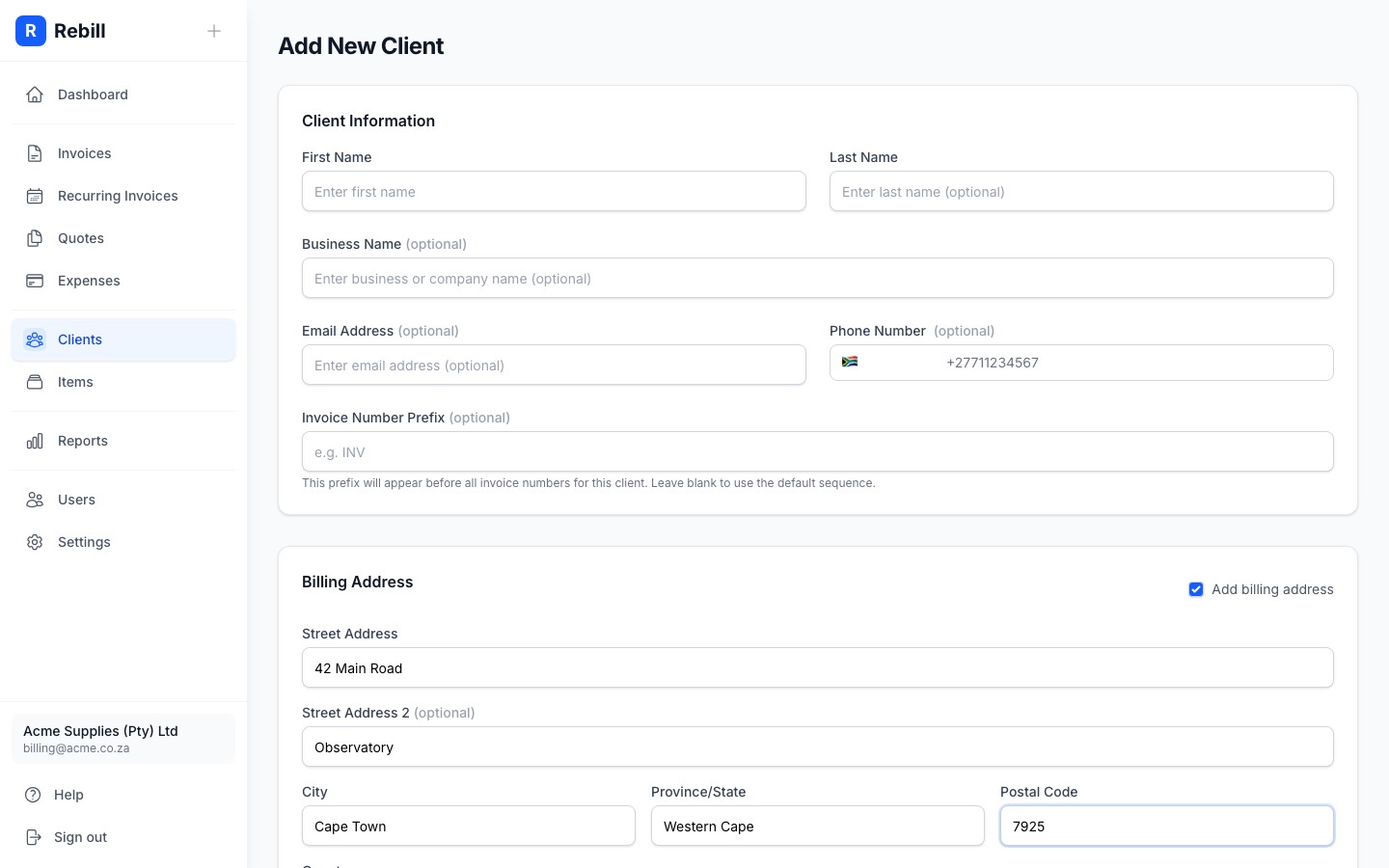
- 5
Save the client
Click "Create Client" at the bottom. The client is now available to select when creating invoices.
Business clients
When a business name is set, it will appear prominently on invoices, quotes, and statements. The contact person's name will appear underneath. This is ideal for clients where you deal with a specific person but need the company name on the documents.Adding a client during invoice creation
You can also add clients on the fly while creating an invoice. Just type a new name in the client field and you'll get an option to create them without leaving the form.