Upload a CSV file exported from your bank and Rebill will parse it, detect the header row, and let you map columns to the right fields. You can save the mapping for future imports from the same bank.
- 1
Go to Bank import
Click Bank import in the sidebar, then click "Import CSV".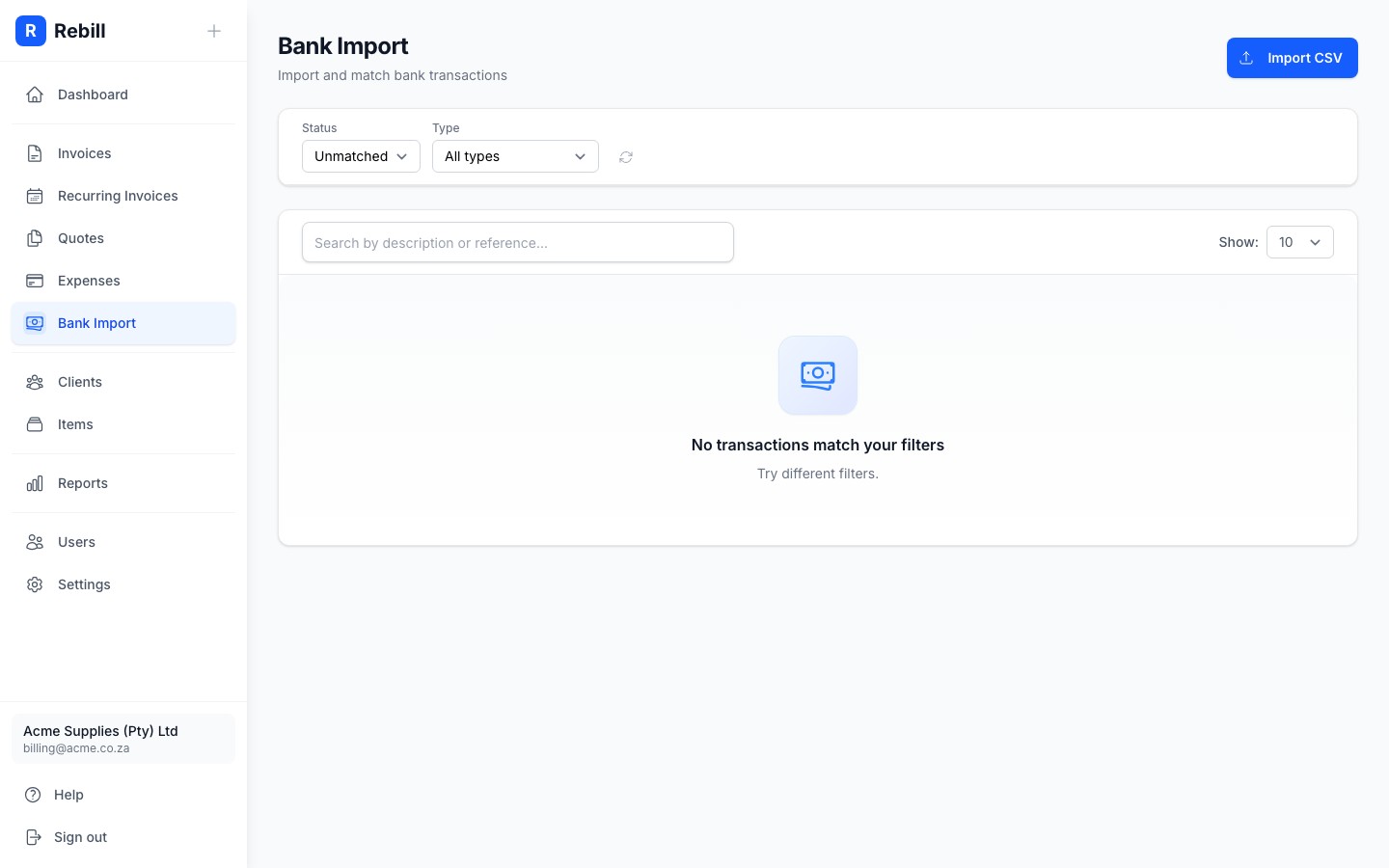
- 2
Select your CSV file
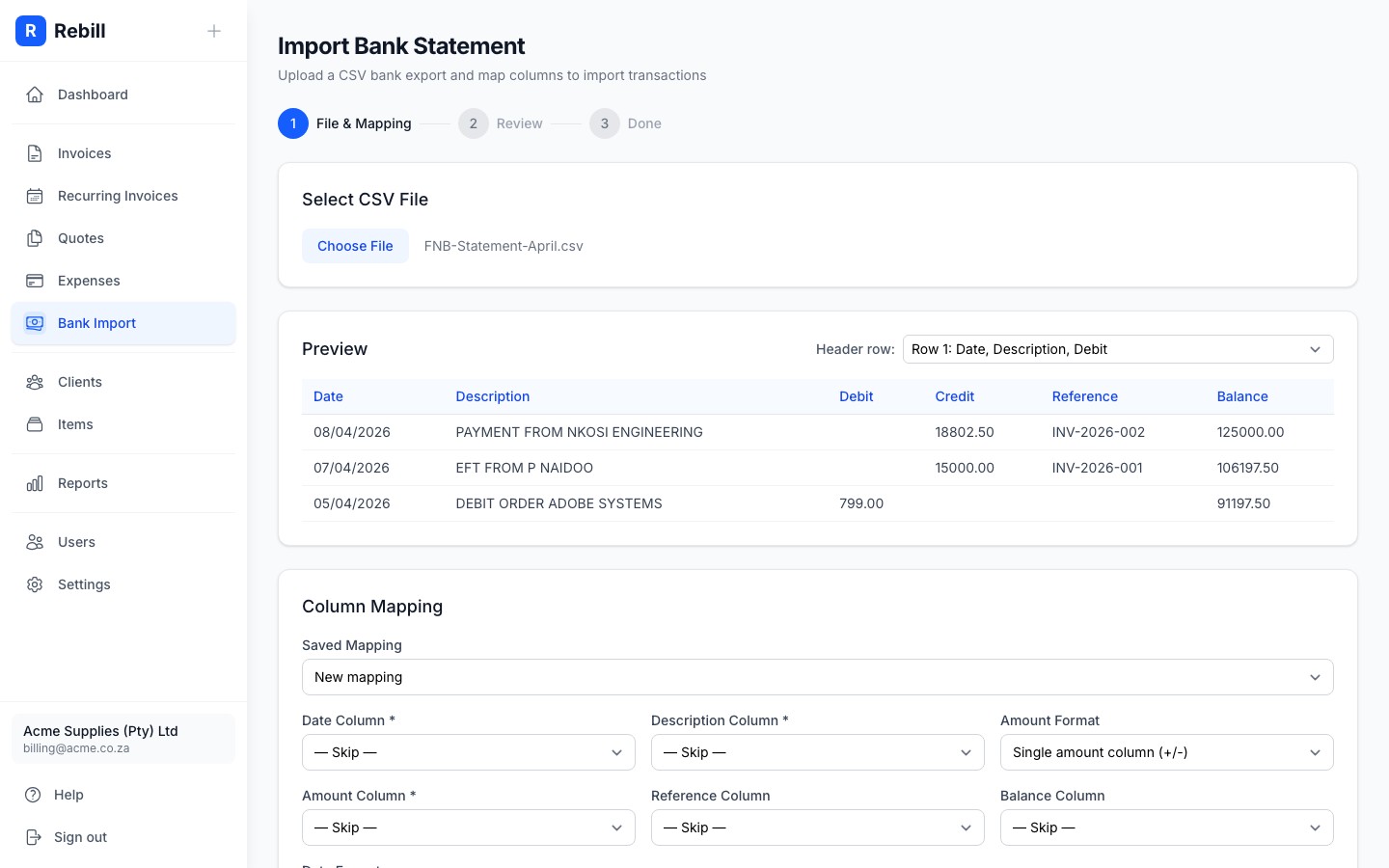
Click "Choose file" and select the CSV you exported from your bank. Rebill will preview the first few rows and try to detect the header row automatically.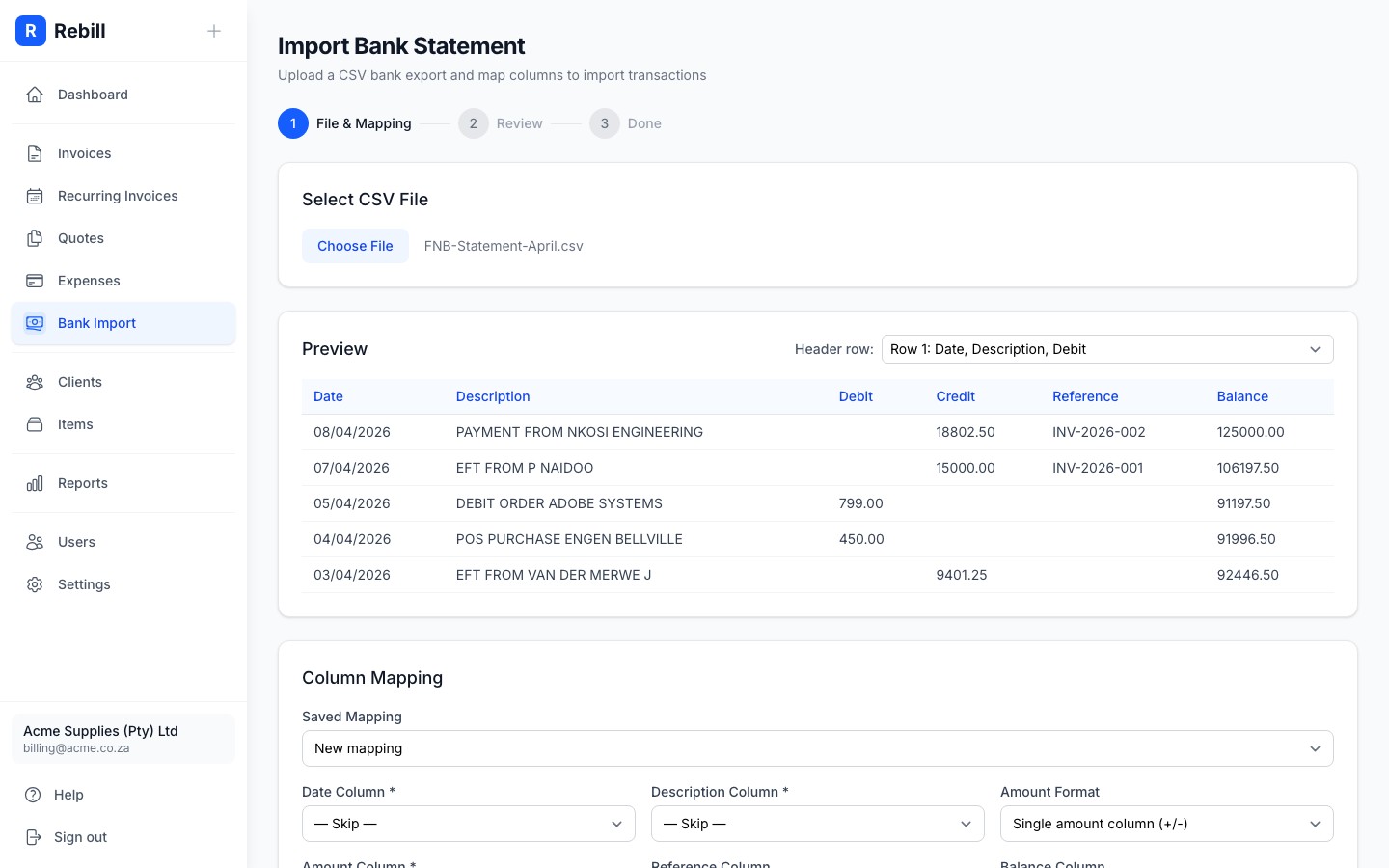
- 3
Check the header row
Many South African banks include junk lines at the top of their CSV files. Rebill detects the header row automatically, but you can adjust it using the "Header row" dropdown. Rows above the header are skipped.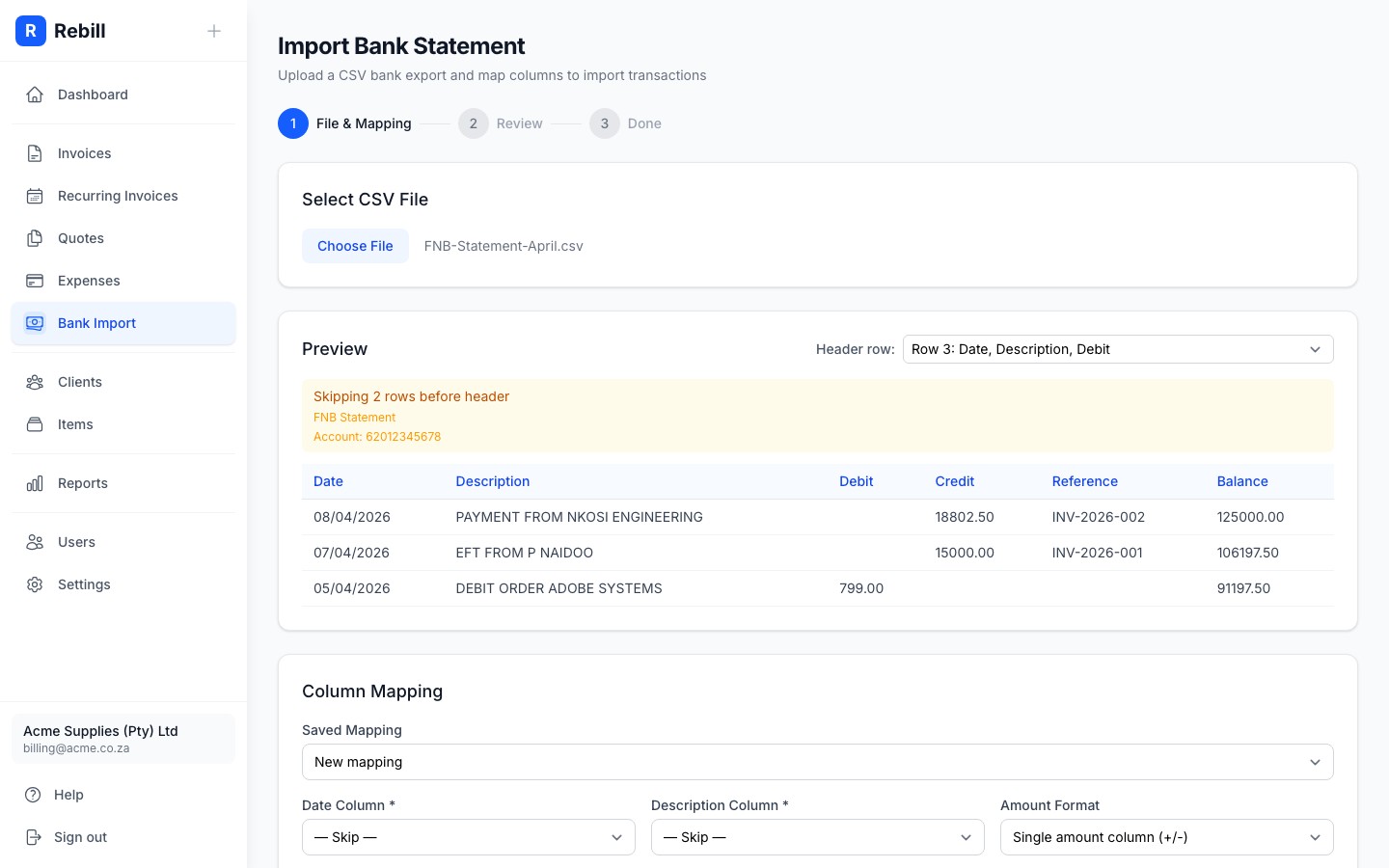
- 4
Map columns
Use the dropdowns to tell Rebill which column is which:- Date column and date format (e.g. DD/MM/YYYY for FNB, YYYY/MM/DD for Investec)
- Description column
- Amount: either a single amount column, or separate debit and credit columns
- Reference and Balance columns (optional, improves matching and dedup)
- 5
Save the mapping (optional)
Tick "Save this mapping" and give it a name (e.g. "FNB Cheque Account"). Next time you import from the same bank, select the saved mapping and skip the column setup.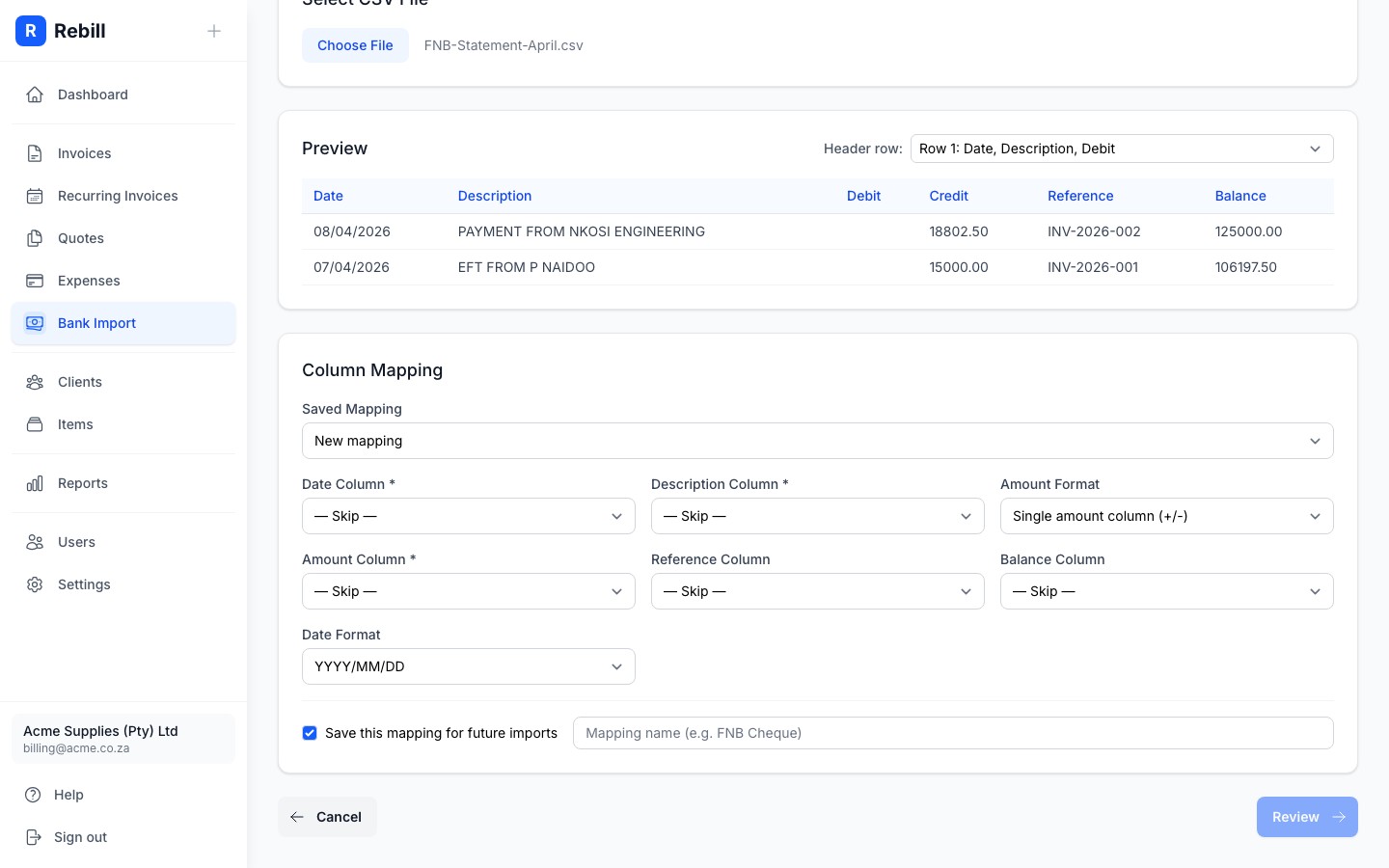
- 6
Review and import
Click "Next" to preview all parsed transactions. Check the totals, then click "Import". Rebill will skip any duplicates automatically.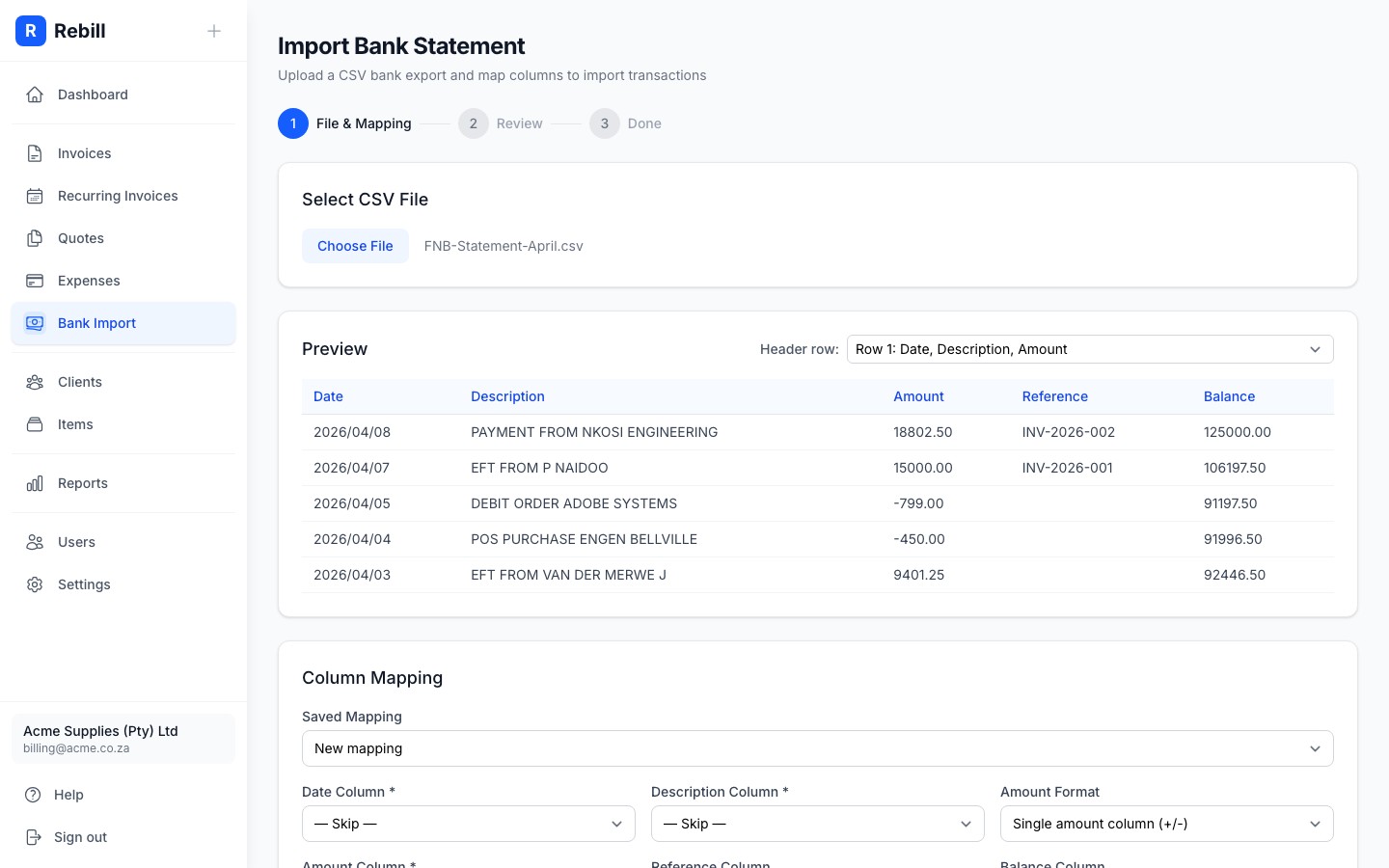
- 7
Done
You will see a summary of how many transactions were imported and how many were skipped. Click "Go to matching" to start reconciling.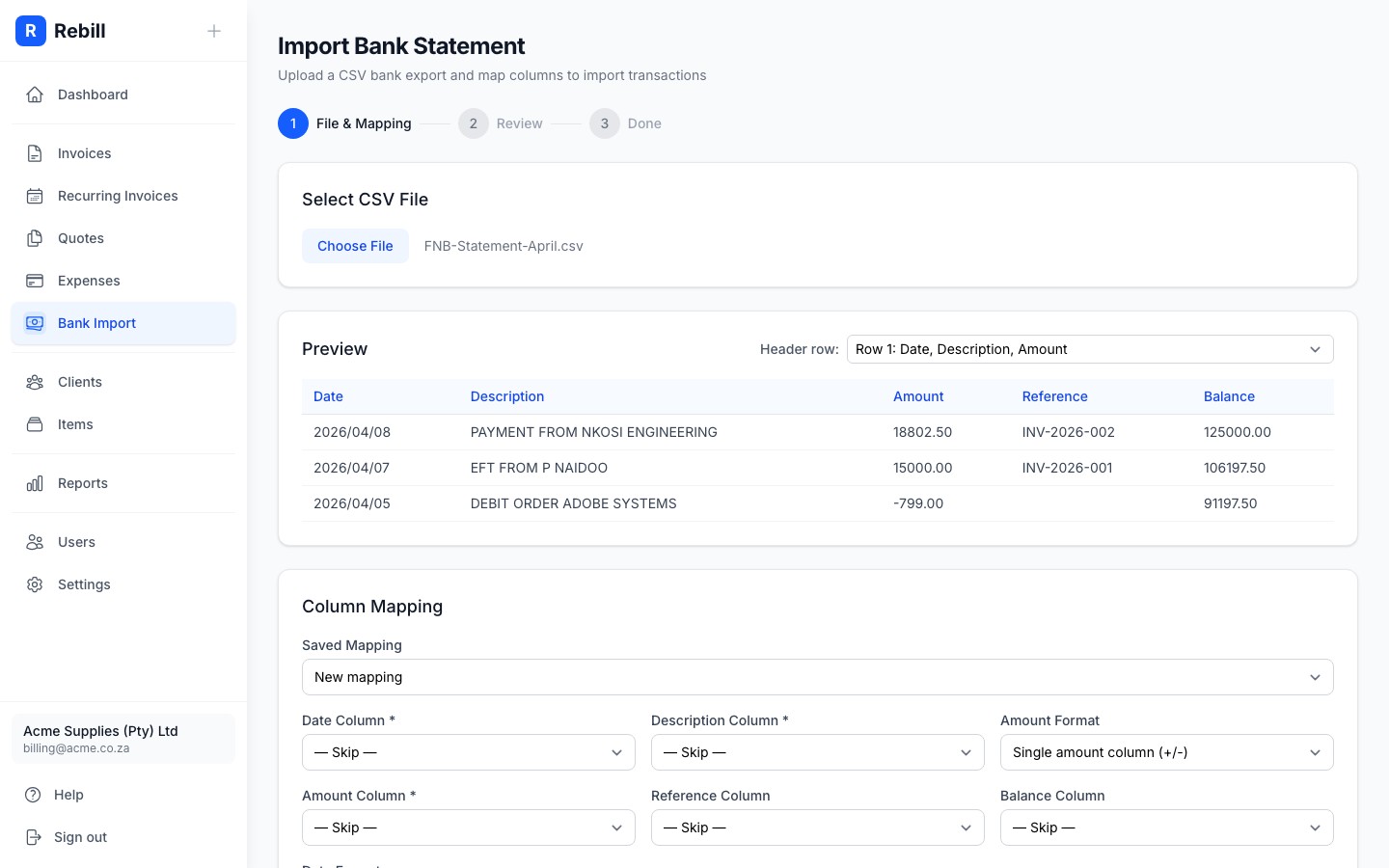
CSV format only
Rebill accepts CSV files only. If your bank offers PDF or OFX exports, look for a CSV or Excel option instead. Most SA banks offer CSV under "Download" or "Export" on the transaction history page.Transaction limit
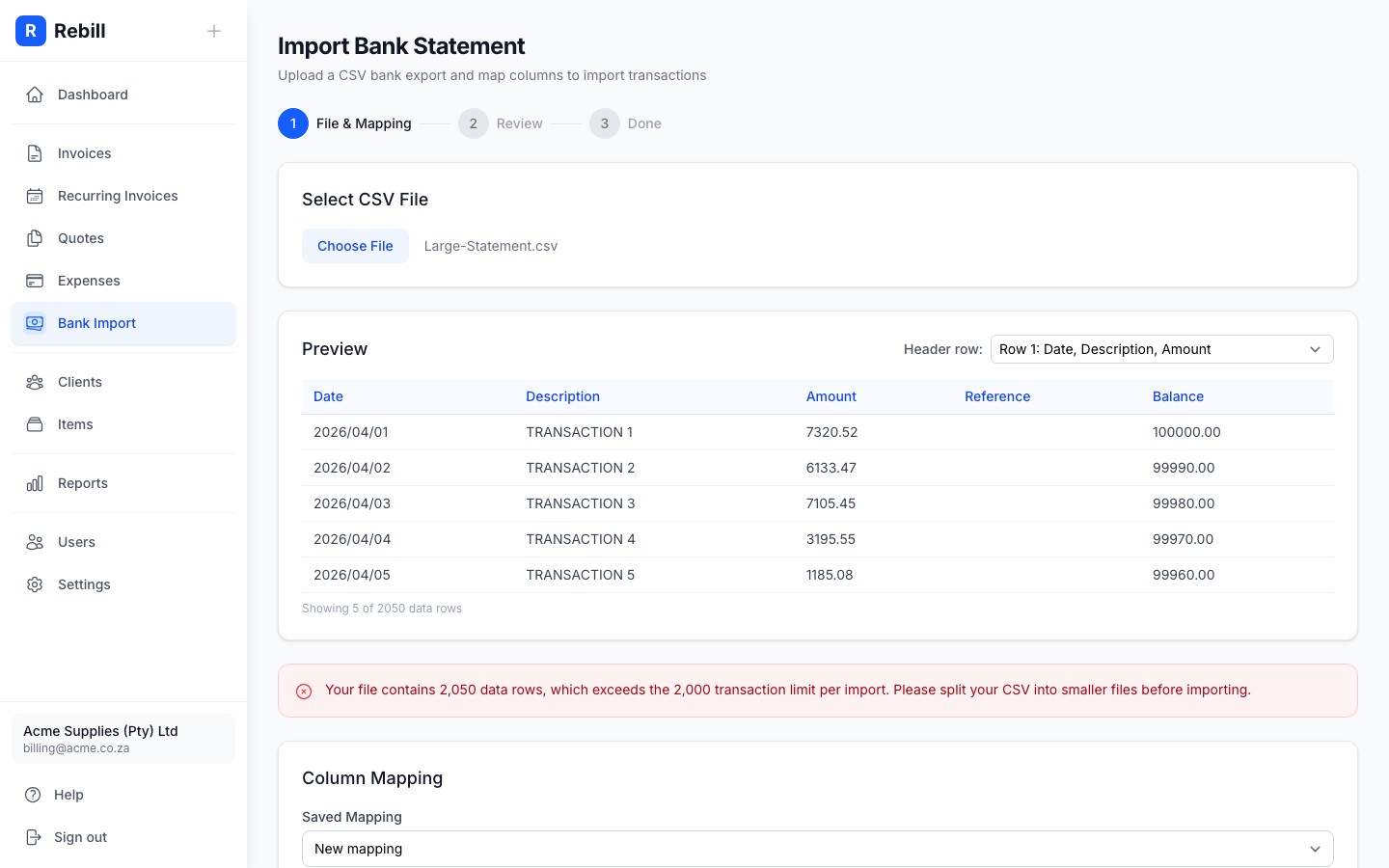
Each import can contain up to 2 000 transactions. If your CSV has more than 2 000 rows, split it into smaller files (e.g. by month) before importing.