Debit transactions (money out) on your bank statement can be turned into expenses. Pick a category, confirm the supplier name, and Rebill creates the expense for you.
Categorising a single transaction
- 1
Open the transaction
Click "Match" on any unmatched debit transaction. The panel opens with the expense form pre-filled.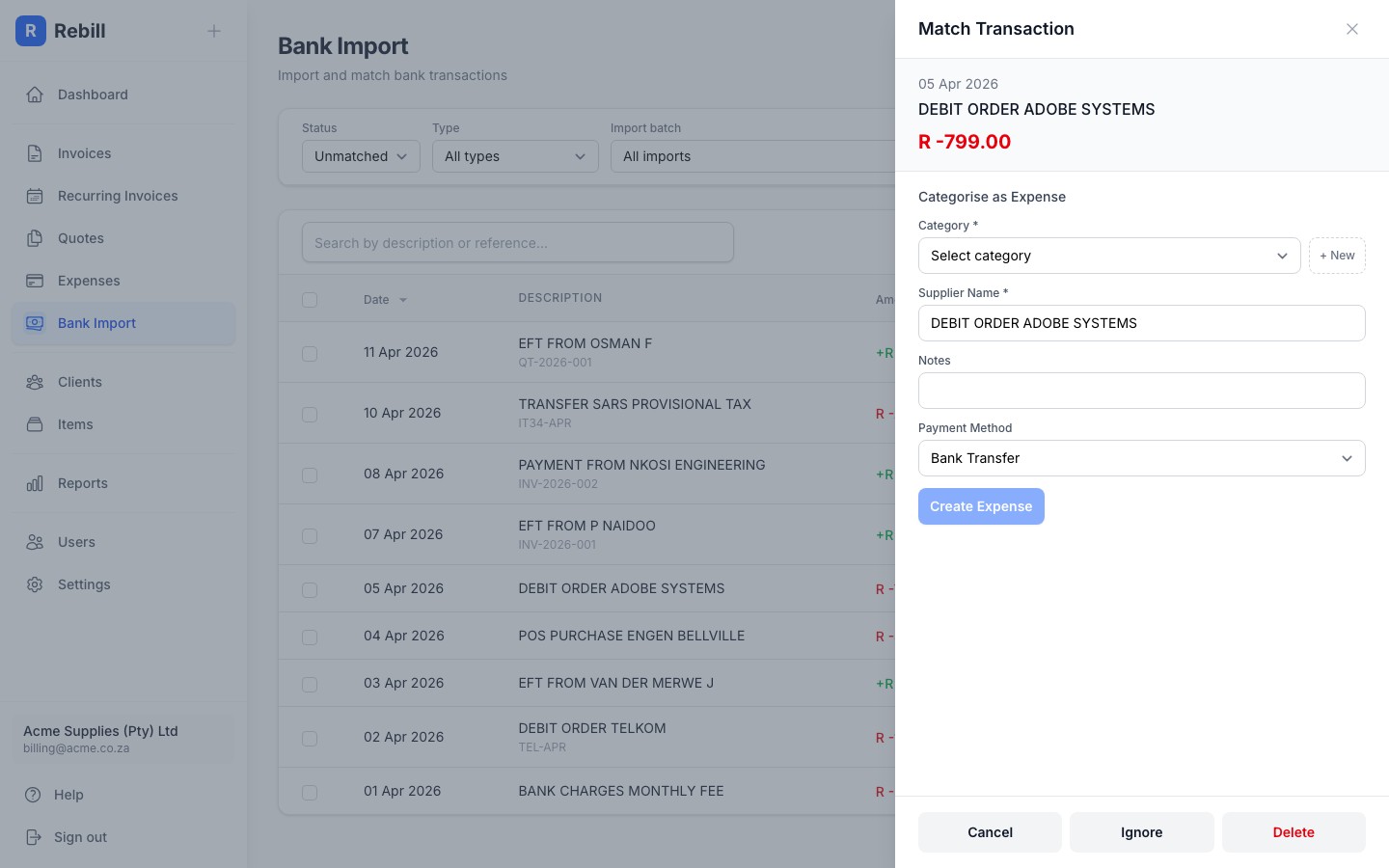
- 2
Select a category
Choose an expense category from the dropdown. If you need a new category, click "+ New" to create one on the spot.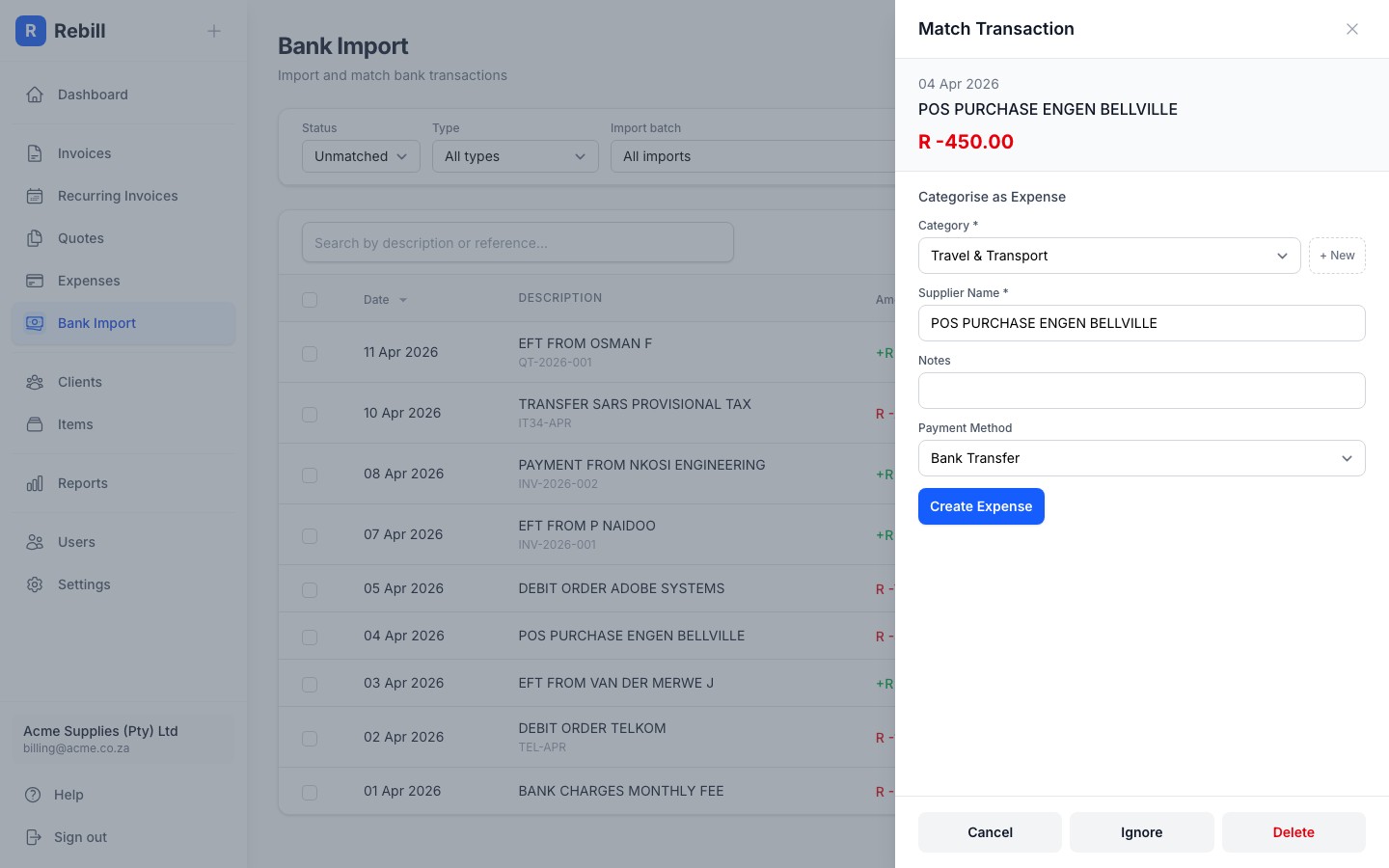
- 3
Confirm details
The supplier name is pre-filled from the bank description. Edit it if needed, add optional notes, and choose the payment method. - 4
Create the expense
Click "Create Expense". The expense is created and the transaction is marked as matched.
Bulk categorisation
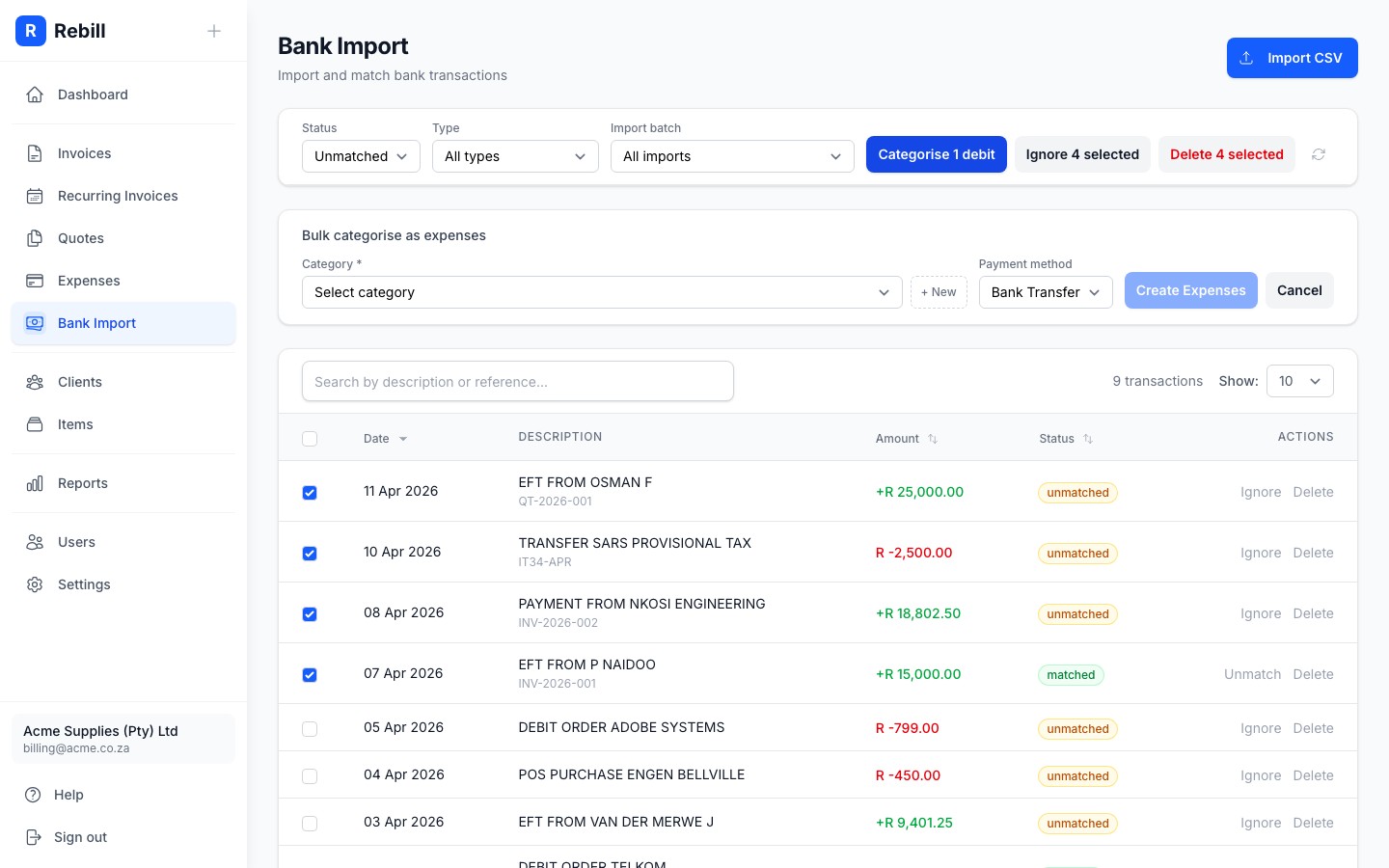
To categorise multiple debits at once, select them using the checkboxes, then click "Categorise N debits". Choose a category and payment method, then click "Create Expenses". An expense is created for each selected transaction using the bank description as the supplier name.
Ignoring and deleting transactions
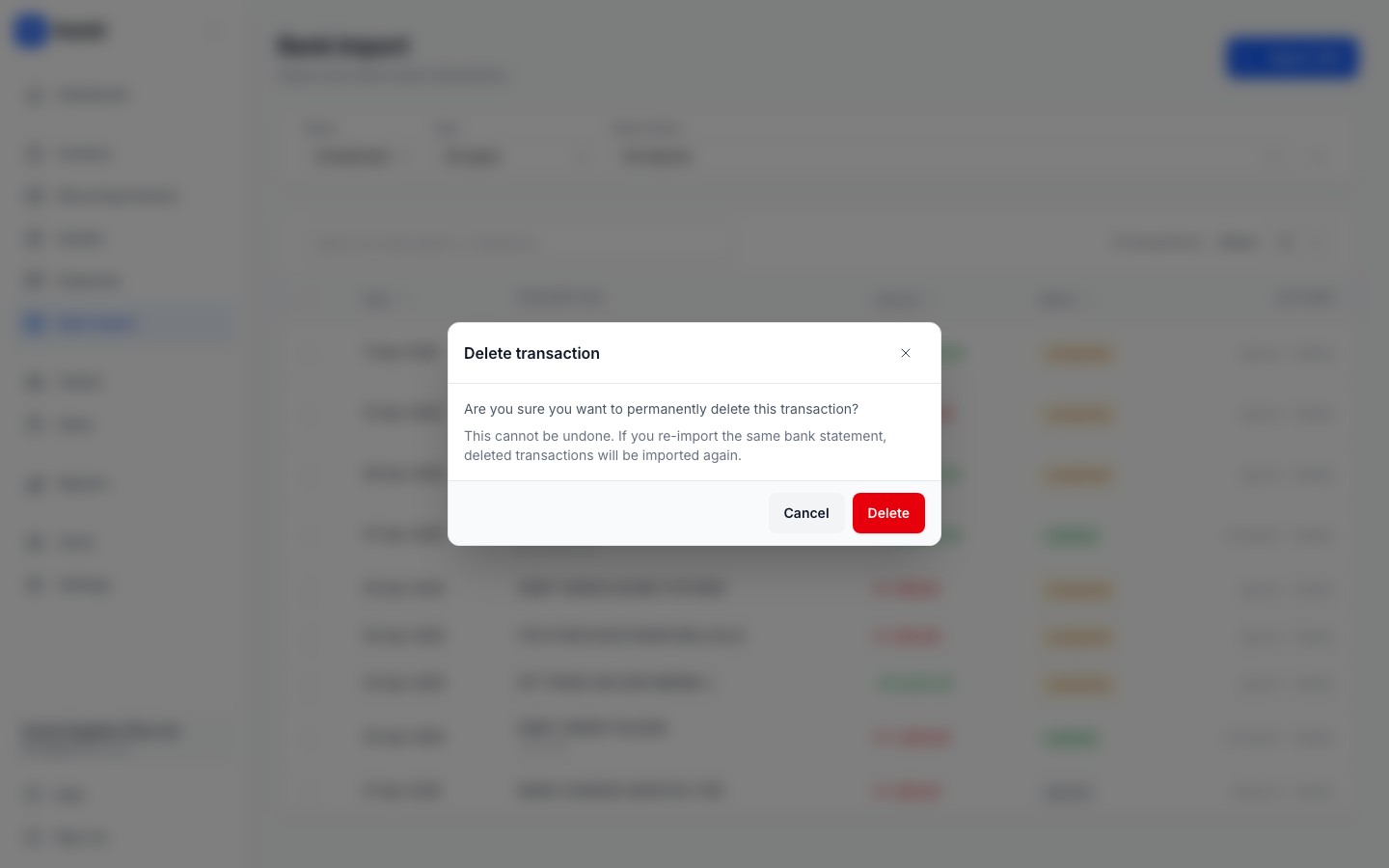
Not every debit needs to be an expense. Select transactions and click "Ignore selected" to hide them from the unmatched list. You can always view ignored transactions by changing the status filter. If you want to remove transactions permanently, use "Delete selected" instead. Deleted transactions cannot be recovered, but will be re-imported if you upload the same bank statement again.