When you see a credit (money in) on your bank statement, you can match it to an outstanding invoice. This records a payment against that invoice, just like manually capturing a payment.
- 1
Open the transaction
On the Bank Import page, click "Match" on any unmatched credit transaction. A panel opens on the right showing suggestions and manual search.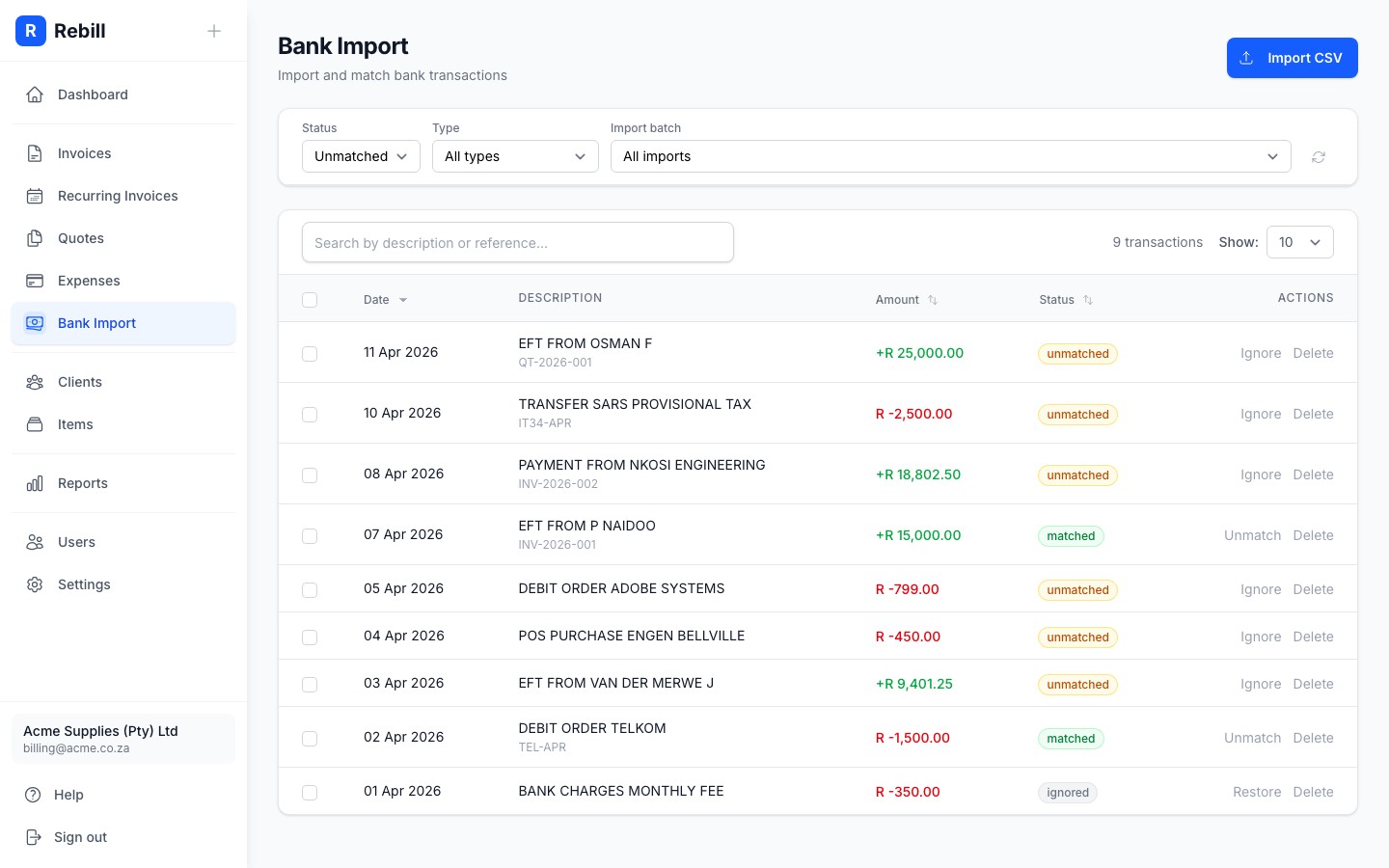
- 2
Review suggestions
Rebill automatically suggests invoices based on the amount, reference number, and client name. Each suggestion shows a confidence percentage. Click a suggestion to match it immediately.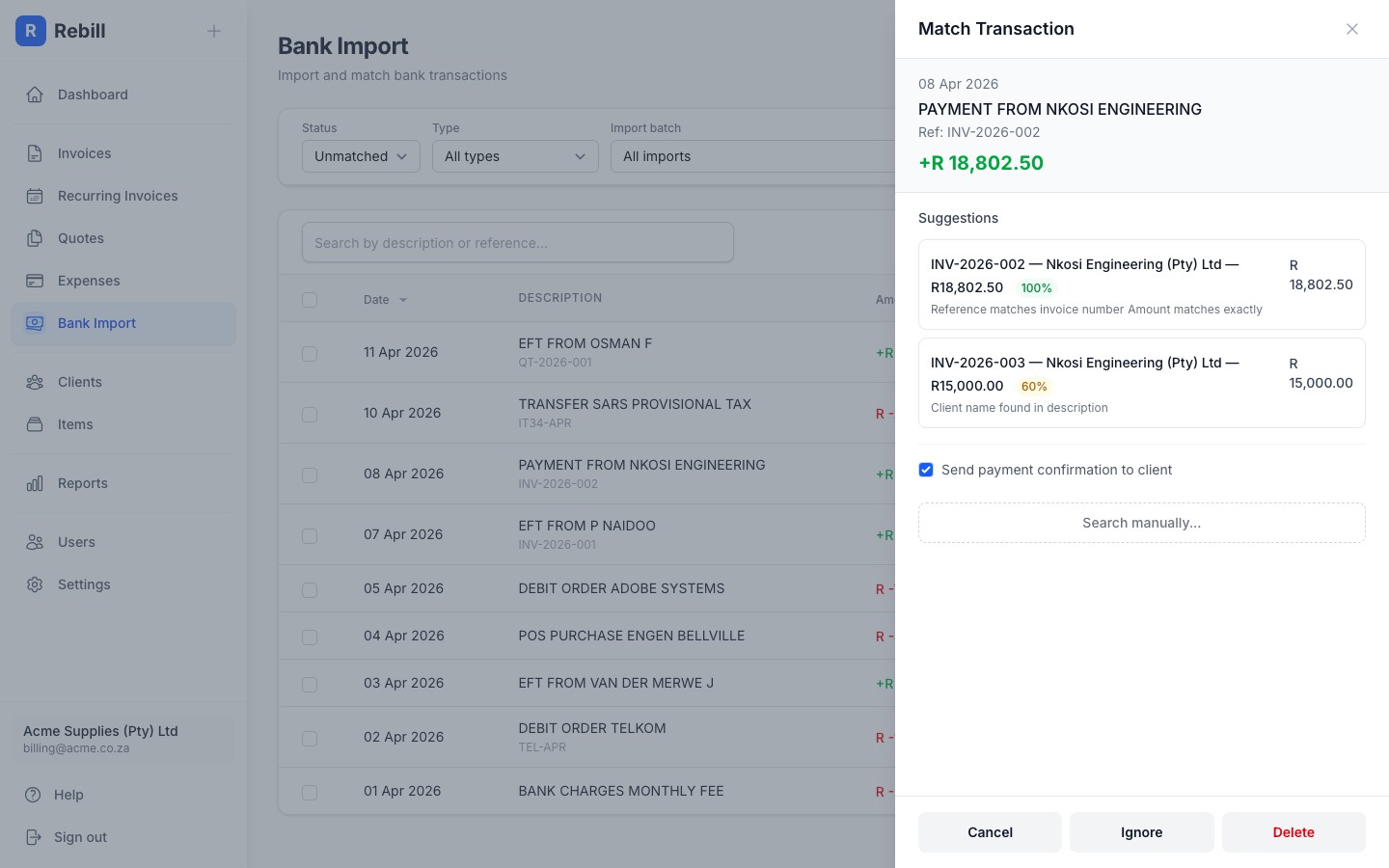
- 3
Search manually
If no suggestion fits, use the search box to find an invoice by number or client name. All outstanding invoices are listed; scroll or search to find the right one.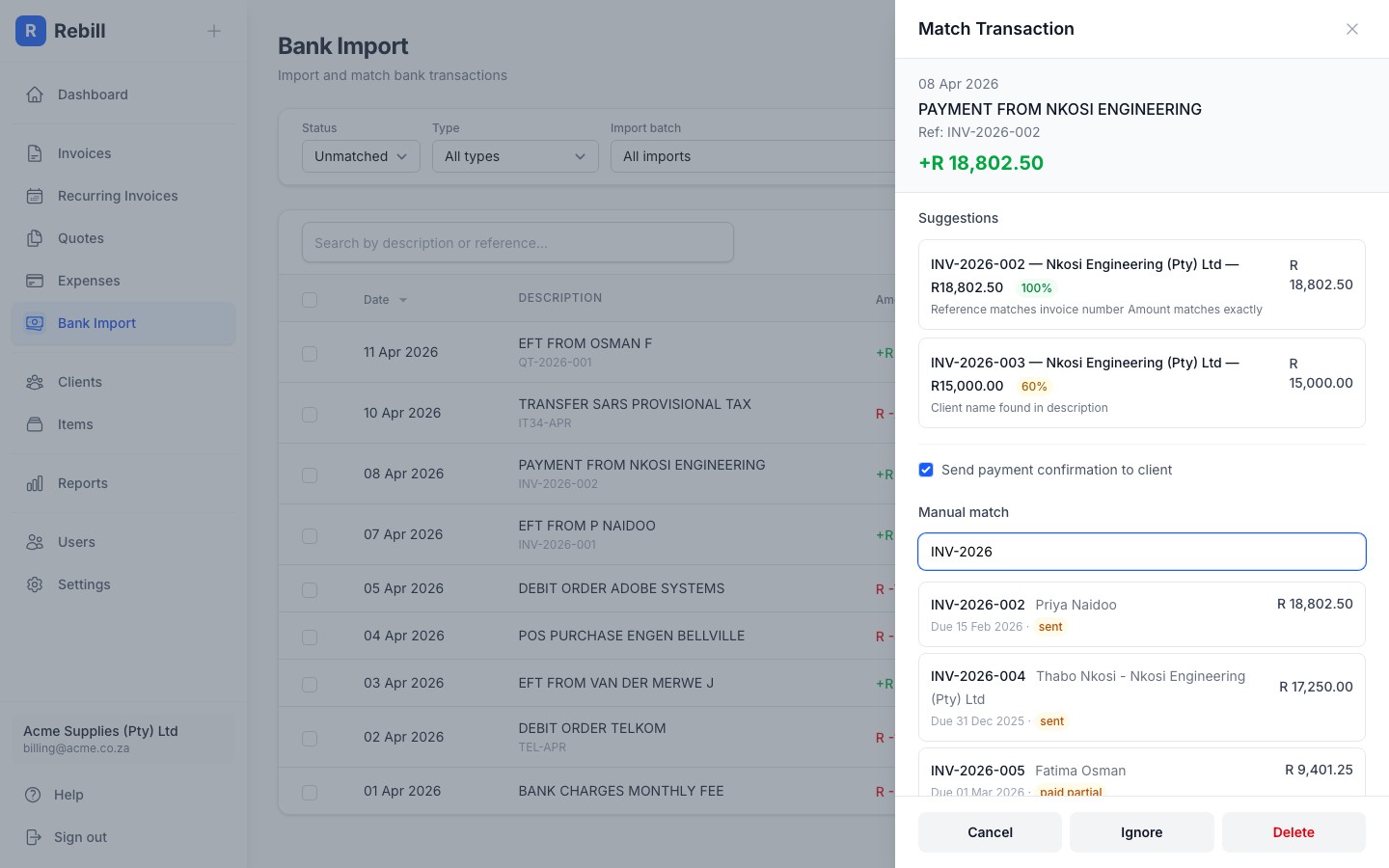
- 4
Payment confirmation
Before matching, you can choose whether to send a payment confirmation email to the client. The checkbox is on by default. Uncheck it if you do not want to notify the client.
What happens when you match
- A payment is created on the invoice with the transaction amount and date
- The invoice status updates automatically (e.g. from sent to paid or paid_partial)
- The bank transaction status changes to matched
- If the payment exceeds the invoice amount, the excess is added as client credit
Unmatching
If you matched the wrong invoice, click the unmatched transaction and select "Unmatch". The payment is removed and both the invoice and transaction return to their previous state.