
A fulfilled purchase order is not itself an expense; it needs to be converted before it appears in your expense reports. Rebill pre-fills the expense from the purchase order so this only takes a few clicks.
- 1
Open the fulfilled purchase order
Purchase orders that are Fulfilled and have not yet been recorded as an expense show a "Record as expense" button above the document. - 2
Click "Record as expense"
This opens a dialog pre-filled from the purchase order.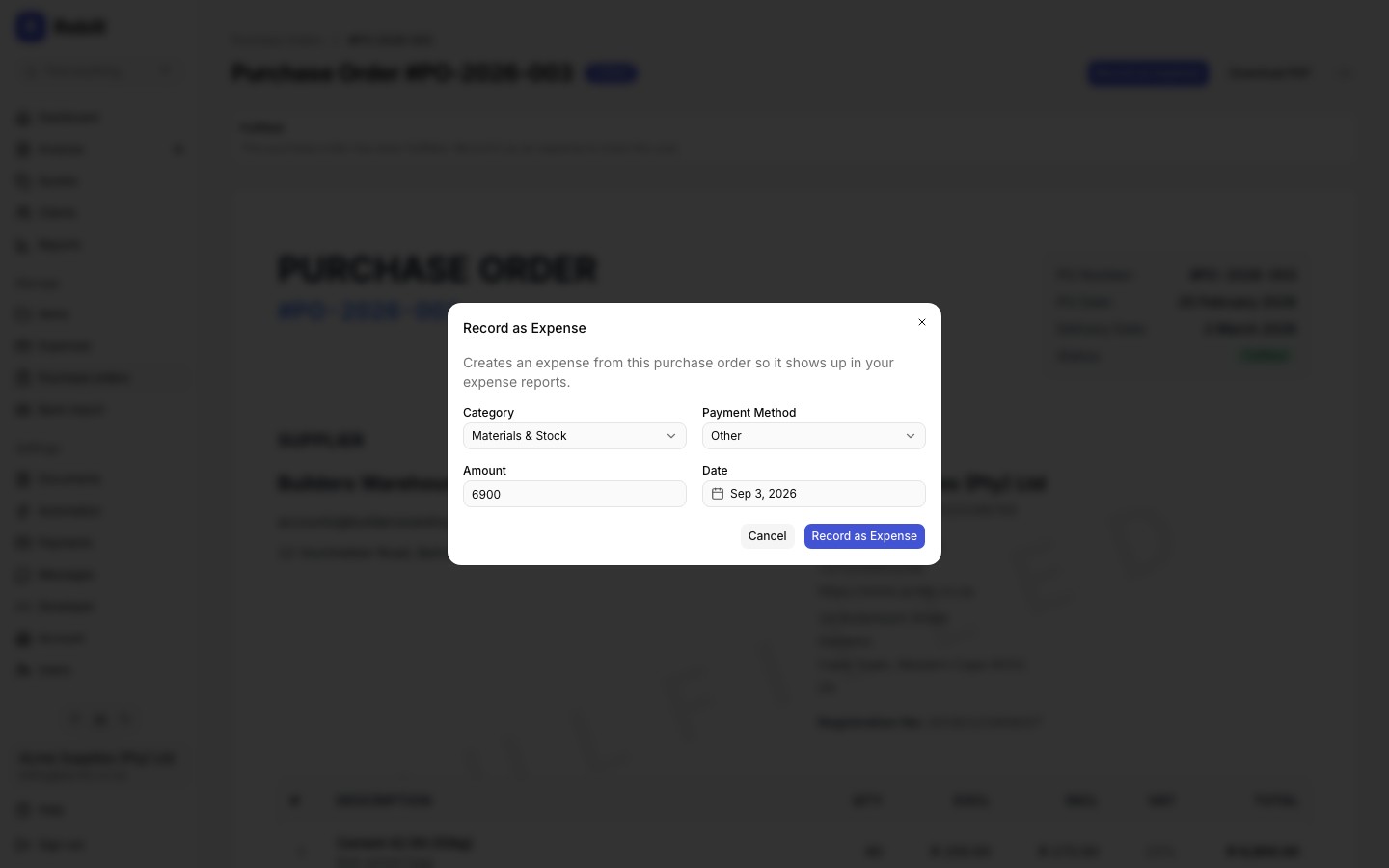
- 3
Confirm or adjust the details
- Category: choose an expense category
- Payment Method: Cash, Card, Bank Transfer, or Other
- Amount: defaults to the purchase order total; adjust if the final amount differed
- Date: defaults to today
- 4
Save
Click "Record as expense". The purchase order is linked to the newly created expense, so it cannot be converted a second time.
Tip
The Supplier / Vendor field and a note referencing the purchase order number are filled in automatically on the created expense. Once recorded, the purchase order page shows a link to the expense, and the expense list shows a note it came from a purchase order.