
Suppliers are the vendors and businesses you buy from. You need a supplier on file before you can raise a purchase order against them, and suppliers can also be referenced from recurring expenses.
Adding a supplier
- 1
Go to Purchase orders > Suppliers
Click Purchase orders in the sidebar, then click the Suppliers tab. You will see a list of all your suppliers with their email and phone number.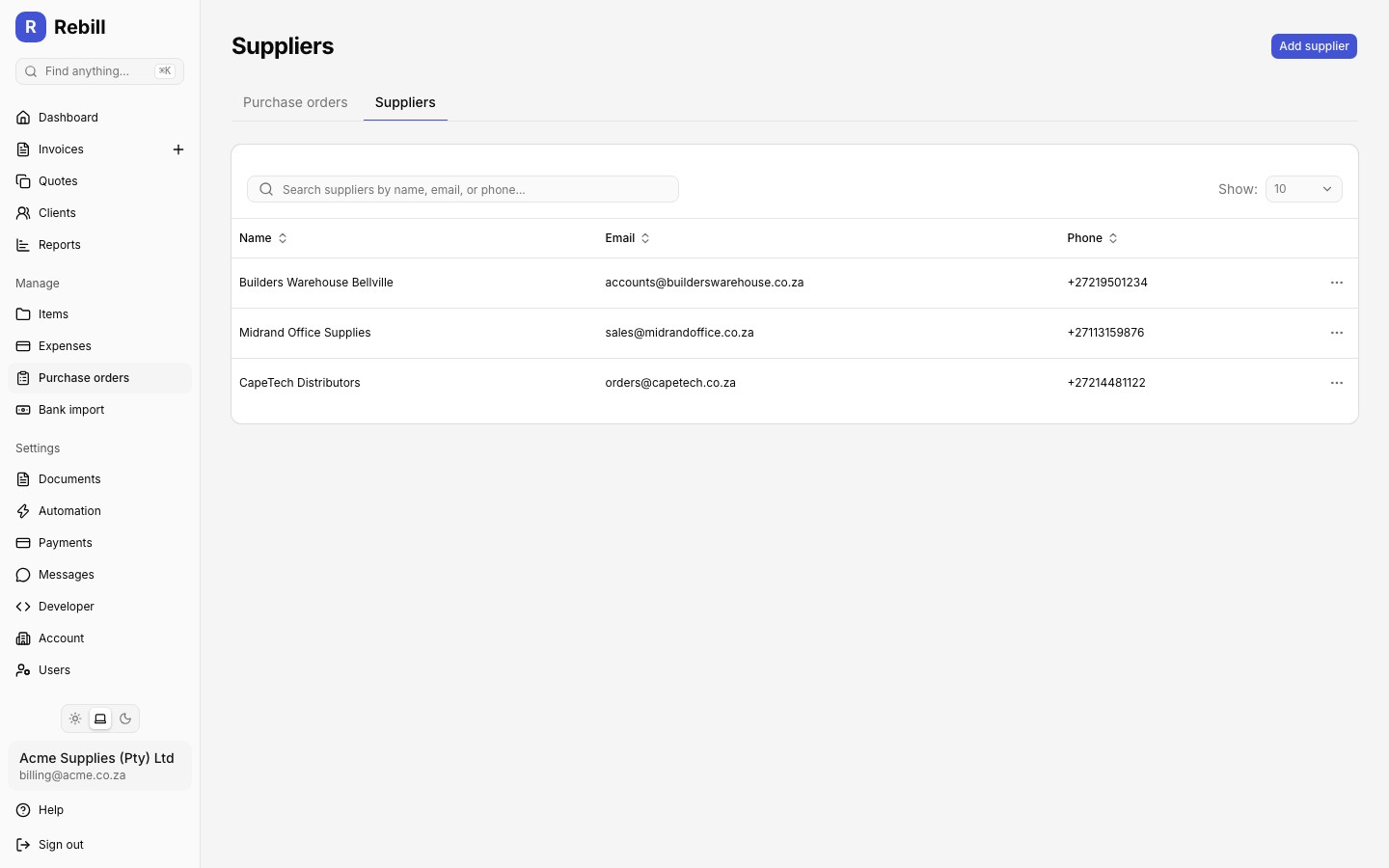
- 2
Click "Add supplier"
Click the "Add supplier" button at the top right of the page. This opens a dedicated add page, not a dialog.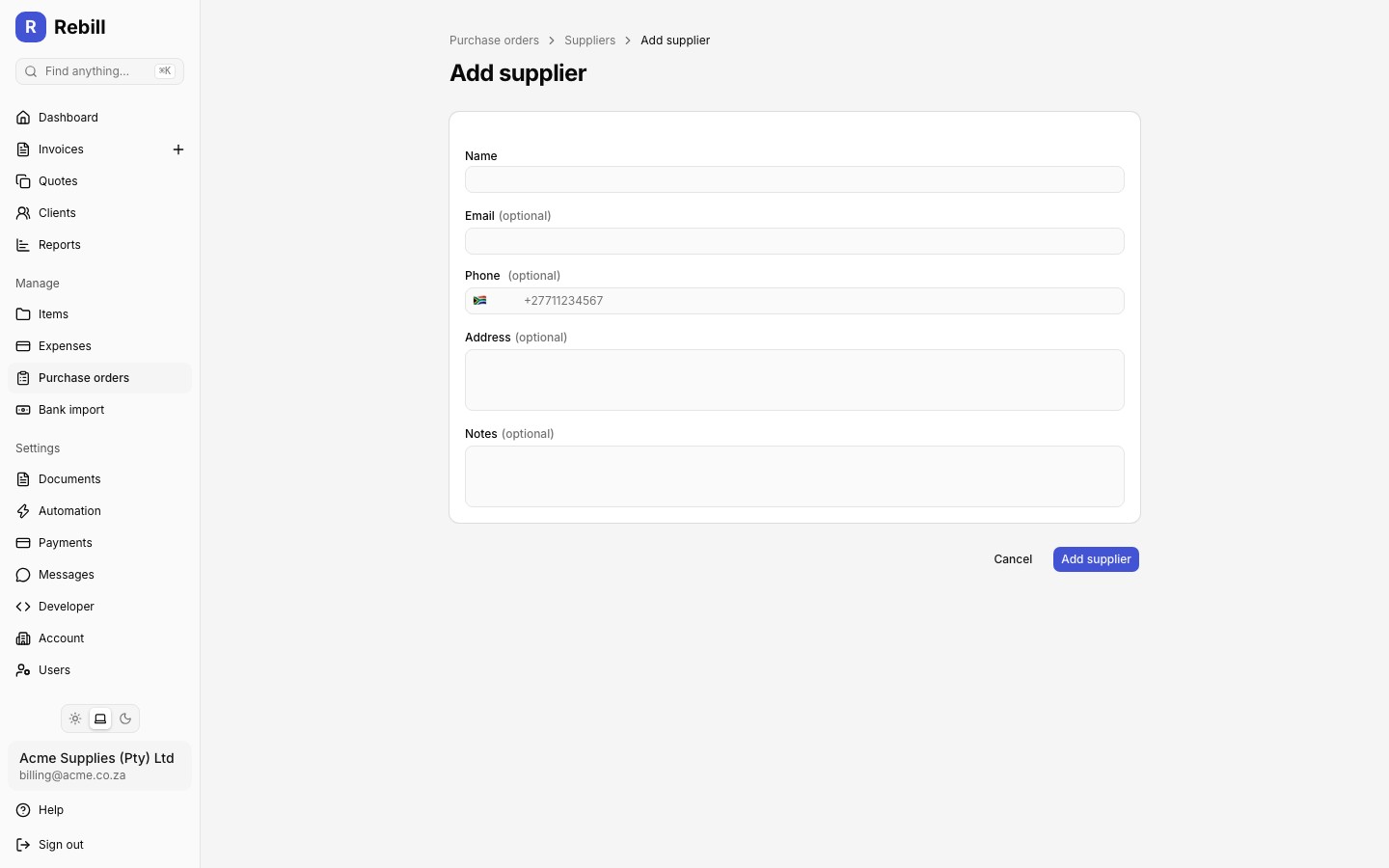
- 3
Fill in the supplier details
Only the name is required:- Name:the supplier's business or contact name
- Email (optional):used to email purchase orders to this supplier
- Phone (optional)
- Address (optional)
- Notes (optional): any internal reference, e.g. account number or payment terms
- 4
Save
Click "Save". The supplier is now available when creating a purchase order or a recurring expense.
Editing and archiving
Click a supplier's row in the list to open it, then click "Edit supplier" to open the edit page. To remove a supplier, use the More actions menu at the end of their row and click Delete.
Note
Deleting a supplier archives it rather than removing it permanently: it no longer appears in supplier lists or the picker on new purchase orders, but existing purchase orders and expenses that reference it are unaffected.Adding a supplier without leaving the form
When creating a purchase order, if the supplier you need is not in the list yet, click the plus button next to the supplier picker to add one on the spot without losing your progress.