
A purchase order is created as a draft. It is not visible to the supplier and can be freely edited until you send it.
- 1
Click "Add purchase order"
Go to Purchase orders in the sidebar and click "Add purchase order" at the top right of the page.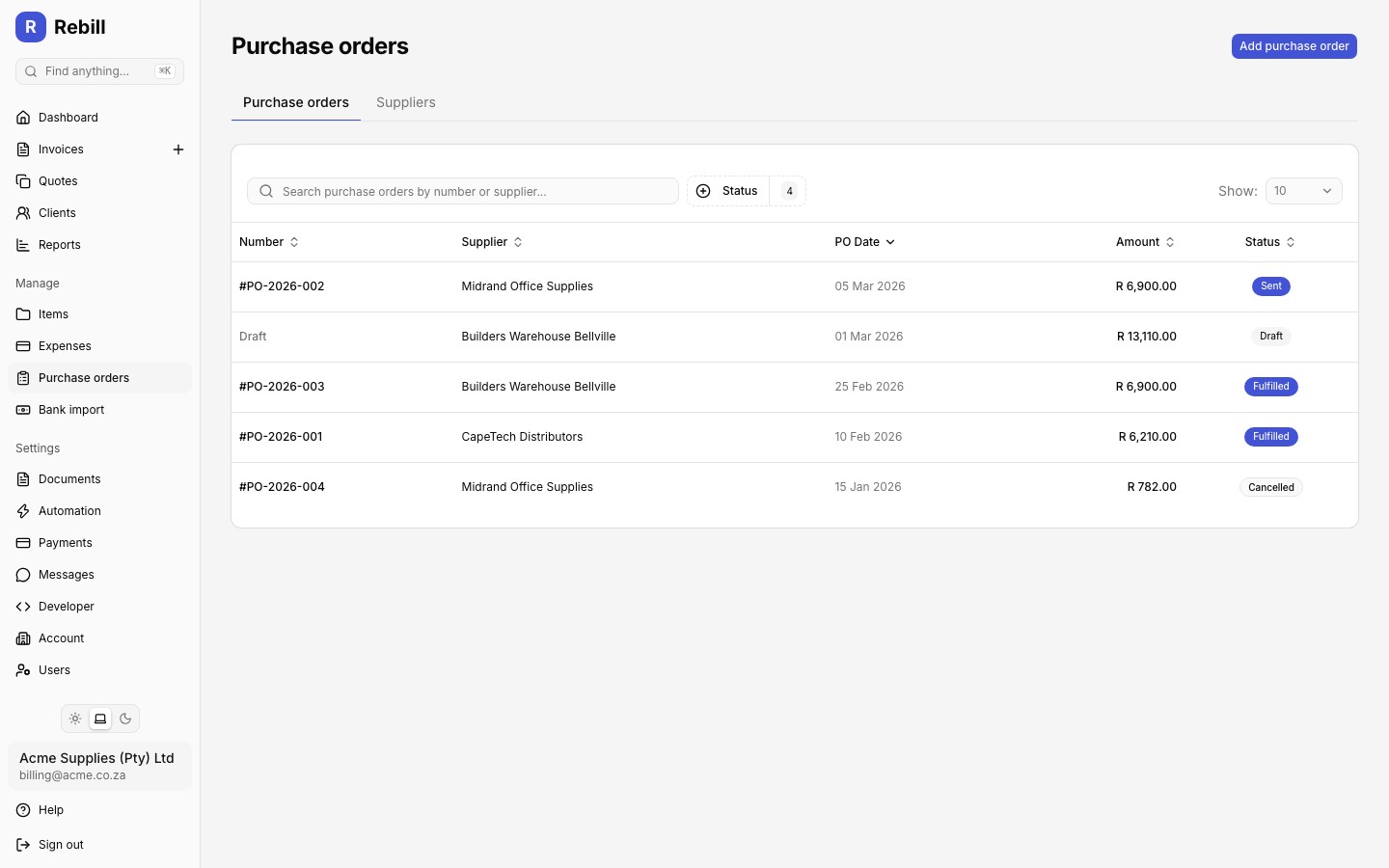
- 2
Select a supplier
Choose an existing supplier from the dropdown, or click the plus button next to it to add a new supplier without leaving the form.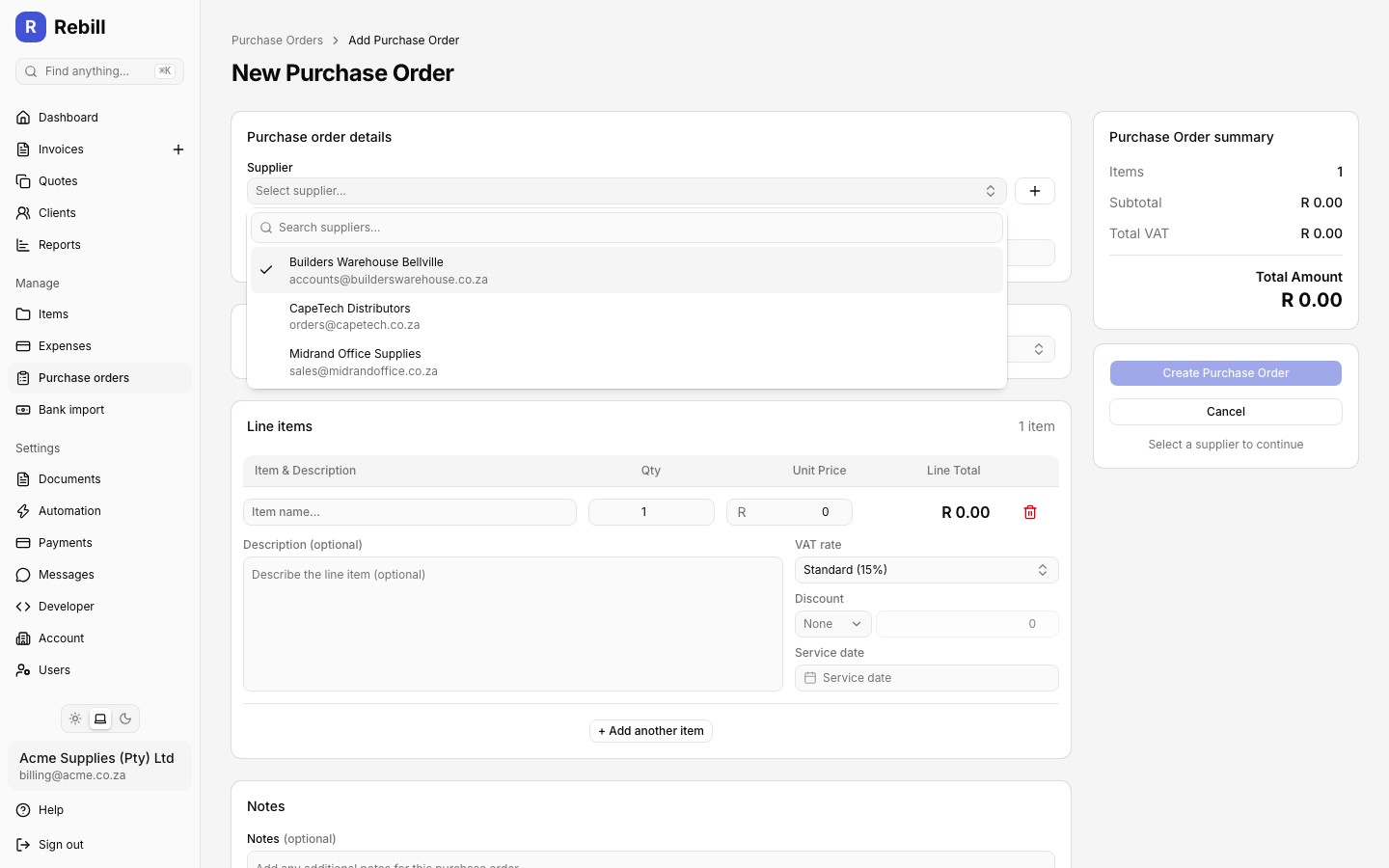
- 3
Set the PO date and delivery date
- PO Date: the date of the order, defaults to today
- Delivery Date (optional): when you expect the goods or services to arrive
- 4
Choose a currency (multi-currency accounts only)
If your account has multi-currency enabled and more than one currency configured, a Currency field appears so you can raise the purchase order in the supplier's currency. - 5
Add line items
Add what you are ordering. Each line item has a name, an optional description, quantity, unit price, an optional discount, and, if your account is VAT-registered, a VAT type. Pick items from your Items catalog to fill these in automatically, or type a custom line.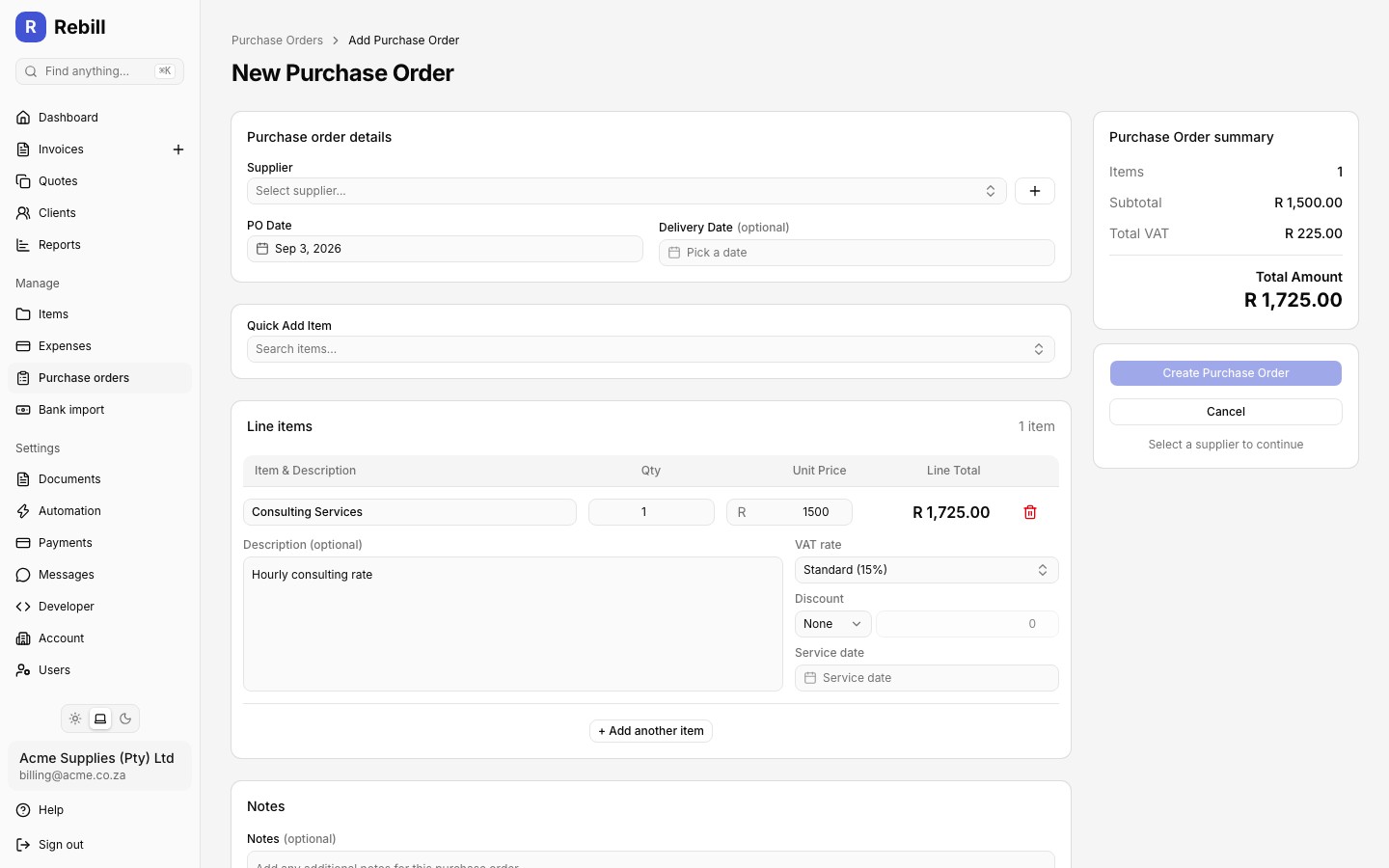
- 6
Add notes (optional)
Use the Notes field for anything you want the supplier to see on the document, such as delivery instructions. - 7
Save
Click "Create Purchase Order". The purchase order is saved as a draft with no number yet. Email it to the supplier to send it.
Editing a purchase order
A draft purchase order can be edited or deleted at any time. Once it has been sent, it can no longer be edited or deleted, only cancelled.