
Marking as fulfilled
Once a sent purchase order has been delivered, open it and click "Mark as fulfilled", then confirm. This confirms the goods or services on the purchase order were received from the supplier. Only a purchase order in the Sent status can be marked as fulfilled.
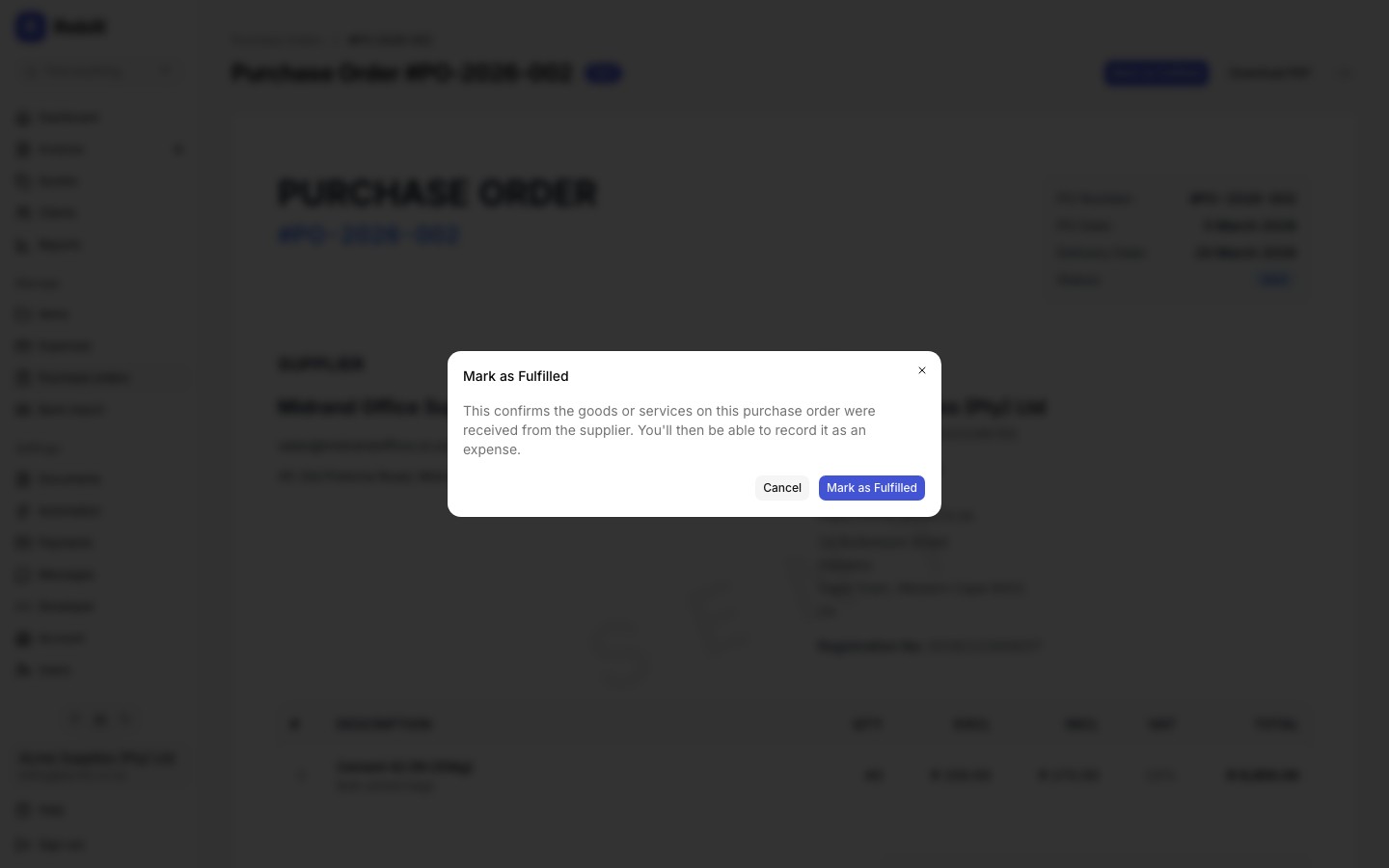
A fulfilled purchase order can be recorded as an expense in one click; see the Converting to an expense article. If you do not record it as an expense right away, you can come back and do so later from the purchase order page.
Cancelling
To cancel a purchase order that will not go ahead, open a purchase order with the Sent status, open the More actions menu (the ⋯ button top right), and click "Cancel purchase order". Confirm the dialog. The purchase order and the supplier copy both show as cancelled. Cancelling cannot be undone.
Note
A draft purchase order that has not been sent is deleted instead of cancelled, since it never reached the supplier and has no number to preserve. Use "Delete purchase order" in the More actions menu (the ⋯ button top right) for a draft.