
Purchase orders are sent by email only, as a PDF attachment with a link to the supplier-facing copy. Sending is what assigns the purchase order its number.
- 1
Open the draft purchase order
Go to Purchase orders and click on the draft you want to send.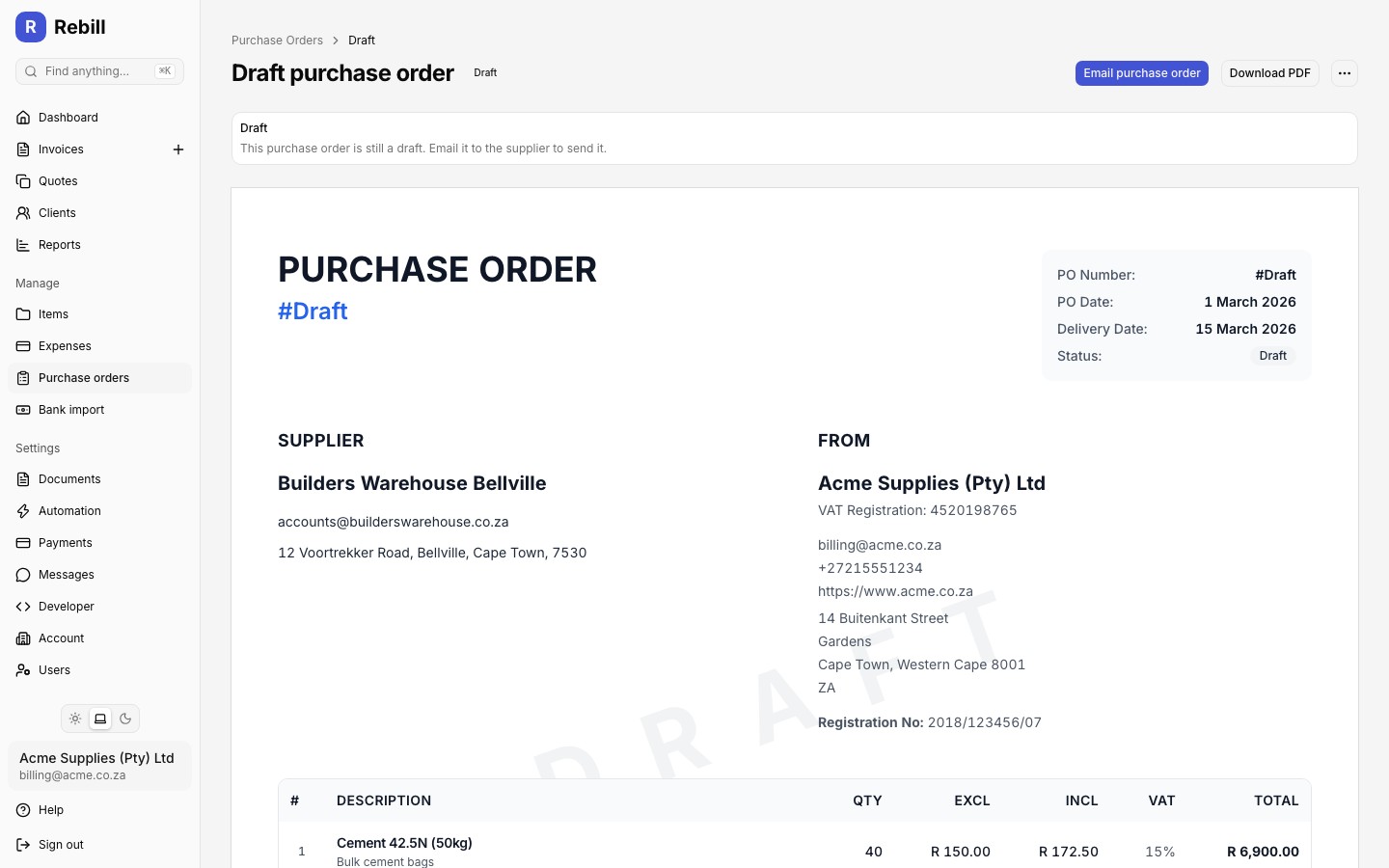
- 2
Click "Email purchase order"
Click the "Email purchase order" button above the document, then confirm. The purchase order is assigned its number, the supplier's name, email, and address are frozen as they stand right now, and the status changes to Sent.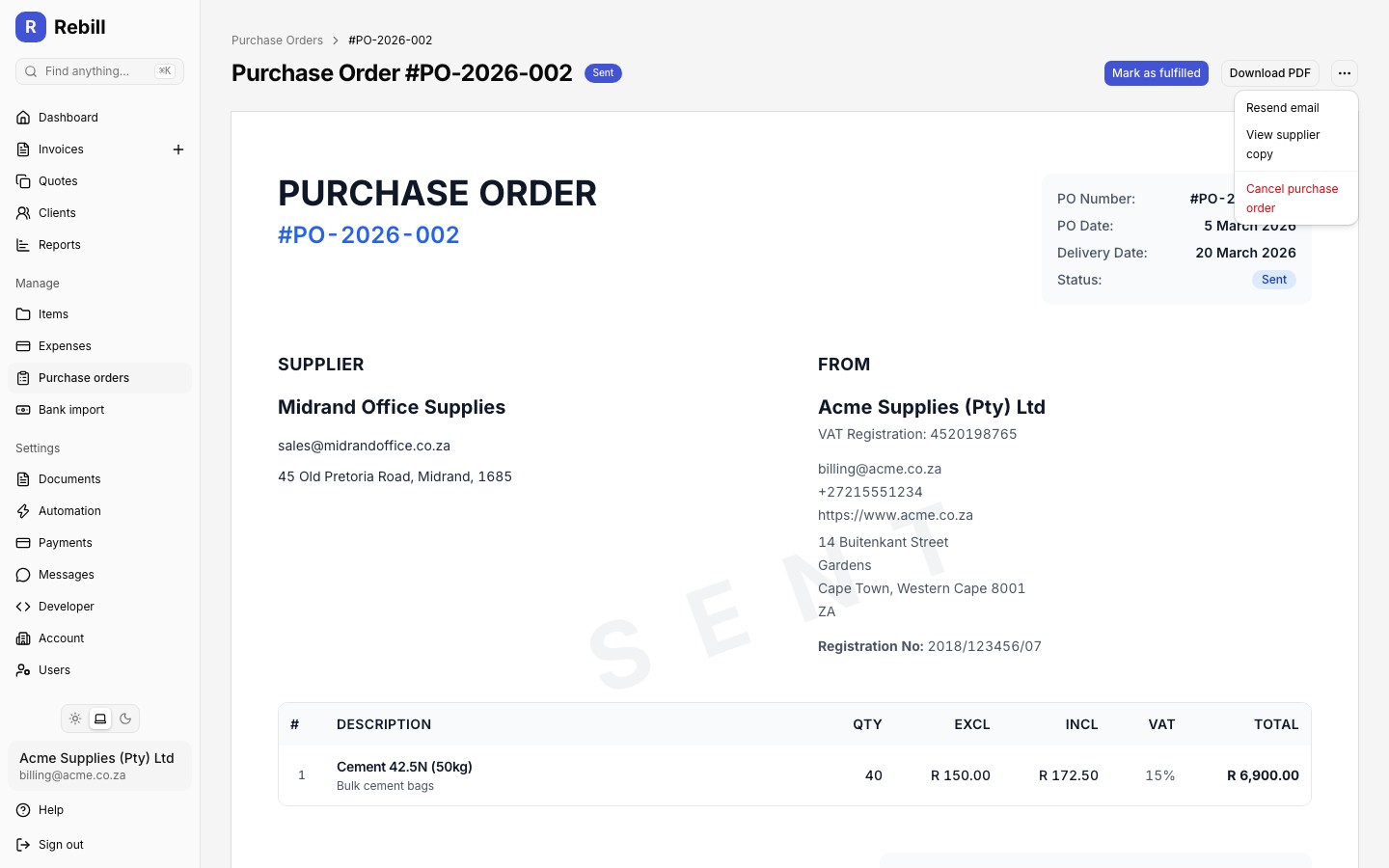
The supplier needs an email address
If the supplier has no email address on file, the Email purchase order button is disabled and Rebill shows a warning on the purchase order. Add an email address to the supplier first.Resending
For a purchase order that is already Sent, open the More actions menu (the ⋯ button top right) and click "Resend email". This uses the supplier's current email address rather than the one frozen at send time, so it still works if the supplier's email has changed since. Resending never changes the status or the number.
Viewing the supplier copy
Once a purchase order has been sent, the More actions menu (the ⋯ button top right) has a "View supplier copy" option that opens the same page the supplier sees: a public, read-only view of the purchase order with no login required.
Downloading a PDF
The outline "Download PDF" button sits beside the primary action at the top of the purchase order at any time, including while it is still a draft, so you can save or print a copy.