
You can attach files and links to any item in your catalog. When that item appears on a quote or invoice, those resources carry across automatically. Your client sees them in a Resources section on the PDF.
- 1
Open the item
Click Items in the left sidebar, then click the item you want to update.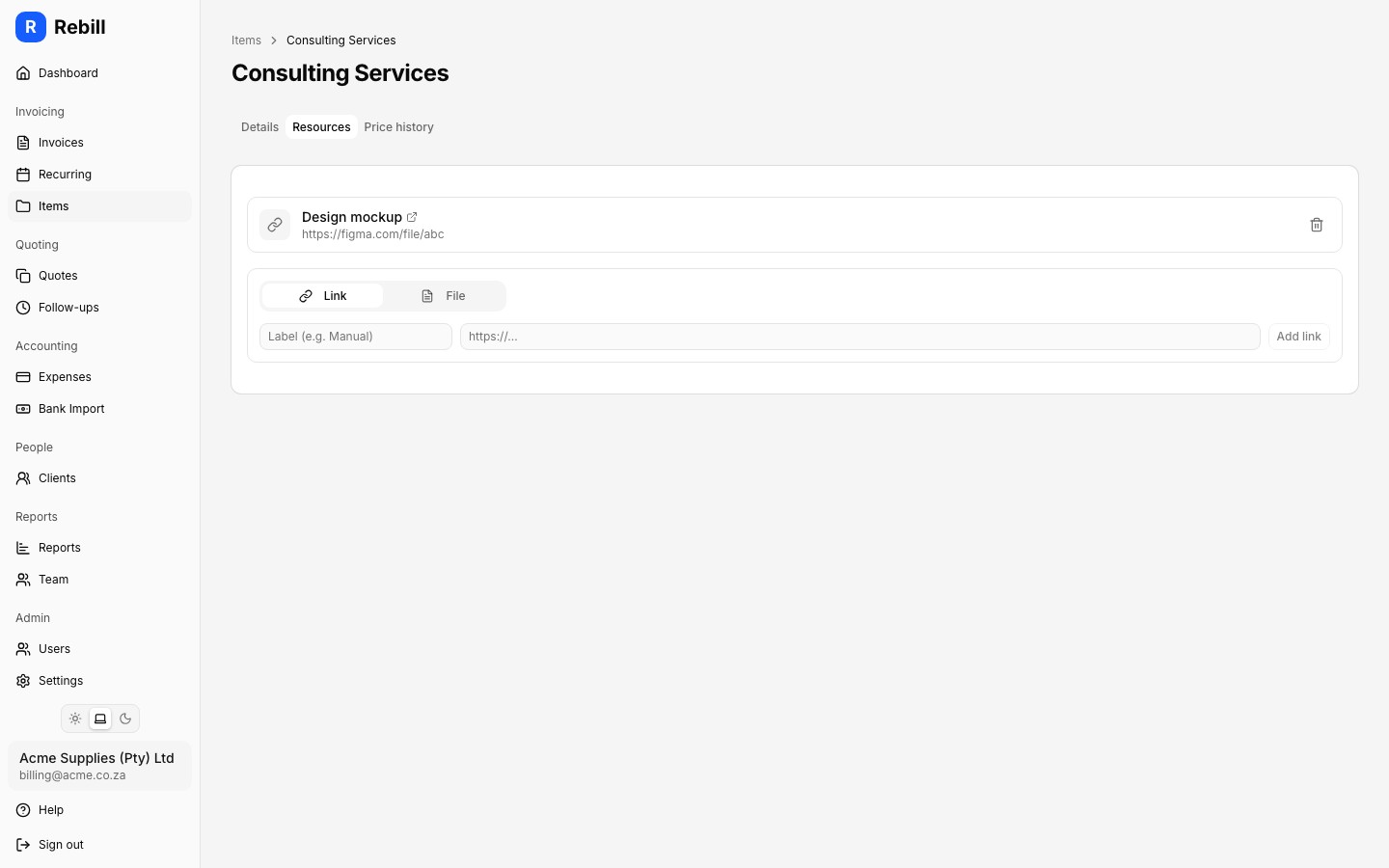
- 2
Go to the Resources tab
On the item detail page, click the Resources tab. Any files or links already attached to this item are listed here. - 3
Add a link
Click "Add Link", enter the URL and an optional label, then save. The link will appear in the Resources section on any document that includes this item.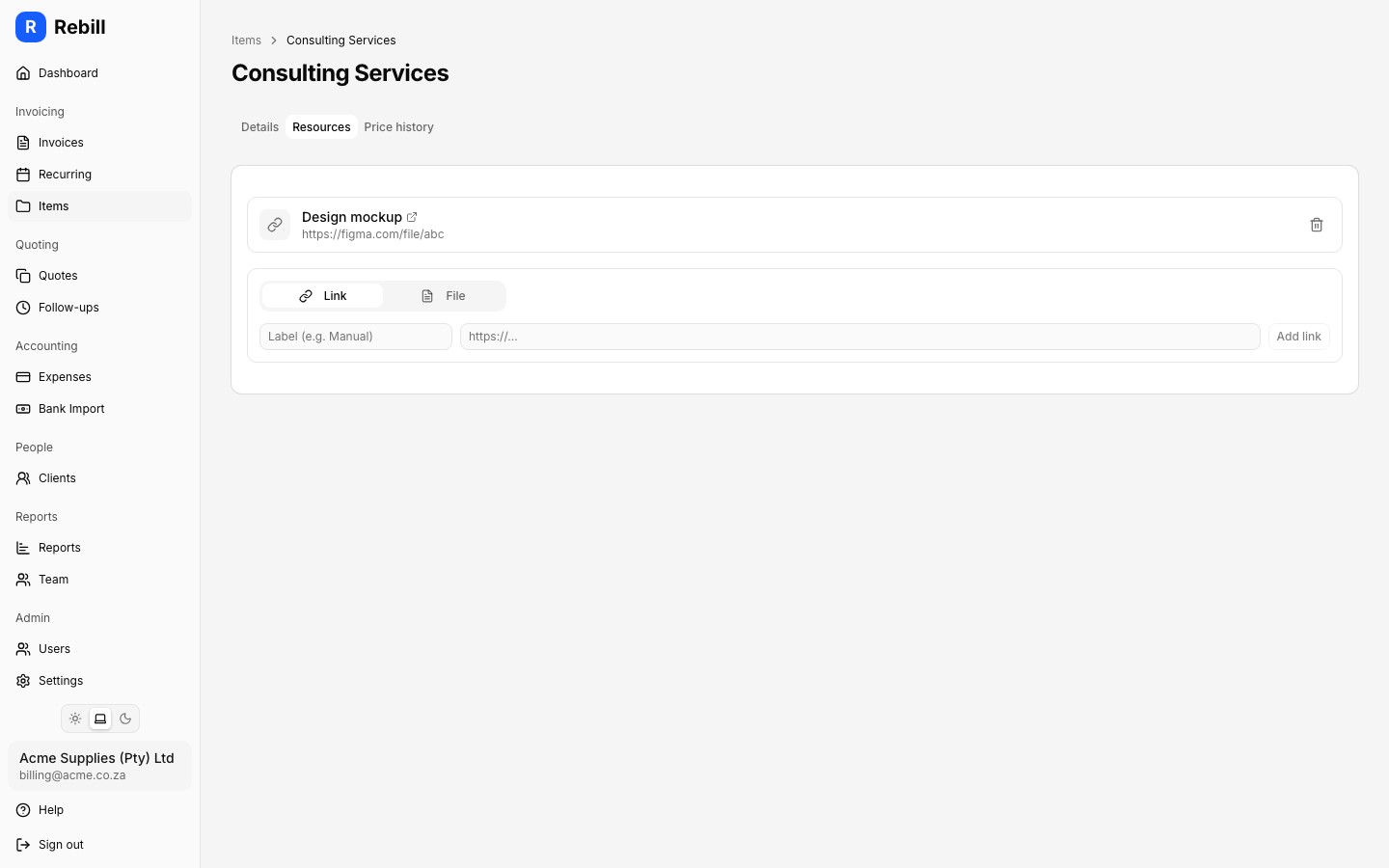
- 4
Upload a file
Click "Upload File" and select the file from your device. Uploaded files are stored securely and attached to the item.
Note
The Resources section only appears on a PDF when at least one item on the document has resources attached. If no items have resources, the section is not included.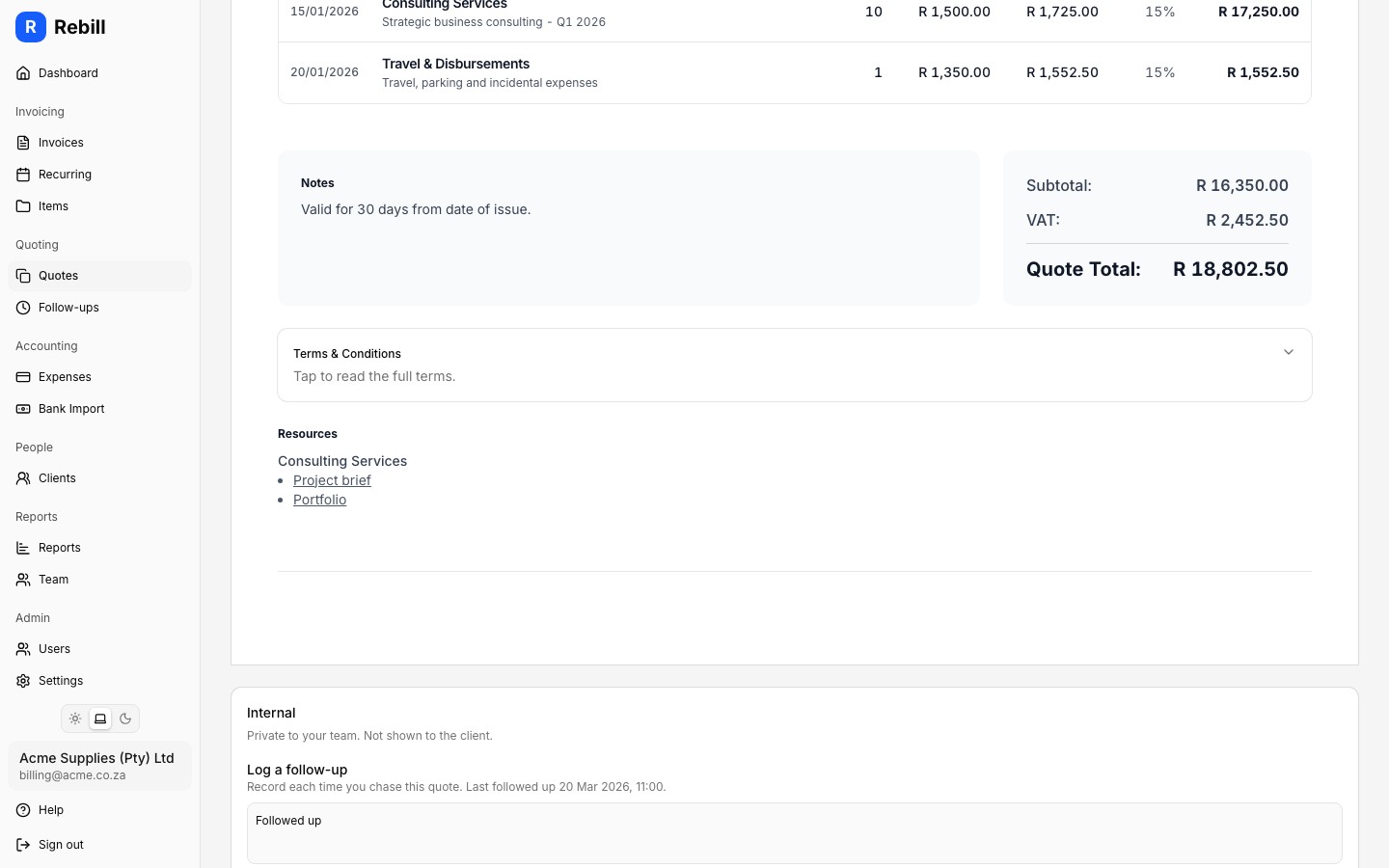
Resources appear on their own page
When a PDF does include resources, they are printed on a separate page at the end of the document. This keeps the main quote or invoice clean and easy to read.