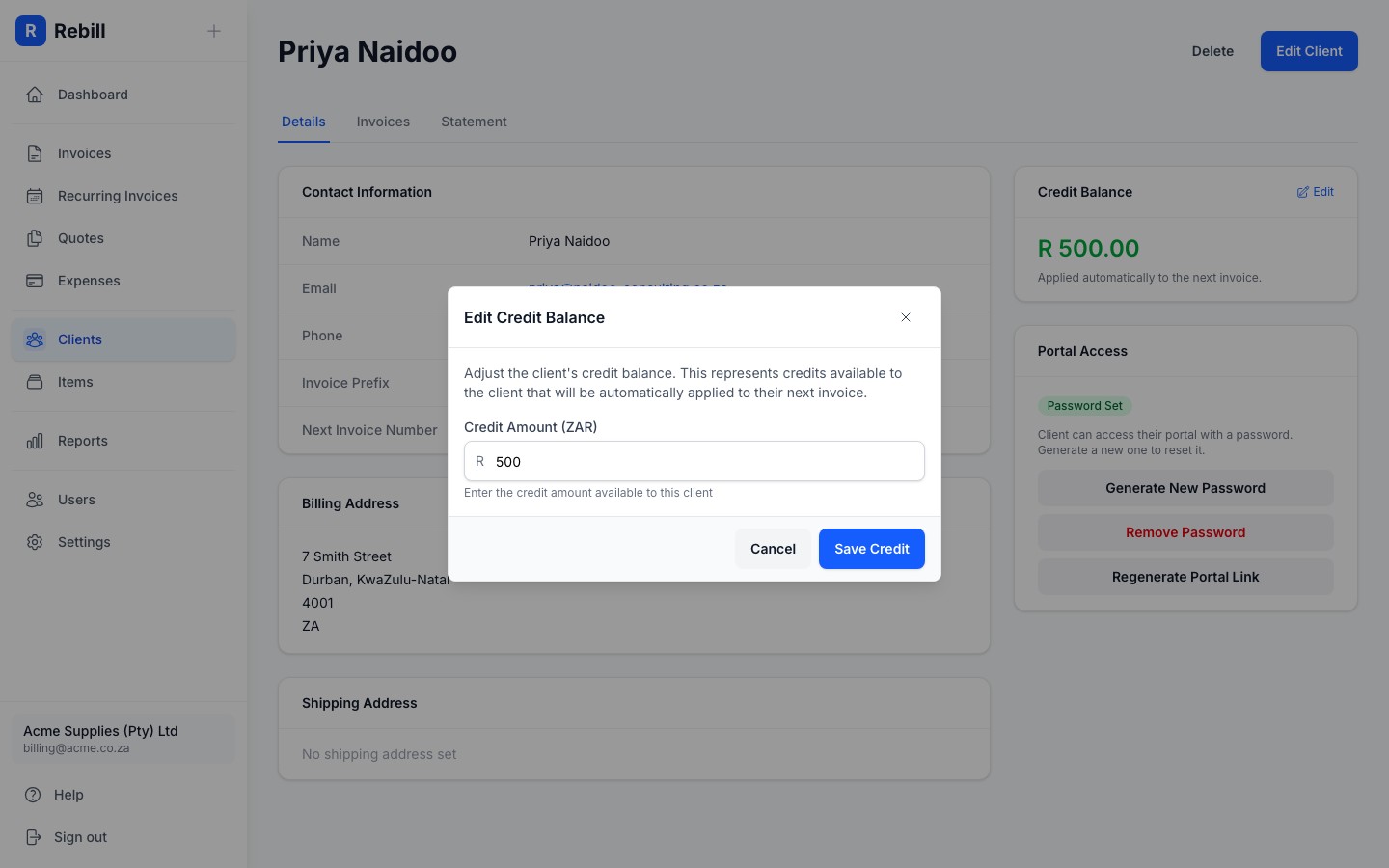
Each client has their own profile page where you can see all their information, edit their details, and view their history with your business.
Editing a client
- 1
Open the client
Go to Clients, find the client you want to edit, and click their name.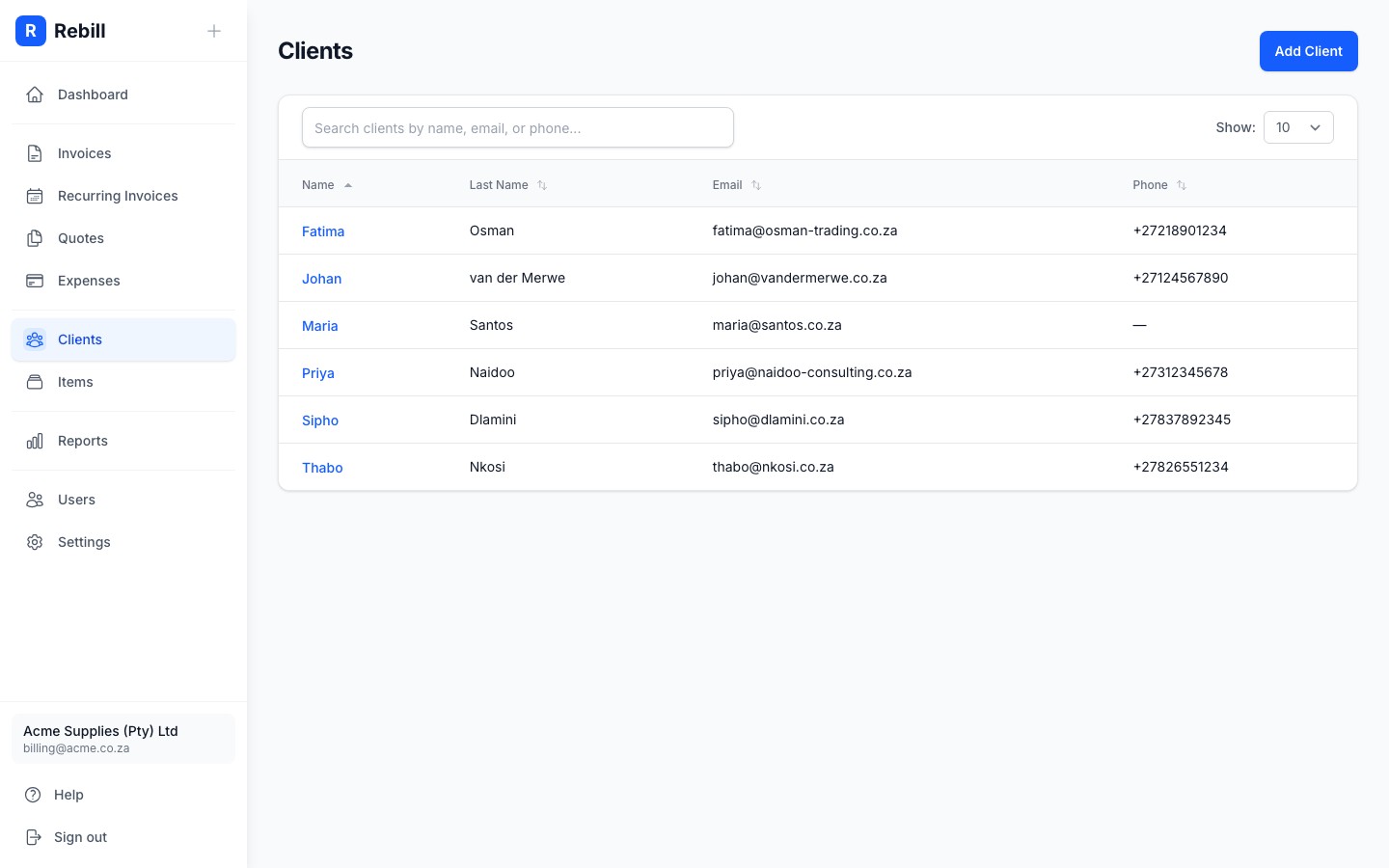
- 2
Click "Edit Client"
Click the "Edit Client" button at the top right. All fields will become editable.
- 3
Make your changes and save
Update any fields you need to change, including Business Name if the client is a company. Then click "Save Changes".
Business name on documents
When a business name is set, it appears as the primary name on invoices, quotes, and statements, with the contact person's name shown below it. This is useful when you deal with a specific person at a company but need the business name on official documents.Custom fields
Custom fields let you store extra information about a client that doesn't fit into the standard fields, such as an account number, a VAT number, or any reference you find useful. These appear on the client's profile for your reference.
Adding a custom field
- 1
Scroll to Custom Fields
On the client's detail page, scroll down to the Custom Fields section.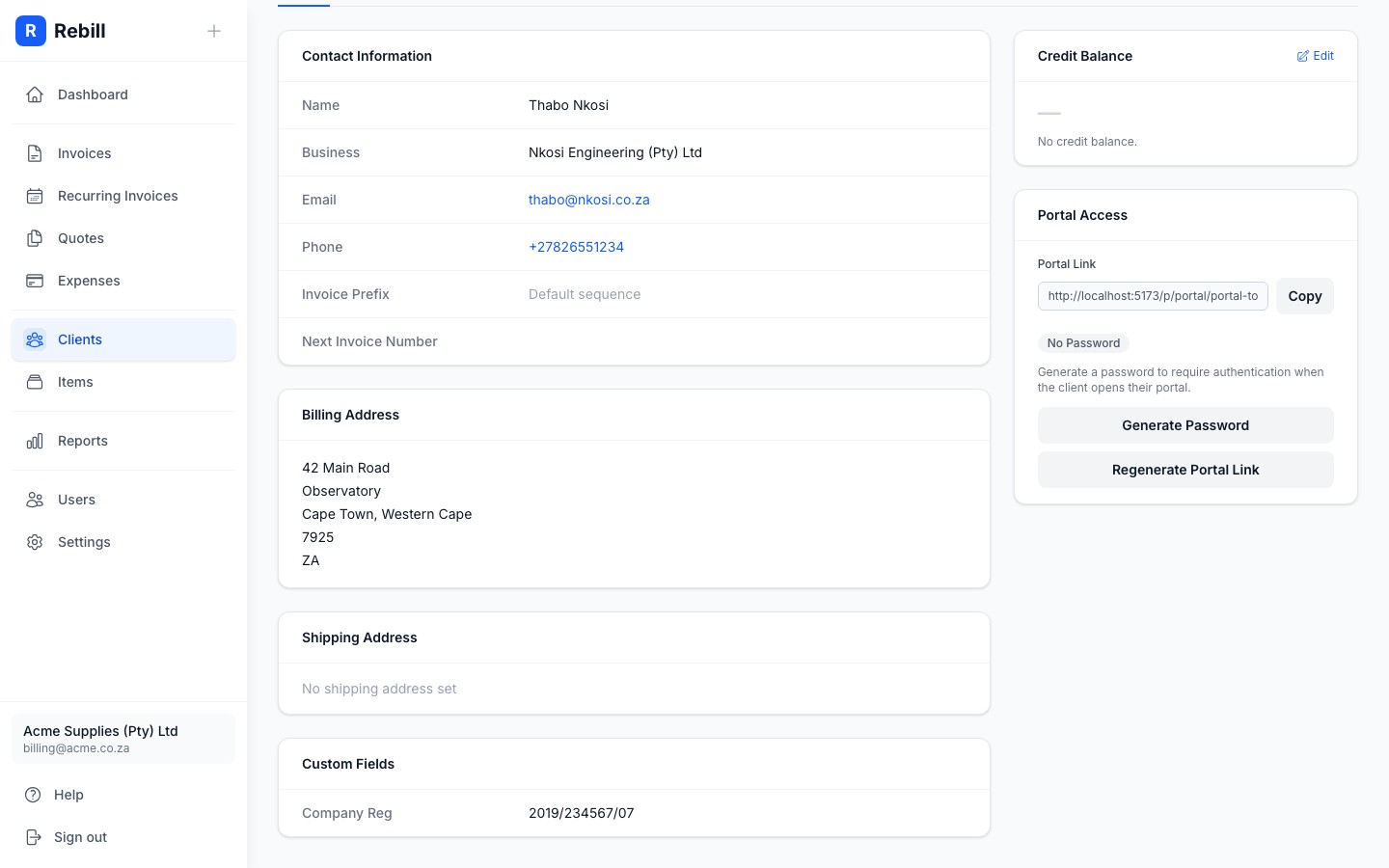
- 2
Add a field
Click "Add", enter a label (e.g. "Account Number") and a value, then save.
Credit balance
A credit balance is an amount the client has already paid you in advance (like a prepayment or deposit). You can configure Rebill to automatically apply credits when invoices are sent or generated by recurring schedules. See Automatic credit application for setup instructions.
Updating a credit balance
- 1
Click the pencil icon next to Credit Balance
On the client's Details tab, find the Credit Balance row and click the pencil (edit) icon next to it.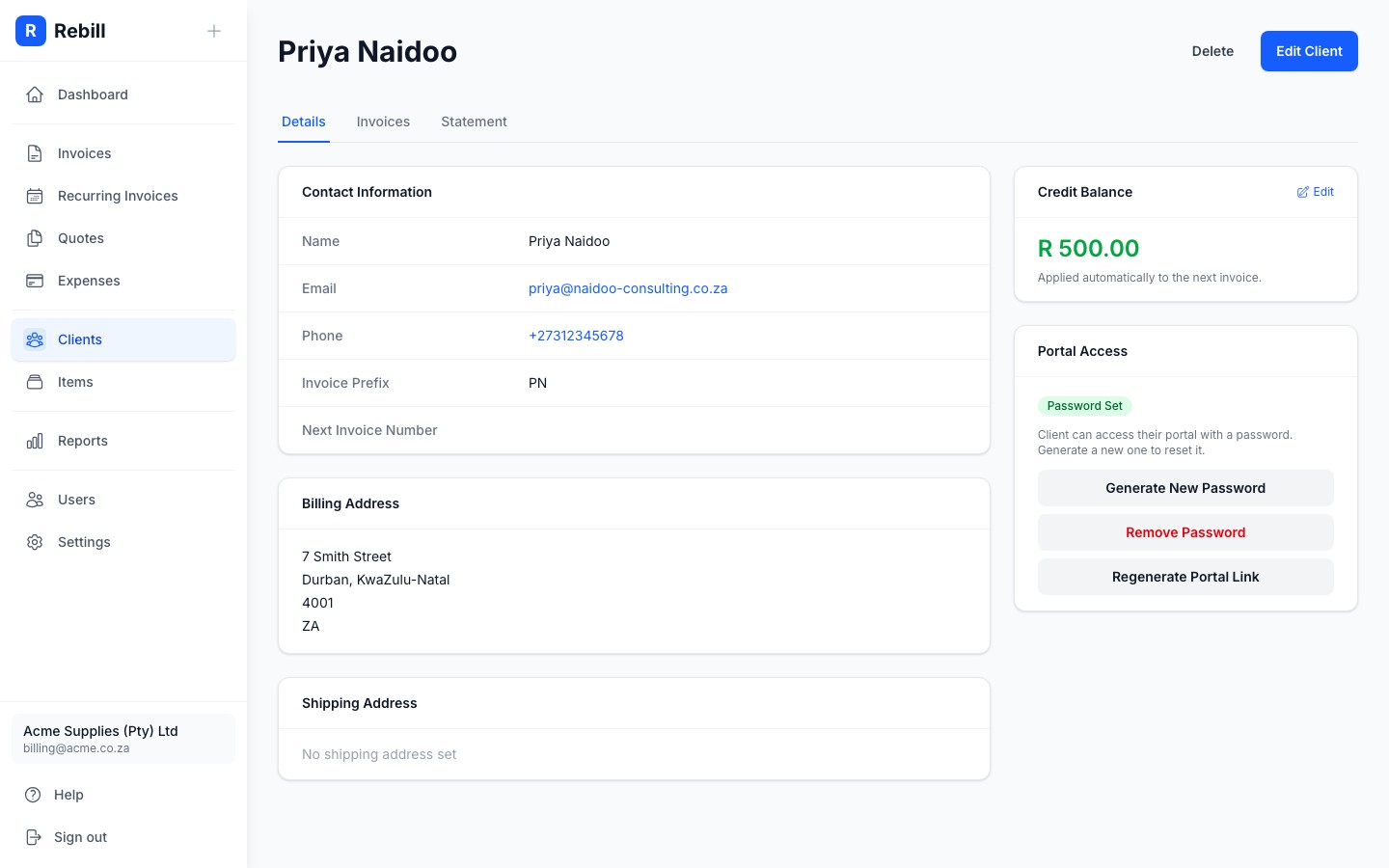
- 2
Enter the new balance and save
Type the credit amount and click "Save Credit".