If you have staff or partners who need to manage invoices, you can give them their own access to your Rebill account. Each person gets their own login. No need to share passwords. Premium includes up to 5 user accounts, and you (the owner) count as one.
Premium feature
Team members are a Premium plan feature. Premium includes up to 5 user accounts, and the owner counts as one. Only account admins can manage users. When all 5 are taken, adding a user shows "All 5 user accounts are in use." Remove a user to invite another.Inviting a team member
- 1
Go to Settings > Users
Click Users under Settings in the sidebar (only visible to admins). On the free plan the account holds one user, so adding a second one asks you to upgrade.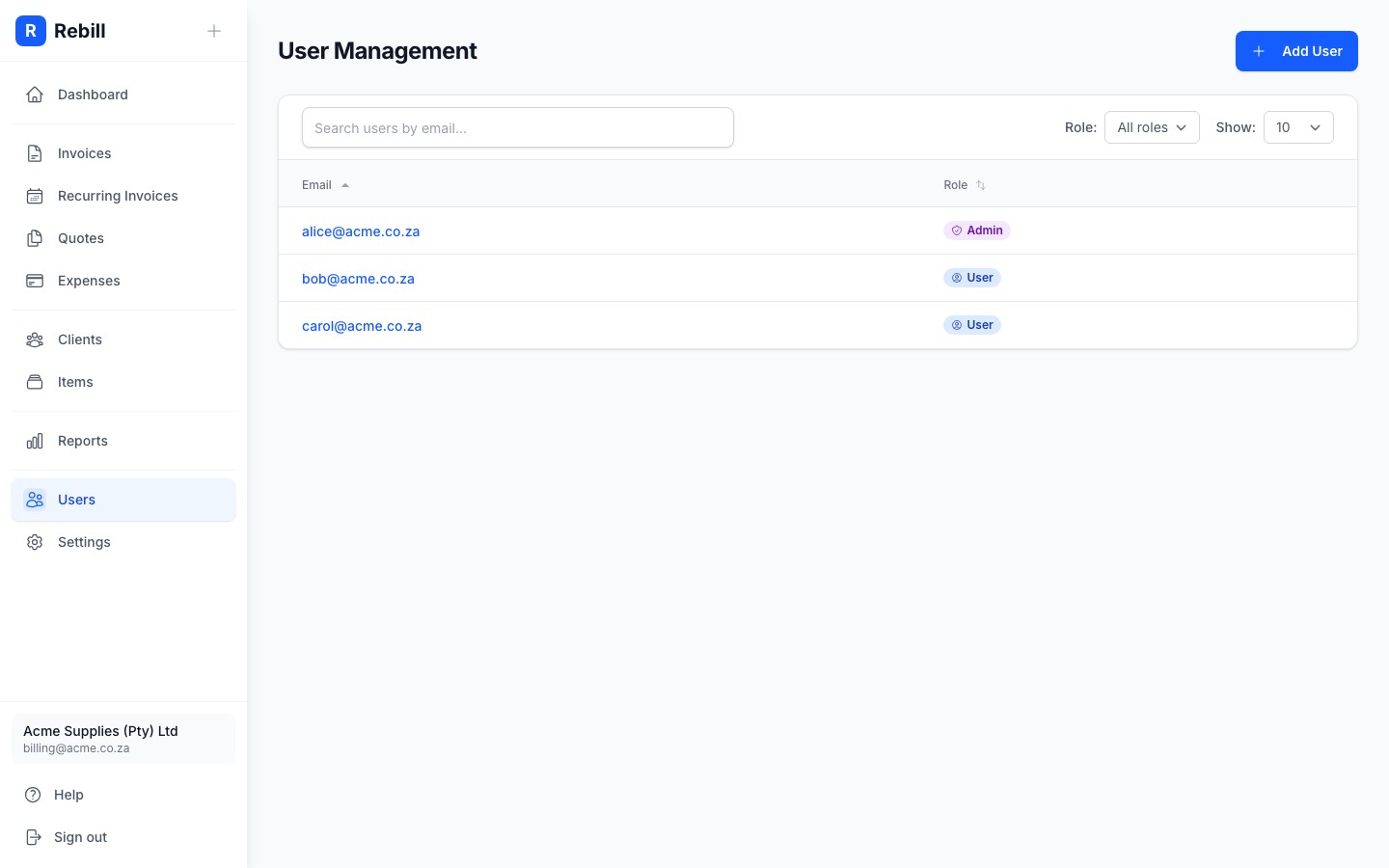
- 2
Click "Add user"
Click the "Add user" button at the top right. This opens a dedicated add page.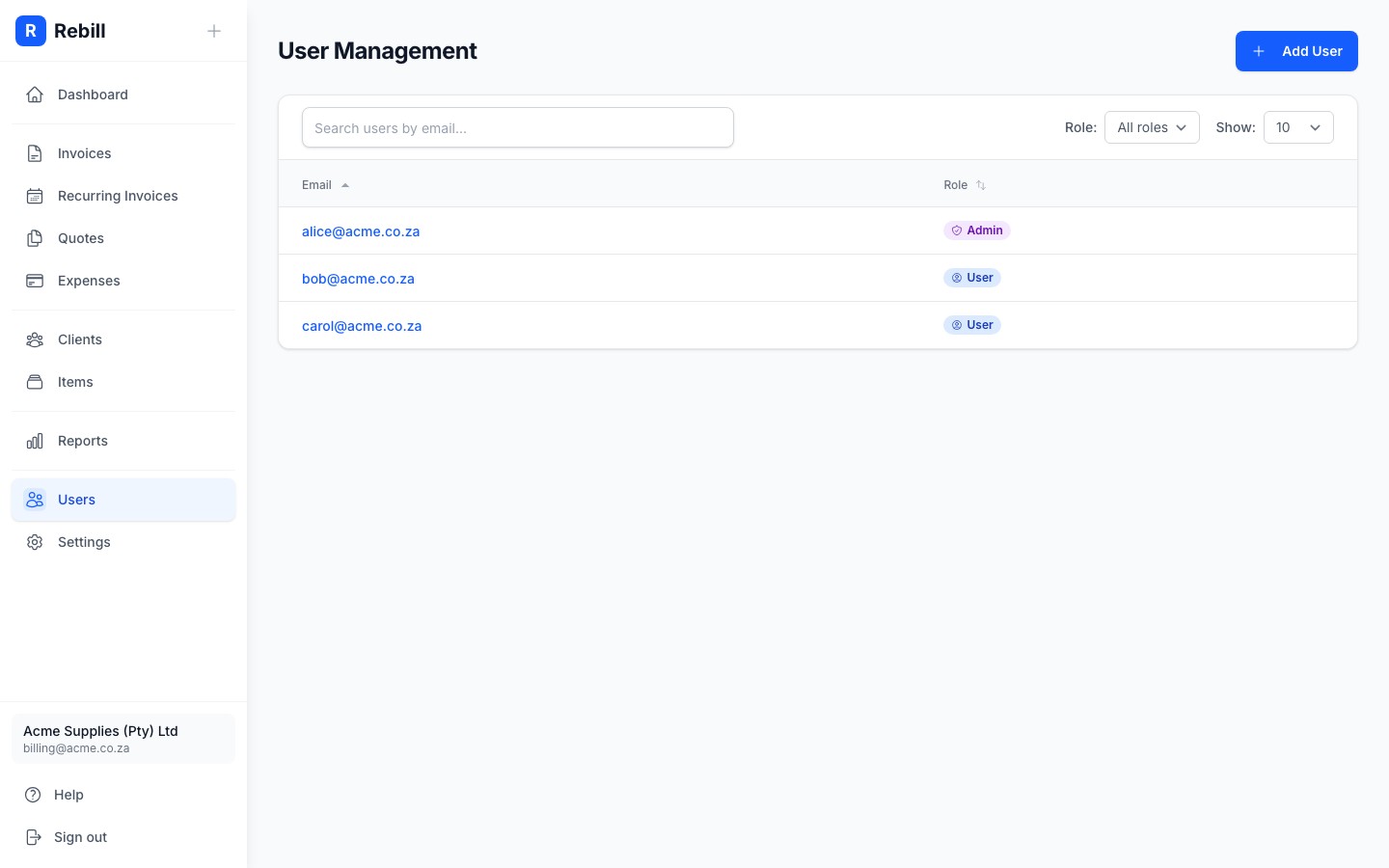
- 3
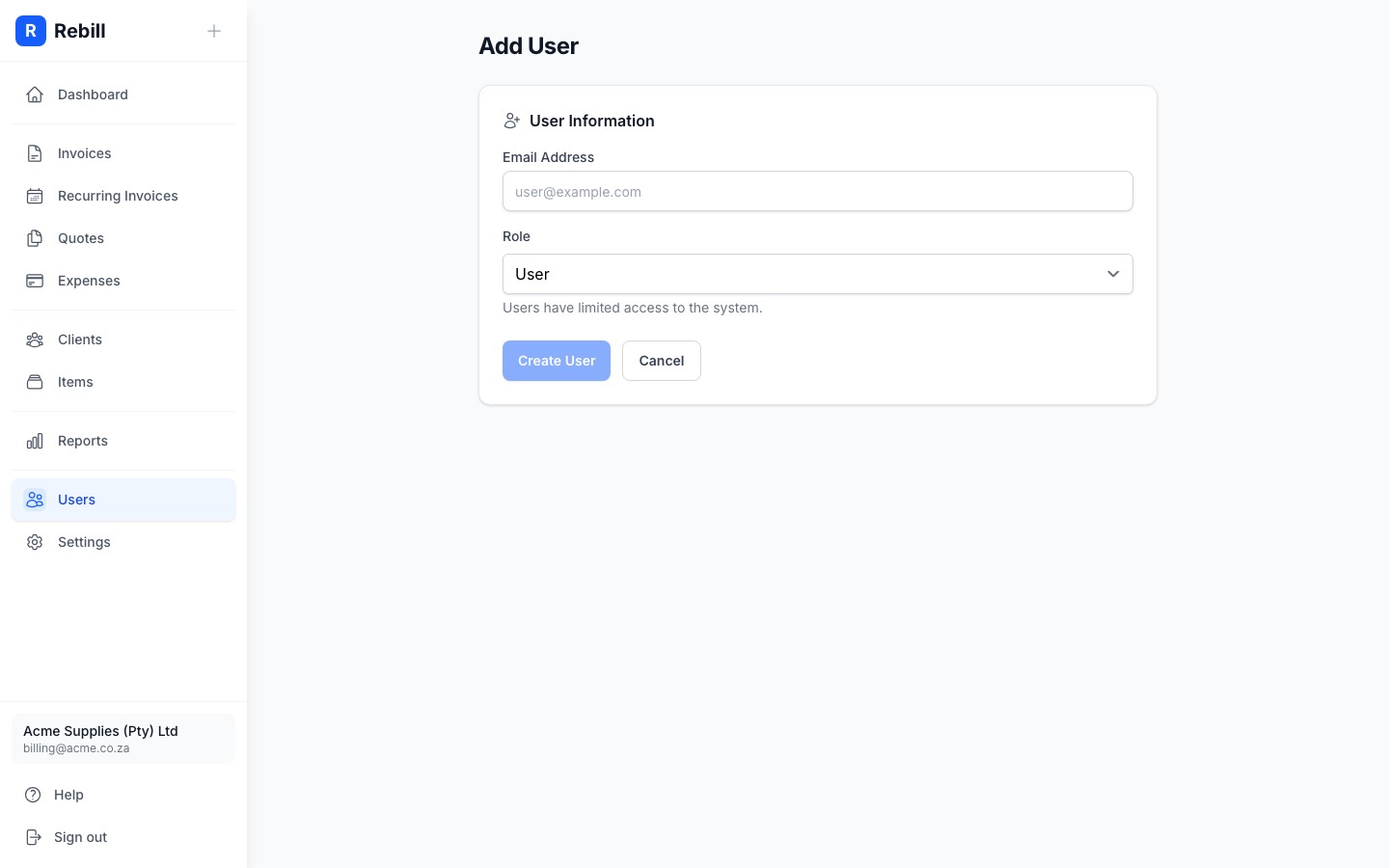
Enter their email and choose a role
- Email: the email address of the person you're inviting
- Role: choose Admin or User (see below for the difference)
- Send welcome email: ticked by default. The new user receives an email with a link to log in. Untick it to add them quietly and share the login details yourself.
- 4
Save
Click "Add user". The new team member can now log in using Rebill's email code login. No password needed.
Changing a user's role
- 1
Click on the user
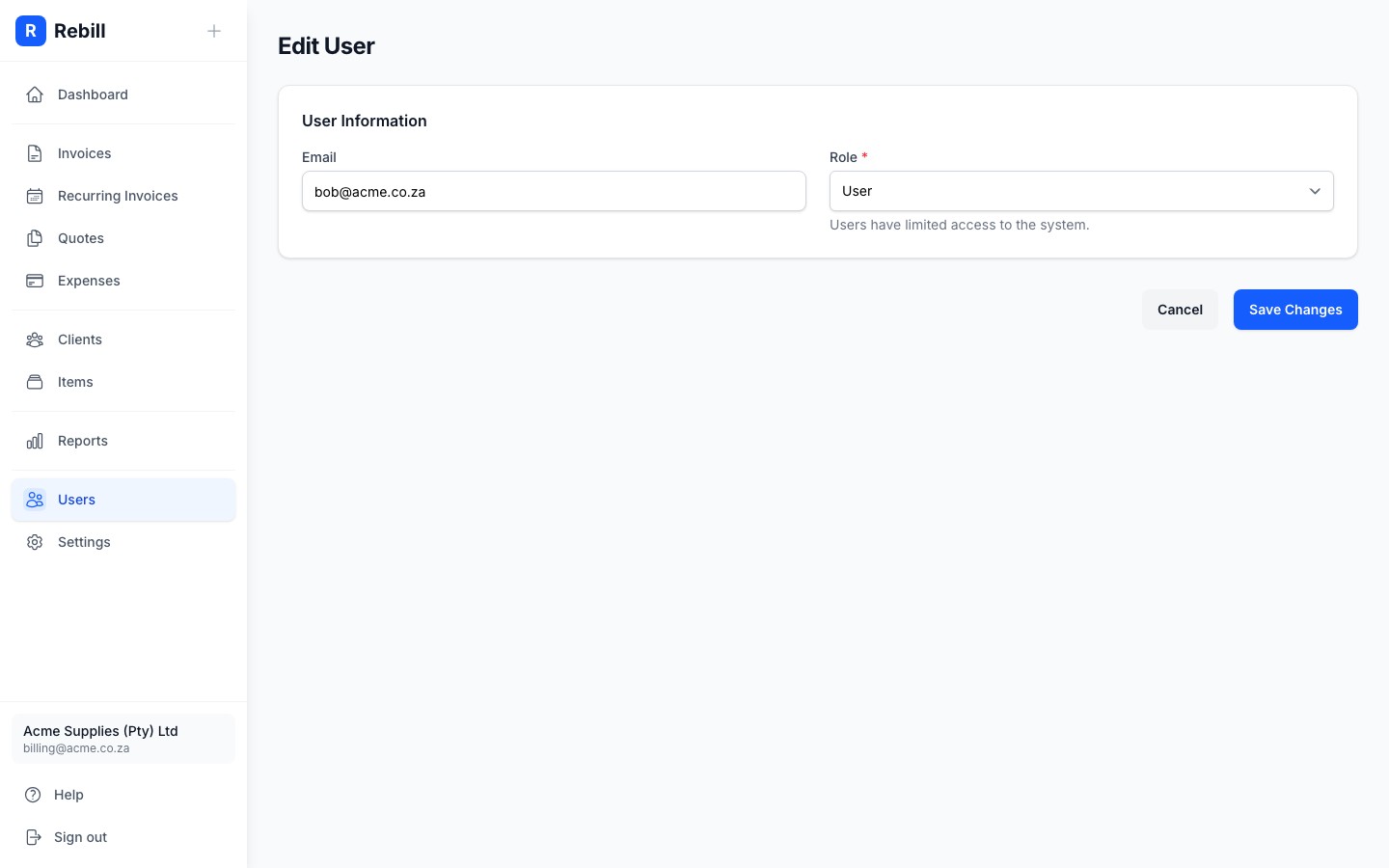
In the Users list, click on the team member's email to open their profile. - 2
Edit and change the role
Click "Edit user", change the role, and click "Save".