Setting up a recurring invoice is similar to creating a regular invoice. You pick a client, add your line items, and then set the schedule for how often it should repeat.
- 1
Go to Invoices > Recurring
Click Invoices in the sidebar, then click the Recurring tab. Click "Add recurring invoice" at the top right.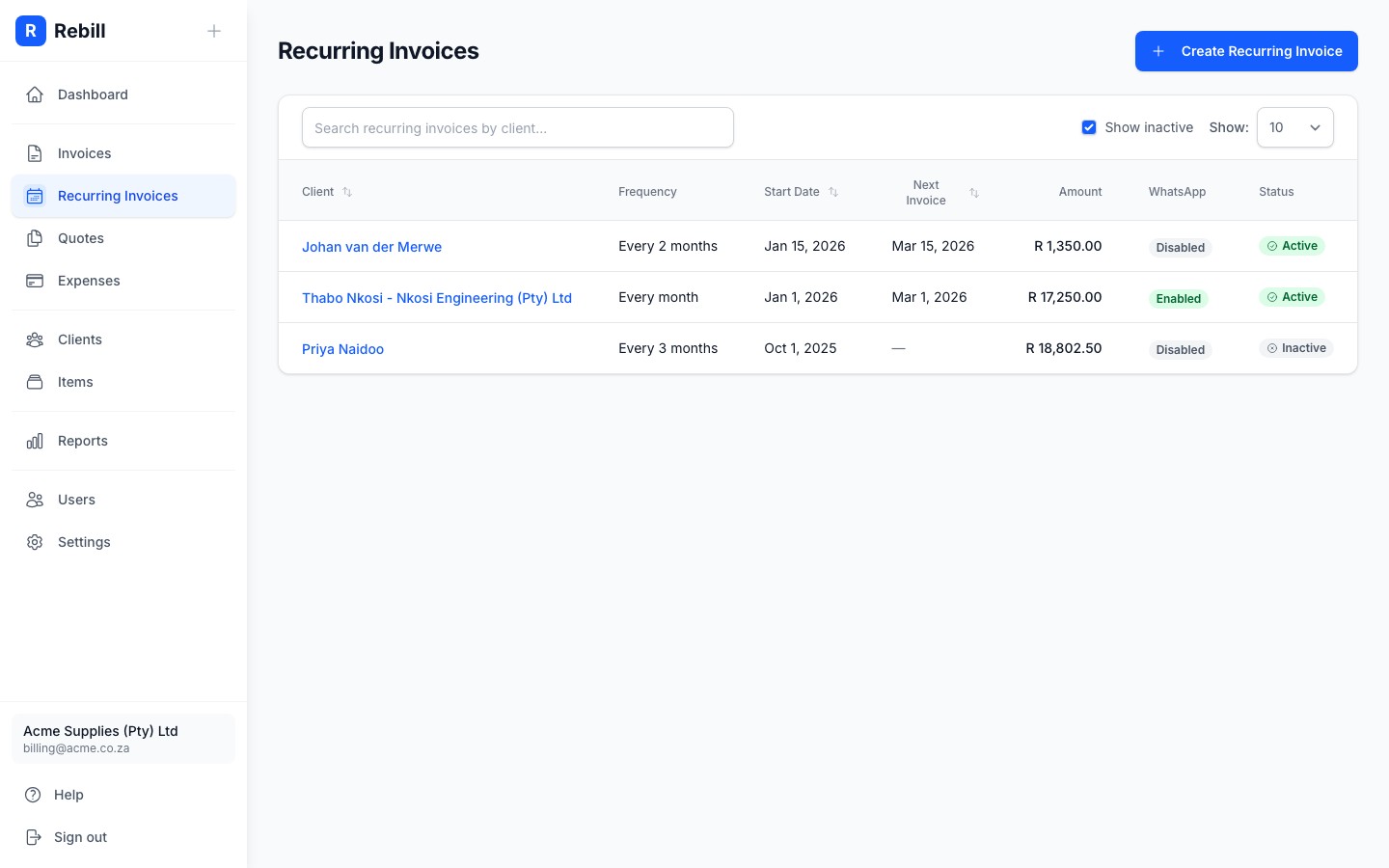
- 2
Select your client
Choose the client you want to set up the recurring invoice for.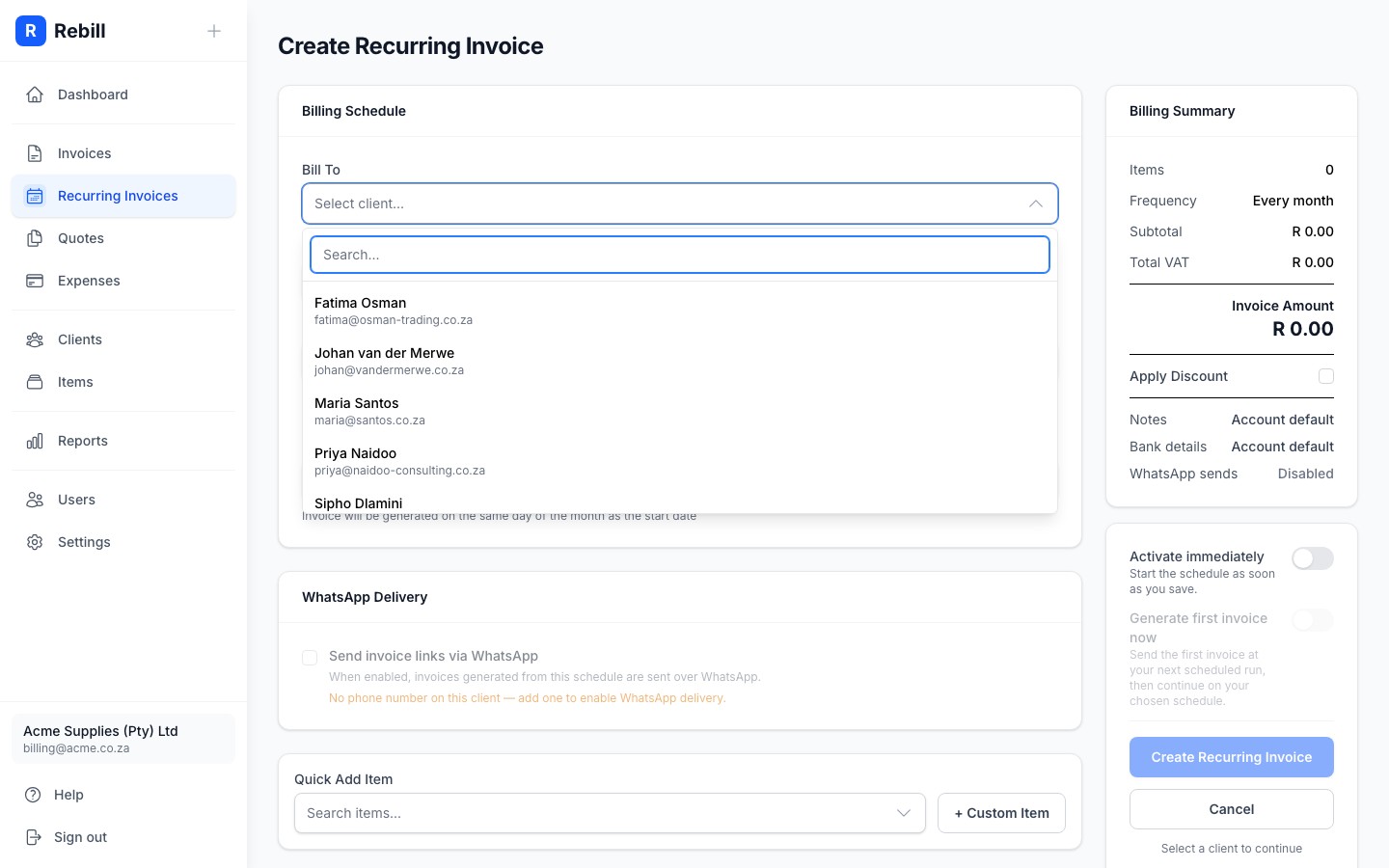
- 3
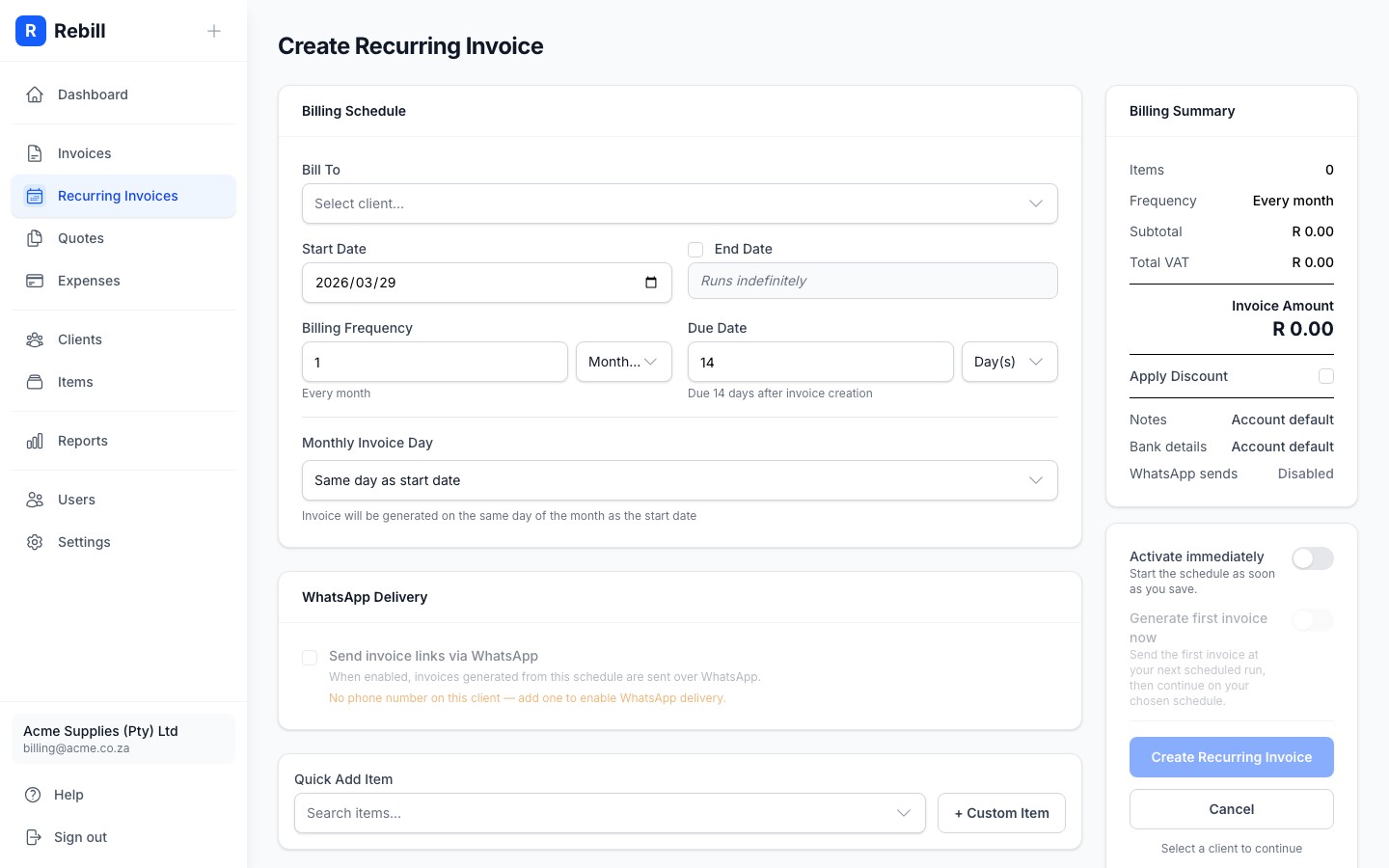
Set the billing schedule
Choose how often the invoice should be sent. Rebill uses a flexible "every N weeks/months/years" picker, so you can build any cadence you need:- Bill every: a number plus an interval (Week(s), Month(s), or Year(s)). For example, 1 Month for monthly, 2 Weeks for fortnightly, 3 Months for quarterly, or 1 Year for annually.
- Start Date: the date the first invoice should be issued.
- End Date: optional. Leave blank to run indefinitely.
- Payment due: how long after each invoice is issued payment is due, entered as a number plus an interval (e.g. 30 Days or 1 Month).
- 4
Add your line items
Add the items and services that will appear on every invoice. These stay the same each time unless you edit the recurring invoice.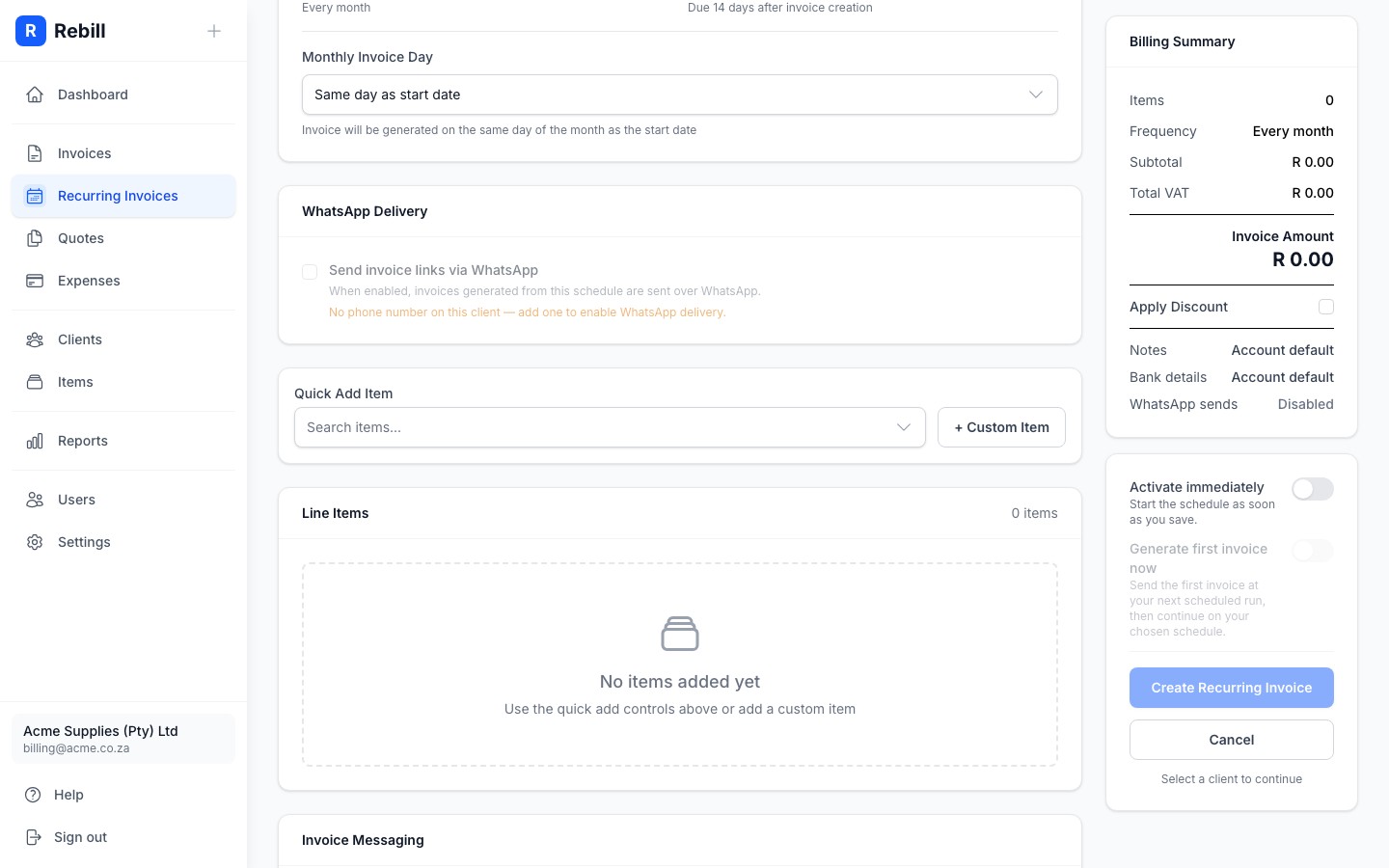
- 5
Enable WhatsApp delivery (optional)
If you're on Premium and have WhatsApp credits, you can toggle on WhatsApp delivery to also send each invoice via WhatsApp automatically.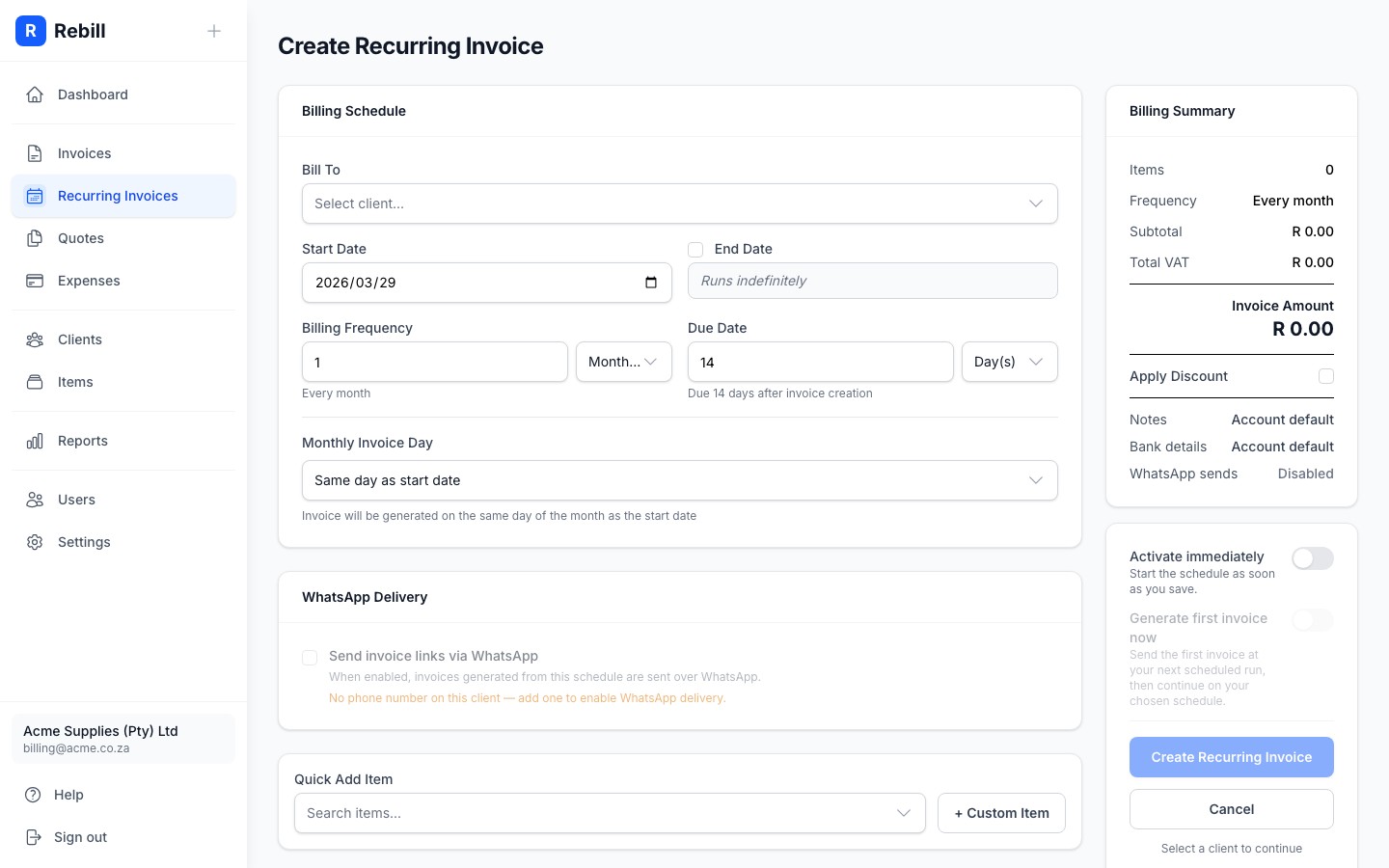
- 6
Choose your activation options
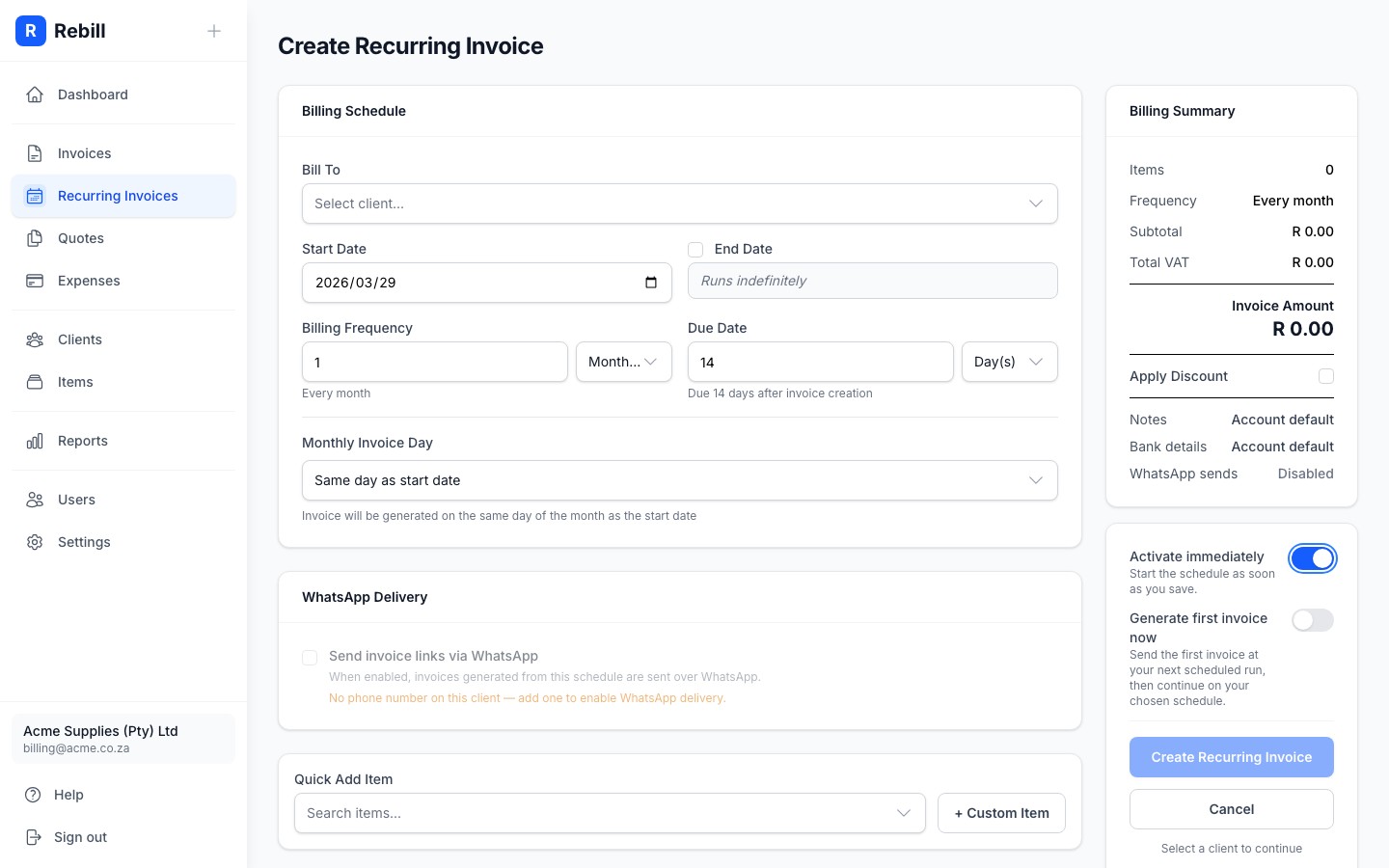
In the sidebar on the right, you have two options before saving:- Activate immediately:toggle this on to activate the schedule as soon as you save. Leave it off to save the invoice as inactive and activate it manually later from the detail page.
- Generate first invoice now:only appears when "Activate immediately" is on and your start date is today or earlier. Toggle this on to queue the first invoice for your next scheduled run.
- 7
Save the recurring invoice
Click "Create Recurring Invoice". The schedule will be created according to your activation settings.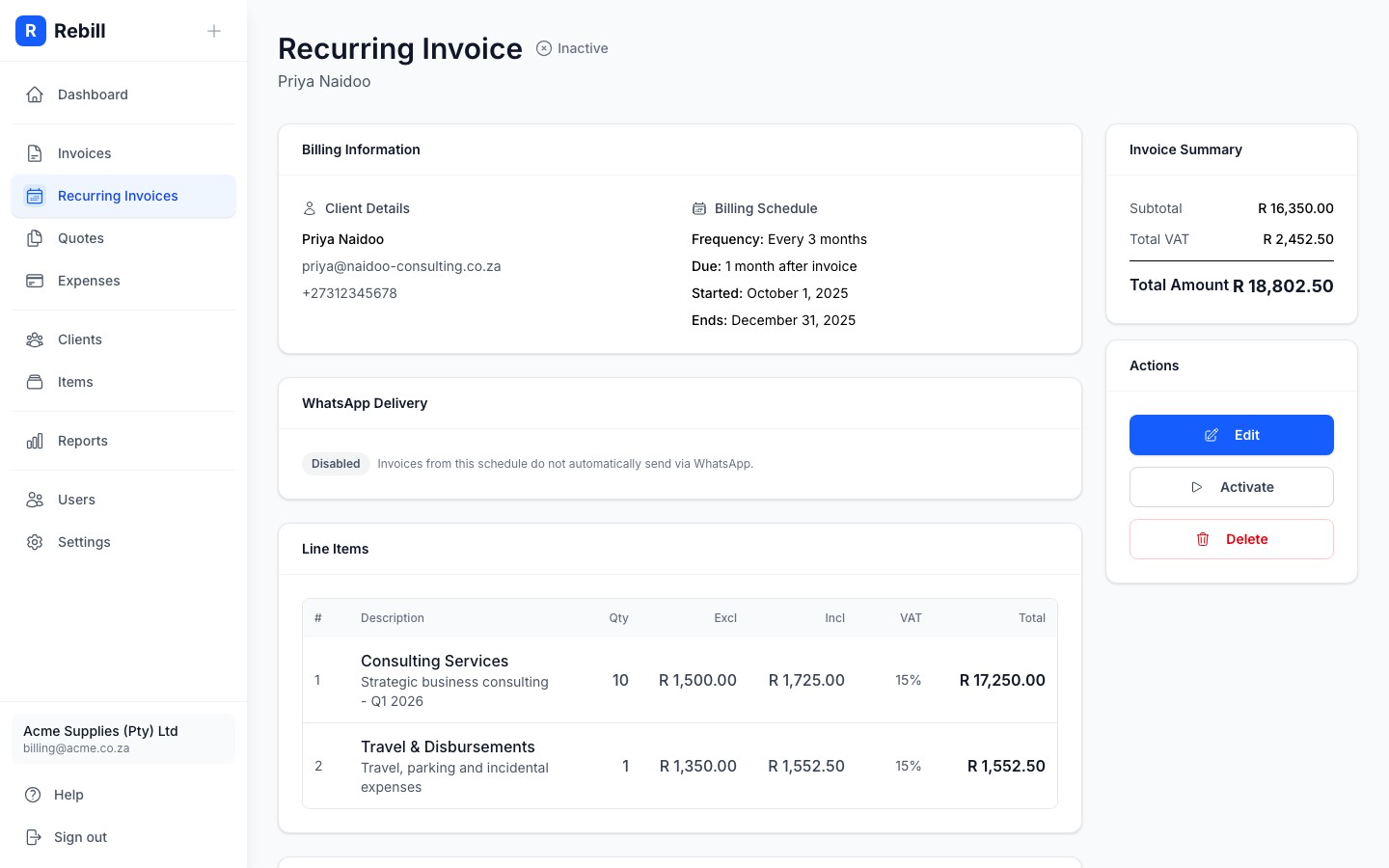
How "Generate first invoice now" works
When enabled, Rebill sets the first invoice date to your start date. The invoice will be generated the next time your scheduled run happens (the hour is configured in Settings > Automation > Timing). After that, invoices continue on your chosen schedule, anchored to the start date.Tip
Leave Activate immediately off if you want to set up a recurring invoice in advance. You can activate it any time from the detail page when billing should start.