
A recurring expense is a template that generates a new expense automatically on a schedule, so you never have to log the same bill by hand every month. Creating and editing templates is a premium feature; free accounts can still pause or delete existing ones.
Creating a recurring expense
- 1
Go to Expenses > Recurring
Click Expenses in the sidebar, then click the Recurring tab. Click "Add recurring expense" at the top right.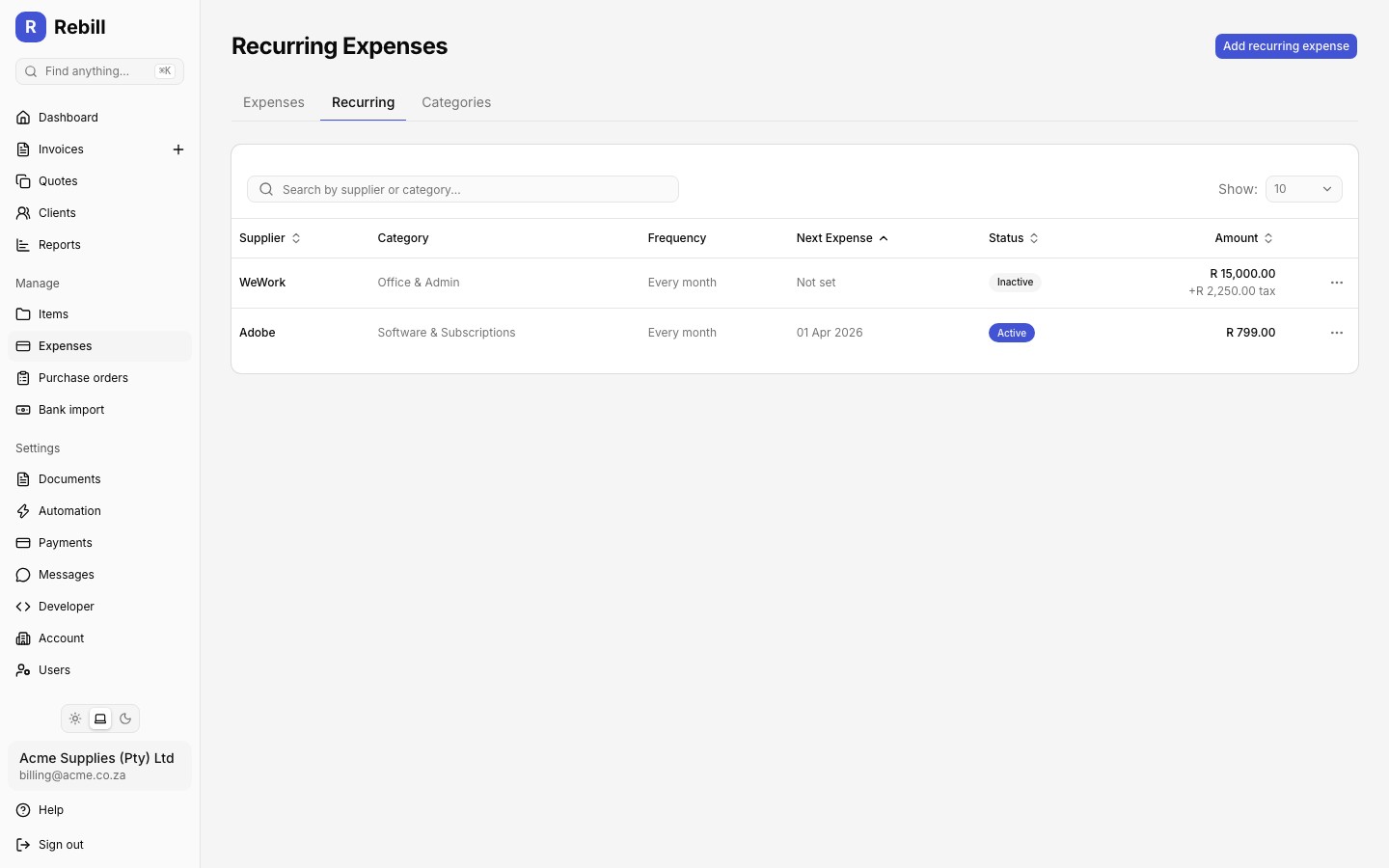
- 2
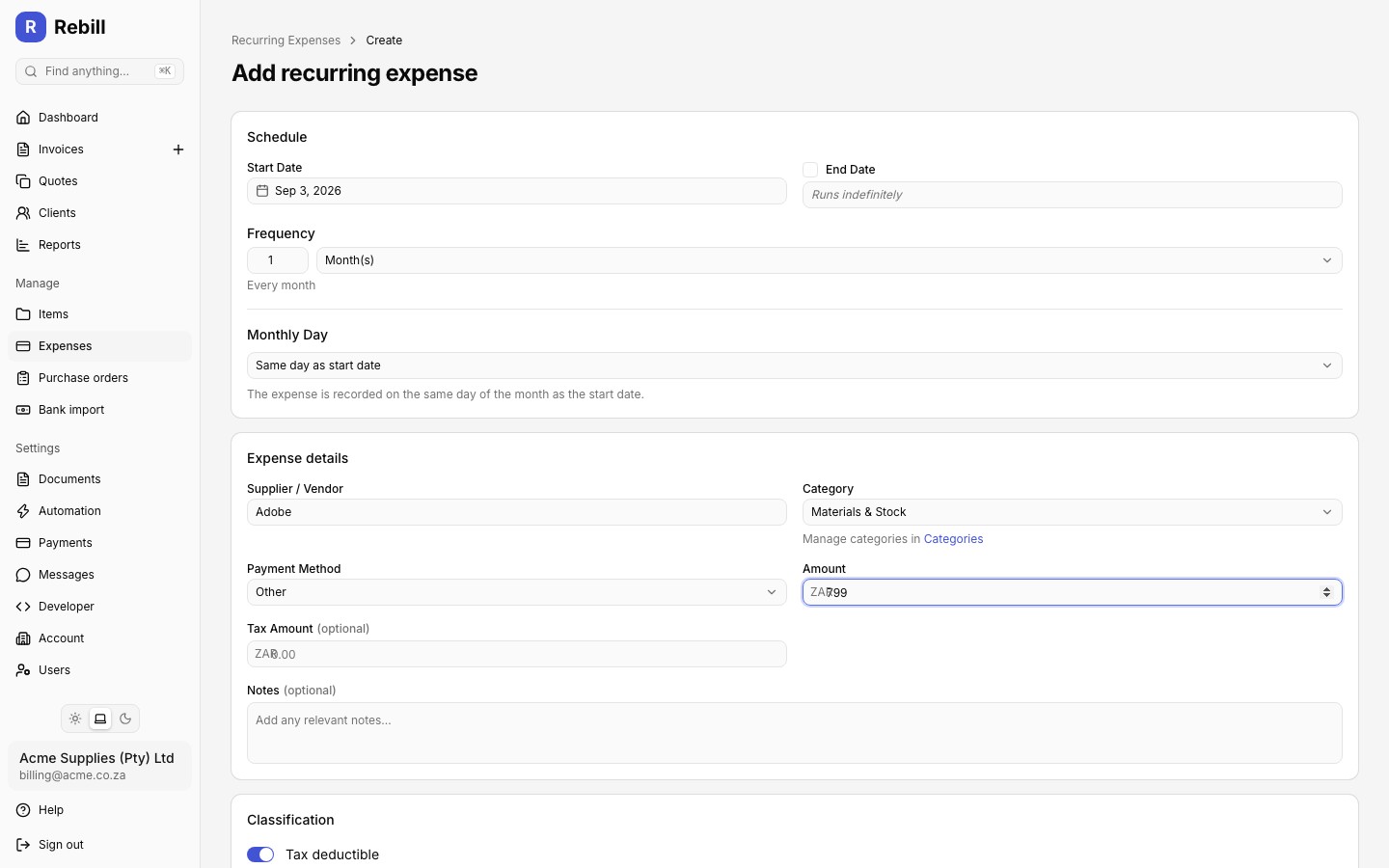
Set the schedule
- Start Date: when the schedule begins
- End Date: optional. Leave off and the schedule runs indefinitely
- Frequency: an amount and a unit, e.g. "1 Month(s)" or "2 Week(s)"
- Monthly Day: only shown for monthly schedules. Choose the same day as the start date, the 1st, the last day of the month, a specific day, or a number of days before month end
- 3
Fill in the expense details
Enter the same fields as a one-off expense: Supplier / Vendor, Category, Payment Method, Amount, an optional Tax Amount and Notes, and the Tax deductible and Billable to client toggles. These are copied onto every expense the template generates. - 4
Choose activation
Leave "Activate immediately" on to start the schedule right away, or switch it off to save the template paused and activate it later. If the start date is today or earlier, you can also toggle "Record the first expense straight away" to generate the first expense immediately instead of waiting for the next scheduled run. - 5
Save
Click "Save Recurring Expense".
Pausing and activating
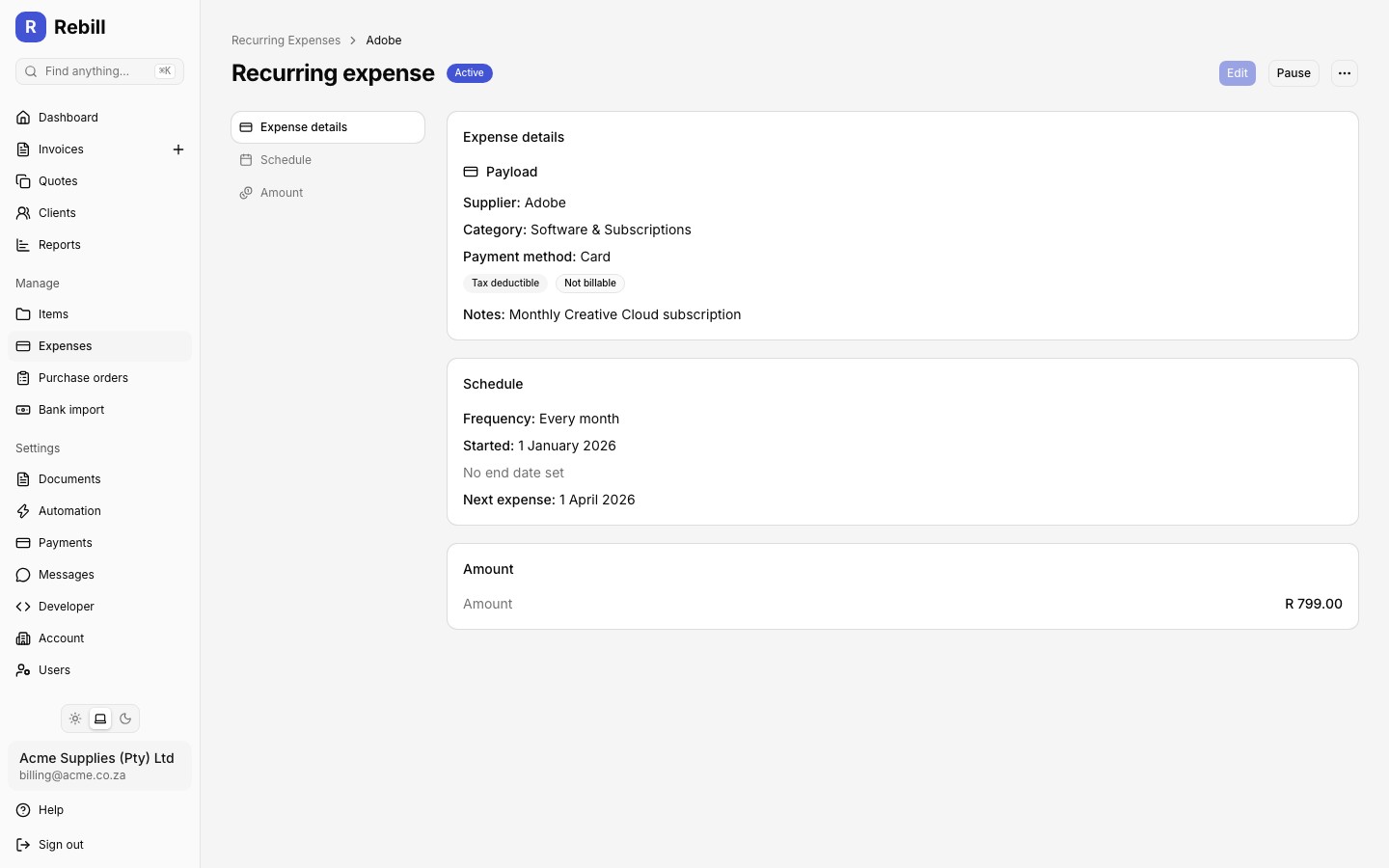
From a template's detail page, click the outline "Pause" or "Activate" button next to Edit to pause an active template or reactivate a paused one. A paused template stops generating expenses but is not deleted, and its schedule and details can only be edited while it is paused. To delete a template permanently, open the More actions menu (the ⋯ button top right) and click "Delete recurring expense".
Missed and skipped runs
If a template's due date passes while it is paused, or while your account is on the free plan, Rebill does not generate the expenses you missed once it resumes. It simply advances to the next scheduled date from wherever it is now. Recurring expenses never backfill missed periods.
Tip
An expense generated by a recurring template links back to it: in the expense list, look for the small repeat icon next to the supplier name.