Invoice scheduling lets you prepare an invoice now and have Rebill email it to your client automatically at a future date and time. This is useful for month-end billing, project milestones, or any time you want to bill at a specific moment without being at your desk.
Free on all plans
Invoice scheduling is available on both the Free and Premium plans. There is no limit on how many invoices you can schedule.Scheduling a new invoice
- 1
Create the invoice
Create your invoice as normal: select the client, set dates, and add your line items.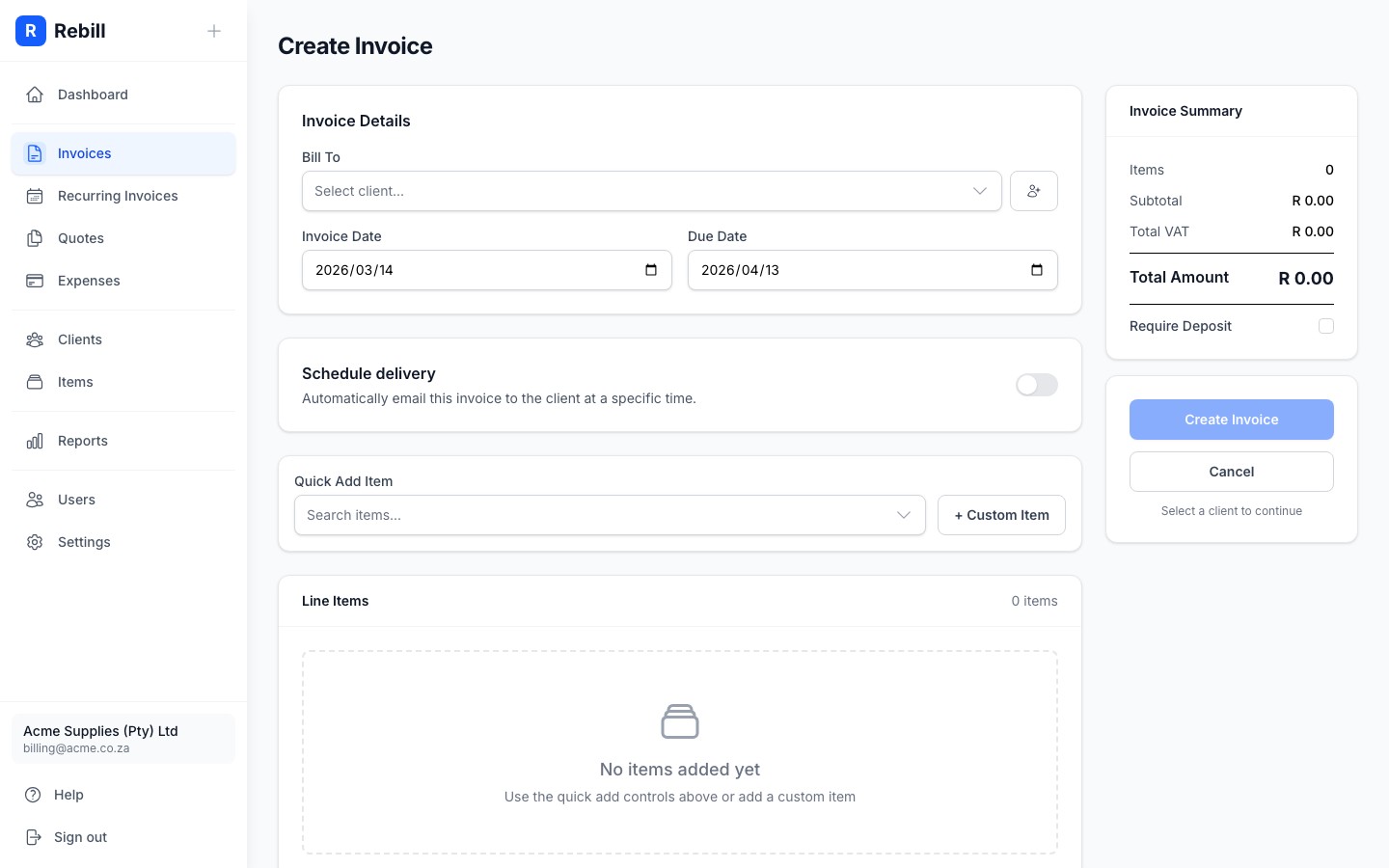
- 2
Toggle on "Schedule delivery"
Scroll to the Schedule delivery section on the invoice form and toggle it on.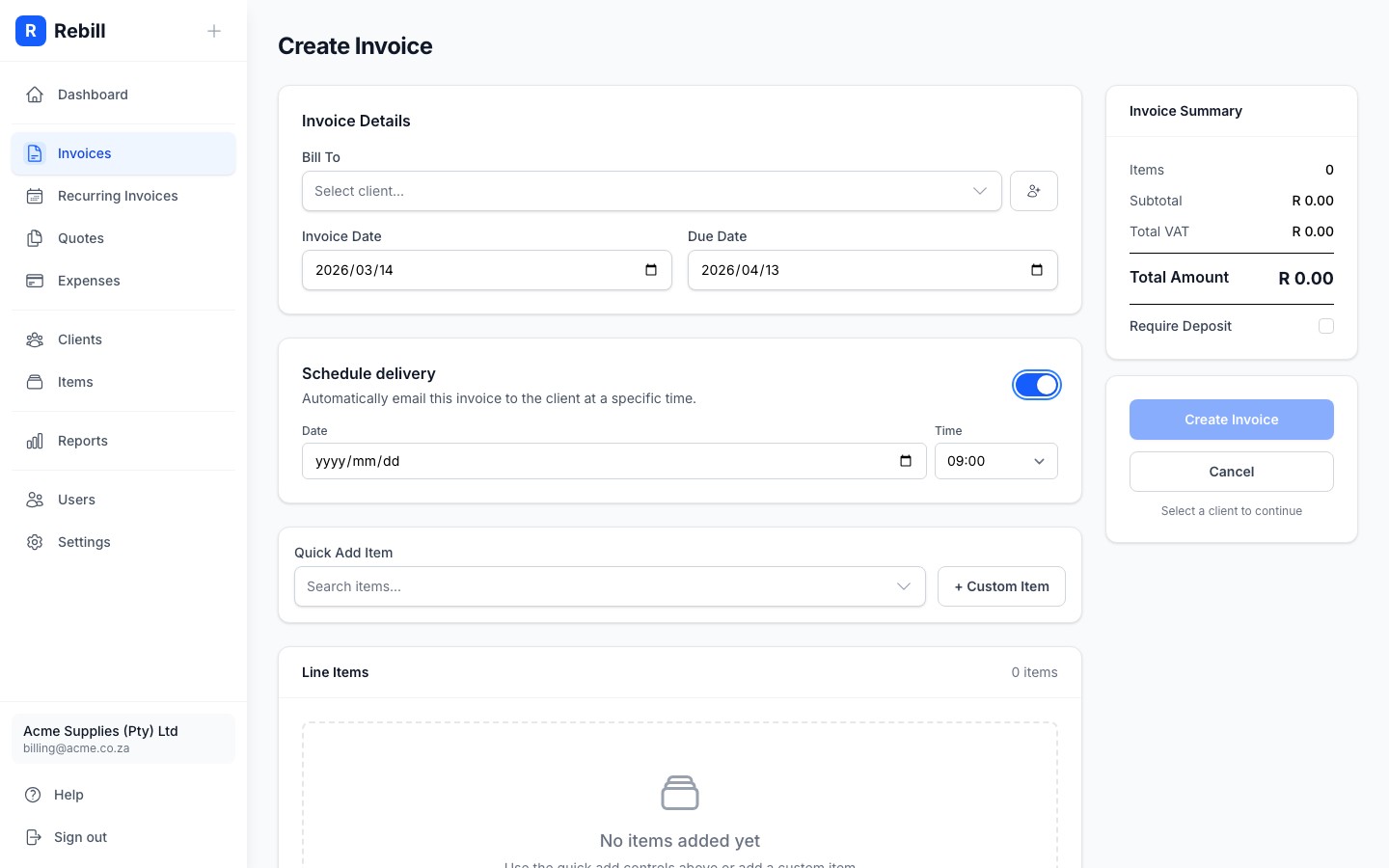
- 3
Pick the date and time
Choose the date and hour you want the invoice to be emailed. All times use your local timezone. - 4
Save the invoice
Click "Create Invoice". The invoice is saved with a purple Scheduled badge in your invoice list showing when it will go out.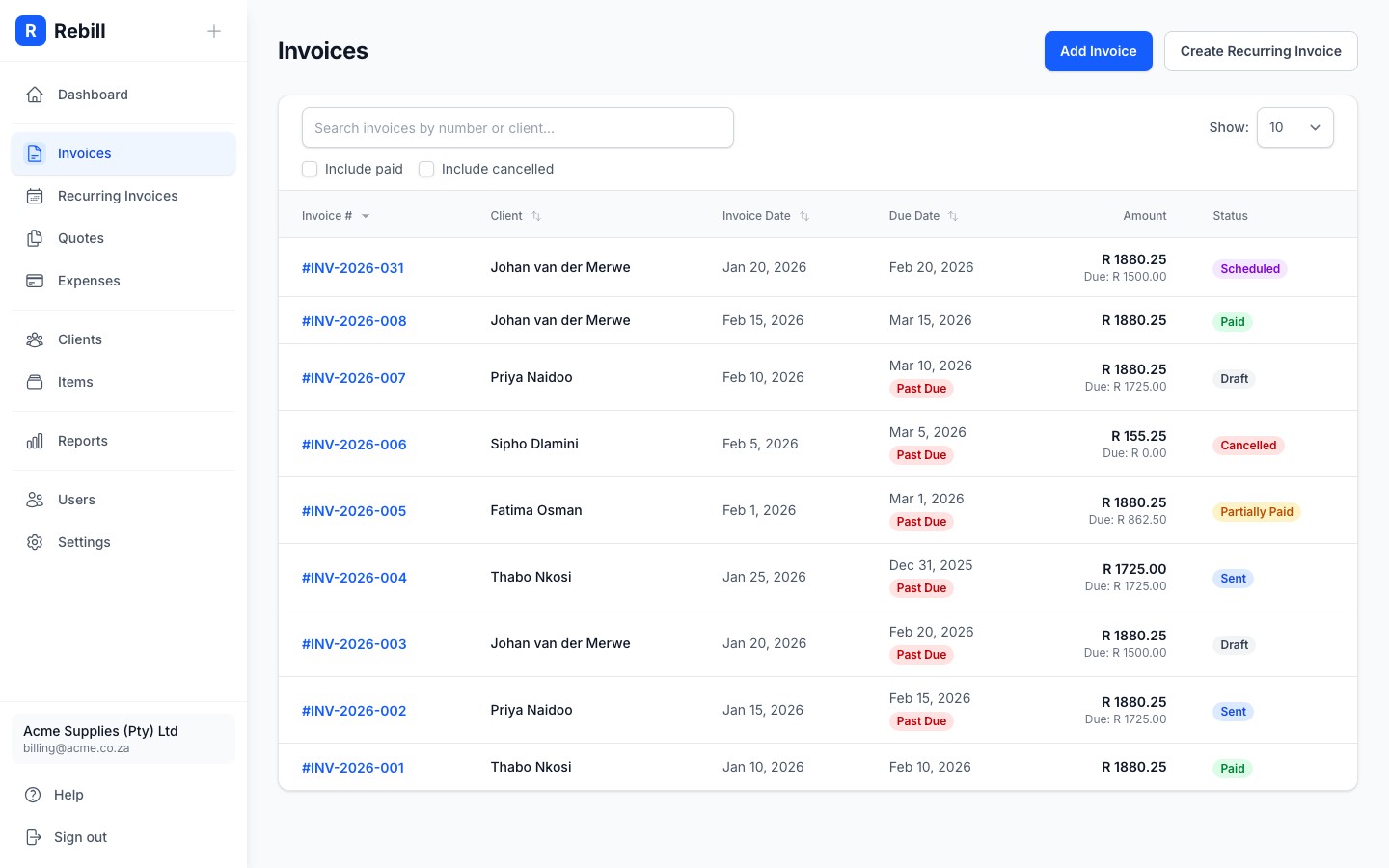
At the scheduled time, Rebill emails the invoice to your client automatically. The status changes from Scheduled to Sent. You do not need to be logged in.
Sending early or cancelling a schedule
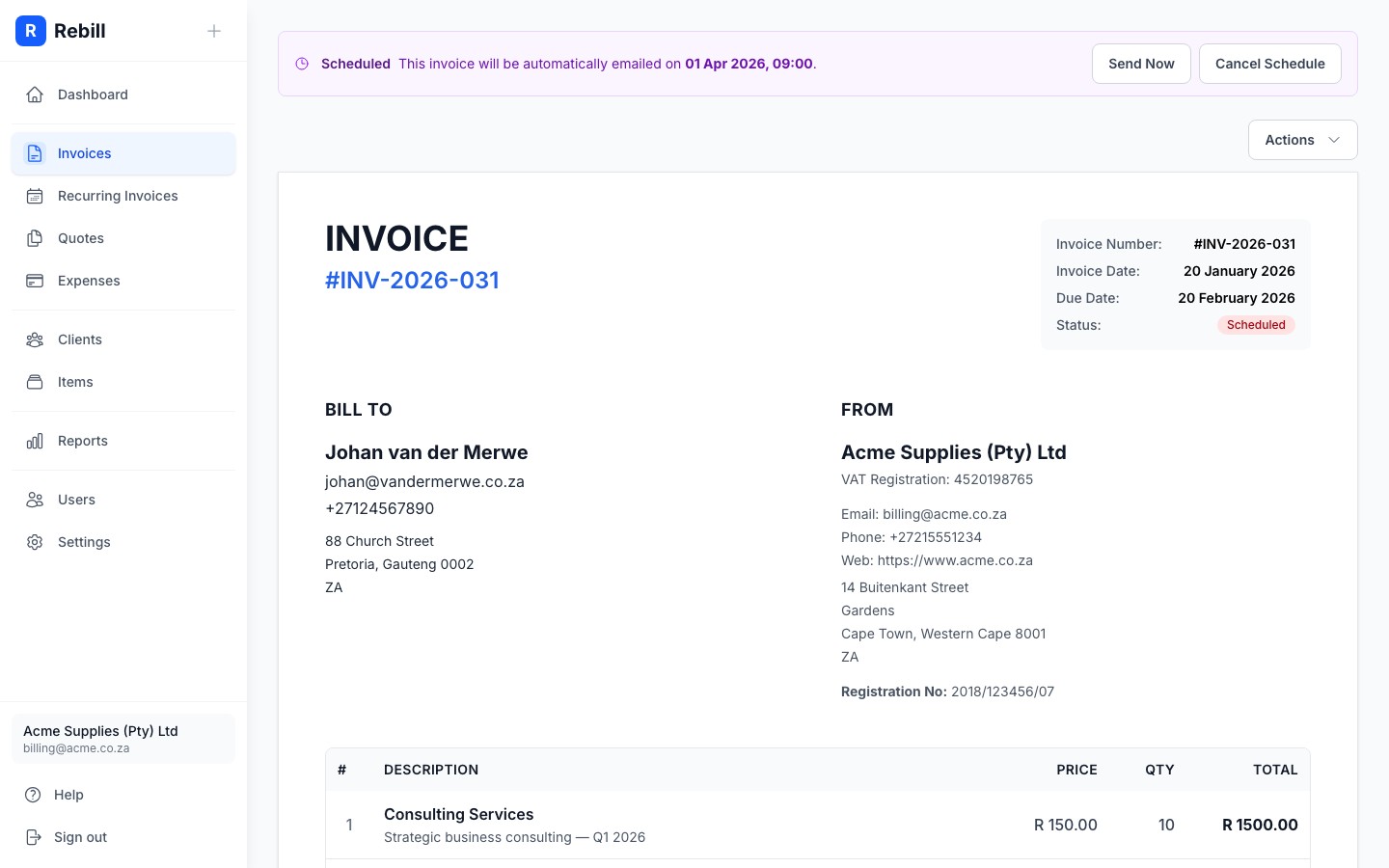
You can change your mind at any time before the scheduled send time. Open the scheduled invoice and you will see two options at the top of the page.
- 1
Send Now
Click "Send Now" to email the invoice to the client immediately, without waiting for the scheduled time. The invoice status changes to Sent.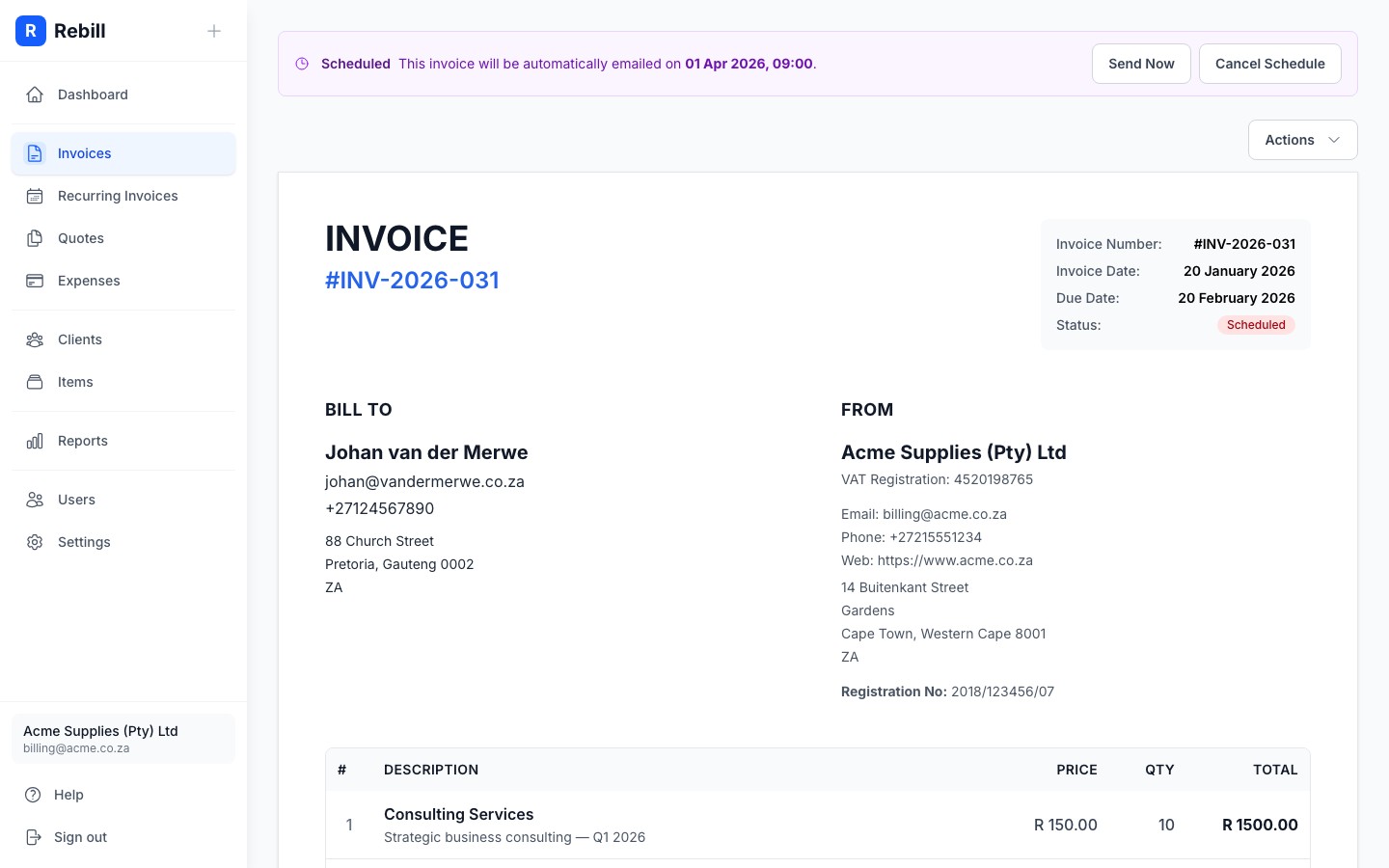
- 2
Cancel schedule
Click "Cancel schedule" to remove the schedule and revert the invoice to Draft. You can then edit it or schedule it again for a different time.
Scheduling vs recurring invoices
Scheduling is for once-off invoices you want delivered at a specific future time. Recurring invoices automatically generate and send new invoices on a repeating schedule (weekly, monthly, etc.). Both features work independently.